
Introduction
Thank you for choosing the LITEPRO 1080P HD Webcam. This device is designed to provide high-quality video and audio for your communication needs, including video conferencing, online learning, recording, and live streaming. Featuring a 1080P Full HD resolution, a built-in noise-reduction microphone, and a convenient privacy cover, this webcam offers a reliable and user-friendly experience. This manual will guide you through the setup, operation, and maintenance of your webcam.
What's in the Box
Upon unpacking your LITEPRO Webcam, please ensure all items are present:
- LITEPRO 1080P HD Webcam (with integrated USB cable)
- Privacy Cover (pre-installed or separate)
- User Manual (this document)
Product Overview
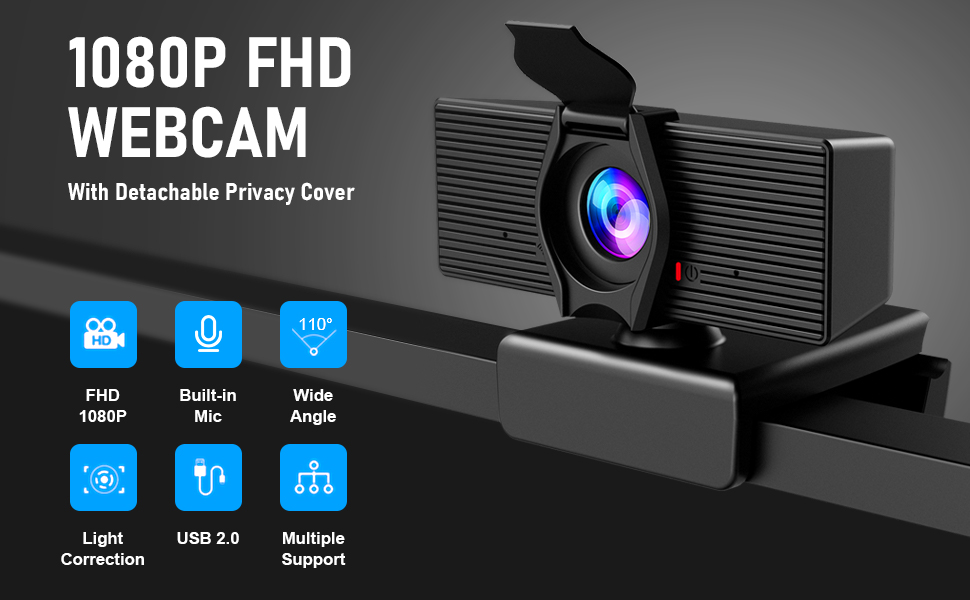
The LITEPRO C70 Webcam features a compact design with essential components for optimal performance.


Key Components:
- Full HD Lens: Captures 1080P video at 30 frames per second.
- Built-in Microphone: Features noise reduction for clear audio.
- Privacy Cover: Provides physical security and peace of mind.
- Flexible Mounting Clip: Allows secure attachment to monitors, laptops, or flat surfaces.
- USB Cable: For power and data connection to your computer.
Setup Instructions
The LITEPRO Webcam is designed for simple plug-and-play installation, requiring no additional drivers for most operating systems.
1. Mounting the Webcam:
- Open the flexible mounting clip on the base of the webcam.
- Place the webcam on top of your computer monitor, laptop screen, or a flat surface. Ensure the front lip of the clip rests securely on the front of your screen, and the rear part of the clip supports the back.
- Adjust the angle of the webcam and the clip to achieve a stable and desired viewing position. The webcam can rotate 360 degrees horizontally and adjust vertically.

2. Connecting to Your Computer:
- Locate an available USB port on your computer (desktop, laptop, or Smart TV).
- Plug the USB connector of the webcam into the USB port.
- Your operating system should automatically detect and install the necessary drivers. This process typically takes less than a minute.

3. Verifying Installation:
After connecting, you can verify the installation:
- Windows: Go to Device Manager > Imaging devices. You should see the webcam listed.
- Mac OS: Open System Information > USB. The webcam should appear under the USB Device Tree.
- Open any video application (e.g., Camera app, Zoom, Skype) and select the LITEPRO Webcam as your video and audio input device.
Video: LITEPRO Webcam Unboxing!
This video provides a visual guide to unboxing and initially setting up the LITEPRO Webcam.
Operating Instructions
Once installed, your LITEPRO Webcam is ready for use with various applications.
1. Using the Privacy Cover:
To ensure your privacy, slide the privacy cover over the lens when the webcam is not in use. Slide it back to expose the lens when you need to use the camera.
2. Software Compatibility:
The webcam is compatible with most video conferencing, recording, and streaming software, including:
- Zoom
- Skype
- Microsoft Teams
- Google Meet
- OBS Studio
- FaceTime
- YouTube
- Netflix (for compatible devices)
- XBox (for compatible devices)

3. Adjusting Settings:
Most video applications allow you to select the webcam and adjust its settings (e.g., resolution, brightness, contrast, microphone volume). Refer to your software's documentation for specific instructions.
4. Automatic Low Light Correction:
The webcam features automatic low light correction, which adjusts color and brightness to ensure you look your best even in dimly lit environments.
Video: A Really good quality web cam for your meetings
This video highlights the webcam's performance and suitability for professional meetings.
Maintenance
Proper care will ensure the longevity and optimal performance of your LITEPRO Webcam.
- Cleaning the Lens: Use a soft, lint-free cloth specifically designed for optics. Do not use harsh chemicals or abrasive materials.
- Cleaning the Body: Wipe the webcam body with a soft, damp cloth. Avoid getting moisture into any openings.
- Storage: When not in use for extended periods, store the webcam in a clean, dry place. Ensure the privacy cover is closed to protect the lens from dust and scratches.
- Avoid Extreme Conditions: Do not expose the webcam to extreme temperatures, humidity, or direct sunlight.
Troubleshooting
If you encounter issues with your LITEPRO Webcam, try the following solutions:
| Problem | Solution |
|---|---|
| Webcam not detected by computer. |
|
| No video or black screen in application. |
|
| No audio or poor audio quality. |
|
| Video quality is poor or grainy. |
|
Specifications
Detailed technical specifications for the LITEPRO C70 Webcam:
| Feature | Detail |
|---|---|
| Model Number | C70 |
| Video Capture Resolution | 1080p Full HD |
| Image Capture Speed | 30 fps |
| Photo Sensor Technology | CMOS |
| Photo Sensor Size | 1/2.7-inch |
| Lens Type | Wide Angle |
| Viewing Angle | 110 Degrees |
| Focus Type | Fixed Focus |
| Built-In Microphone | Yes, with Noise Reduction |
| Connectivity Technology | USB 2.0 |
| Operating System Compatibility | Windows 7/8/10, Mac OS, Smart TV, Android 5.0 or higher |
| Features | Auto Low Light Correction, Privacy Cover |
| Dimensions (approx.) | 95mm x 54mm x 83mm |
Warranty and Support
LITEPRO products are designed for reliability and performance. For specific warranty information, please refer to the warranty card included with your purchase or visit the official LITEPRO website. If you encounter any issues or have questions not covered in this manual, please contact LITEPRO customer support through the retailer where you purchased the product or via the contact information provided on the LITEPRO website.