
Angteela BH-M9
Angteela BH-M9 Bluetooth Headset User Manual
Model: BH-M9 | Brand: Angteela
Introduction
Thank you for choosing the Angteela BH-M9 Bluetooth Headset. This wireless headset is designed for crystal-clear conversations and comfortable all-day use, featuring advanced noise-canceling technology and multi-point connectivity. This manual provides detailed instructions to help you set up, operate, and maintain your headset for optimal performance.
Package Contents
- 1 x Angteela Wireless Mono Headset
- 1 x Micro-USB Charging Cable
- 1 x Charging Dock
- 1 x User Guide (this manual)
Product Overview
Familiarize yourself with the components and controls of your Angteela BH-M9 headset.

Figure 1: Angteela BH-M9 Headset with key components labeled, including LED Indicator, Volume buttons, Micro USB Charging Port, MFB (Multi Function Button), Microphone, and Charging Base Interface.
Setup
1. Charging the Headset
Before first use, fully charge your headset. A full charge takes approximately 2 hours and provides up to 15 hours of talk time.
- Using the Charging Dock: Place the headset onto the sleek magnetic charging base. Ensure the headset is properly seated for charging.
- Using the USB Cable Directly: Connect the Micro-USB charging cable to the headset's charging port and the other end to a USB power source (e.g., computer, wall adapter).
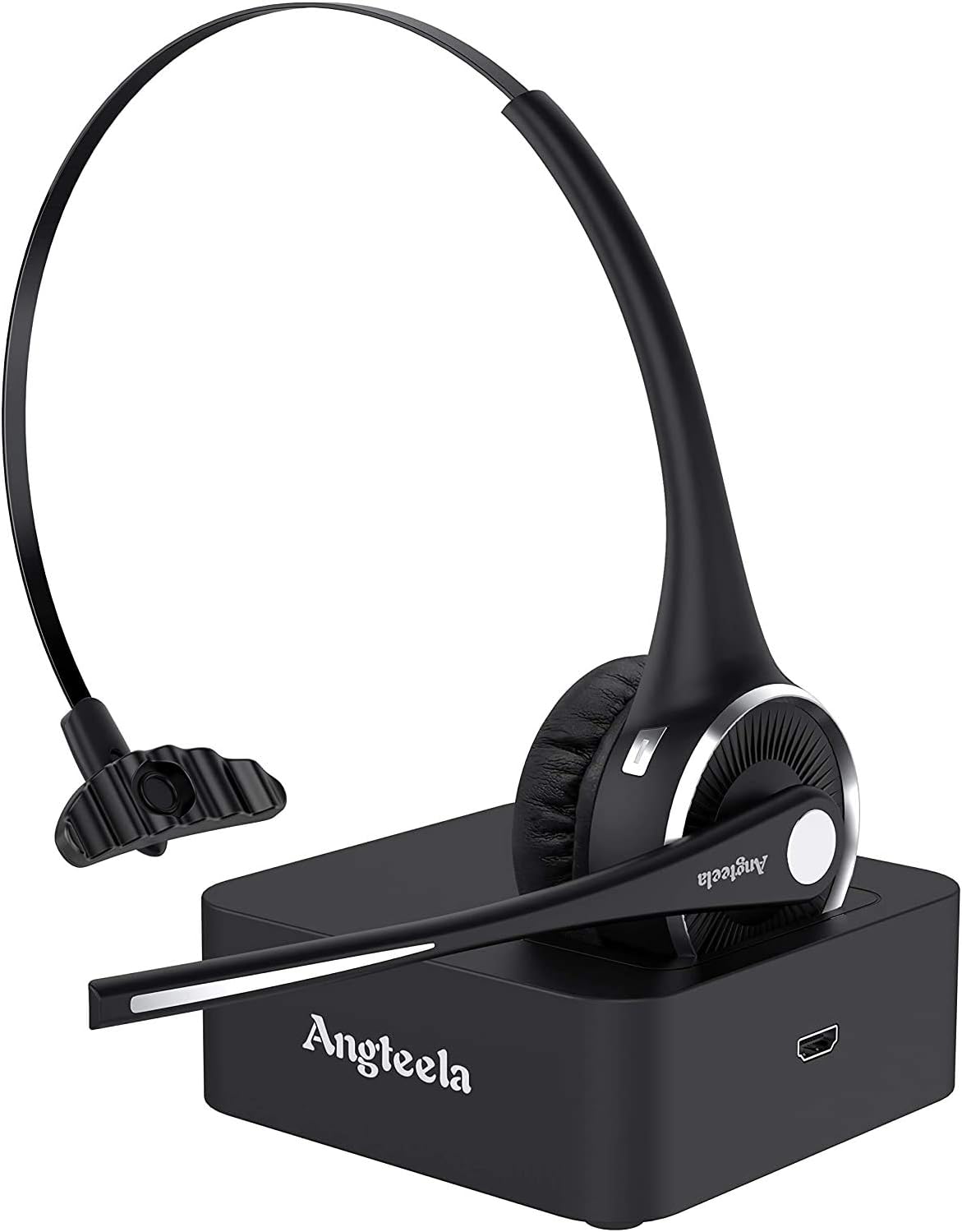
Figure 2: The Angteela BH-M9 headset resting on its magnetic charging base, ready for charging and storage.

Figure 3: Visual representation of the headset's battery performance, indicating 2 hours for a full charge and 15-17 hours of talk time.
2. Pairing with Your Device
The headset uses Bluetooth 5.0 for a stable wireless connection.
- Ensure the headset is charged and turned off.
- Press and hold the Multi-Function Button (MFB) for 5 to 8 seconds until the LED indicator flashes alternating blue and red. This indicates the headset is in pairing mode.
- On your device (e.g., smartphone, computer, tablet), enable Bluetooth and search for available devices.
- Select "BH-M9" from the list of found devices.
- Once connected, the LED indicator will flash blue slowly.
3. Multi-Point Connection
The Angteela BH-M9 supports simultaneous connection to two Bluetooth devices, allowing seamless switching between them.
- Pair the headset with the first device following the steps above.
- Disable Bluetooth on the first device. The headset will re-enter pairing mode (blue and red flashing LED).
- Pair the headset with the second device.
- Re-enable Bluetooth on the first device. The headset should automatically connect to both devices.

Figure 4: The headset demonstrating dual connectivity, simultaneously linked to a laptop for video conferencing and a smartphone for music.
Operating Instructions
Controls
The headset provides intuitive controls for managing calls and media.
- Power On/Off & Pairing: Press and hold the MFB.
- Answer/End Calls: Short press the MFB.
- Play/Pause Music: Short press the MFB.
- Adjust Volume: Use the '+' and '-' buttons on the headset.
- Mute Microphone: Press the '+' and '-' buttons simultaneously. This allows you to easily block sound from your side during a conversation.
- Activate Voice Assistant (Siri, etc.): One key press (refer to specific device instructions if needed).

Figure 5: A user demonstrating the ease of controlling calls and audio directly from the headset's intuitive buttons.
Microphone Usage and Noise Cancellation
The headset features an advanced noise-canceling microphone for clear communication.
- The 270° flexible microphone can be positioned for optimal voice capture and background noise reduction. Adjust it close to your mouth for best results.
- The noise-canceling technology isolates your voice from surrounding noise, ensuring crystal-clear conversations even in busy environments like offices or during travel.

Figure 6: A user experiencing crystal-clear wireless calls, emphasizing the effectiveness of the advanced noise-canceling microphone in a professional setting.
Comfort and Fit
Designed for extended wear, the BH-M9 headset prioritizes comfort.
- Weighing only 1.7oz, its balanced over-the-headset design minimizes pressure.
- The soft protein memory-foam padding on the earpad ensures a comfortable wearing experience for intensive all-day use.
- The stretchable headband allows you to adjust the fit to your head size.
- The rotatable microphone arm allows you to wear the headset on either your left or right ear.

Figure 7: Detailed view of the headset's comfort features, including soft memory protein earpad, retractable headband, and 270° rotatable microphone for ambidextrous use.
Maintenance
Proper care will extend the life of your headset.
- Keep the headset and charging base clean and dry. Use a soft, dry cloth for cleaning.
- Avoid exposing the headset to extreme temperatures, humidity, or corrosive substances.
- Store the headset on its charging dock when not in use to keep it charged and organized.
- Do not attempt to disassemble or modify the headset, as this will void the warranty.
Troubleshooting
If you encounter issues with your headset, refer to the following common solutions:
| Problem | Possible Cause | Solution |
|---|---|---|
| Headset won't turn on | Low battery | Charge the headset fully. |
| Cannot pair with device | Headset not in pairing mode; Device Bluetooth off; Too far from device | Ensure headset is in pairing mode (flashing blue/red LED). Turn on device Bluetooth. Move headset closer to device (within 33 feet/10 meters). |
| No audio or poor audio quality | Volume too low; Headset not selected as audio output; Interference | Increase headset and device volume. Check device's audio settings to ensure BH-M9 is selected. Move away from other wireless devices. |
| Microphone not working | Microphone muted; Incorrect microphone selected on device | Unmute the microphone by pressing '+' and '-' simultaneously. Check device's audio input settings. |
Specifications
| Feature | Detail |
|---|---|
| Model Name | BH-M9 Mono Bluetooth Headset |
| Connectivity Technology | Bluetooth 5.0, Wireless |
| Wireless Communication Technology | Bluetooth |
| Headphones Jack | USB |
| Item Weight | 1.7 ounces |
| Charging Time | 2 Hours |
| Battery Life | 15 Hours (Talk Time) |
| Bluetooth Range | 10 Meters (33 feet) |
| Noise Control | Active Noise Cancellation (Microphone) |
| Material | Faux Leather, Memory Foam |
| Compatible Devices | Cell Phone, Computer, Tablet, Laptop |
Warranty and Support
Your Angteela BH-M9 headset comes with a 3-year warranty.
For any questions, support, or warranty claims, please contact our customer service. We are always ready to provide friendly assistance.
You can also visit the official Angteela Store for more information and products: Angteela Store on Amazon
Related Documents - BH-M9
 |
EKVANBEL A6L Business Bluetooth Headset User Manual User manual for the EKVANBEL A6L Bluetooth Headset V5.3, detailing setup, operation, pairing, charging, specifications, and warranty information for this noise-canceling wireless earpiece. |
 |
N18 Bluetooth Headset Troubleshooting Guide This guide provides troubleshooting steps for common issues encountered with the N18 Bluetooth headset, including pairing problems, connection issues with the USB dongle, audio problems, charging issues, and sound quality. |
 |
EMEET GeniusCall HS80 User Manual User manual for the EMEET GeniusCall HS80 wireless headset, detailing setup, operation, and features. |
 |
SOUNDPEATS A7 Pro Bluetooth Headset User Manual User guide for the SOUNDPEATS A7 Pro Bluetooth headset, detailing pairing, charging, controls, Q&A, and compliance information. Learn to use your wireless headset effectively. |
 |
KlipXtreme VoxCom KCH-750 Wireless Monaural Headset User Guide Comprehensive guide for the KlipXtreme VoxCom KCH-750 wireless monoaural headset, detailing features, product overview, LED indicators, charging, operation, pairing, technical specifications, and compatibility for office and home use. |
 |
Wired Computer Headset CL721T - User Manual & Specifications Detailed user manual and specifications for the JabNecter CL721T wired computer headset, including setup, compatibility, and FCC statement. |
Ask a question about this manual
Ask about setup, troubleshooting, compatibility, parts, safety, or missing instructions. Manuals+ will review the question and use this page’s manual context to help answer it.