
JR D20
RUIZU M4 HiFi Musica Portable Mini Bluetooth MP3 Player User Manual
Model: D20 | Brand: JR
1. Introduction
Thank you for purchasing the JR RUIZU M4 Portable MP3 Player. This device is designed to provide a versatile and enjoyable multimedia experience, featuring music playback, video playback, FM radio, E-Book reading, picture browsing, recording, and a pedometer function. This manual will guide you through the setup, operation, and maintenance of your new device to ensure optimal performance and longevity.
Please read this manual thoroughly before using the device and keep it for future reference.
2. Package Contents
Verify that all items listed below are included in your package:
- 1 x JR RUIZU M4 MP3 Player
- 1 x Wired Earphone
- 1 x USB Cable
If any items are missing or damaged, please contact your retailer or JR customer support.
3. Product Overview
The JR RUIZU M4 is a compact and feature-rich portable media player. It boasts a 1.8-inch full touch screen for intuitive navigation and supports various media formats.
3.1 Key Features
- 1.8-inch Full Touch Screen for easy operation.
- Built-in 8GB memory, expandable via Micro SD card.
- Bluetooth V4.0 for wireless audio connectivity.
- Supports multiple functions: Music Play, E-Book, FM Radio, Video Play, Picture Browsing, Recording, and Pedometer.
- Compact and portable design.
3.2 Device Layout

Figure 1: Front view of the RUIZU M4 MP3 Player. The screen displays a music icon, current time (06:08 PM), and battery indicator. Navigation arrows are visible on either side of the main icon, with menu dots and a grid icon below.
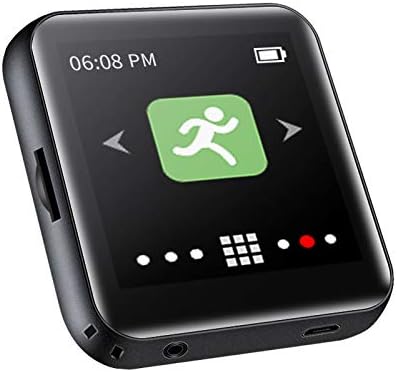
Figure 2: Angled view of the RUIZU M4 MP3 Player. The screen shows a pedometer icon. The left side of the device features a Micro SD card slot, while the bottom edge includes a 3.5mm headphone jack and a USB charging port.

Figure 3: Angled view of the RUIZU M4 MP3 Player. The screen displays a Bluetooth icon. The right side of the device features three physical buttons, likely for volume control and power/lock.
4. Setup
4.1 Charging the Device
Before first use, fully charge the MP3 player. Connect the supplied USB cable to the device's USB port and the other end to a computer's USB port or a compatible USB wall adapter (not included). The battery indicator on the screen will show charging status. A full charge typically takes 2-3 hours.
4.2 Powering On/Off
- To Power On: Press and hold the Power button (usually located on the side) for a few seconds until the screen lights up.
- To Power Off: Press and hold the Power button until a power-off prompt appears on the screen, then confirm.
4.3 Inserting a Micro SD Card (Optional)
The device supports expansion via Micro SD card for additional storage. Locate the Micro SD card slot on the side of the player. Gently insert the Micro SD card with the gold contacts facing down until it clicks into place. To remove, push the card in slightly until it springs out.
4.4 Connecting to a Computer
To transfer files (music, videos, pictures, e-books), connect the MP3 player to your computer using the supplied USB cable. The device will appear as a removable disk drive. You can then drag and drop files into the appropriate folders on the player.
5. Operating Instructions
5.1 Navigating the Interface
The RUIZU M4 features a full touch screen. Swipe left/right to navigate between main menu icons. Tap an icon to enter a function. Use the back arrow or swipe gestures (if supported) to return to the previous screen.
5.2 Music Playback
- Tap the "Music" icon on the main menu.
- Browse your music by Artist, Album, Songs, Playlists, etc.
- Tap a song to begin playback.
- Use on-screen controls for Play/Pause, Next/Previous track, Volume, and Repeat/Shuffle modes.
5.3 Bluetooth Connectivity
The device supports Bluetooth V4.0 for connecting to wireless headphones or speakers.
- Tap the "Bluetooth" icon on the main menu.
- Turn on Bluetooth. The player will scan for available devices.
- Select your desired Bluetooth device from the list to pair.
- Once paired, audio will be routed through the Bluetooth device.
5.4 FM Radio
To use the FM radio, ensure wired earphones are connected as they act as the antenna.
- Tap the "FM Radio" icon.
- Use the auto-scan function to find and save available stations.
- Manually tune or select from saved stations.
5.5 Other Functions
- Video Play: Supports AMV/AVI formats. Transfer compatible video files to the "Video" folder.
- E-Book: Supports text files. Transfer .TXT files to the "E-Book" folder.
- Picture Browsing: View images. Transfer image files to the "Picture" folder.
- Recording: Use the built-in microphone to record audio.
- Pedometer: Activate the pedometer function to track your steps.
6. Maintenance
- Cleaning: Use a soft, dry, lint-free cloth to clean the screen and body of the device. Do not use liquid cleaners or aerosols.
- Storage: Store the device in a cool, dry place away from direct sunlight, extreme temperatures, and humidity.
- Battery Care: To prolong battery life, avoid fully discharging the battery frequently. Charge the device regularly, even if not in use for extended periods.
- Avoid Impacts: Protect the device from drops and impacts, which can damage internal components or the screen.
7. Troubleshooting
7.1 Device Does Not Turn On
- Ensure the battery is charged. Connect the device to a power source and try again after a few minutes.
- If the device is completely unresponsive, try performing a hard reset (refer to the device's specific reset method, often a small reset pinhole or holding the power button for an extended period).
7.2 Cannot Transfer Files
- Ensure the USB cable is securely connected to both the device and the computer.
- Try a different USB port on your computer or a different USB cable.
- Verify that the device is recognized by your computer (e.g., appears as a removable disk).
7.3 No Sound from Earphones/Bluetooth
- Check the volume level on the device.
- Ensure earphones are fully plugged into the 3.5mm jack. Try another pair of earphones to rule out faulty earphones.
- For Bluetooth, ensure the device is properly paired and connected to your Bluetooth audio accessory. Try re-pairing.
7.4 Screen is Unresponsive
- Clean the screen with a soft, dry cloth to remove any dirt or smudges.
- Restart the device.
- Ensure your fingers are clean and dry when interacting with the touch screen.
8. Specifications
| Feature | Detail |
|---|---|
| Model | D20 (M4) |
| Screen Size | 1.8 inches (Full Touch Screen) |
| Internal Memory | 8GB |
| Expansion Card Support | Micro SD Card |
| Interface | USB 2.0 |
| Bluetooth Version | V4.0 |
| Music Playback Formats | MP3, WMA, WAV, APE, FLAC, DRM, ACELP |
| Video Playback Formats | AMV, AVI |
| Additional Features | E-Book, FM Radio, Picture Browsing, Recording, Pedometer |
| Product Dimensions | 0.47 x 1.61 x 2.01 inches (approx. 1.2 x 4.1 x 5.1 cm) |
| Item Weight | 7 ounces |
| Color | Black |
9. Warranty and Support
JR products are manufactured to high quality standards. For information regarding warranty coverage, technical support, or service inquiries, please refer to the warranty card included with your purchase or visit the official JR website. Please retain your proof of purchase for warranty claims.
For further assistance, please contact JR customer support through the contact information provided on their official website or your retailer's support channels.