
Introduction
The Audiopipe ADSP-Clean-4 is a 1-input, 4-output digital signal processor designed to enhance your audio system. It provides precise control over audio signals, allowing for detailed sound customization and optimization. This manual provides essential information for the proper installation, operation, and maintenance of your ADSP-Clean-4 unit.
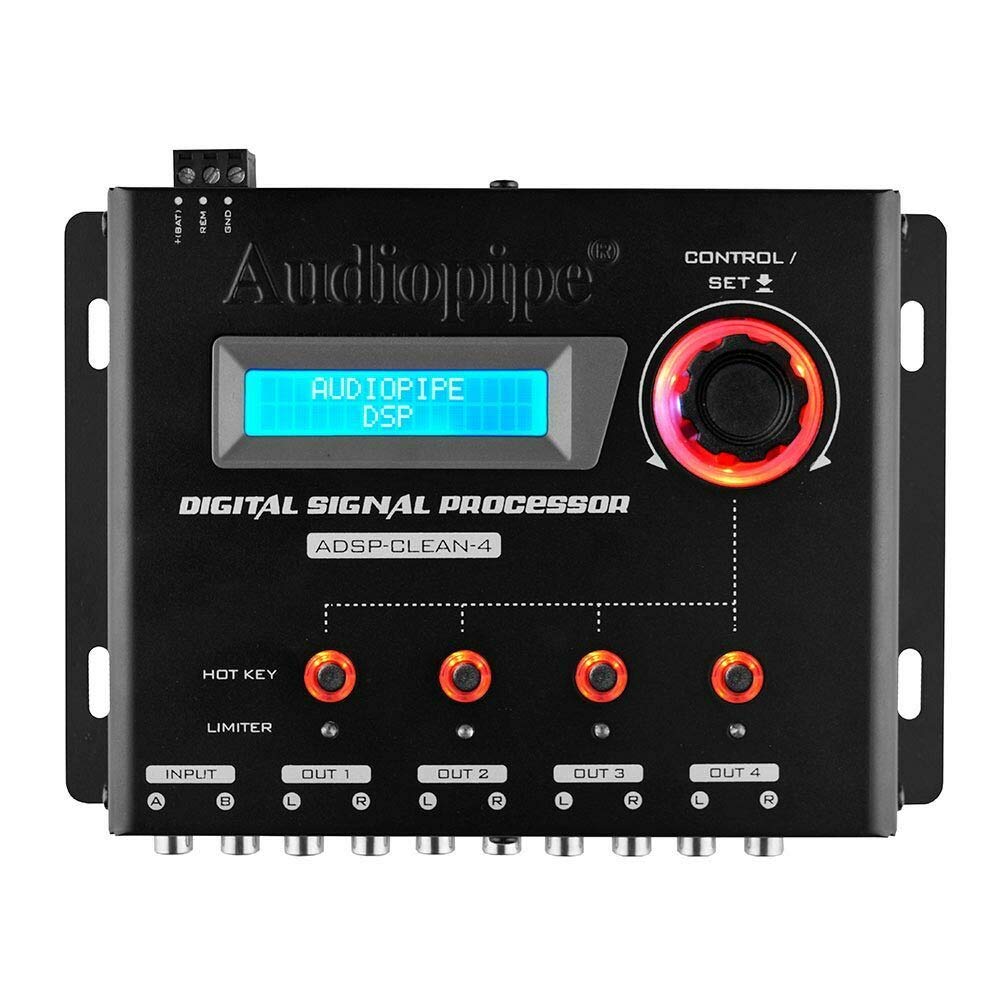
Figure 1: Front view of the Audiopipe ADSP-Clean-4 Digital Signal Processor, showing the display, control knob, and input/output connections.
Product Features
The ADSP-Clean-4 Digital Signal Processor offers a range of features for comprehensive audio control:
- Input and Output Processing: Advanced digital processing for both input and output audio signals.
- 12-Band Graphic Equalizer: Fine-tune audio frequencies with a 12-band graphic equalizer for optimal sound.
- Tone Generator: Built-in tone generator for system testing and calibration.
- Scroll Button for Simultaneous Adjustments: Easily navigate and adjust settings using the intuitive scroll button.
- 32-Bit Digital Audio Processor: High-resolution audio processing for superior sound quality.
- Precise Cutoff and Attenuation Frequencies: Define crossover points and attenuation levels with accuracy.
- Inputs: Features 1 RCA input.
- Outputs: Provides 4 RCA outputs.
Setup
Proper setup is crucial for optimal performance. Follow these general steps for connecting your ADSP-Clean-4:
- Mounting: Choose a secure, dry location for mounting the DSP, away from direct heat or moisture. Ensure adequate ventilation.
- Power Connection: Connect the DSP to a stable 12V DC power source. Ensure proper grounding to prevent noise.
- Input Connection: Connect your audio source (e.g., head unit, media player) to the single RCA input on the ADSP-Clean-4.
- Output Connection: Connect the 4 RCA outputs from the ADSP-Clean-4 to your amplifiers or other audio components. Ensure correct channel assignment (Left/Right for each output).
- Initial Power On: After all connections are secure, power on your audio system. The DSP display should illuminate.

Figure 2: Rear view of the Audiopipe ADSP-Clean-4, illustrating the RCA input and output connections.
Video 1: A 360-degree product video showcasing the Audiopipe ADSP-Clean-4 Digital Signal Processor, highlighting its design and various connection points.
Operating Instructions
The ADSP-Clean-4 provides intuitive controls for audio adjustment:
- Navigation: Use the main control knob (often labeled 'CONTROL / SET') to navigate through menus and select parameters displayed on the LED screen.
- Adjusting Settings: Once a parameter is selected, rotate the control knob to adjust its value. Press the knob to confirm the selection or move to the next setting.
- Graphic Equalizer: Access the 12-band graphic equalizer menu to adjust specific frequency bands. Increase or decrease gain for each band to shape the sound.
- Crossover Settings: Utilize the input and output processing features to set precise cutoff and attenuation frequencies for your speakers and subwoofers. This helps direct specific frequency ranges to the appropriate audio components.
- Tone Generator: Activate the tone generator for system diagnostics or to set levels accurately. Refer to the display for tone frequency and level information.
- Saving Settings: After making adjustments, ensure you save your settings to a user preset if available, to recall them later.
Maintenance
To ensure the longevity and optimal performance of your ADSP-Clean-4, follow these maintenance guidelines:
- Cleaning: Use a soft, dry cloth to clean the exterior of the unit. Avoid abrasive cleaners or solvents that could damage the finish or internal components.
- Ventilation: Ensure that the unit's ventilation openings are not obstructed. Proper airflow prevents overheating.
- Connection Checks: Periodically inspect all power and audio connections for tightness and corrosion. Loose connections can lead to signal loss or noise.
- Environmental Conditions: Avoid exposing the DSP to extreme temperatures, high humidity, or direct sunlight.
Troubleshooting
If you encounter issues with your ADSP-Clean-4, consult the table below for common problems and solutions:
| Problem | Possible Cause | Solution |
|---|---|---|
| No Power | Loose power connection; Blown fuse; Vehicle battery low. | Check power and ground wires; Inspect and replace fuse if necessary; Check vehicle battery voltage. |
| No Audio Output | Incorrect input/output connections; DSP muted; Source unit issue. | Verify all RCA connections; Check DSP mute settings; Ensure audio source is playing correctly. |
| Distorted Sound | Input signal too high; Output levels too high; Improper equalizer settings. | Reduce input gain from source; Lower DSP output levels; Adjust equalizer settings to remove distortion. |
| Noise/Humming | Poor grounding; RCA cables too close to power cables; Ground loop. | Ensure proper ground connection; Reroute RCA cables away from power wires; Install a ground loop isolator if needed. |
Specifications
Detailed technical specifications for the Audiopipe ADSP-Clean-4 Digital Signal Processor:
| Feature | Value |
|---|---|
| Item Model Number | ADSP-CLEAN-4 |
| Item Weight | 1.5 pounds |
| Product Dimensions | 8.75 x 7 x 2.5 inches |
| Display Type | LED |
| Inputs | 1 RCA |
| Outputs | 4 RCA |
| Input Impedance | 10K Ohms |
| Output Impedance | 47 Ohms |
| Signal to Noise Ratio | >90dB |
| Total Harmonic Distortion (THD) | <0.01% |
| Channel Separation | >80dB |
| Frequency Response | 10Hz - 22,000Hz |
| Date First Available | April 21, 2020 |
Warranty and Support
The Audiopipe ADSP-Clean-4 Digital Signal Processor is covered by a manufacturer's warranty. For specific details regarding warranty terms, duration, and claims, please refer to the warranty card included with your product or visit the official Audiopipe website. For technical support or further assistance, please contact Audiopipe customer service.
You can find more information and support resources on the Audiopipe Store on Amazon.


