Introduction
This manual provides detailed instructions for the installation, setup, operation, and maintenance of your Lock Connection Bluetooth and RFID Hidden Cabinet/Drawer Lock, model KR-S80LC-BT. This electronic lock system offers secure, hidden access to cabinets and drawers using both Bluetooth connectivity via a mobile application and RFID cards.
Package Contents
Verify that all the following components are included in your package:
- Lock Body (Main Unit)
- Lock Latch (Hook)
- Mounting Screws
- Manager Card(s)
- User Card(s)
- Battery Compartment Cover

Image: All components included in the Lock Connection KR-S80LC-BT package. This includes the main lock unit, the separate latch mechanism, a set of mounting screws, and several RFID cards (both manager and user cards).
Specifications
| Brand | Lock Connection |
| Model | KR-S80LC-BT |
| Lock Type | Electronic Hidden Lock (Bluetooth & RFID) |
| Material | Metal |
| RFID Frequency | 13.56 MHz |
| Connectivity | Bluetooth, RFID |
| Power Source | 4x AAA Batteries (not included) |
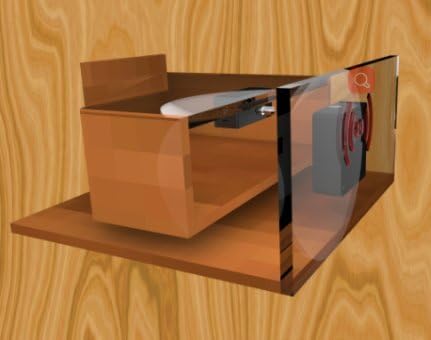
Image: Detailed dimensional drawings for both the main lock body and the hook (latch) component of the KR-S80LC-BT lock, with measurements provided in millimeters for precise installation planning.
Installation
The Lock Connection KR-S80LC-BT is designed for hidden installation inside cabinets or drawers. Ensure the mounting surface is clean and dry before installation.
General Installation Steps:
- Determine Placement: Identify the optimal location inside your cabinet or drawer for both the lock body and the latch. The lock body should be mounted on the cabinet frame or drawer interior, and the latch on the moving door/drawer front. Ensure proper alignment for the bolt to engage.
- Mark Mounting Points: Use the lock body and latch as templates to mark the screw holes on the chosen surfaces.
- Drill Pilot Holes: Carefully drill pilot holes at the marked points to prevent wood splitting.
- Mount Lock Body: Secure the main lock body using the provided screws.
- Mount Latch: Secure the latch component, ensuring it aligns correctly with the lock body when the cabinet/drawer is closed. Test the alignment before fully tightening.
- Install Batteries: Open the battery compartment on the lock body and insert 4 AAA batteries (not included), observing polarity. Close the compartment.
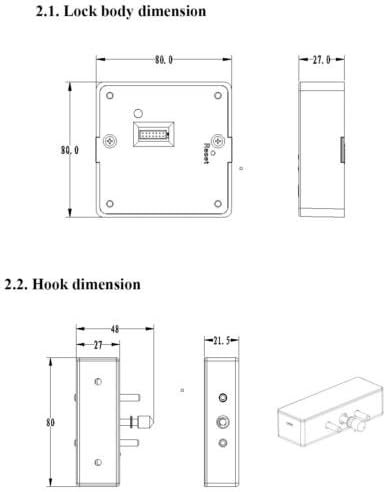
Image: Conceptual diagram showing how the hidden lock components are installed on an ordinary cabinet door. The main lock unit is affixed to the cabinet's interior side panel, and the latch is mounted on the inside of the cabinet door, allowing the lock to engage when the door is closed.
Setup and Programming
After physical installation, the lock needs to be programmed with RFID cards and can be connected to the mobile application.
1. Initial Setup (Manager Card):
- With batteries installed, the lock is in an unprogrammed state.
- Tap one of the provided Manager Cards against the designated sensing area on the outside of the cabinet/drawer (where the lock is hidden). The lock will emit a confirmation sound/light. This card is now the primary Manager Card.
- Important: The first card tapped becomes the Manager Card. Keep it secure.
2. Adding User Cards:
- Tap the Manager Card against the sensing area. The lock will indicate it's ready to add new cards (e.g., a long beep or specific light pattern).
- Within 5 seconds, tap a User Card against the sensing area. The lock will confirm successful addition.
- Repeat for additional User Cards. To exit programming mode, tap the Manager Card again or wait 5 seconds.
3. Using the Mobile App (Bluetooth):
- Download the official Lock Connection app from your device's app store (available for iOS and Android).
- Open the app and create an account.
- Follow the in-app instructions to pair your lock via Bluetooth. The first phone paired becomes the administrator for that lock.
- The administrator can then grant or revoke access to other users through the app.

Image: A user demonstrating the RFID unlocking process. An RFID card is held near the exterior surface of a cabinet, which conceals the Lock Connection hidden lock, allowing for contactless access.
Operation
Once programmed, operating the lock is straightforward:
- To Unlock with RFID: Tap a programmed Manager or User Card against the sensing area on the outside of the cabinet/drawer. The lock will retract its bolt with an audible click, allowing you to open the cabinet/drawer.
- To Lock with RFID: Close the cabinet/drawer. The lock will automatically extend its bolt after a few seconds, securing the cabinet/drawer. Some models may require a second tap of the card to manually lock. Refer to the lock's audible/visual cues.
- To Unlock with Bluetooth: Open the Lock Connection app on your paired smartphone. Select the lock and tap the unlock command. The lock will retract its bolt.
- To Lock with Bluetooth: Close the cabinet/drawer. The lock will automatically extend its bolt. You can also use the app to manually lock if the auto-lock feature is disabled or for immediate locking.
Maintenance
Proper maintenance ensures the longevity and reliable operation of your lock.
- Battery Replacement: The lock will provide a low battery warning (e.g., multiple beeps or a specific light pattern) when batteries are running low. Replace all 4 AAA batteries promptly. Use high-quality alkaline batteries for best performance.
- Cleaning: Clean the exterior sensing area of your cabinet/drawer with a soft, dry cloth. Avoid using abrasive cleaners or solvents, as they may damage the surface or interfere with RFID detection.
- Firmware Updates: Periodically check the Lock Connection mobile app for any available firmware updates for your lock. Updates can improve performance and add new features.
Troubleshooting
If you encounter issues with your Lock Connection lock, refer to the following common problems and solutions:
- Lock does not respond to RFID card:
- Ensure the card is programmed to the lock.
- Check battery levels and replace if necessary.
- Verify the card is being tapped against the correct sensing area.
- Ensure there are no thick metallic objects between the card and the lock that could interfere with the RFID signal.
- Lock does not connect via Bluetooth:
- Ensure Bluetooth is enabled on your smartphone.
- Make sure you are within close proximity to the lock.
- Check battery levels.
- Restart the Lock Connection app.
- If previously paired, try unpairing and re-pairing the lock in the app settings.
- Lock bolt does not retract/extend fully:
- Check for any obstructions preventing the bolt from moving freely.
- Verify that the lock body and latch are correctly aligned and securely mounted.
- Replace batteries if they are low.
- Lock emits continuous beeps:
- This typically indicates low battery. Replace batteries immediately.
Support
Lock Connection is committed to providing support for all its products. If you require further assistance or have questions not covered in this manual, please contact our support team.
Contact Information: Please refer to the Lock Connection website or your product packaging for the most current contact details, including phone numbers and email addresses.