
1. Introduction
The iDiskk 2TB External Hard Drive is an MFi Certified storage solution designed to seamlessly transfer and expand storage for your iPhone, iPad, Android mobile devices, MacBook, and Windows PC. With a built-in 5000mAh battery, it offers portable and reliable data backup, freeing up valuable space on your devices.
This manual provides detailed instructions on setting up, operating, maintaining, and troubleshooting your iDiskk External Hard Drive to ensure optimal performance and data security.

Figure 1: iDiskk 2TB External Hard Drive connected to multiple devices.
2. Product Overview
2.1. Components
- iDiskk 2TB External Hard Drive with built-in 5000mAh battery
- Integrated USB-A, USB-C, and Lightning cables
- Power adapter (if included)
2.2. Device Features
- Built-in Cables: Features integrated USB-A, USB-C, and Lightning cables for direct connection to a wide range of devices.
- Power Button: Activates and deactivates the device.
- Battery Indicator Lights: Displays the current battery level and charging status.
- Power Input: Port for charging the internal 5000mAh battery.

Figure 2: Detailed view of the iDiskk External Hard Drive's ports and indicators.
3. Setup
3.1. Initial Charge
Before first use, ensure the iDiskk External Hard Drive is fully charged. Connect the device to a power source using the provided power adapter or a compatible USB charger. The battery indicator lights will show the charging progress.
3.2. App Installation (for iOS/Android)
For iPhone and iPad users, download the dedicated “Photo Bank” application from the App Store. Android users may also find a compatible app or use standard file management. This app facilitates one-tap backup and advanced features.
3.3. Connecting to Devices
- iPhone/iPad: Use the integrated Lightning cable. Upon connection, you may be prompted to open or download the “Photo Bank” app.
- Android Mobile: Use the integrated USB-C cable.
- MacBook/Windows PC: Use the integrated USB-A or USB-C cable. The device will appear as an external drive, allowing for intuitive drag-and-drop file management without software installation.

Figure 3: Connecting the iDiskk to various devices for data transfer.
4. Operating Instructions
4.1. One-Tap Photo/Video Backup
With the “Photo Bank” app (for iOS/Android), you can initiate a one-tap automatic backup of your device’s photo and video albums. Future backups will intelligently save only newly added files, preventing duplicates and optimizing storage use.
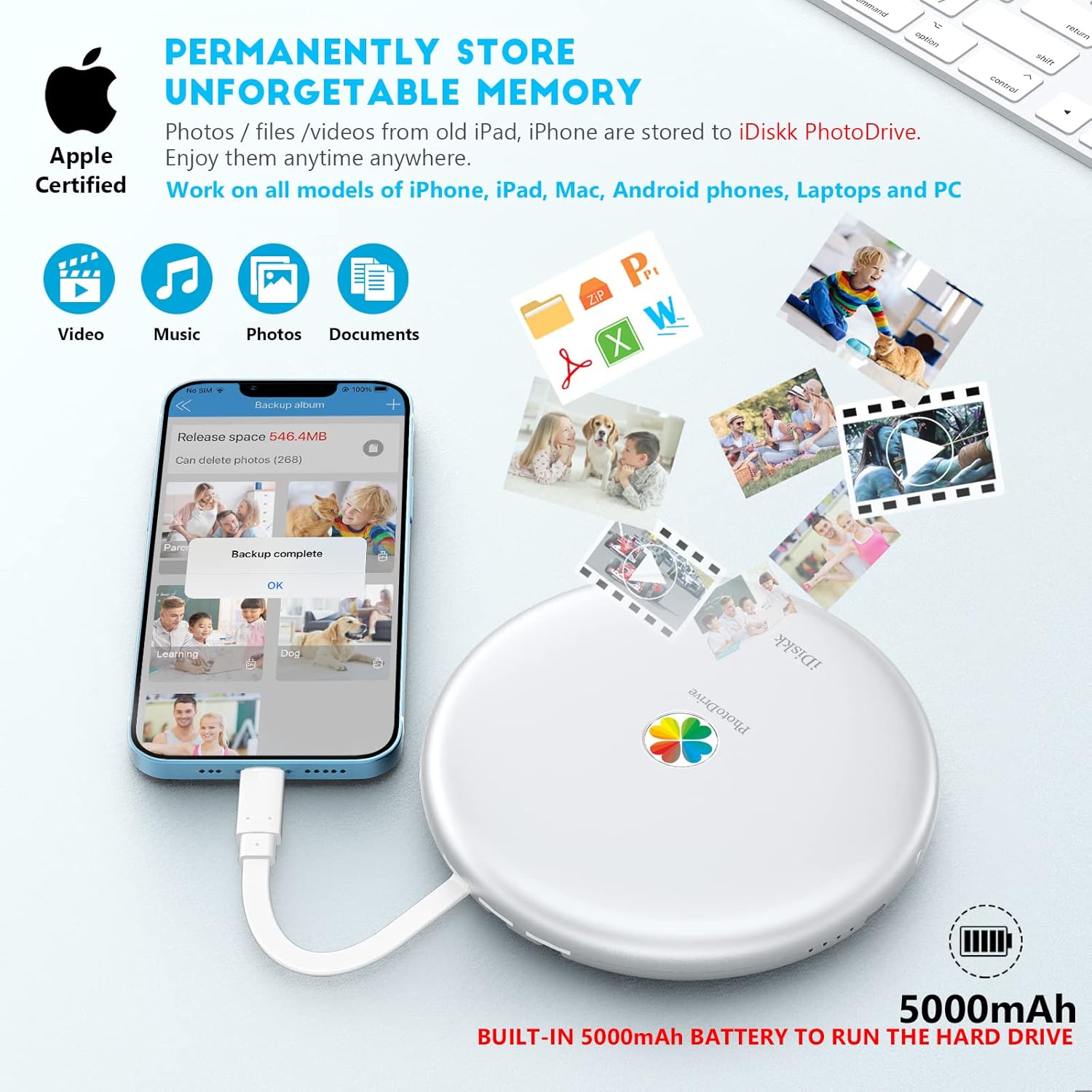
Figure 4: One-tap backup feature within the Photo Bank app.
4.2. In-App Camera Function
The “Photo Bank” app includes an in-app camera feature. Photos and videos captured using this function will be automatically stored directly onto the iDiskk External Hard Drive, bypassing your device's internal storage.
4.3. Data Encryption
For enhanced privacy, the iDiskk External Hard Drive supports data encryption. You can set a password to protect all or selected files stored on the drive. Encrypted files will be invisible when the drive is connected to a computer, safeguarding your personal data.
4.4. Plug & Play Media Playback
The iDiskk Portable Hard Drive offers simple plug-and-play operation. You can directly view movies, photos, and play music from the hard drive on your iPhone or iPad without needing to transfer files to your device first. This is ideal for travel and on-the-go entertainment.

Figure 5: Plug & Play functionality for instant media access.

Figure 6: Enjoying media directly from the PhotoDrive while traveling.

Figure 7: The compact design makes the iDiskk easy to carry.
5. Maintenance
To ensure the longevity and optimal performance of your iDiskk External Hard Drive, follow these maintenance guidelines:
- Keep the device clean and free from dust and debris. Use a soft, dry cloth for cleaning.
- Avoid exposing the device to extreme temperatures, direct sunlight, or high humidity.
- Do not drop or subject the device to strong impacts, as this can damage the internal mechanical hard disk.
- Always safely eject the drive from your computer or mobile device before disconnecting to prevent data corruption.
6. Troubleshooting
If you encounter issues with your iDiskk External Hard Drive, refer to the following common troubleshooting steps:
- Device Not Recognized: Ensure the cables are securely connected to both the iDiskk and your device. Try a different USB port or restart your device. For iOS/Android, ensure the “Photo Bank” app has necessary permissions.
- Slow Transfer Speeds: Ensure you are using the integrated cables. Large file transfers may naturally take longer. Close other applications that might be consuming system resources.
- Backup Issues: Verify that the iDiskk has sufficient free space. Check app settings for automatic backup and ensure permissions are granted.
- Device Not Powering On: Ensure the device is fully charged. Connect it to a power source and check the battery indicator lights.
If problems persist, consult the iDiskk support website or contact customer service for further assistance.
7. Specifications
| Feature | Specification |
|---|---|
| Hard Drive Capacity | 2 TB Mechanical Hard Disk |
| Brand | iDiskk |
| Model Number | PD2501-US |
| Hardware Platform | iPhone, Mac, PC |
| Item Weight | 6.9 ounces |
| Product Dimensions | 5.71 x 5.71 x 0.93 inches |
| Color | White |
| Hard Drive Interface | USB-C |
| Batteries | 1 Lithium Ion batteries required (included) |
| Connectivity Technology | USB |
| Special Feature | Portable |
| Hard Disk Form Factor | 2.5 Inches |
| Compatible Devices | Laptop, Macbook, Smartphone, iPad, iPhone |
| Installation Type | External Hard Drive |
| What's in the Box | External hard drive, built-in battery, backup App |
8. Warranty and Support
The iDiskk External Hard Drive comes with a standard manufacturer's warranty. For detailed warranty information, product registration, or technical support, please refer to the official iDiskk website or contact their customer service department. Keep your purchase receipt for warranty claims.