
Introduction
This manual provides comprehensive instructions for the installation, operation, and maintenance of the AXIS P1447-LE Network Camera. Please read this manual thoroughly before using the product to ensure proper functionality and safety.
The AXIS P1447-LE Network Camera is designed for surveillance applications, offering excellent image quality at 5-megapixel resolution and a 16:9 aspect ratio.
Product Overview
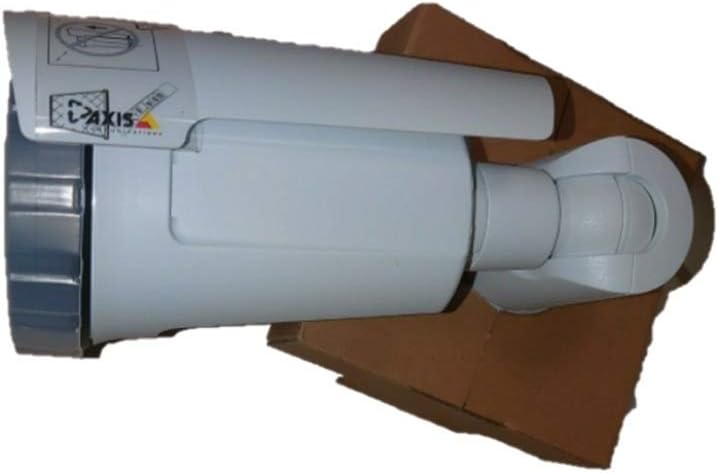
Figure 1: The AXIS P1447-LE Network Camera, a white bullet-style camera with a sun shield, shown resting on a brown cardboard box. The camera features the AXIS logo on its side.
The AXIS P1447-LE is a robust network camera built for reliable outdoor surveillance. Key features include:
- 5 MP resolution for detailed video capture.
- 16:9 format for wide-angle viewing.
- Low light technology (Night Color) for improved performance in challenging lighting conditions.
- Outdoor suitability with IP54 international protection rating.
- Wired connectivity and ONVIF compatibility.
Setup and Installation
1. Unpacking
Carefully remove all components from the packaging. Verify that all items listed in the packing list are present. Retain the original packaging for future transport or storage.
2. Mounting the Camera
The AXIS P1447-LE supports ceiling mount installation. Choose a stable mounting surface that can support the camera's weight and provide an optimal field of view.
- Drill pilot holes according to the mounting template (if provided).
- Secure the mounting bracket to the surface using appropriate screws and anchors.
- Attach the camera body to the mounting bracket, ensuring it is firmly locked in place.
3. Power and Network Connection
Connect the camera to a power source (AC/DC) and to your network via an Ethernet cable. The camera supports wired connectivity and ONVIF protocol for integration with network video recorders (NVRs) or video management systems (VMS).
- Ensure the power supply meets the camera's specifications.
- Use a reliable Ethernet cable for stable network connection.
Operating Instructions
1. Initial Access and Configuration
Upon first power-up, the camera will acquire an IP address from your network's DHCP server. Use the AXIS IP Utility or your VMS to discover the camera on the network.
- Access the camera's web interface using its IP address in a web browser.
- Log in with the default credentials (refer to the camera's packaging or quick start guide for default username and password). It is highly recommended to change the default password immediately for security.
- Configure network settings, video resolution (up to 5 MP), frame rate (30 fps), and image quality settings.
2. Video Surveillance and Recording
The camera is primarily used for surveillance. It supports motion-only alert types and can be integrated with various surveillance platforms.
- Set up motion detection zones and sensitivity within the camera's web interface or your VMS.
- Configure recording schedules and storage locations (e.g., NVR, NAS, or cloud storage).
- Utilize the optical zoom feature for detailed viewing of specific areas.
3. Remote Control and Monitoring
The camera can be controlled and monitored remotely. It is compatible with Amazon Alexa for certain control functions, and general remote control is available via its web interface or integrated VMS.
Maintenance
Regular maintenance ensures optimal performance and longevity of your AXIS P1447-LE Network Camera.
- Lens Cleaning: Periodically clean the camera lens with a soft, lint-free cloth. For stubborn dirt, use a mild lens cleaning solution. Avoid abrasive materials that could scratch the lens.
- Housing Inspection: Inspect the camera housing and mounting bracket for any signs of damage, corrosion, or loose connections. Tighten screws as needed.
- Firmware Updates: Check the manufacturer's website regularly for firmware updates. Keeping the firmware updated can improve performance, add new features, and address security vulnerabilities.
- Environmental Checks: Ensure the camera's operating environment remains within specified temperature and humidity ranges. Clear any obstructions that might block the camera's view or ventilation.
Troubleshooting
This section provides solutions to common issues you might encounter with your network camera.
| Problem | Possible Cause | Solution |
|---|---|---|
| No video feed |
|
|
| Poor image quality |
|
|
| Cannot access web interface |
|
|
Specifications
| Feature | Detail |
|---|---|
| Model | P1447-LE (01054-001) |
| Brand | ADI (AXIS) |
| Video Capture Resolution | 5 MP |
| Frame Rate | 30 fps |
| Connectivity Technology | Wired |
| Connectivity Protocol | ONVIF |
| Power Source | AC/DC |
| Mounting Type | Ceiling Mount |
| Indoor/Outdoor Usage | Outdoor |
| International Protection Rating | IP54 |
| Low Light Technology | Night Color |
| Alert Type | Motion Only |
| Control Method | Remote, Amazon Alexa |
| Form Factor | Bullet |
| UPC | 753359771953 |
Warranty and Support
For warranty information and technical support, please refer to the official ADI (AXIS) website or contact their customer service directly. Keep your purchase receipt as proof of purchase.
Note: Specific warranty terms and support channels may vary by region.


