1. Introduction
The Jabra Elite 45h are on-ear wireless headphones designed for superior sound quality and extended battery life. They feature advanced 40mm speakers, a compact and foldable design, and enhanced 2-microphone call technology for clear conversations. The Jabra Sound+ App allows for personalized audio experiences through customizable equalizers and the MySound feature.

Figure 1: Jabra Elite 45h On-Ear Wireless Headphones.
2. What's in the Box
Upon unboxing your Jabra Elite 45h headphones, you should find the following items:
- Jabra Elite 45h Headset
- USB-C Charging Cable
- Carrying Pouch
- Warranty and Warning Leaflets
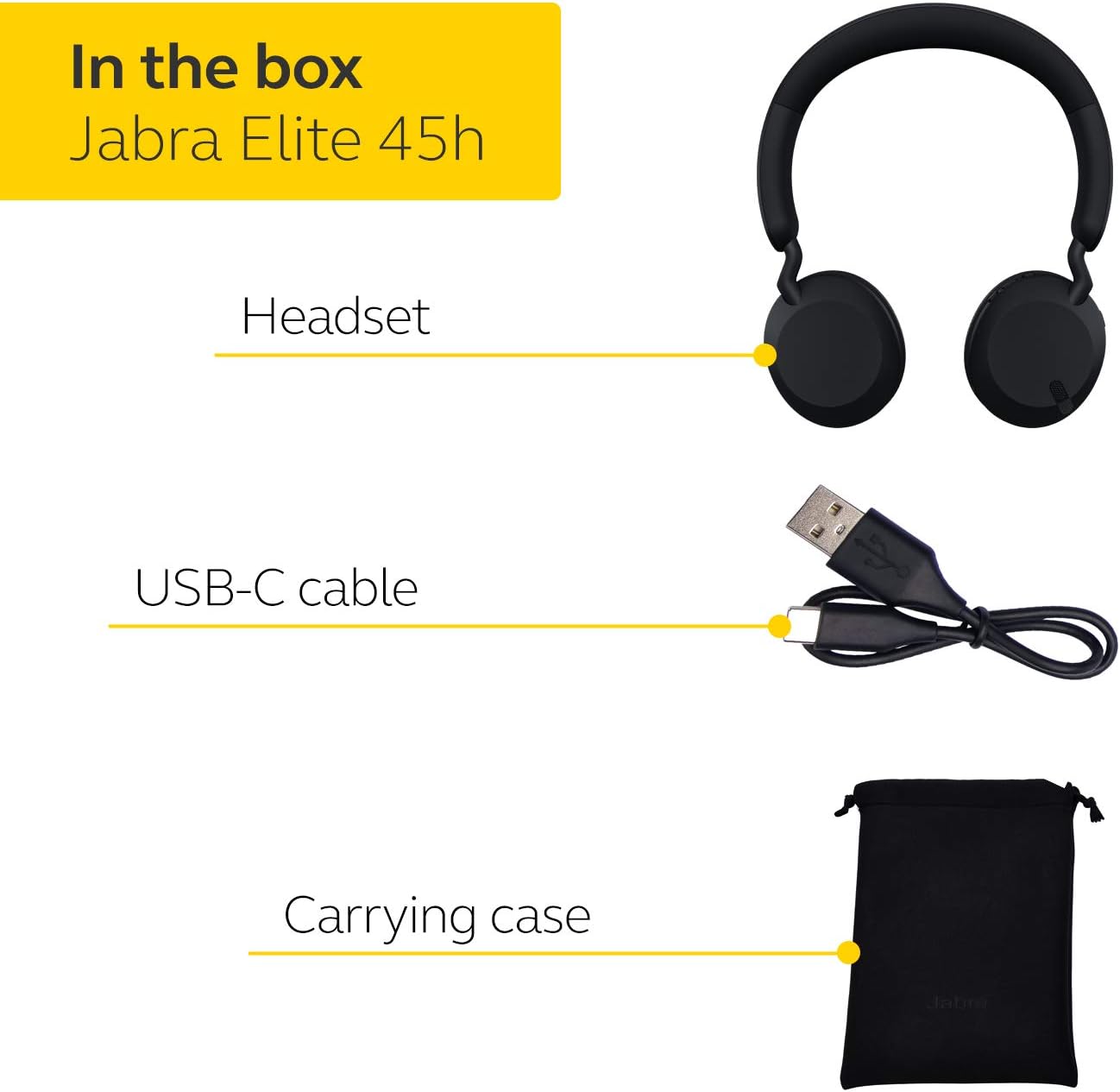
Figure 2: Included items with your Jabra Elite 45h headphones.
3. Setup and Pairing
3.1 Initial Pairing
- Slide and hold the On/Off switch on your Jabra Elite 45h headphones until the LED flashes blue. This indicates pairing mode.
- On your mobile device, go to the Bluetooth settings menu.
- Ensure Bluetooth is turned on.
- Select "Jabra Elite 45h" from the list of available devices.
- If prompted for a PIN code, enter 0000.
- You will hear an announcement in the headphones confirming successful connection.
Video 1: Instructions on how to pair and connect your Jabra Elite 45h headphones.
3.2 Jabra Sound+ App
For optimal performance and customization, download the Jabra Sound+ App for your smartphone. This app allows you to:
- Customize music profiles using MySound.
- Adjust the equalizer settings.
- Update product firmware.
- Access voice assistant settings.

Figure 3: Personalize your audio experience with the Jabra Sound+ App.
4. Operating Your Headphones
4.1 MySound Feature
MySound is a feature within the Jabra Sound+ App that tailors the audio to your individual hearing profile. To set up MySound:
- Open the Jabra Sound+ App and ensure your headphones are connected.
- Tap on the headset icon to access the MySound hearing test.
- Follow the on-screen instructions, which will guide you to find a quiet place and ensure proper headset fit.
- Enter your personal details, including gender and date of birth, as these may influence your hearing profile.
- Put on the headphones and listen carefully. Tap the screen whenever you hear a tone during the test. The test will be performed for each ear.
- Once completed, your personalized MySound hearing profile will be generated, optimizing your audio experience.
Video 2: Detailed guide on how to set up and use the MySound feature for personalized audio.

Figure 4: MySound feature tailors audio to your unique hearing profile.
4.2 Voice Assistant
The Jabra Elite 45h headphones allow for quick access to your smartphone's voice assistant (Alexa, Siri, Google Assistant) with a single touch. Refer to the Jabra Sound+ App for specific settings and customization options for your preferred voice assistant.
5. Battery and Charging
The Jabra Elite 45h offers up to 50 hours of battery life on a single charge. It also supports fast charging, providing up to 10 hours of battery life with just 15 minutes of charging.
- To charge, connect the supplied USB-C cable to the charging port on the headphones and to a power source.
- The LED indicator will show charging status.

Figure 5: Enjoy extended listening with up to 50 hours of battery life and fast charging capabilities.
6. Maintenance and Care
To ensure the longevity and optimal performance of your Jabra Elite 45h headphones, follow these care instructions:
- Cleaning: Use a soft, dry cloth to clean the ear cushions and headband. Avoid using harsh chemicals or abrasive materials.
- Storage: When not in use, store the headphones in the provided carrying pouch to protect them from dust and scratches. The compact, foldable design makes them easy to store.
- Temperature: Avoid exposing the headphones to extreme temperatures (hot or cold) or direct sunlight for prolonged periods.
- Moisture: Keep the headphones dry. While designed for daily use, they are not waterproof.
7. Troubleshooting
| Problem | Solution |
|---|---|
| Headphones do not turn on | Ensure the headphones are charged. Connect them to a power source using the USB-C cable. |
| Cannot pair with device | Ensure the headphones are in pairing mode (blue LED flashing). Turn off and on Bluetooth on your device. Try restarting both devices. |
| No sound or poor sound quality | Check the volume levels on both the headphones and your connected device. Ensure the headphones are properly connected. Try adjusting settings in the Jabra Sound+ App. |
| Microphone not working | Ensure the headphones are selected as the audio input device on your computer or smartphone. Check for any mute functions. |
| Intermittent connection | Ensure your device is within the Bluetooth range (typically 10 meters/33 feet). Avoid obstacles that may interfere with the signal. |
7.1 Factory Reset
If you experience persistent issues, a factory reset may resolve them. Refer to the Jabra Sound+ App or Jabra's official support website for specific instructions on how to perform a factory reset for your Elite 45h headphones.
8. Specifications
| Feature | Detail |
|---|---|
| Model Name | Elite 45h |
| Connectivity Technology | Bluetooth, Wireless |
| Wireless Communication | Bluetooth |
| Battery Life | Up to 50 hours |
| Audio Driver Type | Dynamic Driver (40mm speakers) |
| Microphone Technology | 2-microphone call technology |
| Control Type | Voice Control, App Control |
| Ear Placement | On Ear |
| Form Factor | On Ear |
| Weight | 13.1 Ounces (approx. 371 grams) |
| Color | Copper Black |
| Item Model Number | 100-91800002-02 |
| UPC | 615822013284 |
9. Warranty and Support
Your Jabra Elite 45h headphones come with a manufacturer's warranty. Please refer to the included Warranty and Warning leaflets for detailed information regarding warranty coverage, terms, and conditions.
For further support, product registration, or to download the latest version of the Jabra Sound+ App, please visit the official Jabra support website or contact Jabra customer service.
Online Support: www.jabra.com/support


