
1. Product Overview
The JOYEAUTO Wireless Carplay Decoder is a retrofit kit designed to integrate Apple CarPlay, Android Auto, Mirrorlink, and reverse camera functionality into select Infiniti vehicles equipped with an 8-inch dual screen. This system allows for seamless smartphone integration, enhancing navigation, communication, and entertainment capabilities while retaining the original vehicle's display and controls.

Figure 1: JOYEAUTO Wireless Carplay Decoder integrated into an Infiniti vehicle's dual screen system.
2. Package Contents
Before beginning installation, please verify that all components are present in your package:

Figure 2: Included components of the JOYEAUTO Wireless Carplay Decoder kit.
- Main Decoder Unit
- WiFi Antenna
- USB Cable
- Sub-PCB Board
- LVDS OUT Cable
- Microphone
- AUX Cable
- Power Cable 1
- Power Cable 2
3. Installation Guide
Installation of the JOYEAUTO Wireless Carplay Decoder requires careful disassembly and reassembly of vehicle interior components. It is recommended that this process be performed by a qualified professional. Refer to the detailed installation video and diagram below for guidance.
Video 1: Comprehensive installation guide for the Wireless Carplay Retrofit Kit in an Infiniti Q50.
Installation Steps Overview:
- Disassemble Dashboard and Head Unit: Carefully remove the necessary dashboard panels and the vehicle's head unit.
- Remove Side Plates: Detach the side plates from the center console.
- Remove AT Change Lever: Disconnect and remove the automatic transmission change lever.
- Remove Cup Holder: Take out the cup holder assembly.
- Remove AT Panel: Detach the AT panel surrounding the gear shift.
- Remove Console and Screen: Carefully remove the main console and screen unit from the dashboard.
- Open Screen (Head Unit): Disassemble the original screen unit to access its internal components.
- Insert Switch Board: Integrate the provided Sub-PCB board into the original screen unit.
- Connect Screen Cable: Securely connect the LVDS OUT cable to the screen.
- Restore Original Cables: Reconnect all original cables to the head unit.
- Connect with JoyeAuto Box: Connect the main decoder unit to the vehicle's wiring harness using the provided power cables and other necessary connections.
- Put CarPlay Box In: Securely place the CarPlay decoder box in a suitable location within the dashboard.
- Connect USB Cable: Connect the USB cable for wired CarPlay/Android Auto functionality.
- Connect External Mic: Plug in the external microphone for voice controls.
- Restore Console: Reinstall the console and screen unit.
- Settle Screen: Secure the screen in its original position.
- Final Check: Power on the vehicle and verify all functionalities.
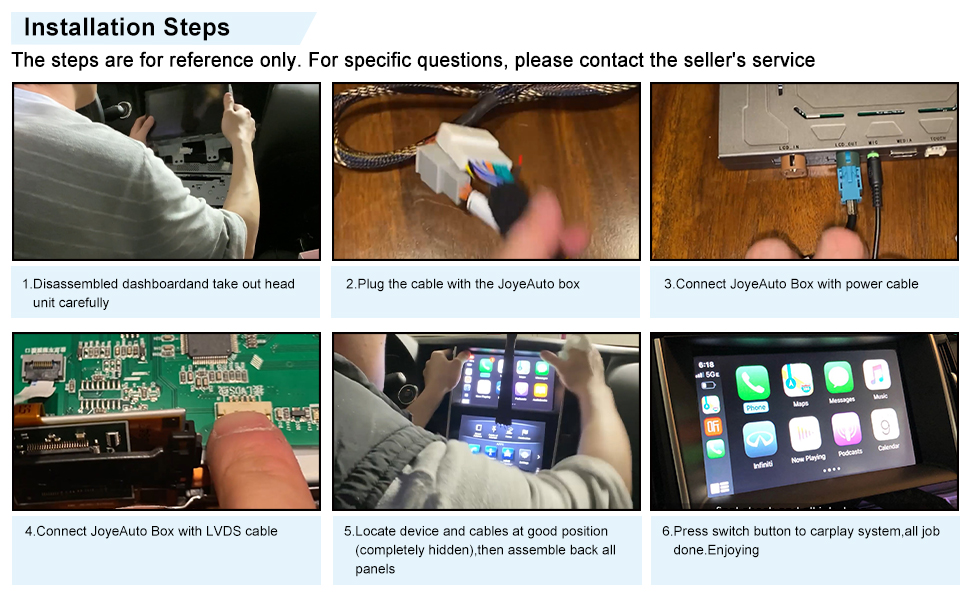
Figure 3: Visual overview of key installation steps.
4. Operating Instructions
The JOYEAUTO decoder seamlessly integrates with your Infiniti's existing display and controls, offering enhanced connectivity features.
4.1 Core Features
- Wireless/Wired Apple CarPlay: Access iPhone apps, navigation, music, and calls directly on your car's screen.
- Wired Android Auto: Connect Android phones for navigation, communication, and entertainment.
- Mirrorlink: Mirror your smartphone screen to the car's display.
- Reverse Camera Support: Integrates with both factory and aftermarket reverse cameras.
- USB Flash Play: Play media directly from a USB flash drive.

Figure 4: Wireless CarPlay and Wired Android Auto interfaces.

Figure 5: Key functionalities: Navigation, Music, Voice Control, Mirroring, USB Play, and Reverse Camera view.
4.2 Controls and Audio
The system utilizes your original car controls, including the steering wheel buttons and joystick knob, for seamless operation. Touch screen controls are also enabled for direct interaction with the CarPlay/Android Auto interface.

Figure 6: Control methods for the Carplay system.
Audio is routed through the factory Bluetooth sound channel for higher quality. The module includes a built-in sound processing chip to enhance audio output.

Figure 7: Audio integration via factory Bluetooth.
Video 2: Demonstration of Wireless Apple CarPlay features and controls in an Infiniti vehicle.
5. Maintenance
To ensure optimal performance and longevity of your JOYEAUTO Wireless Carplay Decoder, follow these general maintenance guidelines:
- Cleaning: Regularly wipe the screen and surrounding console areas with a soft, dry, lint-free cloth. Avoid abrasive cleaners or solvents.
- Software Updates: Check the manufacturer's website periodically for any available firmware or software updates. Updates can improve performance, add new features, or resolve bugs. Follow the provided instructions carefully when performing updates.
- Connection Integrity: Ensure all cables and connections remain secure. Loose connections can lead to intermittent functionality.
6. Troubleshooting
If you encounter issues with your JOYEAUTO Wireless Carplay Decoder, refer to the following common troubleshooting tips:
- No Display/Black Screen: Double-check all cable connections, especially the LVDS OUT cable and power cables. Ensure the original screen unit is properly reassembled and connected.
- Audio Quality Issues (Scratchy/Out Blown): If experiencing poor audio quality, try turning down the master volume in the device settings.
- Connection Glitches/Resets: Ensure all dip switches on the decoder unit are set correctly. A common configuration is all OFF except for number 8, which should be ON. Verify stable power supply to the unit.
- GPS Lag: This can sometimes occur. Ensure your phone's GPS is active and has a clear signal. Try restarting both the phone and the CarPlay system.
- No Bluetooth/AUX Audio: If you lose Bluetooth or AUX audio when switching to the decoder screen, ensure the AUX cable is correctly connected from the decoder to your car's AUX input. If your car lacks an AUX option, you may need a USB-AUX adapter.
- Steering Wheel Controls Not Functioning: Some steering wheel controls, particularly track forward/backward, may not function when using Android Auto. This is a known limitation for certain configurations.
- System Not Responding: Try restarting the vehicle and the CarPlay system. If the issue persists, verify all connections are secure.
If these steps do not resolve your issue, please contact JOYEAUTO customer support via Amazon message for further assistance.
7. Specifications
| Feature | Detail |
|---|---|
| Package Dimensions | 8.7 x 6.61 x 3.9 inches |
| Item Weight | 2.23 pounds |
| Item Model Number | 305de9e8-b112-48c7-b84e-c9a658e0de5d |
| Date First Available | April 2, 2020 |
| Manufacturer | JOYEAUTO |
| Country of Origin | China |
| Connectivity Technology | USB, HDMI |
| Controller Type | Android |
| Special Feature | Spotify |
| Compatible Devices | Smartphone |
| Total HDMI Ports | 1 |
| Audio Output Mode | Stereo, Surround |
| Surround Sound Channel Configuration | 5.0 |
| Video Encoding | RM |
8. Warranty and Support
JoyeAuto Technology Limited Company is committed to creating smart automotive electronic components with a focus on research, development, and innovation. We aim to provide products that enable happy and safe information exchange for driving.
8.1 Product Quality
We utilize high-quality raw materials and intelligent laboratories for product manufacturing. Multiple product inspections are conducted before each shipment to maintain high product quality.
8.2 After-Sales Service
For any questions or concerns, please contact us via Amazon message at any time. We are dedicated to ensuring customer satisfaction.
8.3 Protection Plans
Additional protection plans are available for purchase to cover your device:
- 2-Year Protection Plan: $26.99
- 3-Year Protection Plan: $36.99
- Complete Protect: $16.99/month (Covers all eligible past and future purchases)