
1. Introduction
Welcome to your new Extrastar Smart LED Bulb. This E27 10W 1000LM bulb offers warm/cool white light and 16 million colors, compatible with Alexa and Google Home. It is designed for energy efficiency and smart control, allowing you to customize your lighting experience through an intuitive smartphone application.
Please read this manual carefully before installation and use to ensure proper operation and safety.
2. Safety Information
- Ensure the power is turned off before installing or replacing the bulb.
- Do not use in fully enclosed luminaires, as this may shorten the bulb's lifespan.
- This bulb is designed for indoor use only.
- Do not disassemble or modify the bulb.
- Keep out of reach of children.
3. Product Overview
The Extrastar Smart LED Bulb combines energy-saving LED technology with smart home connectivity. Key features include:
- Energy Saving: 10W LED, equivalent to an 80W incandescent bulb, saving up to 80% energy.
- Remote Control: Control the bulb from anywhere using a smartphone app.
- Voice Control: Compatible with Amazon Alexa and Google Assistant.
- Color Options: Warm white, cool white, and 16 million RGB colors.
- Scheduling & Timer: Set custom lighting schedules and timers.
- Group Control: Control multiple bulbs simultaneously.

Image 3.1: Extrastar Smart LED Bulb with E27 base, showing dimensions (60mm diameter, 120mm height) and key features like app control, voice control, program settings, 16 million colors, smart timer, group control, custom scenes, and energy saving. It also indicates support for iOS/Android and compatibility with Google Assistant and Amazon Alexa.

Image 3.2: Diagram illustrating the main features of the Extrastar Smart LED Bulb, including timing function, RGB color, Wi-Fi connection, group control, energy saving, remote control, and voice control.
4. Setup
4.1 Physical Installation
- Ensure the power to the light fixture is turned off at the main switch.
- Screw the Extrastar Smart LED Bulb into a standard E27 socket.
- Turn on the power to the light fixture. The bulb should flash rapidly, indicating it is in pairing mode. If it does not flash, turn it off and on three times to reset it.
4.2 App Download and Account Registration
- Download the "Smart Life" app from the App Store (iOS) or Google Play Store (Android).
- Open the app and register for a new account or log in if you already have one.
4.3 Device Pairing
Ensure your smartphone is connected to a 2.4GHz Wi-Fi network. The bulb is not compatible with 5GHz networks.
- In the Smart Life app, tap the "+" icon in the top right corner to add a device.
- Select "Lighting" > "Light Source (Wi-Fi)" or allow the app to auto-discover the device.
- Confirm that the bulb is flashing rapidly. If not, reset it by cycling power off/on three times.
- Enter your 2.4GHz Wi-Fi network password.
- The app will begin the pairing process. Once connected, the bulb will stop flashing and glow steadily.
- You can rename the bulb for easier control (e.g., "Living Room Light").
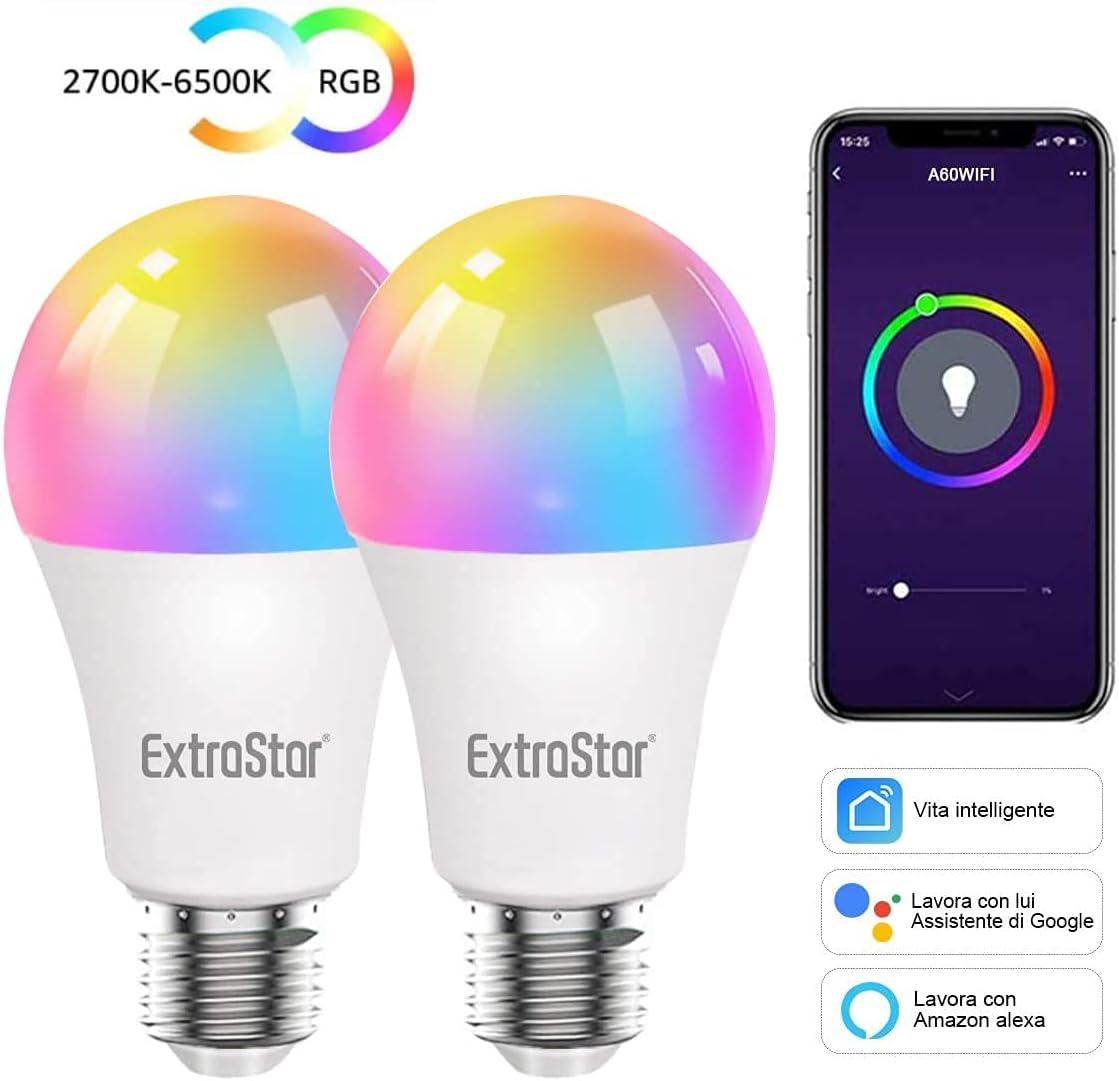
Image 4.1: Two Extrastar Smart LED Bulbs displayed alongside a smartphone showing the Smart Life app interface. The app displays color and brightness controls, indicating the bulb's adjustable color temperature (2700K-6500K) and RGB color options.
5. Operating the Smart LED Bulb
5.1 App Control
Once paired, you can control your bulb using the Smart Life app:
- On/Off: Tap the power icon to turn the bulb on or off.
- Brightness: Adjust the slider to change the light intensity.
- Color Temperature: Select between warm white (2700K) and cool white (6500K) settings.
- RGB Colors: Choose from 16 million colors using the color wheel.
- Scenes: Select pre-set scenes or create custom ones for different moods or activities.
- Timer/Schedule: Set specific times for the bulb to turn on/off or change settings.
- Group Control: Create groups of bulbs to control them simultaneously.

Image 5.1: A hand holding a smartphone displaying the Smart Life app interface, which shows a color wheel and brightness slider for remote control of a smart bulb. The image also depicts a smart bulb illuminating a room, emphasizing remote control functionality from anywhere.
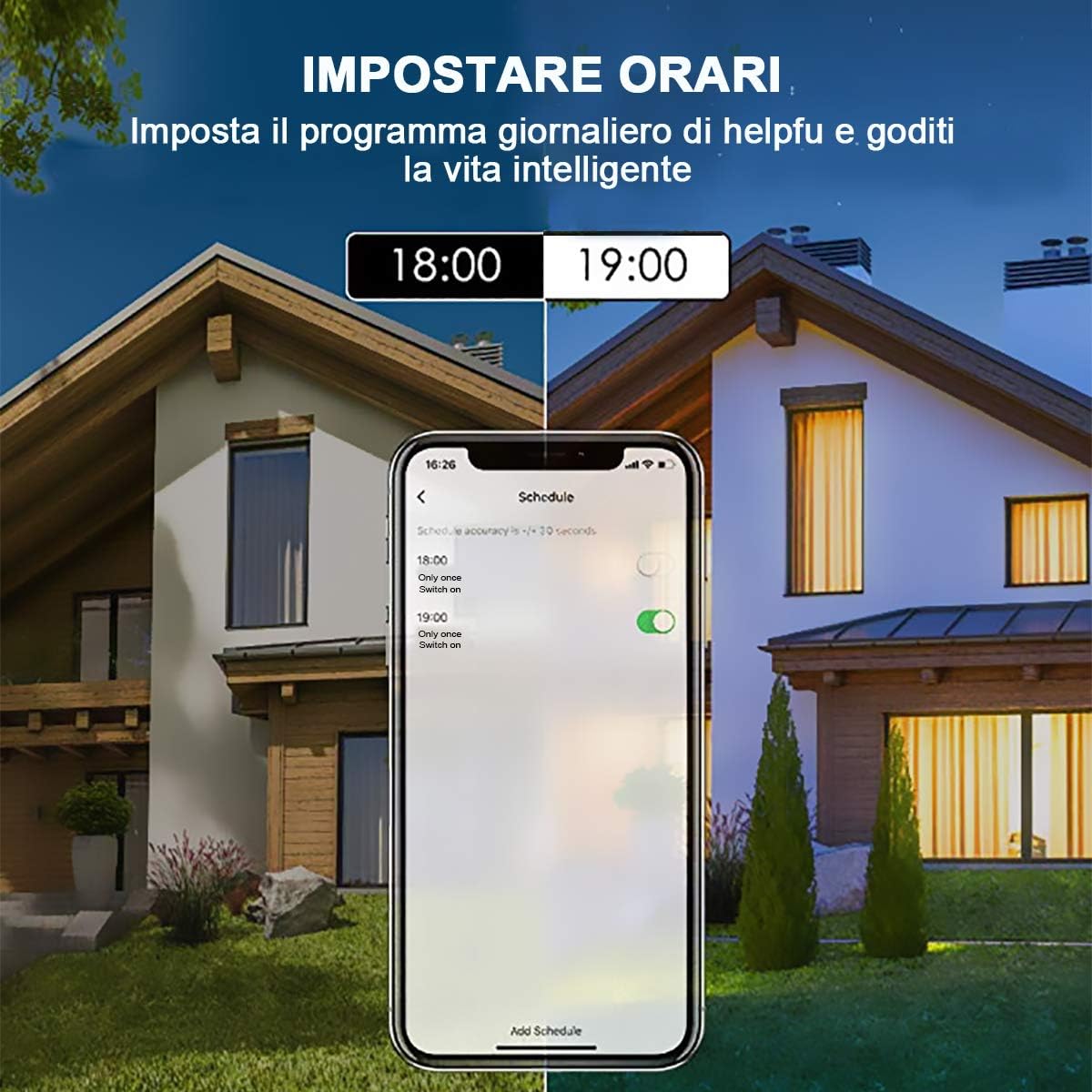
Image 5.2: A smartphone screen displaying the scheduling feature within the Smart Life app, showing set times (e.g., 18:00 and 19:00) for smart lights. The background illustrates a house with lights turning on at dusk, demonstrating the practical application of scheduled lighting.
5.2 Voice Control
To enable voice control, link your Smart Life account with Amazon Alexa or Google Home:
- Open the Alexa or Google Home app.
- Navigate to the "Skills & Games" (Alexa) or "Works with Google" (Google Home) section.
- Search for "Smart Life" and enable the skill/service.
- Link your Smart Life account by entering your credentials.
- Discover devices. Your Extrastar Smart LED Bulb will appear.
Voice Commands Examples:
- "Alexa, turn on [Bulb Name]."
- "Hey Google, set [Bulb Name] to 50% brightness."
- "Alexa, change [Bulb Name] to blue."
- "Hey Google, turn off all lights."

Image 5.3: A man in a living room interacting with an Amazon Echo device, demonstrating voice control for a smart bulb. The image shows the Extrastar Smart LED Bulb and icons for Amazon Alexa and Google Assistant, indicating compatibility.
6. Maintenance
The Extrastar Smart LED Bulb requires minimal maintenance.
- Cleaning: Ensure the bulb is off and cool before cleaning. Wipe gently with a soft, dry cloth. Do not use liquid cleaners or abrasive materials.
- Storage: If storing the bulb, keep it in a cool, dry place away from direct sunlight and extreme temperatures.
7. Troubleshooting
- Bulb not turning on:
- Check if the power switch is on.
- Ensure the bulb is screwed in correctly and securely.
- Test the bulb in another working E27 socket.
- Bulb not connecting to Wi-Fi:
- Ensure your Wi-Fi network is 2.4GHz. The bulb does not support 5GHz Wi-Fi.
- Make sure your phone is connected to the same 2.4GHz Wi-Fi network during pairing.
- Reset the bulb by turning it off and on three times until it flashes rapidly.
- Ensure your Wi-Fi router is within range and has a strong signal.
- Check if your Wi-Fi password is entered correctly in the app.
- Voice control not working:
- Verify that your Smart Life account is correctly linked to Alexa or Google Home.
- Ensure the bulb is named clearly and consistently in both the Smart Life app and your voice assistant app.
- Check your internet connection.
- App issues or unexpected behavior:
- Update the Smart Life app to the latest version.
- Restart your smartphone.
- If issues persist, try unpairing and re-pairing the bulb.
For further assistance, please refer to the support section or contact customer service.
8. Specifications
| Feature | Specification |
|---|---|
| Model Number | A60WIFI-2 |
| Brand | EXTRASTAR |
| Base Type | E27 |
| Light Type | LED |
| Power Consumption | 10 Watts |
| Luminous Flux | 1000 Lumens |
| Incandescent Equivalent | 75 Watts |
| Color Temperature | 2700K (Warm White) - 6500K (Cool White), Multicolored (RGB) |
| Special Feature | Dimmable |
| Connectivity Protocol | Wi-Fi (2.4GHz only) |
| Control Method | Remote Control (App), Voice Control (Alexa, Google Assistant) |
| Voltage Frequency | 220 to 240 volts and 50 hertz |
| Lifespan | 25,000 Hours |
| Color Rendering Index (CRI) | 80 |
| Energy Efficiency Label | A+ |
| Dimensions (L x W x H) | 0.01 x 0.01 x 0.01 cm (Product); 60mm x 120mm (Bulb) |
| Weight | 5 Grams |
| Indoor/Outdoor Use | Indoor |

Image 8.1: EU Energy Label for Extrastar A60WIFI-2, indicating an energy efficiency class of F (under new regulations) and energy consumption of 10 kWh/1000h. For more details, visit the EPREL database.
9. Warranty and Support
For warranty information or technical support, please contact Extrastar customer service. If you encounter any problems or require assistance, please reach out via the contact information provided with your purchase or on the official Extrastar website.