
1. Product Overview
The ULANZI CapGrip is an ergonomic smartphone camera grip designed to enhance your mobile photography and videography experience. It provides a comfortable and stable hold, mimicking the feel of a traditional camera, and includes a detachable wireless Bluetooth remote control for convenient shutter activation.

Figure 1: ULANZI CapGrip attached to a smartphone, showing ergonomic design.
The grip features a standard 1/4"-20 screw thread at the bottom, allowing for easy attachment to tripods or monopods. Its compact and portable design makes it an ideal accessory for various shooting scenarios, from casual photos to more professional video recording.
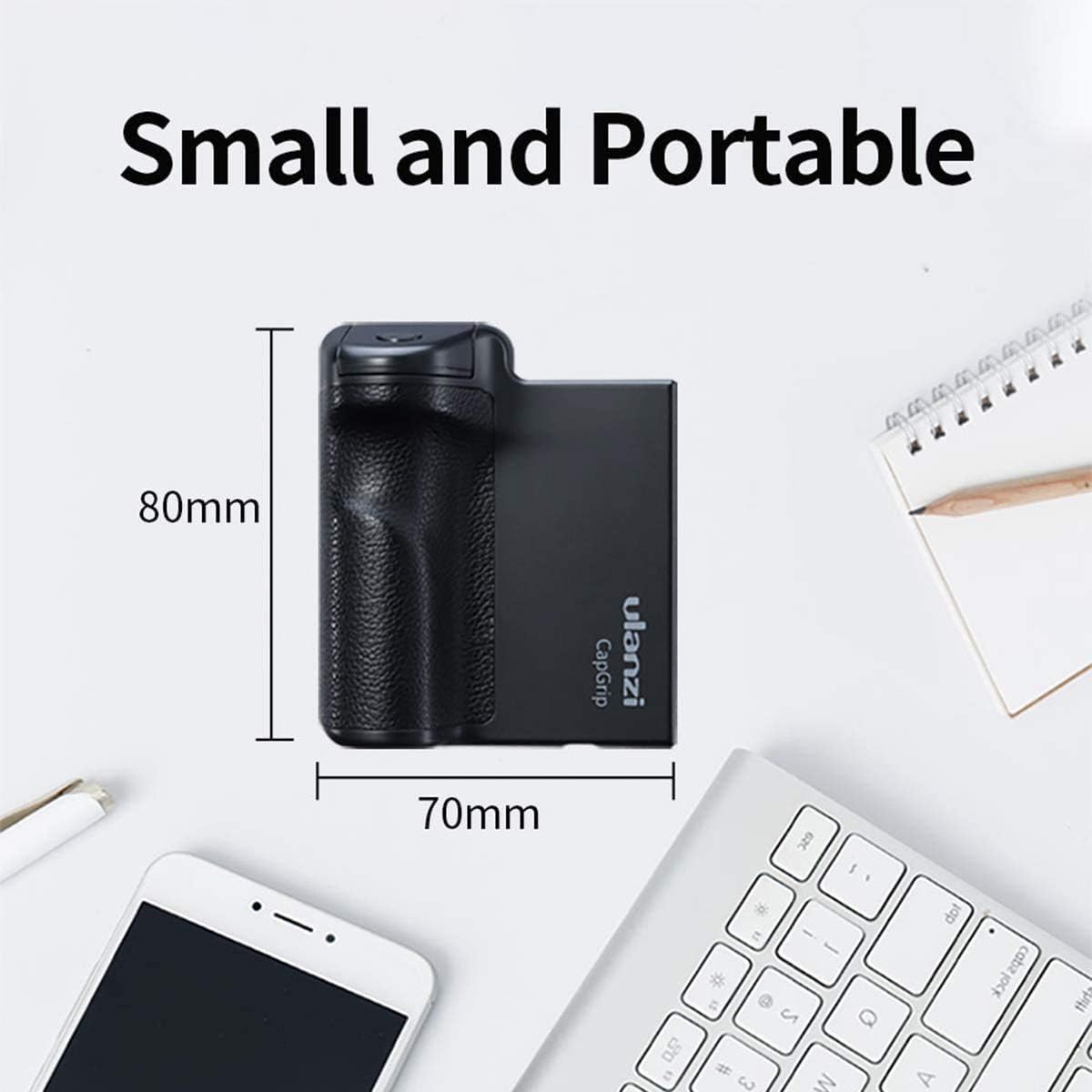
Figure 2: Compact dimensions of the CapGrip for portability.
2. Setup Guide
2.1 Attaching Your Smartphone
- Gently pull the top clamp of the CapGrip upwards to open the phone holder.
- Carefully insert your smartphone into the grip, ensuring it is securely seated between the clamps. The grip is designed to hold most smartphones, including those with slim cases.
- Release the clamp, allowing it to firmly hold your phone in place. Ensure the phone is centered for optimal balance.
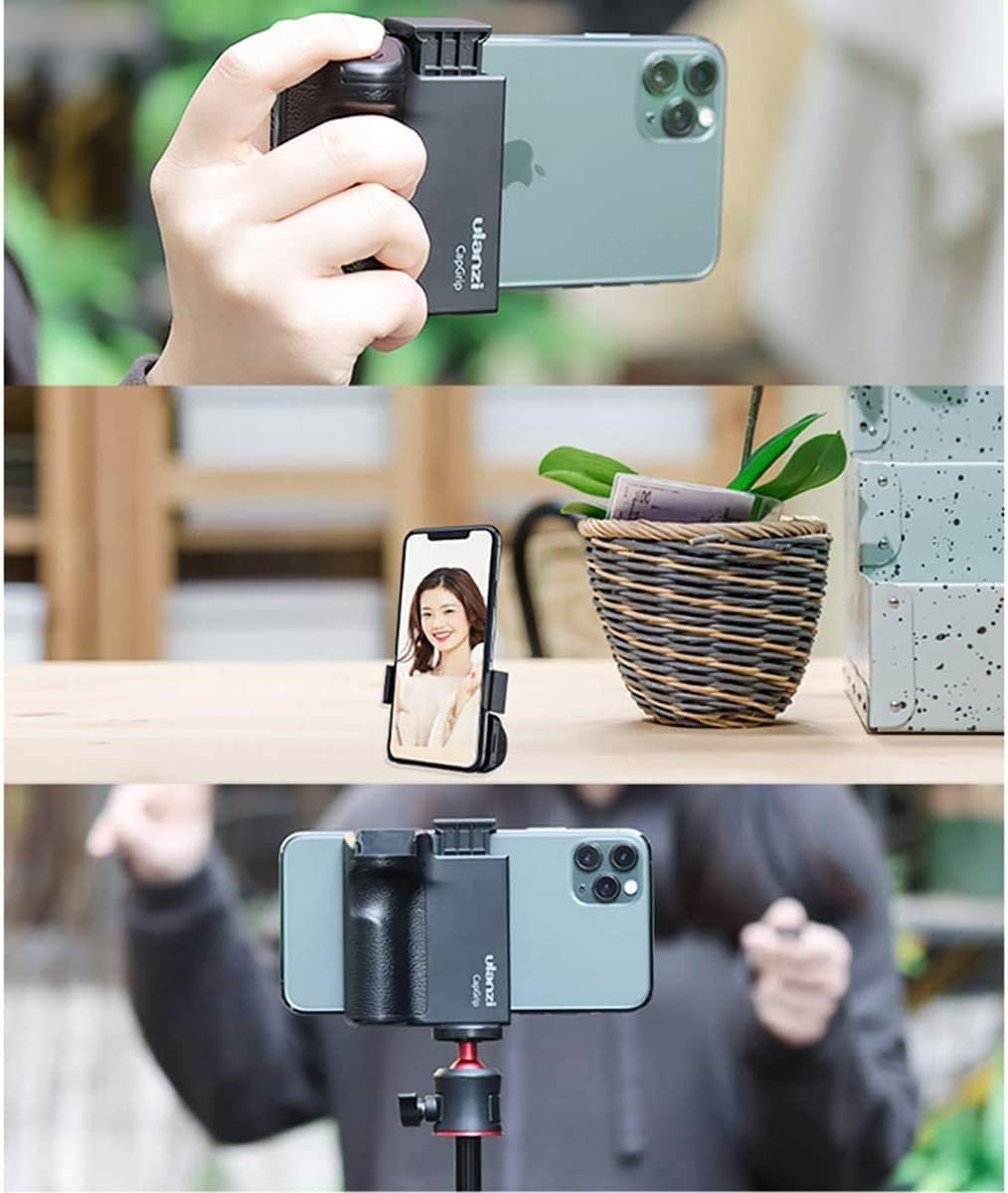
Figure 3: Versatile usage of the CapGrip, including handheld and tripod mounting.
2.2 Bluetooth Remote Control Pairing
The CapGrip comes with a detachable wireless Bluetooth remote control for convenient photo and video capture.
- Remove the Remote: The remote control is integrated into the grip. Gently slide it out from its slot on the grip handle.
- Power On: Press and hold the button on the remote control for approximately 3 seconds until a small green LED indicator light appears, indicating it is powered on and ready for pairing.
- Activate Bluetooth on Phone: On your smartphone, navigate to your Bluetooth settings.
- Pair Device: Look for "Ulanzi" or a similar device name in the list of available Bluetooth devices. Select it to initiate the pairing process.
- Confirm Pairing: Your phone may ask for confirmation to pair. Accept the pairing request. The LED on the remote will stop blinking or turn solid green once successfully connected.
Note: If you experience difficulty pairing, ensure the remote is charged (if applicable, or has a fresh battery), and try unpairing any previous connections to "Ulanzi" on your phone before attempting to pair again.
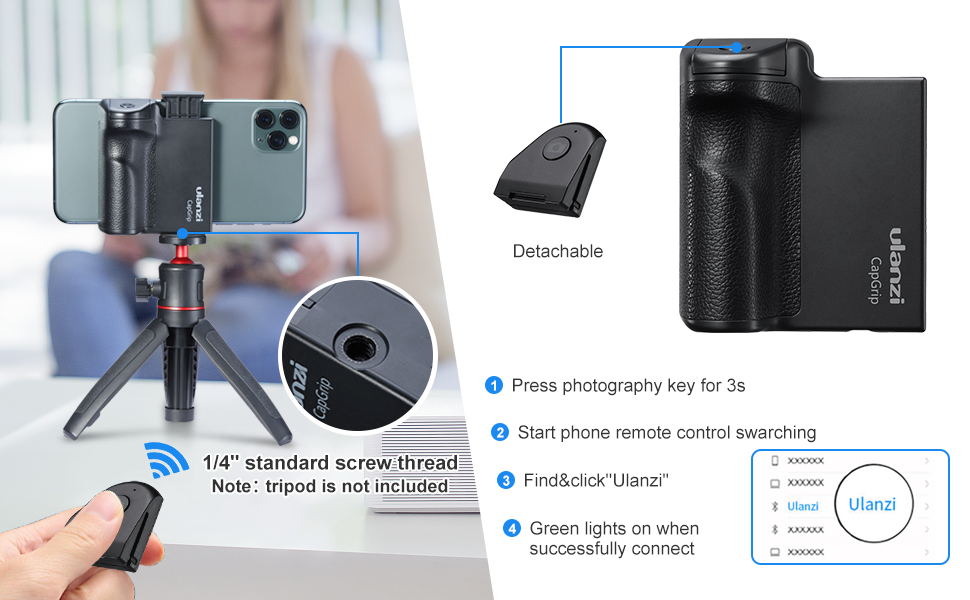
Figure 4: Steps for detaching the remote and Bluetooth pairing.
Video 1: Official ULANZI demonstration of attaching the phone to the CapGrip and pairing the Bluetooth remote control.
3. Operating Instructions
3.1 Taking Photos and Videos
- Once your smartphone is securely attached to the CapGrip and the Bluetooth remote is paired, open your phone's camera application.
- To capture a photo, press the button on the detachable remote control.
- To start or stop video recording, press the button on the remote control. Some phone camera apps may require a long press or a specific setting to differentiate between photo and video capture.

Figure 5: Using the Bluetooth remote for long-distance shooting.
3.2 Using with a Tripod
The ULANZI CapGrip features a standard 1/4"-20 screw thread at its base, allowing it to be mounted on most tripods, monopods, or other camera accessories.
- Locate the 1/4"-20 screw thread on the bottom of the CapGrip.
- Align the CapGrip with the screw on your tripod's quick release plate or head.
- Rotate the CapGrip clockwise until it is securely fastened to the tripod. Ensure it is tight enough to prevent wobbling but do not overtighten.

Figure 6: CapGrip mounted on a tripod for stable shooting.
4. Maintenance
4.1 Cleaning
- Wipe the CapGrip with a soft, dry cloth to remove dust and fingerprints.
- For stubborn marks, lightly dampen the cloth with water. Avoid using harsh chemicals or abrasive cleaners, as these can damage the finish.
- Ensure the remote control is dry before reinserting it into the grip.
4.2 Battery Replacement (Remote Control)
The detachable Bluetooth remote control is powered by a replaceable CR2032 coin cell battery.
- Remove the remote control from the CapGrip.
- Locate the battery compartment on the back of the remote. Use a small coin or a flat tool to gently pry open the battery cover.
- Remove the old CR2032 battery.
- Insert a new CR2032 battery with the positive (+) side facing upwards.
- Replace the battery cover, ensuring it clicks securely into place.
4.3 Storage
- Store the CapGrip in a cool, dry place away from direct sunlight and extreme temperatures.
- If storing for an extended period, consider removing the battery from the remote control to prevent leakage.
5. Troubleshooting
| Problem | Possible Cause | Solution |
|---|---|---|
| Remote control does not pair with phone. |
|
|
| Remote control button does not trigger camera. |
|
|
| Smartphone does not fit securely in the grip. |
|
|
6. Specifications
- Product Dimensions: 1.97 x 1.57 x 2.36 inches
- Item Weight: 3.03 ounces
- Model Number: CapGrip
- Color: Black
- Manufacturer: ULANZI
- Compatible Devices: iPhone 13, iPhone 13 Pro, iPhone 13 Pro Max, iPhone 12, iPhone 12 Pro, iPhone 12 Pro Max, iPhone 11, iPhone 11 Pro, iPhone 11 Pro Max, and most other smartphones in the market (including Galaxy Phones).
- Remote Control Battery: CR2032 (replaceable coin cell)
7. Warranty and Support
7.1 Warranty Information
ULANZI products are manufactured to high-quality standards. For specific warranty details regarding your CapGrip, please refer to the warranty card included with your purchase or visit the official ULANZI website. Keep your purchase receipt as proof of purchase for any warranty claims.
7.2 Customer Support
If you encounter any issues or have questions about your ULANZI CapGrip, please contact ULANZI customer support. You can find contact information and frequently asked questions on the official ULANZI website:
Visit the ULANZI Official Store on Amazon
For further assistance, please refer to the contact details provided on the ULANZI website or within your product packaging.


