
Introduction
This manual provides essential information for setting up, operating, maintaining, and troubleshooting your ASUS TUF Gaming A17 Laptop, model TUF706IH-ES75. Please read this guide thoroughly to ensure optimal performance and longevity of your device.

Figure 1: ASUS TUF Gaming A17 Laptop (TUF706IH-ES75) - Front View
What's in the Box
Verify that all items are present upon unboxing your ASUS TUF Gaming A17 Laptop:
- TUF Gaming A17 TUF706 Laptop
- Power Adapter & Cord
- User Guide
- Warranty Card
Setup
1. Initial Power-On
- Connect the power adapter to the laptop's power input port and then to a power outlet.
- Open the laptop lid. The laptop may power on automatically, or you may need to press the power button located above the keyboard.
- Follow the on-screen instructions to complete the Windows 10 Home setup. This includes selecting your region, language, and setting up your user account.
2. Connecting Peripherals
Your laptop features various ports for connecting external devices:
- USB Ports: Connect USB devices such as mice, keyboards, or external storage drives. The laptop includes 1 USB 2.0 port and 3 USB 3.0 ports.
- HDMI Port: Connect an external display or TV using an HDMI cable.
- Ethernet Port: For wired network connectivity.
- Audio Jack: Connect headphones or external speakers.

Figure 2: Left Side Ports

Figure 3: Right Side Ports and Vents
3. Software Updates with MyASUS
The MyASUS application helps keep your system updated and optimized. It provides essential updates, system diagnostics, and access to customer support.
Video 1: MyASUS Product Video. This video demonstrates how to use the MyASUS application for system updates, diagnostics, and personalized settings.
Operating Instructions
1. Keyboard and Touchpad
The laptop features a desktop-style keyboard with a dedicated Numpad and customizable Aura RGB backlighting. The touchpad supports multi-touch gestures for navigation.
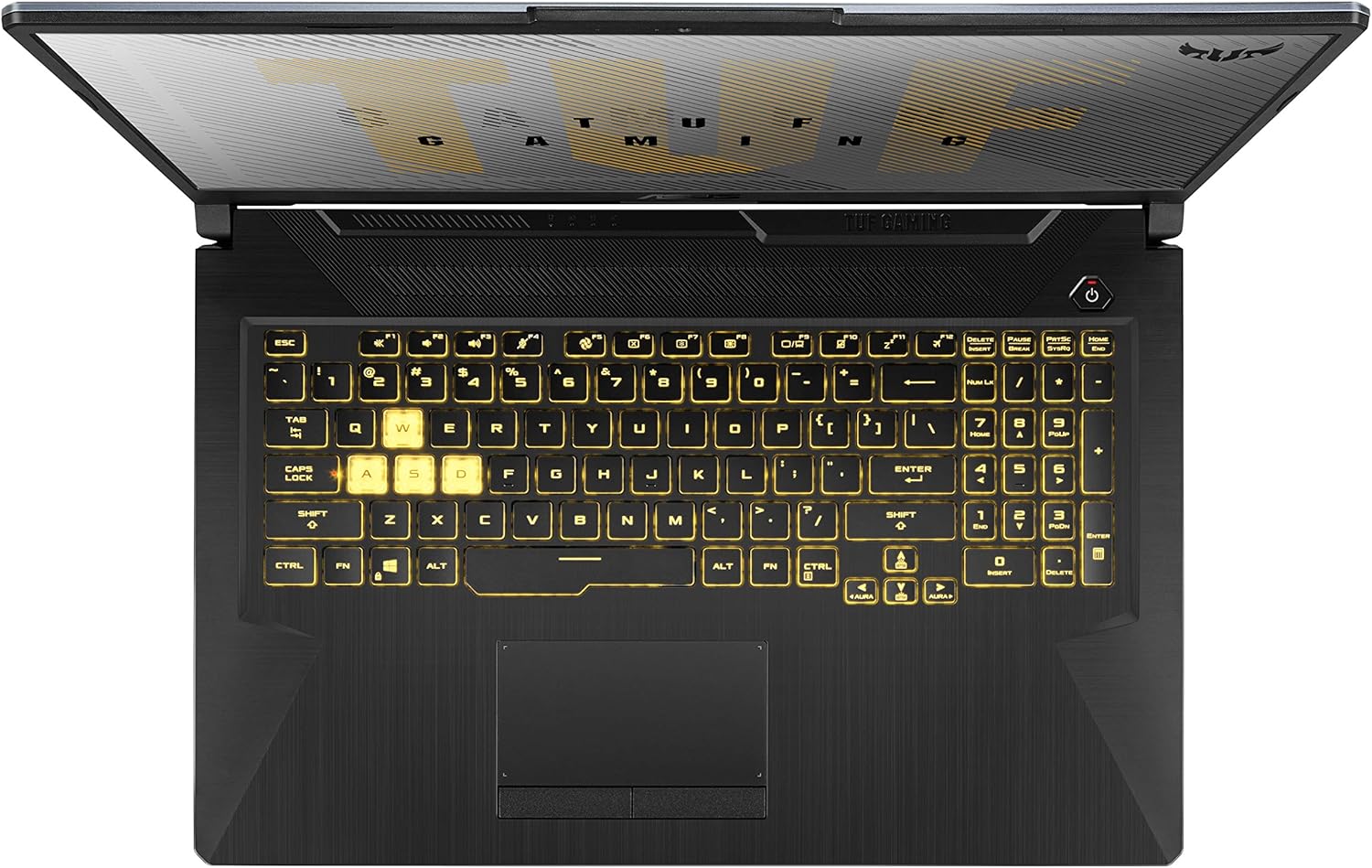
Figure 4: Keyboard Layout
2. Display Features
The 17.3-inch Full HD (1920x1080) IPS-Type display offers a 120Hz refresh rate for smoother visuals, especially during gaming.
3. Performance Modes
The laptop's cooling system supports various scenario profiles (Silent, Performance, Turbo) to optimize fan speed and performance based on your usage. These can typically be adjusted via the MyASUS application or dedicated function keys.
4. Multi-Monitor Support
Extend your workspace by connecting external monitors using the DisplayPort 1.4 and HDMI 2.0b outputs.
5. Audio
Experience enhanced audio with upgraded speakers featuring DTS:X Ultra technology, providing louder sound and deeper bass.
Video 2: TUF Gaming A17 Product Video. This video highlights key features of the ASUS TUF Gaming A17, including its performance, durability, and cooling system.
Maintenance
1. Cooling System
The laptop features an Anti-Dust Cooling (ADC) system with dual self-cleaning fans to maintain stability and prevent dust buildup. Regularly ensure that the cooling vents are not obstructed to allow for optimal airflow.

Figure 5: Rear Cooling Vents
2. Battery Care
The laptop is equipped with a 90Wh battery. To prolong battery lifespan, avoid frequently discharging the battery completely and store the laptop in a cool, dry place when not in use for extended periods. Utilize the battery health management features available in MyASUS.
3. Software Maintenance
Regularly check for and install operating system updates and driver updates through Windows Update and the MyASUS application to ensure system stability and security.
4. Cleaning
Use a soft, lint-free cloth to clean the screen and exterior surfaces. For stubborn smudges, a slightly dampened cloth with water or a mild, non-abrasive cleaner can be used. Avoid spraying liquids directly onto the laptop.
Troubleshooting
If you encounter issues with your laptop, consider the following steps:
- No Power: Ensure the power adapter is securely connected to both the laptop and a working power outlet. Try a different outlet if available.
- Display Issues: If the screen is blank or flickering, try connecting an external monitor to determine if the issue is with the laptop's internal display or the graphics card.
- Performance Slowdown: Check for background applications consuming excessive resources. Ensure your operating system and drivers are up to date.
- Overheating: Ensure cooling vents are clear of obstructions. Consider adjusting performance profiles in MyASUS to a less aggressive setting if not gaming.
- Software Problems: Use the 'One-click diagnosis' feature in the MyASUS application to identify and resolve common software-related issues.
For more detailed troubleshooting or persistent issues, refer to the ASUS support website or contact customer service.
Specifications
| Feature | Specification |
|---|---|
| Model | TUF706IH-ES75 |
| Processor | AMD Ryzen 7 4800H (Quad-core, 4.2 GHz) |
| Graphics | NVIDIA GeForce GTX 1650 4GB GDDR6 |
| Display | 17.3-inch FHD (1920x1080) 120Hz IPS-Type |
| RAM | 16GB DDR4 3200MHz |
| Storage | 512GB PCIe NVMe M.2 SSD + 1TB HDD |
| Operating System | Windows 10 Home |
| Wireless Connectivity | Gigabit Wi-Fi 5 (802.11ac), Bluetooth |
| Ports | 1x USB 2.0, 3x USB 3.0, HDMI, Ethernet, Audio Jack |
| Battery | 1 Lithium Metal battery (included) |
| Dimensions (LxWxH) | 15.7 x 10.6 x 1 inches |
| Weight | 5.7 pounds |
Warranty and Support
Your ASUS TUF Gaming A17 Laptop comes with a warranty. Please refer to the included Warranty Card for detailed terms and conditions. For technical support, driver downloads, and further assistance, visit the official ASUS support website or use the MyASUS application.
The laptop is built with durable MIL-STD-810H military standard construction, designed to withstand various environmental conditions.