
Introduction
This manual provides essential information for the safe and efficient operation of your DYON Smart 24 XT 24-inch HD Smart TV. Please read these instructions thoroughly before using the device and retain them for future reference.
Safety Information
- Ensure the TV is placed on a stable surface to prevent tipping.
- Do not expose the TV to rain or moisture to avoid electric shock.
- Keep ventilation openings clear to prevent overheating.
- Disconnect the power plug during lightning storms or when unused for long periods.
- Only use accessories specified by the manufacturer.
Package Contents
Verify that all items are present in the packaging:
- DYON Smart 24 XT TV
- Remote Control (including 2x AAA batteries)
- TV Stand
- Quick Start Guide

Image: The DYON Smart 24 XT television with its included remote control and stand.
Setup
1. Stand Assembly
- Carefully place the TV screen-down on a soft, clean surface to prevent scratches.
- Attach the stand components to the designated slots on the bottom of the TV using the provided screws.
- Ensure the stand is securely fastened before placing the TV upright.
2. Wall Mounting (Optional)
The DYON Smart 24 XT supports VESA wall mounts with a 75 x 75 mm pattern. Wall mount brackets are not included. Follow the instructions provided with your wall mount kit for proper installation.
3. Connecting Devices
The TV features various connection ports for external devices.

Image: Rear view of the TV displaying HDMI, USB, antenna, and other input/output ports.
- HDMI Ports (x2): Connect Blu-ray players, gaming consoles, or streaming devices.
- USB Ports (x2): Connect USB storage devices for media playback.
- Antenna Input: Connect a DVB-T2 or DVB-C antenna cable.
- Satellite Input: Connect a DVB-S2 satellite dish cable.
- Ethernet (LAN) Port: Connect an Ethernet cable for wired internet access.
- CI+ Slot: Insert a CI+ module for encrypted channels.
- Optical Audio Out: Connect to an external audio system.
4. First Time Setup
- Plug the power cord into an electrical outlet.
- Press the Power button on the remote control or TV.
- Follow the on-screen instructions to select your language, country, and perform a channel scan for DVB-T2, DVB-C, or DVB-S2 signals.
- Connect to your home network via Wi-Fi or Ethernet. Enter your Wi-Fi password if prompted.
Operating Instructions
1. Remote Control Functions
The remote control provides access to all TV functions. Insert the two AAA batteries into the remote control, ensuring correct polarity.
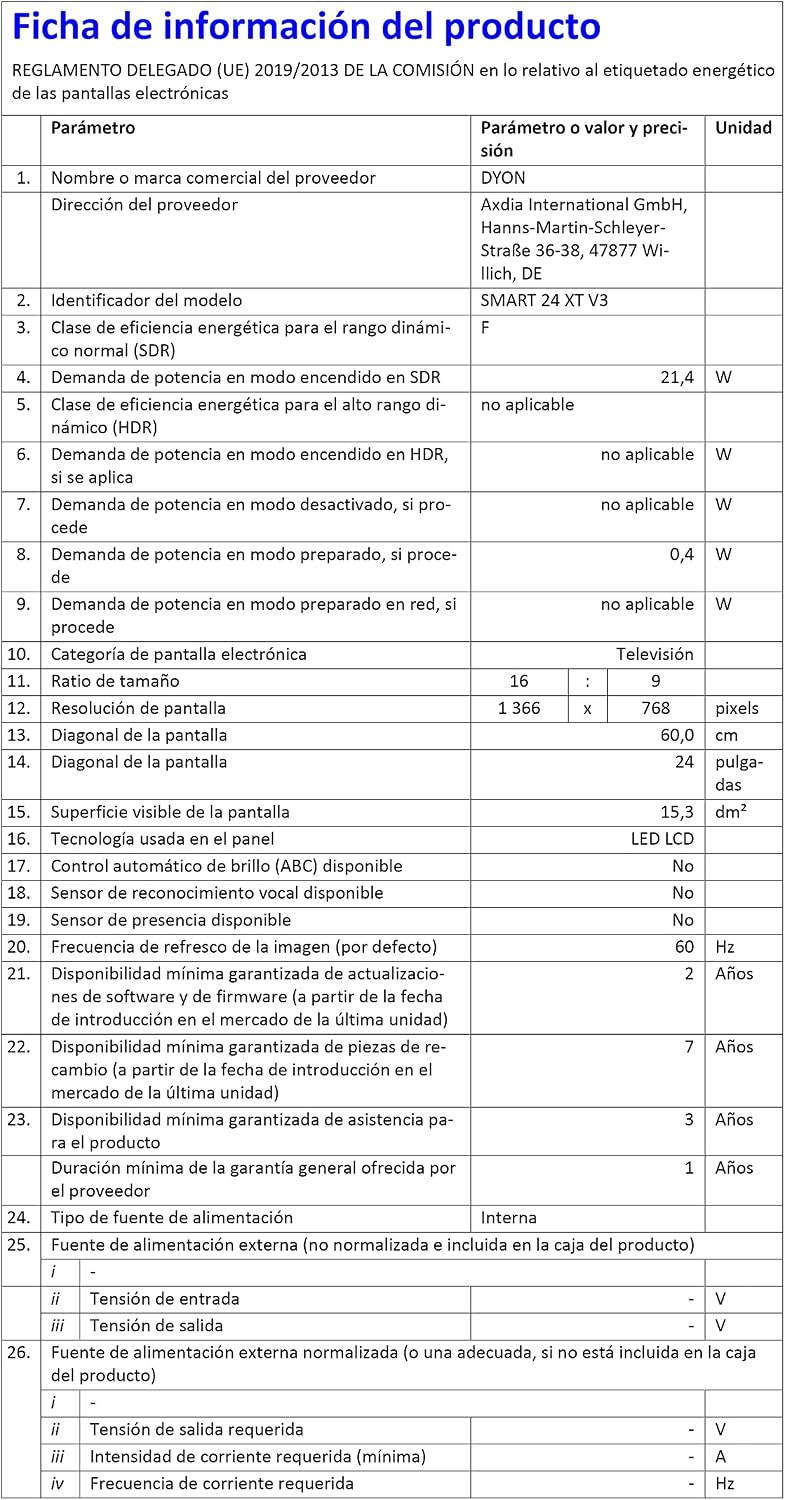
Image: The TV remote control, highlighting dedicated buttons for Prime Video, Netflix, and YouTube.
- Power Button: Turns the TV on or off.
- Number Buttons (0-9): Select channels directly.
- Volume Up/Down: Adjust the sound level.
- Channel Up/Down: Change channels sequentially.
- Source Button: Select input sources (HDMI, AV, Tuner).
- Navigation Buttons (Up/Down/Left/Right/OK): Navigate menus and confirm selections.
- Netflix Button: Direct access to the Netflix application.
- Prime Video Button: Direct access to the Prime Video application.
- YouTube Button: Direct access to the YouTube application.
- HbbTV Button (Red): Access HbbTV services when available on broadcast channels.
2. Smart TV Features
Your DYON Smart 24 XT TV includes a Smart Portal with pre-installed applications and access to additional services.
- Streaming Services: Access popular platforms like Prime Video, Netflix, and YouTube directly.
- HbbTV: Enjoy interactive services and catch-up TV from broadcasters.
- App Store: Download and install additional applications (availability may vary).
3. Media Playback via USB
Connect a USB storage device to one of the USB ports to play back photos, music, and videos.

Image: A graphic illustrating a USB stick connected to the TV for playing various media types.
- Insert the USB device into an available USB port.
- The TV will usually detect the device automatically and prompt you to open the media player.
- Navigate through your files and select the desired content to play.
Maintenance
Cleaning the TV
- Always unplug the TV from the power outlet before cleaning.
- Use a soft, dry cloth to wipe the screen and cabinet.
- For stubborn marks, lightly dampen the cloth with water or a mild, non-abrasive screen cleaner.
- Never spray cleaner directly onto the screen or cabinet.
Software Updates
The TV may receive software updates to improve performance and add new features. Ensure your TV is connected to the internet to receive these updates. You can usually check for updates in the TV's settings menu.
Troubleshooting
| Problem | Possible Cause | Solution |
|---|---|---|
| No power | Power cord disconnected; no power from outlet. | Check power cord connection; test outlet with another device. |
| No picture, but sound is present | Incorrect input source selected; backlight issue. | Press the 'Source' button on the remote to cycle through inputs; contact support if issue persists. |
| No sound, but picture is present | Volume muted or too low; external audio system issue. | Increase volume; check mute status; verify external audio connections. |
| Cannot connect to Wi-Fi | Incorrect password; router issue; TV too far from router. | Re-enter password; restart router; move TV closer or use wired connection. |
| Remote control not working | Dead batteries; obstruction; remote sensor blocked. | Replace batteries; remove obstructions; ensure remote is pointed at TV sensor. |
Specifications
| Feature | Detail |
|---|---|
| Model Name | Smart 24 XT |
| Model Number | D800177 |
| Screen Size | 24 inches (60 cm) |
| Resolution | 1366 x 768 pixels (HD-ready) |
| Display Technology | LED |
| Refresh Rate | 60 Hz |
| Aspect Ratio | 16:9 |
| Tuners | DVB-T2, DVB-C, DVB-S2 |
| CI+ Interface | Yes |
| Smart Portal | Netflix, Prime Video, YouTube, HbbTV |
| Operating System | Linux |
| Connectivity | Wi-Fi, Ethernet, 2x HDMI, 2x USB, Optical Audio Out |
| Dimensions (WxHxD with stand) | 54.9 x 36.5 x 15.6 cm |
| Product Dimensions (DxWxH) | 6.7D x 54.9W x 32.7H cm |
| Weight | 2.3 kg |
| VESA Wall Mount | 75 x 75 mm |
| Power Consumption | 21 Watts |
| Energy Efficiency Class | F |
| Included Components | TV, Remote Control (incl. batteries), Stand, Quick Start Guide |
For detailed energy information, refer to the EPREL database: https://eprel.ec.europa.eu/qr/1222572

Image: The EU energy label for the DYON Smart 24 XT TV, showing its energy efficiency class F.
Warranty Information
The DYON Smart 24 XT TV comes with a 12-month limited warranty from the date of purchase. This warranty covers manufacturing defects and material faults under normal use. Please retain your proof of purchase for warranty claims. For specific terms and conditions, refer to the warranty documentation included with your product.
Support and Contact
For technical assistance, troubleshooting, or warranty inquiries, please contact the manufacturer:
- Manufacturer: Axdia International GmbH
- Website: www.axdia.de
- Email: support@axdia.de
- Phone: 004921548826101
- Address: Hanns-Martin-Schleyer-Straße 36-38, 47877 Willich, Germany