
1. Product Overview
The eufy Security Indoor Cam C120 is a plug-in security camera designed for indoor use, offering 2K resolution video, two-way audio, and advanced AI features for intelligent detection. It provides comprehensive surveillance with local storage options and compatibility with various smart home ecosystems.

Figure 1.1: Front view of the eufy Security Indoor Cam C120, showcasing its compact design and integrated status light.
2. What's Included
Verify that all components are present in the package before proceeding with installation.
- 1x eufy Security Indoor Cam
- 1x USB Adapter
- 1x USB Cable
- 1x Mounting Bracket
- 1x Screw Pack
- 1x Quick Guide
3. Setup Guide
Follow these steps to set up your eufy Security Indoor Cam C120.
3.1 Download the eufy Security App
Search for 'eufy Security' on the App Store (iOS devices) or Google Play (Android devices) and download the application. Create an account or log in if you already have one.
3.2 Powering On the Camera
Connect the provided USB cable to the camera's power port and the USB adapter. Plug the adapter into a standard wall outlet. The camera's LED indicator will light up, indicating it is powering on.
3.3 Connecting to Wi-Fi
Open the eufy Security app, tap the '+' icon to add a new device, and select 'Indoor Cam C120'. Follow the on-screen instructions to connect the camera to your 2.4GHz Wi-Fi network. Note that the camera does not support 5GHz Wi-Fi.
3.4 Installing a MicroSD Card (Optional)
For local video storage, insert a compatible MicroSD card (not included) into the camera's MicroSD card slot. Ensure the camera is powered off before inserting or removing the card.
3.5 Mounting the Camera
The camera can be placed on a flat surface or mounted to a ceiling using the included mounting bracket and screws. Choose a location that provides the desired viewing angle and is within range of your Wi-Fi network.
4. Operating Instructions
Learn how to utilize the various functions of your Indoor Cam C120.
4.1 Live View and Recording
Access the live feed of your camera through the eufy Security app. You can manually record video or capture screenshots directly from the live view. The camera records in up to 2K clarity, providing detailed footage.
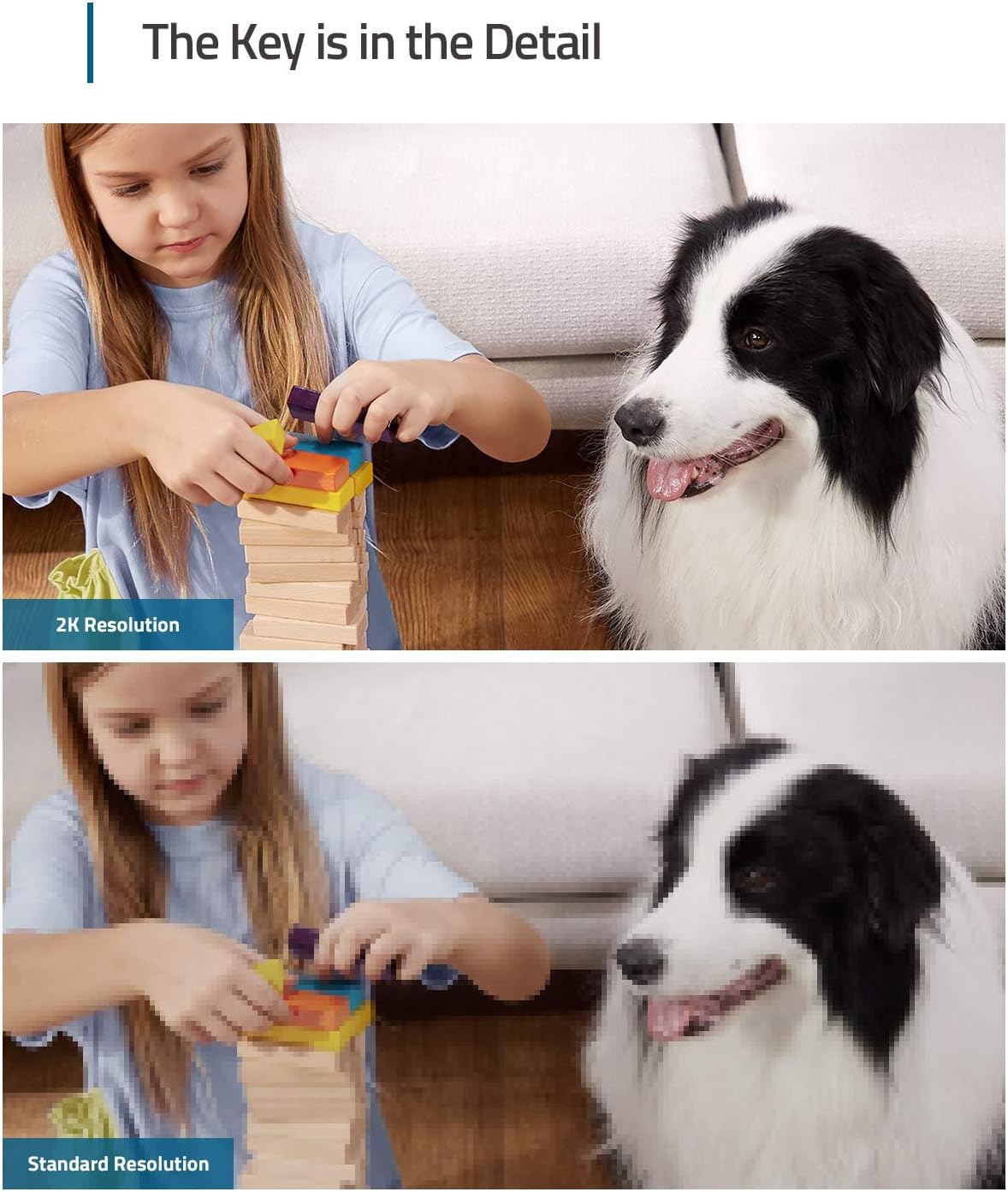
Figure 4.1: Comparison of 2K resolution footage (top) versus standard resolution (bottom), highlighting the enhanced detail provided by the Indoor Cam C120.
4.2 Two-Way Audio
Use the built-in microphone and speaker to communicate with individuals near the camera. Tap the microphone icon in the app's live view to enable two-way communication.

Figure 4.2: A child interacting with the camera's two-way audio feature, demonstrating its use for communication.
4.3 Motion Detection and Activity Zones
Configure motion detection settings and define specific activity zones within the camera's field of view to receive alerts only for relevant events. The camera's on-device AI can differentiate between humans and pets.

Figure 4.3: A dog moving within the camera's detection area, illustrating the motion detection capability.

Figure 4.4: An example of an activity zone configured within the camera's view, allowing for focused monitoring.
4.4 Night Vision
The camera is equipped with advanced night vision, enabling clear monitoring even in low-light conditions or complete darkness.

Figure 4.5: A smartphone displaying the camera's night vision feed of a baby in a crib, demonstrating its effectiveness in dark environments.
4.5 Smart Integration
The Indoor Cam C120 is compatible with Apple HomeKit, Google Assistant, and Amazon Alexa. To integrate with HomeKit, first add the device in the eufy Security app and then complete the activation process within HomeKit.

Figure 4.6: A user interacting with a voice assistant to view the camera feed on a tablet, illustrating smart home compatibility.
4.6 Storage Options
The camera supports local storage via a MicroSD card (up to 128GB, not included) and offers optional cloud storage services. Push notifications with thumbnail previews may temporarily store images in the cloud.

Figure 4.7: Icons representing local storage (MicroSD card) and cloud storage options for video recordings.
5. Maintenance
Proper maintenance ensures the longevity and optimal performance of your camera.
5.1 Cleaning the Camera
Gently wipe the camera lens and body with a soft, dry cloth. Avoid using harsh chemicals or abrasive materials that could damage the surface or lens.
5.2 Firmware Updates
Regularly check for and install firmware updates through the eufy Security app. Updates often include performance improvements, new features, and security enhancements. Ensure your camera's firmware is v.2.0.6.9 or newer for full functionality.
6. Troubleshooting
This section addresses common issues you might encounter.
6.1 Connectivity Issues
- Camera offline: Ensure the camera is properly powered and within range of your 2.4GHz Wi-Fi router. Restart the camera by unplugging and re-plugging it.
- Unable to connect to Wi-Fi: Verify your Wi-Fi password is correct and that you are connecting to a 2.4GHz network. Move the camera closer to the router if signal strength is weak.
6.2 Motion Detection Not Working
- No alerts: Check the motion detection sensitivity settings in the eufy Security app. Ensure activity zones are correctly configured and not excluding the desired areas.
- Too many alerts: Adjust sensitivity settings or refine activity zones to reduce false alarms from irrelevant movements (e.g., tree branches, passing cars).
6.3 Video Playback Issues
- No recordings: Ensure a MicroSD card is properly inserted and formatted, or that your cloud storage subscription is active. Check recording schedules in the app.
- Choppy playback: This may indicate a weak Wi-Fi signal. Try moving the camera closer to the router or reducing video quality settings if available.
7. Product Specifications
| Feature | Specification |
|---|---|
| Model Number | T8400X |
| Indoor/Outdoor Usage | Indoor |
| Video Capture Resolution | 3 MP (up to 2K) |
| Connectivity Protocol | Wi-Fi (2.4GHz only) |
| Power Source | Corded Electric (5 Volts, 15 watts) |
| Compatible Devices | HomeBase 3 (storage only), Apple HomeKit, Google Assistant, Amazon Alexa |
| Field Of View | 125 Degrees |
| Alert Type | Audio and Motion |
| Dimensions (L x W x H) | 2.24 x 2.24 x 4.11 inches |
| Item Weight | 3.68 ounces |
| UPC | 194644181208 |
8. Warranty and Support
eufy Security is committed to providing high-quality products and services. For warranty information, technical support, or any inquiries regarding your Indoor Cam C120, please visit the official eufy Security website or contact their customer support directly. Keep your purchase receipt for warranty claims.
Online Support: www.eufylife.com/support


