
1. Introduction
Thank you for choosing the DYON Smart 32 XT HD Smart TV. This manual provides essential information for the safe and efficient operation of your television. Please read it thoroughly before use and retain it for future reference.

Image 1.1: Overview of the DYON Smart XT Series TV, highlighting Smart LED TV, Triple Tuner, and integrated streaming services.
1.1 Package Contents
Ensure all items are present in the packaging. If any components are missing or damaged, contact your retailer.
- DYON Smart 32 XT TV
- Remote Control (with 2 AAA batteries)
- TV Stand
- Quick Start Guide
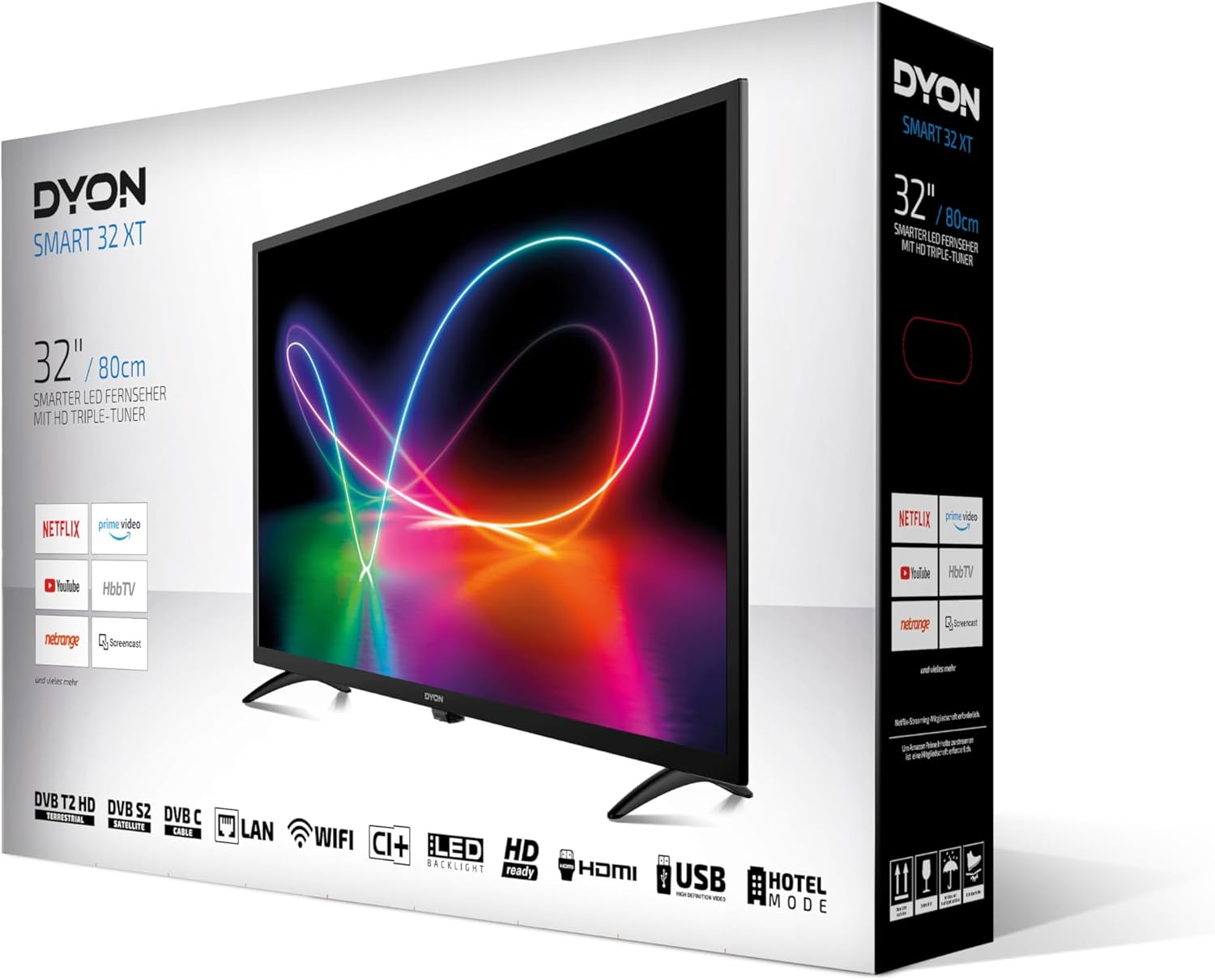
Image 1.2: Front view of the DYON Smart 32 XT TV packaging, showing the product and key features.
2. Safety Information
Read all safety warnings and instructions carefully to prevent electric shock, fire, or damage to the appliance. Keep this manual for future reference.
- Power Supply: Connect the TV only to an AC power source within the specified voltage range.
- Ventilation: Ensure adequate ventilation around the TV. Do not block ventilation openings.
- Water and Moisture: Do not expose the TV to rain or moisture. Do not place objects filled with liquids on the TV.
- Cleaning: Unplug the TV before cleaning. Use a soft, dry cloth. Avoid liquid cleaners.
- Placement: Place the TV on a stable, level surface. Avoid direct sunlight or heat sources.
- Servicing: Do not attempt to service the TV yourself. Refer all servicing to qualified personnel.
3. Setup
3.1 Stand Assembly
- Carefully place the TV face down on a soft, flat surface to prevent screen damage.
- Attach the stand legs to the designated slots on the bottom of the TV.
- Secure the stand legs with the provided screws.
3.2 Connections
Connect your external devices to the TV using the appropriate ports.
- HDMI: For high-definition audio and video from Blu-ray players, game consoles, etc.
- USB: For connecting USB storage devices for media playback.
- Antenna/Cable (RF): For connecting a terrestrial or cable antenna.
- Satellite (LNB): For connecting a satellite dish.
- Ethernet (LAN): For a wired internet connection.
- CI+ Slot: For conditional access modules (CAM) for pay-TV services.

Image 3.1: Example of common TV connections.
3.3 First Power On
- After connecting all cables, plug the power cord into an electrical outlet.
- Press the power button on the TV or remote control to turn on the TV.
- Follow the on-screen instructions for initial setup, including language selection, network connection (Wi-Fi or Ethernet), and channel scanning.
4. Operating
4.1 Remote Control
The remote control allows you to access all TV functions. Insert the included AAA batteries, observing polarity.

Image 4.1: Remote control for the DYON Smart 32 XT TV, featuring dedicated buttons for streaming services.
4.2 Basic TV Functions
- Power: Turns the TV on or off.
- Input: Selects the input source (HDMI, AV, TV, etc.).
- Volume +/-: Adjusts the volume level.
- Channel +/-: Changes the TV channel.
- Menu: Accesses the main menu for settings.
- Navigation Buttons (Up/Down/Left/Right/OK): Navigate through menus and confirm selections.
4.3 Smart TV Features
Your DYON Smart 32 XT TV comes with integrated Smart TV functionalities, including pre-installed applications and internet connectivity.

Image 4.2: Enjoying streaming content on the Smart TV.
- Pre-installed Apps: Access popular streaming services like Prime Video, Netflix, and YouTube directly from the home screen or via dedicated remote buttons.
- HbbTV: Press the red button on your remote control while watching a compatible channel to access interactive services, program information, and catch-up TV.

Image 4.3: HbbTV functionality for interactive content.
4.4 Tuner Operation
The integrated triple tuner supports various reception types:
- DVB-T2 (Terrestrial): For digital terrestrial television.
- DVB-S2 (Satellite): For digital satellite television.
- DVB-C (Cable): For digital cable television.
Perform a channel scan during initial setup or via the TV menu to find available channels for your chosen reception method.

Image 4.4: Triple Tuner support for DVB-T2, DVB-S2, and DVB-C.
4.5 Media Playback (USB)
Connect a USB storage device to one of the TV's USB ports to play back compatible media files (photos, music, videos).
- Insert the USB device into the USB port.
- Select the USB input source or navigate to the media player application.
- Browse and select your desired media files for playback.

Image 4.5: USB media playback functionality.
5. Maintenance
5.1 Cleaning
- Always unplug the TV from the power outlet before cleaning.
- Use a soft, dry, lint-free cloth to clean the screen and cabinet.
- For stubborn marks, lightly dampen the cloth with water or a mild, non-abrasive screen cleaner. Do not spray liquid directly onto the screen.
- Avoid using alcohol, benzene, thinners, or other volatile substances, as they may damage the TV's surface.
5.2 Storage
If you plan to store the TV for an extended period:
- Unplug the power cord and disconnect all cables.
- Remove batteries from the remote control.
- Pack the TV in its original packaging or a suitable protective box.
- Store in a cool, dry place away from direct sunlight and extreme temperatures.
6. Troubleshooting
If you encounter issues with your TV, refer to the following common problems and solutions. If the problem persists, contact customer support.
| Problem | Possible Cause | Solution |
|---|---|---|
| No power | Power cord not connected; power outlet faulty; remote batteries depleted. | Check power cord connection; test outlet with another device; replace remote batteries. |
| No picture, but sound is present | Incorrect input source selected; external device not powered on or connected properly. | Press 'Input' button to select correct source; check external device power and cable connections. |
| No sound, but picture is present | Volume muted or too low; external audio system connected; audio settings incorrect. | Unmute or increase volume; disconnect external audio or select correct audio output in settings. |
| Cannot connect to Wi-Fi | Incorrect password; router too far or off; network issue. | Verify Wi-Fi password; move TV closer to router or restart router; check network status. |
| Remote control not working | Batteries depleted or incorrectly inserted; obstruction between remote and TV. | Replace batteries, ensuring correct polarity; remove any obstructions. |
7. Specifications
Technical specifications for the DYON Smart 32 XT TV (Model: D800168).
| Feature | Detail |
|---|---|
| Brand | DYON |
| Model Number | D800168 |
| Color | Black |
| Operating System | Android |
| Screen Size | 31.5 Inches (80 cm) |
| Display Technology | LED |
| Resolution | HD-Ready 1366 x 768 pixels (720p) |
| Refresh Rate | 60 Hz |
| Aspect Ratio | 16:9 |
| Tuner Type | Triple Tuner (DVB-T2, DVB-S2, DVB-C) |
| Connections | HDMI, USB (2 ports), Ethernet (LAN), Wi-Fi, CI+ Slot |
| Special Features | Hotel Mode, Smart TV Portal (Prime Video, Netflix, YouTube, HbbTV) |
| Wall Mount Compatibility | VESA 100 x 100 mm (mount not supplied) |
| Dimensions (with stand) | 73.2 x 47.6 x 20.7 cm (LxHxD) |
| Power Consumption (SDR) | 26.0 W |
| Energy Efficiency Class (SDR) | E |

Image 7.1: EU Energy Label for the DYON Smart 32 XT TV. For more details, visit eprel.ec.europa.eu/qr/1376218.
8. Warranty and Support
8.1 Manufacturer's Warranty
This product comes with a limited manufacturer's warranty. Please refer to the warranty card included in your package or contact your retailer for specific terms and conditions.
8.2 Software Updates
Software updates for this model were guaranteed until October 31, 2022. While the TV may continue to function, new features or security updates may not be provided after this date.
8.3 Spare Parts
Information regarding the availability of spare parts for this product is currently unavailable.
8.4 Customer Support
For technical assistance, troubleshooting beyond this manual, or warranty claims, please contact your retailer or the official DYON customer support channels.