
Canon 4107C003AA
Canon SELPHY Square QX10 Portable Photo Printer
Instruction Manual - Model: QX10 (4107C003AA)
Introduction
The Canon SELPHY Square QX10 is a compact, portable photo printer designed for printing high-quality square photos directly from your smartphone. Utilizing dye-sublimation technology, it produces vibrant, long-lasting prints with a 100-year archival quality. Its wireless connectivity and USB charging make it convenient for use anywhere, allowing you to easily share and preserve your memories.
Safety Information
- Do not expose the printer to water or excessive humidity.
- Avoid placing the printer in direct sunlight or near heat sources.
- Use only Canon-approved power adapters and consumables (ink cassettes and paper).
- Keep out of reach of children.
- Do not attempt to disassemble or repair the printer yourself. Refer to qualified service personnel.
What's in the Box
Upon unpacking your Canon SELPHY Square QX10, please ensure all the following items are present:
- Canon SELPHY Square QX10 Portable Photo Printer
- Canon PGI-280 Toner Cartridge (Note: This is likely a typo in the source data, as SELPHY printers use ink cassettes, not toner cartridges. Assume it refers to the correct ink cassette for the QX10.)
- USB Charging Cable
- Sample Photo Paper Pack
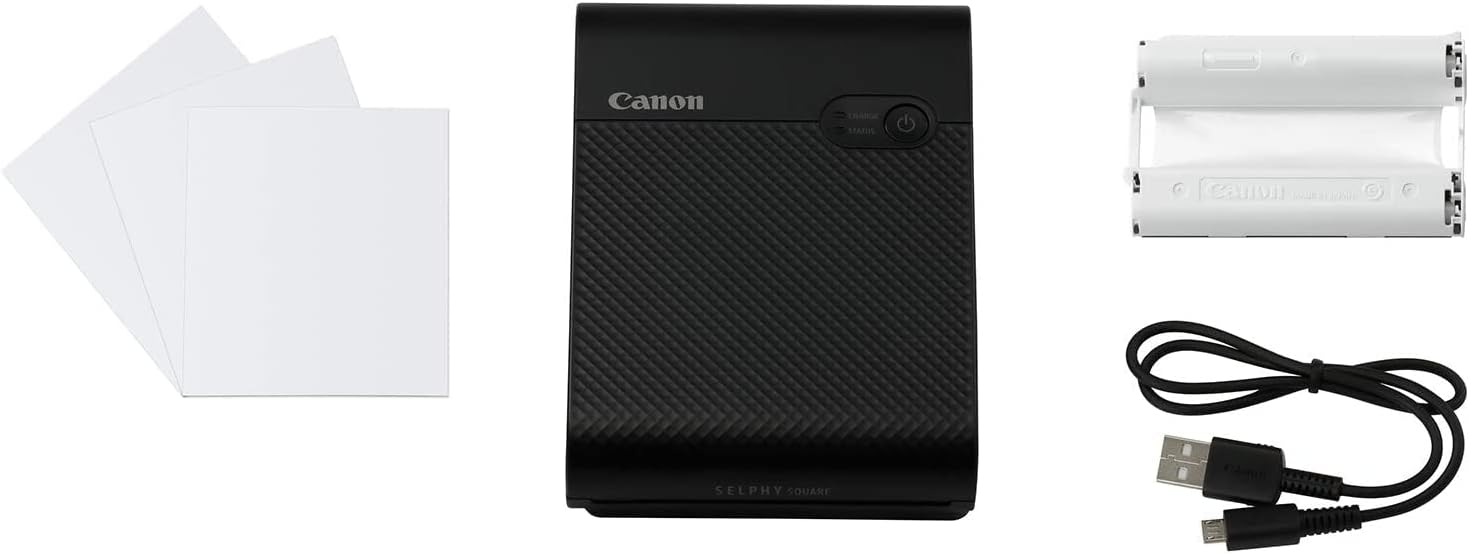
Image: The Canon SELPHY Square QX10 printer along with its included accessories: photo paper and a USB charging cable.
Product Overview
Familiarize yourself with the key components of your SELPHY Square QX10 printer.

Image: Front view of the Canon SELPHY Square QX10, highlighting the Canon branding, power button, and indicator lights for charge and status.

Image: An angled perspective of the SELPHY Square QX10, showcasing its sleek design and portable form factor.
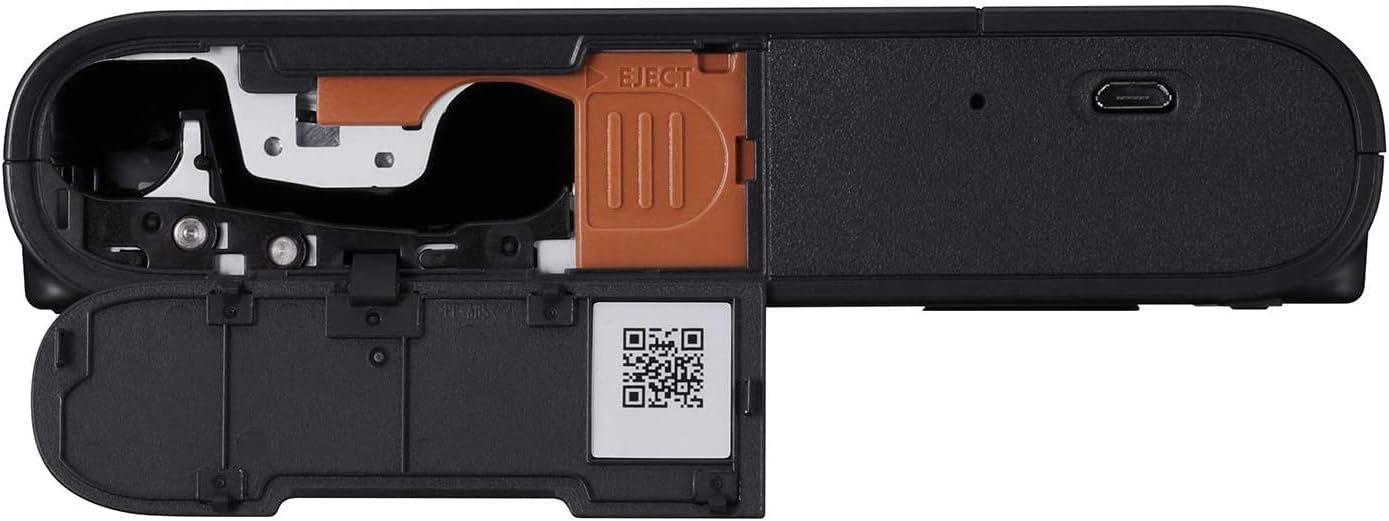
Image: Bottom view of the printer, revealing the open compartments for the ink cassette and photo paper, along with a QR code for setup.
Setup
1. Charging the Printer
Before first use, fully charge the printer using the supplied USB cable. Connect the small end of the USB cable to the printer's USB port and the other end to a USB power adapter (not included) or a computer's USB port. The CHARGE indicator will show charging status.
2. Installing the Ink Cassette and Paper
- Open the paper and ink cassette compartments located on the side/bottom of the printer.
- Insert the dedicated ink cassette into its slot until it clicks into place.
- Load the SELPHY Square photo paper into the paper tray with the glossy side facing up. Ensure the paper is aligned correctly.
- Close both compartments securely.
3. Downloading the SELPHY Photo Layout App
The Canon SELPHY Square QX10 operates via a dedicated smartphone application. Download the free SELPHY Photo Layout App from your device's app store (App Store for iOS or Google Play Store for Android).
4. Connecting via Wi-Fi
- Turn on the SELPHY Square QX10 printer by pressing the power button.
- On your smartphone, open the SELPHY Photo Layout App.
- Follow the in-app instructions to connect to the printer via Wi-Fi. The app will guide you through selecting the printer's Wi-Fi network from your phone's Wi-Fi settings.
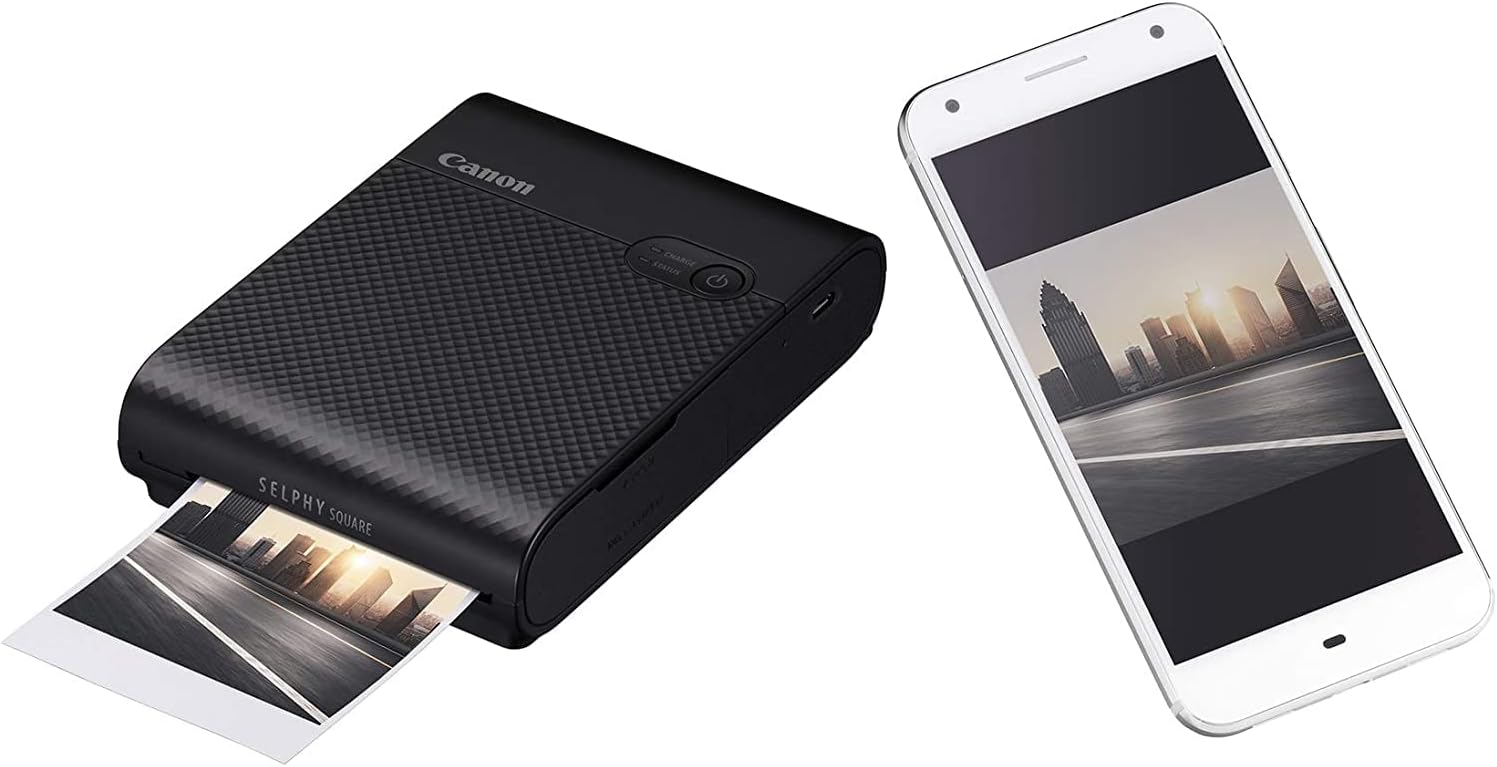
Image: The SELPHY Square QX10 printer positioned beside a smartphone, illustrating the wireless connection for printing.
Operating
Printing Photos
- Ensure the printer is charged, has an ink cassette installed, and paper loaded.
- Open the SELPHY Photo Layout App on your connected smartphone.
- Select the photo(s) you wish to print from your device's gallery.
- Utilize the app's editing features to add creative touches such as stamps, filters, borders, text, overlays, and various layouts.
- Once satisfied with your edits, tap the print button within the app. The printer will begin the dye-sublimation process, layering colors to create your print.
The SELPHY Square QX10 prints 68mm x 68mm (2.7in x 2.7in) images onto high-quality paper, often with a captionable border for a unique look. The dye-sublimation process ensures rich, vibrant colors and details that are designed to last for up to 100 years, and prints are dry to the touch immediately after exiting the printer.

Image: The SELPHY Square QX10 in the process of printing a square photo, demonstrating its function.
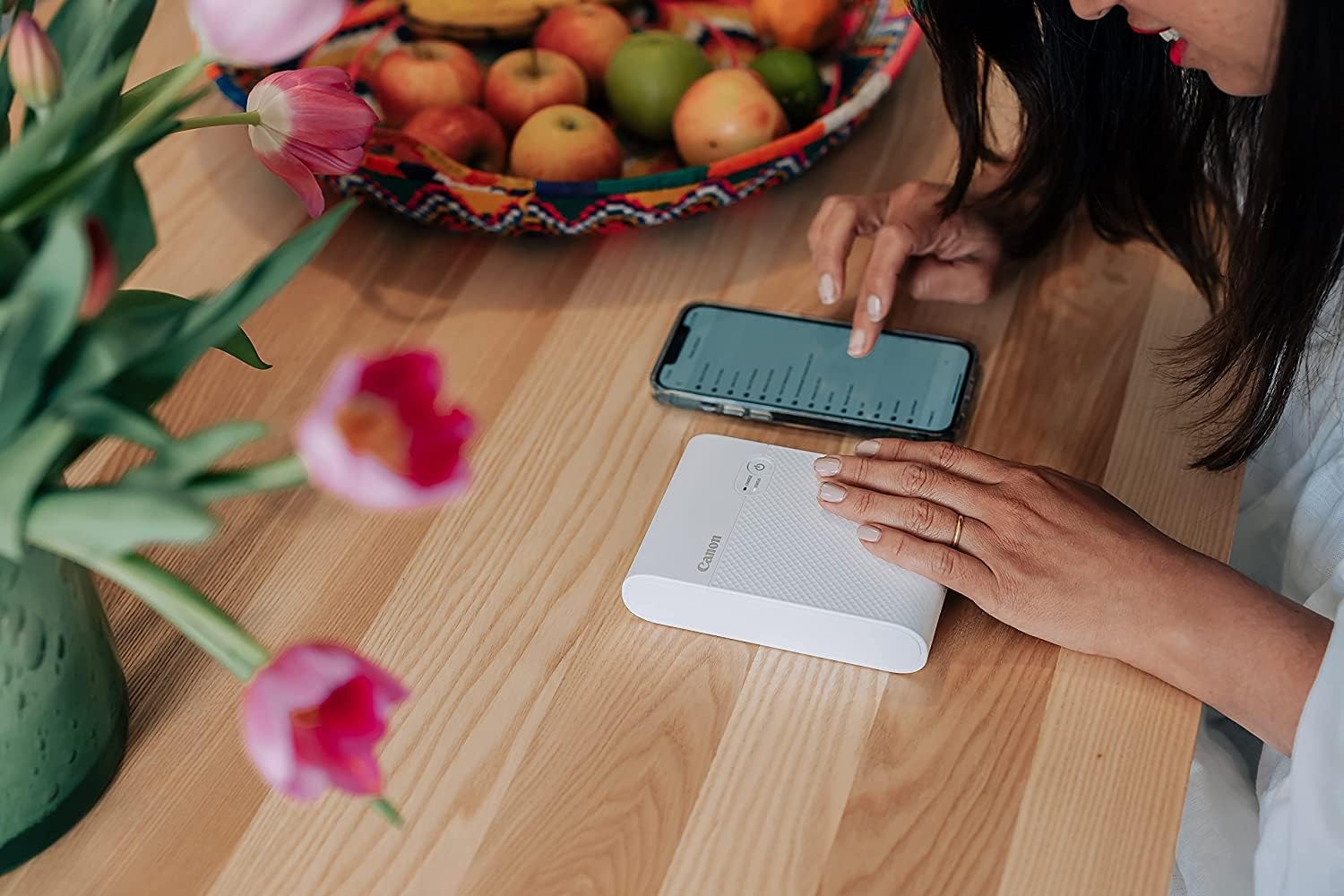
Image: A user's hands operating the SELPHY Photo Layout app on a smartphone, with the QX10 printer nearby, ready for printing.
Maintenance
Replacing Ink Cassette and Paper
When the ink or paper runs out, the printer will indicate this. Always replace both the ink cassette and the paper pack together, as they are designed to be used in conjunction for optimal print quality and longevity. Refer to the 'Installing the Ink Cassette and Paper' section for detailed steps.
Cleaning the Printer
Gently wipe the exterior of the printer with a soft, dry cloth. Do not use liquid cleaners or abrasive materials. Avoid touching the internal components, especially the print head, to prevent damage.
Troubleshooting
If you encounter issues with your SELPHY Square QX10, try the following steps:
- Printer Not Turning On: Ensure the battery is charged. Connect the printer to a power source using the USB cable.
- Cannot Connect via Wi-Fi:
- Make sure the printer is powered on and within range of your smartphone.
- Restart both the printer and your smartphone.
- Verify that the SELPHY Photo Layout App is updated to the latest version.
- Check your smartphone's Wi-Fi settings to ensure it's connected to the printer's direct Wi-Fi network.
- Paper Jams or Printing Errors:
- Ensure the paper is loaded correctly and not bent or damaged.
- Check that the ink cassette is properly installed.
- Do not force paper out if it's jammed; gently open the compartments and remove any obstructions.
- Ensure you are using genuine Canon SELPHY Square photo paper and ink cassettes.
- Poor Print Quality:
- Ensure the ink cassette is not depleted.
- Check that the paper is clean and free of dust or fingerprints.
- Verify that the image quality on your smartphone is high resolution.
For more complex issues or persistent problems, please refer to the official Canon support website or contact Canon customer service.
Specifications
| Feature | Specification |
|---|---|
| Model Name | SELPHY Square QX10 (4107C003AA) |
| Printing Technology | Dye Sublimation |
| Printer Output | Color |
| Maximum Color Print Resolution | 256 dpi (256 shades per color) |
| Maximum Media Size | 2.7 x 2.7 inches (68 x 68 mm) |
| Connectivity Technology | Wi-Fi, USB |
| Compatible Devices | Smartphones (via SELPHY Photo Layout App) |
| Power Source | Battery (1 Lithium Polymer battery included), USB Charging |
| Item Weight | 1.68 pounds |
| Product Dimensions | 1.58 x 2.22 x 0.48 inches |
| Ink Type | Dye |
| Max Input Sheet Capacity | 20 sheets |
Warranty Information
The Canon SELPHY Square QX10 Portable Photo Printer comes with a limited warranty. For specific terms, conditions, and duration of your warranty, please refer to the warranty card included with your product or visit the official Canon website for your region. Keep your proof of purchase for warranty claims.
Support
For further assistance, product registration, driver downloads, or frequently asked questions, please visit the official Canon support website:
You can also find helpful information and tips within the SELPHY Photo Layout App.