
1. Introduction
The XOLORspace HT008 is an HDMI KVM extender designed to transmit 4K@30Hz HDMI video, audio, and KVM (Keyboard, Video, Mouse) signals over a single fiber optic cable. This device allows for signal extension up to 10 kilometers, providing a reliable solution for long-distance transmission in various professional environments. It supports both single-mode and multi-mode fiber optic cables.
2. Features
- Supports HDMI 1.4 and HDCP 1.4 standards.
- Transmits 4K@30Hz resolution.
- Extends HDMI and KVM signals up to 10 kilometers over a single fiber optic cable.
- Supports point-to-point mode for direct connection.
- Compatible with LC single-core fiber transmission.
- Pure hardware design ensures plug-and-play functionality without additional software installation.
- HDMI input resolutions supported: 4K@30Hz, 1080p, 720p, 480p.
- HDMI output resolutions supported: 4K@30Hz, 1080p, 720p, 480p.
3. Package Contents
Please verify that all items are present in the package:
- 1x HDMI Fiber Extender Transmitter (TX Unit)
- 1x HDMI Fiber Extender Receiver (RX Unit)
- 2x DC 5V Power Supplies
- 1x User Manual
4. Product Overview
4.1. Transmitter (TX) Unit
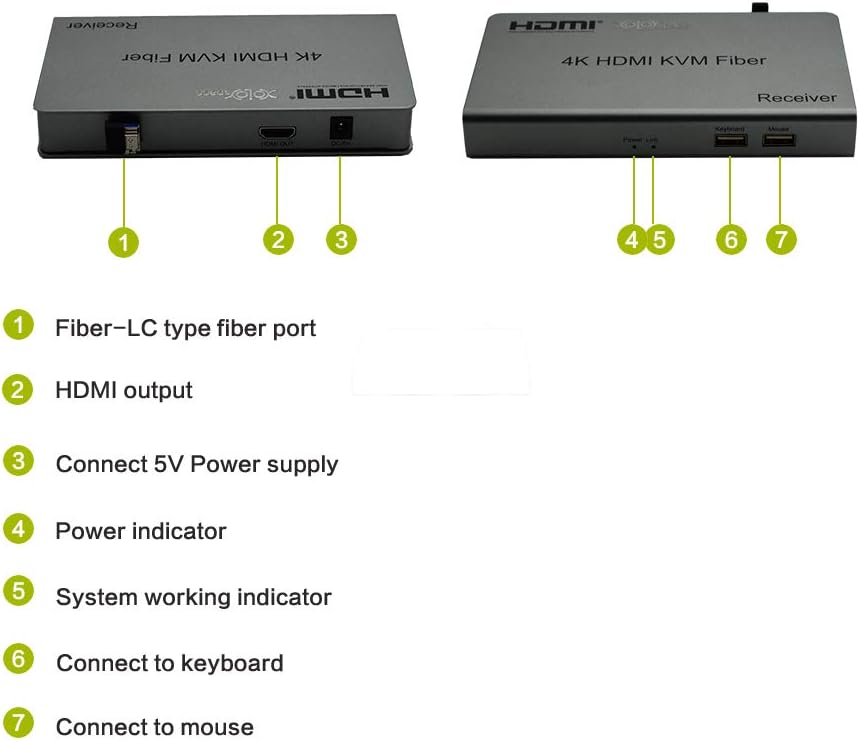
Figure 1: XOLORspace HT008 KVM Fiber Transmitter Unit (TX) with labeled ports.
This image displays the XOLORspace HT008 KVM Fiber Transmitter unit. The diagram highlights the following ports and indicators:
- Fiber-LC type fiber port: Connects to the fiber optic cable.
- HDMI Input port: Connects to the HDMI source device.
- DC 5V Power input port: Connects to the 5V DC power supply.
- Power indication light: Illuminates when the unit is powered on.
- System working indicator: Indicates operational status.
- USB port: Connects to the PC for KVM functionality.
4.2. Receiver (RX) Unit

Figure 2: XOLORspace HT008 KVM Fiber Receiver Unit (RX) with labeled ports.
This image displays the XOLORspace HT008 KVM Fiber Receiver unit. The diagram highlights the following ports and indicators:
- Fiber-LC type fiber port: Connects to the fiber optic cable.
- HDMI Output port: Connects to the HDMI display device.
- DC 5V Power input port: Connects to the 5V DC power supply.
- Power indicator: Illuminates when the unit is powered on.
- System working indicator: Indicates operational status.
- Keyboard USB port: Connects to the keyboard.
- Mouse USB port: Connects to the mouse.
5. Setup Instructions
Follow these steps to set up your XOLORspace HT008 KVM Fiber Extender:
- Connect the HDMI Source to the Transmitter (TX):
Connect an HDMI cable from your source device (e.g., computer, DVD player) to the HDMI IN port on the HT008 Transmitter unit.
- Connect the PC to the Transmitter (TX) for KVM:
Connect a USB cable from your PC to the USB port on the HT008 Transmitter unit. This enables KVM functionality.
- Connect the Display to the Receiver (RX):
Connect an HDMI cable from your display device (e.g., monitor, TV) to the HDMI OUT port on the HT008 Receiver unit.
- Connect Keyboard and Mouse to the Receiver (RX):
Connect your keyboard to the Keyboard USB port and your mouse to the Mouse USB port on the HT008 Receiver unit.
- Connect Fiber Optic Cable:
Connect a single LC fiber optic cable between the Fiber-LC type fiber port on the Transmitter unit and the Fiber-LC type fiber port on the Receiver unit. Ensure the fiber cable is securely connected.
- Power On the Units:
Connect the provided 5V DC power adapters to the DC 5V Power input port on both the Transmitter and Receiver units. Plug the power adapters into a power outlet. The Power indication lights on both units should illuminate.
- Verify Connection:
Once both units are powered on and connected, the System working indicators should show activity, and the display connected to the Receiver unit should show the video signal from the source device. Test keyboard and mouse functionality.
Video 1: Overview of the XOLORspace HT008 4K 30HZ HDMI KVM Over Fiber Optic Extender, demonstrating its physical components and connections. This video provides a visual guide to the product's design and port layout, aiding in the setup process.
6. Operating Instructions
The XOLORspace HT008 KVM Fiber Extender operates automatically once all connections are established and power is supplied. It functions as a plug-and-play device, requiring no additional software or driver installation.
- Ensure all cables (HDMI, USB, Fiber Optic, Power) are securely connected to their respective ports on both the Transmitter and Receiver units.
- Power on your HDMI source device and your display device.
- The video signal from the source will be automatically extended to the display, and the connected keyboard and mouse will control the source PC.
- The system working indicator lights on both units provide visual confirmation of active signal transmission.
7. Specifications
| Feature | Detail |
|---|---|
| HDMI Version | HDMI 1.4 |
| HDCP Version | HDCP 1.4 |
| Max Resolution | 4K@30Hz |
| Transmission Distance | Up to 10 km (over single LC fiber) |
| Fiber Type | LC Single Core Fiber (supports Single Mode and Multi Mode) |
| KVM Support | Keyboard and Mouse via USB |
| Power Consumption (TX) | 3W |
| Power Consumption (RX) | 3W |
| Power Adapter | Input AC (50/60Hz) 100V-240V, Output 5VDC/1A |
| Operating Temperature | -10℃ to +55℃ |
| Operating Humidity | 5 to 90% RH (Non-condensing) |
| Dimensions (L x W x H) | 163 x 86 x 24 mm |
| Weight | 451g (each unit) |
8. Troubleshooting
If you encounter issues with your XOLORspace HT008 extender, please refer to the following common troubleshooting steps:
- No Video Output:
- Ensure both the Transmitter and Receiver units are powered on and their power indicator lights are active.
- Check all HDMI cable connections between the source, TX unit, RX unit, and display. Try using different HDMI cables if possible.
- Verify the fiber optic cable is securely connected to both units and is not damaged.
- Confirm that the display is set to the correct HDMI input.
- Try connecting the HDMI source directly to the display to confirm the source and display are functioning correctly.
- KVM (Keyboard/Mouse) Not Responding:
- Ensure the USB cable is connected from the PC to the Transmitter's USB port.
- Verify that the keyboard and mouse are connected to the correct USB ports on the Receiver unit.
- Test the keyboard and mouse directly with the PC to ensure they are functional.
- Restart the source PC and the extender units.
- Intermittent Signal or Poor Quality:
- Check the quality and integrity of the fiber optic cable. A damaged or low-quality fiber cable can cause signal issues.
- Ensure the fiber optic connectors are clean and free of dust.
- Verify that the resolution of your source device does not exceed 4K@30Hz.
- Ensure the power adapters are providing stable 5V DC power to both units.
9. Maintenance
To ensure the longevity and optimal performance of your XOLORspace HT008 KVM Fiber Extender, follow these maintenance guidelines:
- Keep the units in a cool, dry environment, away from direct sunlight, heat sources, and excessive moisture.
- Avoid placing heavy objects on top of the units.
- Clean the exterior of the units with a soft, dry cloth. Do not use liquid cleaners or abrasive materials.
- When disconnecting fiber optic cables, always use protective caps to prevent dust and debris from entering the connectors.
- Ensure proper ventilation around the units to prevent overheating.
10. Warranty and Support
XOLORspace products are designed for reliability and performance. For warranty information and technical support, please refer to the official XOLORspace website or contact your authorized dealer. Keep your purchase receipt as proof of purchase for warranty claims.
For further assistance, please visit the XOLORspace Store on Amazon.