
1. Introduction
The HP Stream 14-Inch Laptop is designed for users seeking a portable and efficient computing experience. It is ideal for tasks such as homework, streaming media, and general productivity. This manual provides essential information for setting up, operating, maintaining, and troubleshooting your device.
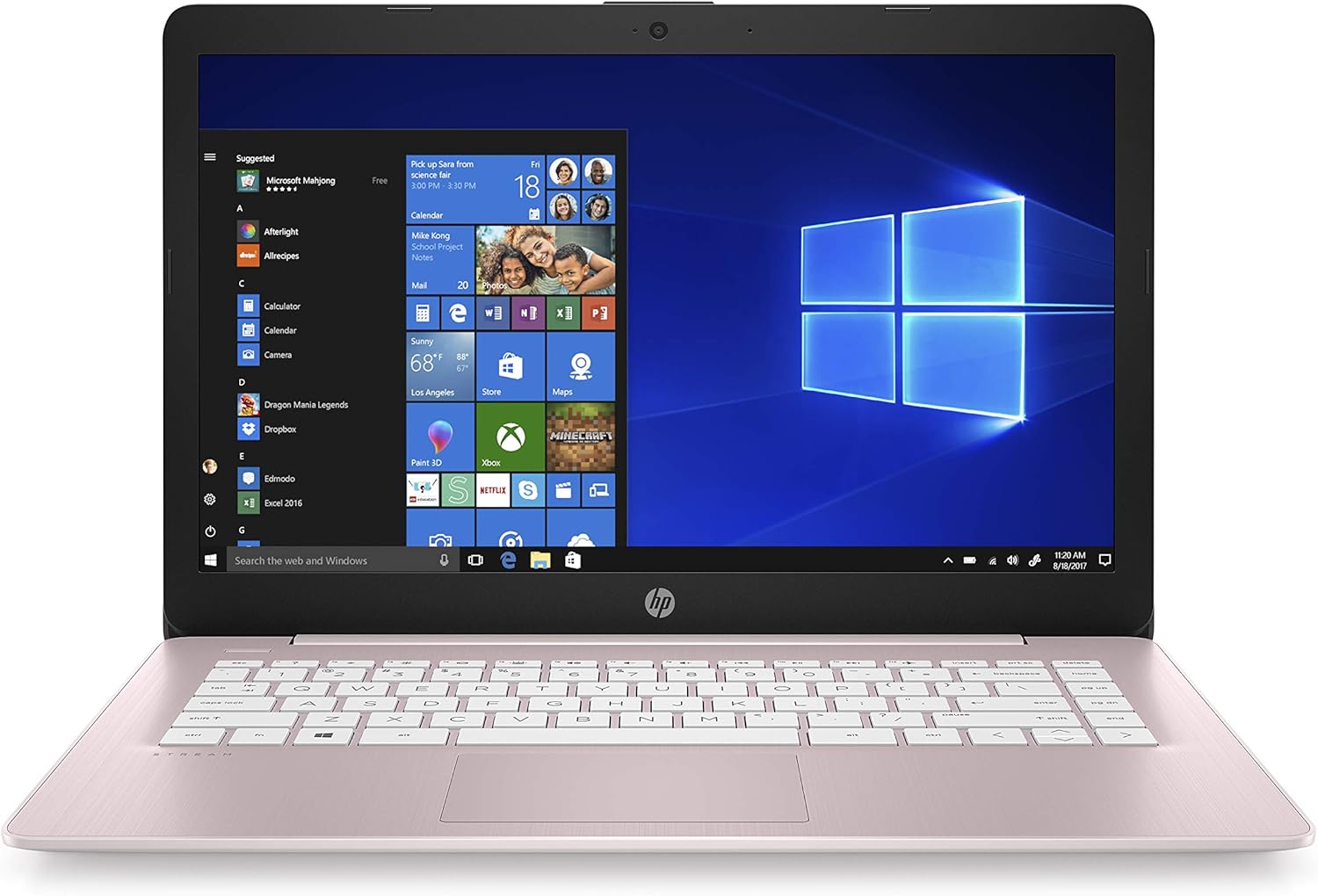
Figure 1: HP Stream 14-inch Laptop in Rose Pink
This laptop features an Intel Celeron N4000 processor, 4 GB RAM, and 64 GB eMMC storage, running Windows 10 Home in S Mode. It also includes a 1-year subscription to Office 365 Personal.
2. Setup
2.1. What's in the Box
Upon unboxing your HP Stream 14-inch Laptop, verify that the following items are included:
- HP Stream laptop (Model: 14-cb188nr)
- Power cord
- 3-cell lithium ion prismatic battery (integrated)

Figure 2: Items included with your HP Stream Laptop
2.2. Initial Power-On and Configuration
- Connect the power adapter to the laptop and a power outlet.
- Press the power button to turn on the laptop.
- Follow the on-screen instructions to complete the Windows 10 Home in S Mode setup, including region, language, and network settings.
- Activate your included Office 365 Personal subscription as prompted during setup or via the Microsoft Office application.
3. Operating the Laptop
3.1. Key Features and Productivity
Your HP Stream laptop is designed for essential productivity and entertainment:
- Windows 10 Home in S Mode: Experience a streamlined and secure Windows environment. This mode enhances security and performance by exclusively running apps from the Microsoft Store.
- Office 365 Personal: Enjoy full access to Microsoft Excel, Word, PowerPoint, OneNote, and Access, along with 1 TB of OneDrive storage for one year.
- Wi-Fi Connectivity: The improved 802.11ac 2x2 Wi-Fi antenna provides a stronger, more reliable internet connection for enhanced streaming and fast downloads.
- Long Battery Life: Benefit from extended usage with up to 14 hours and 15 minutes for video playback and up to 11 hours and 30 minutes for wireless streaming.

Figure 3: Windows 10 Home in S Mode Interface

Figure 4: Enhance productivity with Microsoft 365
3.2. Display and Touchpad
The laptop features a 14-inch diagonal HD SVA bright view WLED-backlit display (1366 x 768 resolution) for clear visuals. The touchpad supports gesture capabilities for intuitive navigation.

Figure 5: Rich HD display and thin, lightweight design
4. Connections and Ports
Your HP Stream laptop is equipped with various ports for connecting peripherals and accessories:
- 1 x USB 2.0 Port
- 2 x USB 3.0 Ports
- SD Card Slot
- Ethernet Port
- Headphone/Microphone Combo Jack
- HDMI Port
A built-in webcam is located at the top of the display for video calls and conferencing.

Figure 6: Laptop dimensions and port layout
5. Specifications
Detailed technical specifications for your HP Stream 14-inch Laptop:
| Feature | Specification |
|---|---|
| Standing Screen Display Size | 14 Inches |
| Screen Resolution | 1366 x 768 pixels |
| Max Screen Resolution | 1920x1080 Pixels |
| Processor | 1.1 GHz Celeron (Intel Celeron N4000) |
| RAM | 4 GB DDR4 (not upgradable) |
| Memory Speed | 2.6 GHz |
| Hard Drive | 64 GB eMMC (SSD) |
| Graphics Coprocessor | Intel UHD Graphics 600 |
| Wireless Type | 802.11ac, Bluetooth |
| Number of USB 2.0 Ports | 1 |
| Number of USB 3.0 Ports | 2 |
| Average Battery Life | 13 Hours (up to 14h 15m video playback) |
| Operating System | Windows 10 Home in S Mode |
| Item Weight | 3.17 pounds |
| Product Dimensions (LxWxH) | 13.27 x 8.9 x 0.7 inches |
| Color | Rose Pink |

Figure 7: Key specifications at a glance
6. Maintenance
To ensure the longevity and optimal performance of your HP Stream laptop, consider the following maintenance tips:
- Keep Software Updated: Regularly check for and install Windows updates to ensure you have the latest security patches and performance improvements.
- Clean Regularly: Use a soft, lint-free cloth to clean the screen and exterior. For the keyboard, use compressed air to remove dust and debris.
- Battery Care: Avoid completely draining the battery frequently. For optimal battery health, try to keep the charge between 20% and 80% when possible.
- Manage Storage: With 64 GB eMMC storage, regularly manage your files and uninstall unused applications to free up space. Utilize cloud storage like OneDrive (included with Office 365) for larger files.
- Protect from Extremes: Avoid exposing the laptop to extreme temperatures, direct sunlight, or high humidity.
7. Troubleshooting
If you encounter issues with your HP Stream laptop, try the following troubleshooting steps:
- Slow Performance: If the laptop feels slow, especially after initial setup or updates, ensure all Windows updates are fully installed. Restarting the device can often resolve temporary slowdowns. Consider running a disk cleanup to remove unnecessary files.
- Camera Not Working: If the webcam displays a black screen or is not detected, check privacy settings in Windows to ensure camera access is enabled for applications. Update camera drivers through Device Manager. A full system restart may also help.
- Connectivity Issues: For Wi-Fi or Bluetooth problems, try restarting your router/modem and the laptop. Ensure drivers for wireless adapters are up to date.
- No Power/Not Charging: Verify that the power adapter is securely connected to both the laptop and the power outlet. Try a different outlet if available.
- General Issues: A simple restart can often resolve many minor software glitches. If problems persist, consider performing a system restore or resetting Windows (this will reinstall Windows and may remove your personal files, so back up important data first).
8. Warranty and Support
Your HP Stream 14-inch Laptop comes with a 1-year limited hardware warranty. For warranty claims or technical support beyond the scope of this manual, please contact HP Customer Support through their official website or designated support channels. Keep your purchase receipt and product serial number readily available for faster service.
For additional resources, visit the official HP support website: support.hp.com