
iSTYLE X10
iSTYLE 10.1" Laptop X10 User Manual
Model: X10
Introduction
The iSTYLE Mini Laptop X10 is a versatile and portable computing device designed for everyday use, ideal for students and users on the go. Running on Windows 10 Home, it offers a user-friendly experience with a wide range of software compatibility. Its compact design and essential features make it a reliable companion for learning, entertainment, and productivity.
What's in the Box
- iSTYLE 10.1" Laptop X10
- Laptop bag
- USB wireless mouse
- Mouse pad
- Earphone
- Power Adapter

Image: The iSTYLE 10.1" Laptop X10 shown with its complete kit, including a laptop bag, USB wireless mouse, mouse pad, and earphones.
Product Overview and Features
The iSTYLE X10 is designed for efficiency and portability, integrating key components for a smooth user experience.
Key Components and Performance

Image: Visual representation of the laptop's core features including 2GB RAM, 32GB ROM, built-in camera, WiFi capability, and CPU performance up to 1.92 GHz.

Image: Details on the Intel Atom X5-Z8350 Quad-core processor, Bluetooth 4.0 connectivity, and the 5000mAh battery providing up to 6 hours of usage.
The iSTYLE Mini Laptop X10 is powered by an Intel Atom X5-Z8350 Quad-core 1.44GHz processor, ensuring smooth performance for daily tasks. It comes with 2GB RAM and 32GB SSD storage, expandable up to 1TB with a Micro SD card (not included). It features built-in WiFi and Bluetooth for seamless connectivity.
Display and Visuals
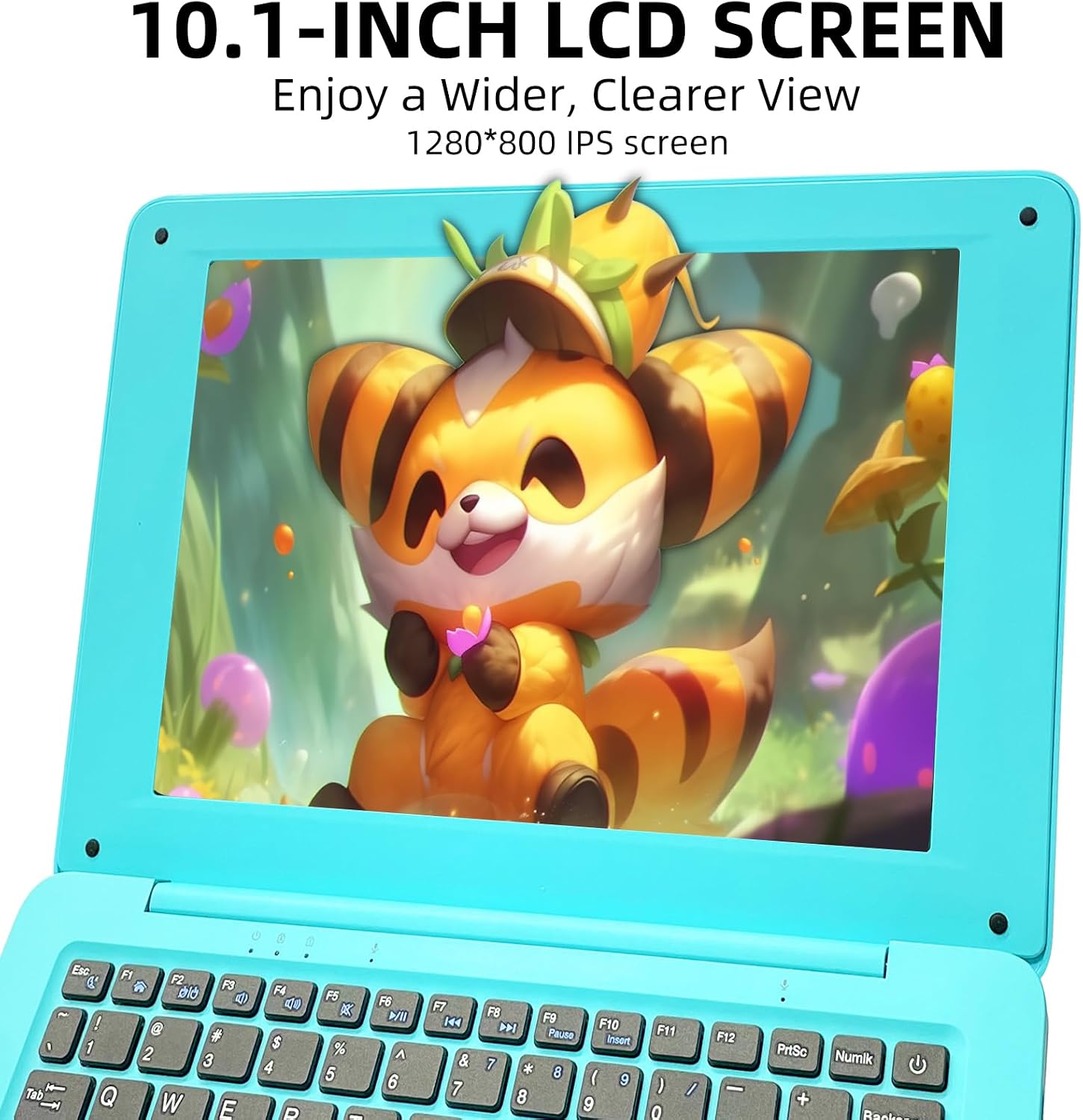
Image: The 10.1-inch 800x1280 bright IPS HD screen LCD provides clear and crisp visuals, enhancing the viewing experience for videos, games, and web browsing.
Experience vibrant visuals on the 10.1-inch 800 * 1280 bright IPS HD screen LCD. The display is perfect for watching videos, playing games, and browsing the web with clarity.
Connectivity Ports

Image: An illustration detailing the laptop's connectivity options, including a TF card slot, headphone jack, USB 2.0, Mini HDMI, USB 3.0, and DC power input.
The laptop offers a full range of connectivity options, including a micro HDMI port for external displays, USB 3.0 and USB 2.0 ports for peripherals, a DC3.5 port for power, and a TF card slot for expandable storage.
Design and Portability

Image: The lightweight design of the iSTYLE X10 is highlighted, showing its compact dimensions (11.02 x 7.28 x 0.59 inches) and a weight of only 1.87 pounds (850 grams), making it highly portable.
Weighing only 1.87 pounds (850 grams) and with a thickness of just 0.59 inches (1.5 cm), this laptop is ultra-portable and easy to carry, making it ideal for students and mobile users.
Ideal Learning Partner

Image: The iSTYLE X10 laptop is shown in a learning environment, demonstrating its suitability as an educational tool for students.
The iSTYLE X10 is compatible with a wide range of educational software, making it an ideal partner for personalized learning, mind enlightenment, and intellectual development.
Official Product Video
Video: An official product video showcasing the iSTYLE DreamBook 10.1" laptop, highlighting its various features, colors, and portability. This video provides a dynamic overview of the product's design and capabilities.
Setup Guide
1. Initial Power On
- Unpack the laptop and all accessories from the box.
- Connect the power adapter to the DC In port on the laptop and plug it into a power outlet.
- Press the power button located on the keyboard to turn on the laptop.
- Follow the on-screen instructions to complete the initial Windows 10 setup, including language, region, and network settings.
2. Connecting Peripherals
- USB Wireless Mouse: Insert the USB receiver for the wireless mouse into an available USB port (USB 2.0 or USB 3.0). The mouse should connect automatically.
- Earphones: Plug the earphones into the headphone jack.
- External Storage: For Micro SD card expansion, insert the TF card into the TF card slot until it clicks into place.
- External Display: Use a micro HDMI cable (not included) to connect to an external monitor or TV via the micro HDMI port.
Operating Instructions
Basic Navigation
- Touchpad: Use the integrated touchpad for cursor control. Tap to click, two-finger tap for right-click, and two-finger scroll for scrolling.
- Keyboard: The laptop features a comfortable keyboard for typing.
- Windows Start Menu: Click the Windows icon in the bottom-left corner to access applications, settings, and power options.
Connecting to Wi-Fi and Bluetooth
- Wi-Fi: Click the network icon in the system tray (bottom-right corner), select your desired Wi-Fi network, enter the password, and click Connect.
- Bluetooth: Go to Settings > Devices > Bluetooth & other devices. Turn on Bluetooth, then select "Add Bluetooth or other device" to pair with Bluetooth devices.
Managing Storage
The laptop has 32GB of internal SSD storage. You can expand this by inserting a Micro SD card (up to 1TB, not included) into the TF card slot. Files can be managed using File Explorer.
Charging the Battery
Connect the power adapter to the DC In port and a power outlet. The battery indicator light will show charging status. A full charge provides approximately 6 hours of usage, depending on usage patterns.
Maintenance and Care
- Cleaning: Use a soft, lint-free cloth to clean the screen and exterior. For stubborn marks, slightly dampen the cloth with water or a screen cleaner. Avoid harsh chemicals.
- Battery Care: To prolong battery life, avoid fully discharging the battery frequently. Store the laptop in a cool, dry place when not in use for extended periods.
- Software Updates: Regularly check for and install Windows updates to ensure optimal performance and security. Go to Settings > Update & Security > Windows Update.
- Storage Management: Periodically clear unnecessary files and applications to free up storage space and maintain system speed.
- Protection: Use the provided laptop bag to protect the device from scratches and minor impacts during transport.
Troubleshooting
| Problem | Possible Cause | Solution |
|---|---|---|
| Laptop does not power on. | Low battery or power adapter issue. | Ensure power adapter is securely connected and plugged into a working outlet. Allow battery to charge for at least 30 minutes before attempting to power on again. |
| Wi-Fi connection issues. | Incorrect password, router issue, or Wi-Fi adapter problem. | Double-check Wi-Fi password. Restart your router. Go to Settings > Network & Internet > Wi-Fi and try turning Wi-Fi off and on. |
| Slow performance. | Too many applications running, low storage space, or outdated drivers. | Close unnecessary applications. Free up storage space. Check for Windows updates and driver updates. |
| External device not recognized. | Incorrect port, driver issue, or faulty device. | Try a different USB port. Ensure the device is properly connected. Check Device Manager for driver issues. |
Specifications
| Feature | Detail |
|---|---|
| Brand | iSTYLE |
| Model Name | Laptop X10 (DreamBook 10,1 Zoll) |
| Operating System | Windows 10 Home |
| Screen Size | 10.1 Inches |
| Screen Resolution | 1280 x 800 pixels (IPS HD) |
| Processor | Intel Atom X5-Z8350 Quad-core 1.44GHz |
| RAM | 2 GB DDR3 |
| Hard Drive | 32 GB SSD |
| Expandable Storage | Up to 1TB via Micro SD card (TF card slot) |
| Graphics Coprocessor | (R)HD Graphics (Integrated) |
| Wireless Type | Bluetooth, 802.11bgn (Wi-Fi) |
| Ports | Micro HDMI, USB 3.0, USB 2.0, DC3.5, TF card port, Headphone Jack |
| Item Weight | 1.87 pounds (850 grams) |
| Product Dimensions | 11.02 x 7.28 x 0.59 inches (28 x 18.5 x 1.5 cm) |
| Color | Blue |
| Battery Capacity | 5000mAh (up to 6 hours) |
Warranty and Support
The iSTYLE Mini Laptop X10 is certified by FCC and CE standards, ensuring safety and quality. It comes with a 1-year manufacturer warranty from the date of purchase.
For technical support, warranty claims, or any inquiries regarding your iSTYLE product, please contact our customer service team. We offer 24/7 customer service for your satisfaction.
Please refer to the contact information provided on the product packaging or visit the official iSTYLE website for the most up-to-date support details.
Online Support: Visit the iSTYLE Store on Amazon
Ask a question about this manual
Ask about setup, troubleshooting, compatibility, parts, safety, or missing instructions. Manuals+ will review the question and use this page’s manual context to help answer it.