
Introduction
This manual provides detailed instructions for the safe and efficient use of your Difrnce MP1820BT Bluetooth Multimedia MP3 Player. Please read this manual thoroughly before operating the device and retain it for future reference.
Product Overview
The Difrnce MP1820BT is a versatile multimedia player designed for portable audio and video enjoyment. It features a 1.77-inch LCD screen, 4 GB of internal storage, expandable memory via microSD, and Bluetooth connectivity.
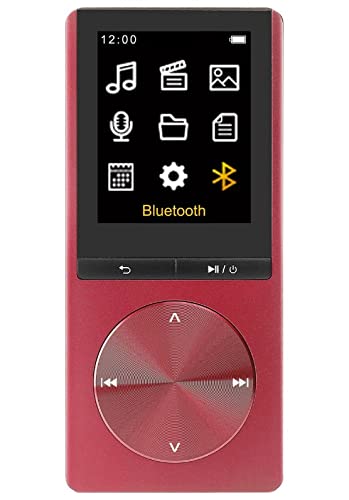
Image 1: Front view of the Difrnce MP1820BT MP3 Player. The device is red and features a screen displaying various function icons, including music, video, images, voice recorder, file browser, e-book reader, calendar, settings, and Bluetooth. Below the screen are three control buttons: a return/back button, and a combined play/pause/power button. At the bottom, there is a large circular control pad with directional arrows (up, down, left, right) for navigation and selection.
Key Features:
- 1.77-inch LCD screen (128 x 160p resolution)
- 4 GB internal memory
- MicroSD card slot for memory expansion (up to 128 GB)
- Bluetooth connectivity
- Voice recording function
- Up to 25 hours of music playback
- Up to 8 hours of video playback
- Compact and lightweight design (40g)
Package Contents:
- Difrnce MP1820BT MP3 Player
- USB Cable
- Headphones
Setup
1. Charging the Device
- Connect the included USB cable to the player's USB port.
- Connect the other end of the USB cable to a powered USB port (e.g., computer, USB wall adapter).
- The battery indicator on the screen will show charging status. A full charge typically takes approximately 2-3 hours.
- Disconnect the player once fully charged to preserve battery life.
2. Inserting a MicroSD Card (Optional)
- Locate the microSD card slot on the side of the player.
- Gently insert a microSD card (up to 128 GB) into the slot until it clicks into place. Ensure the card is oriented correctly.
- To remove, gently push the card inward until it springs out.
3. Connecting Headphones
- Plug the 3.5mm jack of your headphones into the headphone port on the player.
4. Powering On/Off
- To Power On: Press and hold the Play/Pause/Power button (located below the screen) for a few seconds until the screen lights up.
- To Power Off: Press and hold the Play/Pause/Power button for a few seconds until the screen turns off.
Operation
1. Basic Navigation
- Use the Up/Down/Left/Right buttons on the circular control pad to navigate through menus and select options.
- Press the Play/Pause/Power button (center of the circular pad, or the dedicated button below the screen) to confirm a selection or play/pause media.
- Press the Return button (left button below the screen) to go back to the previous menu.
2. Music Playback
- From the main menu, select the Music icon.
- Browse your music library by artist, album, genre, or all songs.
- Select a song and press the Play/Pause button to begin playback.
- Use the Left/Right buttons on the control pad to skip tracks.
- Use the Up/Down buttons to adjust volume.
3. Video Playback
- From the main menu, select the Video icon.
- Browse your video files.
- Select a video and press the Play/Pause button to start.
4. Bluetooth Connectivity
- From the main menu, select the Bluetooth icon or navigate to Settings > Bluetooth.
- Turn Bluetooth On.
- The player will search for available Bluetooth devices.
- Select your desired device (e.g., Bluetooth headphones, speaker) from the list to pair.
- Once paired, audio will be routed through the Bluetooth device.
5. Voice Recording
- From the main menu, select the Voice Recorder icon.
- Press the Play/Pause button to start recording.
- Press the Play/Pause button again to stop and save the recording.
6. File Management
- From the main menu, select the Files icon to browse internal storage and microSD card content.
- You can view, delete, or move files as supported by the device's interface.
7. Settings
- From the main menu, select the Settings icon.
- Here you can adjust various parameters such as display brightness, language, date and time, equalizer settings, and system information.
Maintenance
1. Cleaning
- Use a soft, dry, lint-free cloth to clean the device's screen and body.
- Do not use abrasive cleaners, alcohol, or chemical solvents, as these may damage the surface.
2. Battery Care
- Avoid exposing the device to extreme temperatures (hot or cold), as this can reduce battery life.
- For long-term storage, charge the battery to approximately 50% and store in a cool, dry place.
- Do not attempt to replace the internal battery yourself. Contact support if battery issues arise.
3. Storage
- Store the player in a protective case or pouch to prevent scratches and damage.
- Keep the device away from moisture and direct sunlight.
Troubleshooting
Device Does Not Turn On:
- Ensure the battery is charged. Connect the player to a power source and allow it to charge for at least 30 minutes before attempting to power on again.
- Try performing a soft reset by holding the power button for an extended period (e.g., 10-15 seconds).
No Sound:
- Check if the volume is turned up.
- Ensure headphones are properly connected.
- If using Bluetooth, ensure the device is correctly paired and connected, and its volume is also adjusted.
- Test with different headphones to rule out a faulty pair.
Bluetooth Not Connecting:
- Ensure Bluetooth is enabled on both the player and the target device.
- Make sure both devices are within close proximity (typically within 10 meters).
- Unpair and re-pair the devices.
- Check if the target Bluetooth device is in pairing mode.
Files Not Appearing:
- Ensure files are in supported formats (e.g., MP3 for audio).
- Verify that the microSD card is properly inserted and recognized by the device.
- Connect the player to a computer and check if the files are present on the internal storage or microSD card.
Specifications
| Model Name: | MP1820BT |
| Brand: | Difrnce |
| Screen Size: | 1.77 Inches |
| Screen Resolution: | 128 x 160 pixels |
| Internal Storage: | 4 GB |
| Expandable Memory: | MicroSD slot, up to 128 GB |
| Connectivity: | Bluetooth |
| Supported Audio Formats: | MP3 |
| Music Playback Time: | Up to 25 hours |
| Video Playback Time: | Up to 8 hours |
| Item Weight: | 40 g |
Warranty & Support
For warranty information and customer support, please refer to the documentation provided with your purchase or visit the official Difrnce website. Keep your proof of purchase for any warranty claims.
If you encounter issues not covered in this manual, please contact Difrnce customer service for assistance.
