
1. Introduction
This manual provides detailed instructions for the setup, operation, and maintenance of your Philips DPM8900/02 Meeting Recorder Kit. This innovative system is designed to capture meeting audio with exceptional clarity, ensuring every voice is heard and important discussions are accurately recorded. The kit includes a PocketMemo digital voice recorder, a docking station, and four 360° boundary microphones for comprehensive audio coverage.
1.1 Package Contents
Please verify that all items listed below are present in your package:
- PocketMemo Digital Voice Recorder DPM8900
- Docking Station ACC8120
- Four Meeting Microphones LFH9172/00
- Memory card
- Power supply
- Rechargeable battery ACC8100/00
- Remote control
- USB cable
- Splitter cable
- Pouch
- SpeechExec Basic Dictation Software (2-year subscription included)
- Metal carry case
- Quick start guide
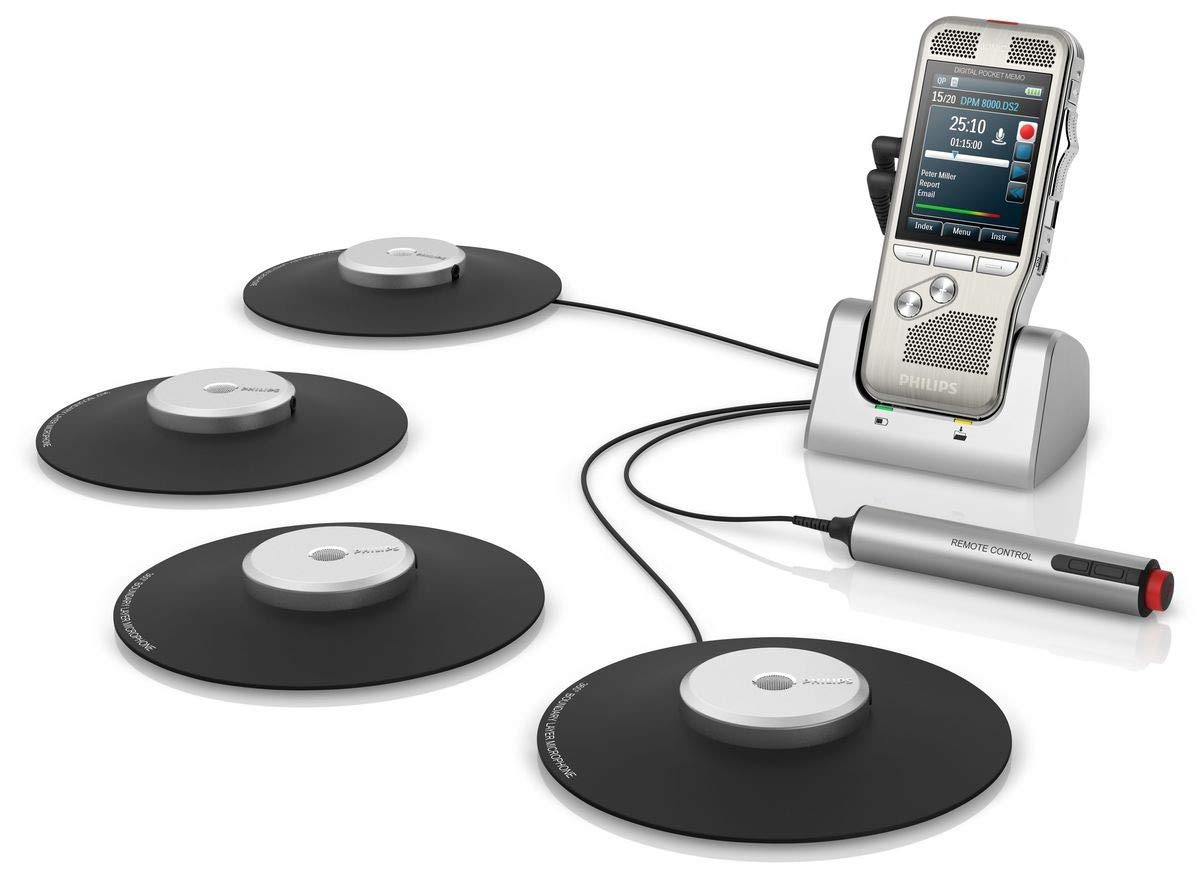
Figure 1: Philips DPM8900/02 Meeting Recorder Kit Components. This image displays the Philips PocketMemo digital voice recorder docked in its station, connected to four boundary microphones and a remote control. The microphones are circular, flat devices designed for 360-degree audio capture, strategically placed around the recording area. The remote control is a slender, cylindrical device with control buttons. The PocketMemo device itself features a screen displaying recording information and control buttons.
2. Initial Setup
2.1 Charging the Device
- Insert the rechargeable battery (ACC8100/00) into the PocketMemo DPM8900.
- Place the PocketMemo into the docking station (ACC8120).
- Connect the power supply to the docking station and then to an electrical outlet.
- The device will begin charging. A full charge is recommended before first use.
2.2 Connecting Microphones
The kit includes four boundary microphones for optimal meeting coverage.
- Connect the splitter cable to the microphone input port on the docking station.
- Connect the four boundary microphones (LFH9172/00) to the splitter cable.
- Strategically place the microphones around the meeting table to ensure 360-degree audio capture. The innovative design utilizes the table surface for enhanced sound quality.
- For larger meetings, additional microphones can be connected (up to six in total) using an additional splitter cable (sold separately).
2.3 Software Installation (SpeechExec Basic)
The SpeechExec Basic Dictation Software is included with a 2-year subscription to manage your recordings.
- Insert the provided memory card or access the software installer via the Philips website.
- Follow the on-screen instructions to install SpeechExec Basic on your computer.
- Register your software using the provided license key to activate the 2-year subscription.
- Connect the docking station to your computer using the supplied USB cable to transfer recordings.
3. Operation Guide
3.1 Recording a Meeting
- Ensure the PocketMemo is powered on and the microphones are properly connected and positioned.
- Press the Record button on the PocketMemo or the remote control to start recording. The recording indicator will illuminate.
- The device will capture audio from all connected microphones, providing a 360-degree recording radius.
- To pause recording, press the Pause button. Press again to resume.
- To stop recording, press the Stop button. The recording will be saved automatically.
3.2 Using the Remote Control
The remote control provides convenient access to key recording functions.
- Record Button: Initiates recording.
- Stop Button: Stops recording and saves the file.
- Index Button: Allows marking specific points in a recording for easy navigation during playback.
3.3 Playback
- Navigate through your saved recordings using the device's menu and navigation buttons.
- Select the desired recording and press the Play button.
- Adjust the volume using the dedicated volume controls on the device.
- Recordings can also be played back and managed using the SpeechExec Basic software on your computer.
3.4 File Management
Recordings are stored on the memory card. Use the SpeechExec Basic software for advanced file management.
- Transferring Files: Connect the docking station to your computer via USB. The SpeechExec software will automatically detect the device and allow you to transfer recordings.
- Organizing Files: Within SpeechExec, you can categorize, rename, and add properties to your dictations.
- Exporting Files: Export recordings in various formats (e.g., MP3) for sharing or archiving.
4. Care and Maintenance
- Cleaning: Use a soft, dry cloth to clean the device and microphones. Avoid abrasive cleaners or solvents.
- Battery Care: To prolong battery life, avoid fully discharging the battery frequently. Store the device in a cool, dry place when not in use for extended periods.
- Software Updates: Regularly check the Philips website for firmware updates for the PocketMemo and software updates for SpeechExec Basic to ensure optimal performance and access to new features.
- Storage: Use the provided metal carry case for safe transport and storage of the kit components.
5. Troubleshooting
This section addresses common issues you might encounter with your Philips DPM8900/02 Meeting Recorder Kit.
| Problem | Possible Cause | Solution |
|---|---|---|
| Device does not power on. | Battery is discharged or not inserted correctly. | Ensure the battery is correctly inserted and fully charged. Connect the device to the power supply via the docking station. |
| No audio during recording. | Microphones not connected or faulty. | Verify all microphones are securely connected to the splitter cable and the splitter cable to the docking station. Check microphone cables for damage. |
| Poor recording quality. | Microphone placement or environmental noise. | Adjust microphone placement for optimal coverage. Minimize background noise in the recording environment. Ensure microphones are on a flat surface. |
| Cannot transfer files to computer. | USB connection issue or SpeechExec software not running. | Ensure the USB cable is securely connected to both the docking station and the computer. Verify SpeechExec Basic software is installed and running. Try restarting both the device and the computer. |
| Remote control not responding. | Remote control not properly connected. | Ensure the remote control is securely plugged into the PocketMemo or docking station. |
6. Technical Specifications
| Feature | Specification |
|---|---|
| Model Number | DPM8900/02 |
| Product Dimensions | 4.84 x 2.09 x 0.59 inches |
| Item Weight (Recorder) | 8.89 pounds (total kit weight) |
| Batteries | 1 Lithium Ion battery required (included) |
| Hardware Interface | USB |
| Microphone Form Factor | Built-In (on recorder), External Boundary Microphones |
| Recording Format | MP3 Audio |
| Headphones Jack | 3.5 millimeters |
| Memory Storage Capacity | 8 GB |
| Screen Size | 2.7 inches |
| Digital Recording Time | Up to 120 hours (depending on quality settings) |
| Manufacturer | Philips |
| Date First Available | February 3, 2020 |
7. Warranty and Support
For detailed warranty information regarding your Philips DPM8900/02 Meeting Recorder Kit, please refer to the warranty card included in your package or visit the official Philips website. Warranty terms and conditions may vary by region.
If you require technical assistance, have questions about product functionality, or need to report a defect, please contact Philips customer support. Support contact details can typically be found on the Philips website or in the quick start guide provided with your product.


