1. Introduction
This manual provides comprehensive instructions for the installation, operation, and maintenance of the MERCURY LP1502 Intelligent Controller. The LP1502 is a multi-port controller designed for advanced access control and security management systems.
The LP1502 is a 2-4 card reader panel capable of controlling two connected doors and managing up to 64 doors/openings. It features an on-board Ethernet port for seamless connection to cloud or server-based access control hosts, performing access control, alarm management, and scheduled operations within a single unit.
Key Features:
- Open Architecture: High performance, reliable platform enabling integration with Mercury OEM partners’ software solutions.
- Enhanced Security: Features an embedded crypto memory chip and data at rest encryption for robust protection of sensitive data.
- OSDP Protocol: Supports secure channel communications for reader connectivity, ensuring data integrity.
- Versatile Interoperability: Shares the same reliable interface and identical footprint as EP controllers, facilitating seamless upgrades for existing deployments.
- Capacity: Supports a capacity of up to 240,000 cardholders.
2. Setup and Installation
Before beginning installation, ensure all necessary components are present and power is disconnected from the installation area. Refer to local electrical codes and safety regulations.
2.1 Package Contents:
- MERCURY LP1502 Intelligent Controller
- Mounting Hardware (screws, standoffs)
- Quick Start Guide (if applicable)
2.2 Mounting the Controller:
- Select a suitable mounting location that is secure, dry, and provides adequate ventilation.
- Use the provided mounting hardware to securely attach the LP1502 controller to a flat surface. Ensure the board is level.
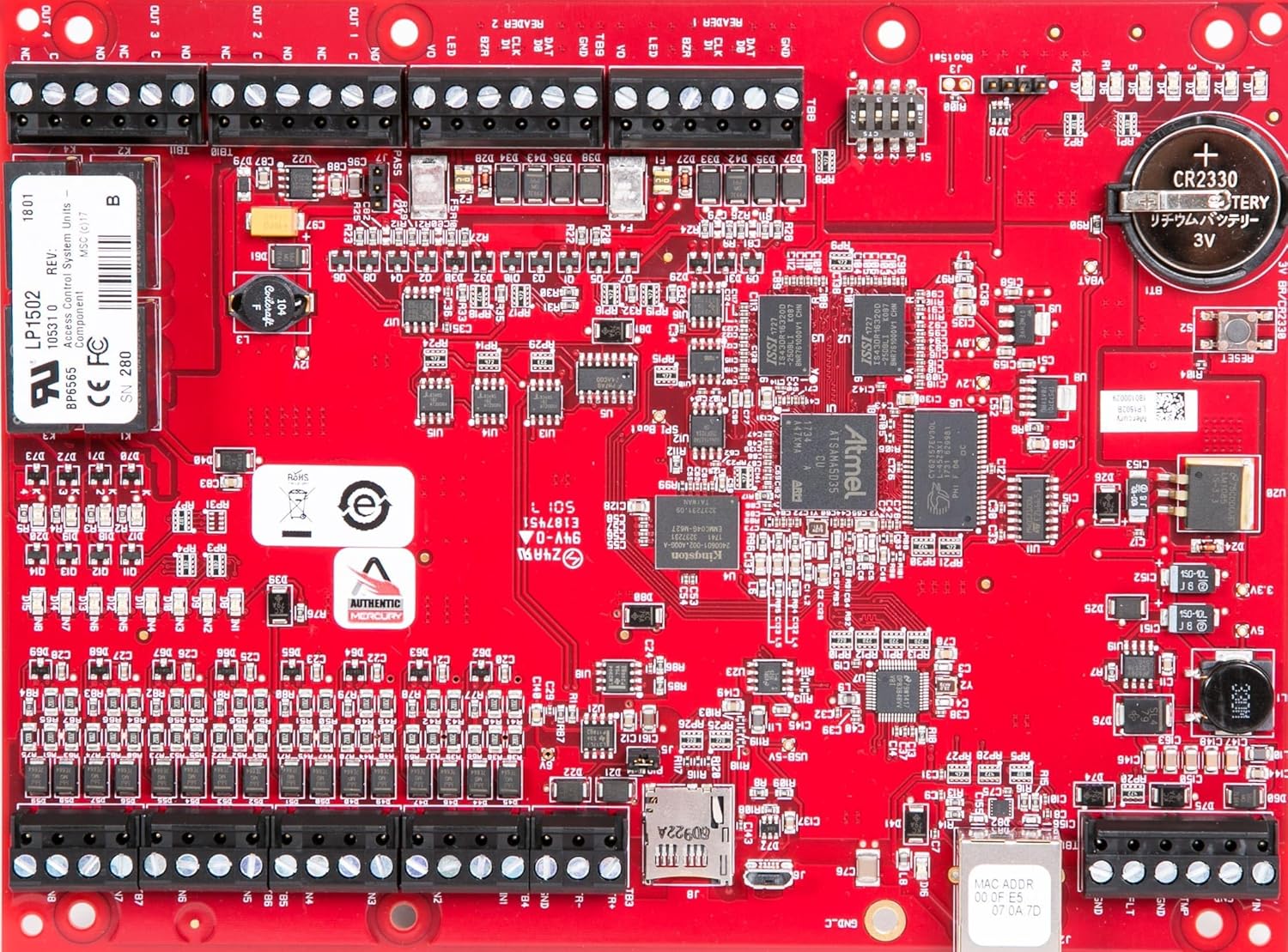
Figure 2.1: Overview of the MERCURY LP1502 Intelligent Controller circuit board. This image displays the various components, connectors, and integrated circuits on the red PCB, including terminal blocks for inputs/outputs, reader connections, and the CR2330 battery.
2.3 Wiring Connections:
The LP1502 controller requires careful wiring for power, network, readers, inputs, and outputs. Refer to the labels on the board for correct terminal assignments.
- Power Input: Connect a stable 12 Volts DC power supply to the designated power terminals. Observe polarity.
- Network Connection: Connect an Ethernet cable to the on-board Ethernet port for network communication with the access control host.
- Reader Connections: Connect up to four card readers to the READER 1 and READER 2 terminals. Ensure correct wiring for data (DAT), clock (CLK), LED, and buzzer (BZR) as per reader specifications.
- Input Connections: Connect up to eight input devices (e.g., door contacts, request-to-exit buttons) to the IN1-IN8 terminals.
- Output Connections: Connect up to four output devices (e.g., door locks, alarms) to the OUT1-OUT4 terminals.
Note: Incorrect wiring can damage the controller. If unsure, consult a qualified technician.
3. Operating Instructions
Once installed and powered, the LP1502 controller operates under the command of the connected access control software. This section outlines general operational aspects.
3.1 Initial Power-Up:
- After all wiring is complete and verified, apply 12V DC power to the controller.
- Observe the LED indicators on the board. The D1 LED should illuminate, and other LEDs may flash during the boot sequence.
- The controller will attempt to establish a network connection and communicate with the configured access control host.
3.2 Software Integration:
The LP1502 is an intelligent controller that requires integration with compatible access control management software. Refer to your software provider's documentation for specific steps on adding and configuring the LP1502 within their system.
- Device Discovery: Use the software's discovery tools to locate the LP1502 on the network.
- Configuration: Configure reader types, input zones, output actions, and access rules within the software.
- Firmware Updates: Firmware updates are typically managed through the access control software or a dedicated utility provided by Mercury Security.
3.3 Normal Operation:
In normal operation, the LP1502 processes access requests from connected readers, monitors input states, and controls output devices based on programmed rules. Events are logged and communicated to the host software.
4. Maintenance
Regular maintenance ensures the longevity and reliable performance of your LP1502 Intelligent Controller.
4.1 Cleaning:
- Periodically inspect the controller for dust accumulation.
- Use a soft, dry cloth or a can of compressed air to gently clean the circuit board. Do not use liquid cleaners.
4.2 Firmware Updates:
Keep the controller's firmware updated to the latest version to ensure optimal performance, security, and compatibility. Refer to Mercury Security's official website or your access control software provider for update procedures.
4.3 Battery Replacement:
The LP1502 board includes a CR2330 coin cell battery (VBAT) which maintains the real-time clock and certain configuration settings during power loss. This battery typically has a long lifespan but should be replaced if the controller experiences time drift or configuration loss after power cycles.
- Disconnect all power from the controller.
- Carefully remove the old CR2330 battery from its holder.
- Insert a new CR2330 battery, ensuring correct polarity (+ side up).
- Reconnect power and verify controller operation.
Figure 4.1: Location of the CR2330 battery on the LP1502 board. The battery is clearly labeled "CR2330 BATTERY 3V" and is essential for maintaining the real-time clock and configuration settings.
5. Troubleshooting
This section provides solutions to common issues encountered with the LP1502 Intelligent Controller.
| Problem | Possible Cause | Solution |
|---|---|---|
| Controller does not power on (no LEDs). | No power supply, incorrect wiring, faulty power supply. | Verify 12V DC power supply connection and polarity. Test power supply output. Check all power wiring. |
| D1 LED lights up, but no further activity (no boot sequence). | Corrupted firmware, hardware malfunction. | Attempt a firmware reflash if possible via a dedicated utility. If issue persists, contact technical support. |
| Controller not detected on network. | Network cable issue, incorrect IP configuration, network firewall. | Check Ethernet cable connection. Verify network settings (IP address, subnet mask) in the controller and host software. Check firewall rules. |
| Card readers not responding. | Incorrect reader wiring, faulty reader, software configuration. | Verify reader wiring (DAT, CLK, LED, BZR). Test reader with a known good controller. Check reader configuration in access control software. |
| Access denied for valid cards. | Card not enrolled, access level issues, time schedules. | Verify card enrollment and associated access levels in the software. Check time schedules and holiday settings. |
For issues not listed here, or if the suggested solutions do not resolve the problem, please contact Mercury Security technical support.
6. Specifications
Technical specifications for the MERCURY LP1502 Intelligent Controller.
| Feature | Detail |
|---|---|
| Model Number | LP1502 |
| Brand | MERCURY SECURITY |
| Input Voltage | 12 Volts DC |
| Reader Ports | 4 (supporting 2-4 readers) |
| Supervised Inputs | 8 |
| Relay Outputs | 4 |
| Cardholder Capacity | 240,000 |
| Communication | Ethernet |
| Dimensions (L x W x H) | 9.76 x 6.93 x 2.91 inches |
| Item Weight | 11.3 ounces |
| Compliance | CE, FC |
| UPC | 643690809715 |
7. Warranty Information
The MERCURY LP1502 Intelligent Controller is covered by a manufacturer's warranty.
Warranty Description: Manufacturer's Warranty.
For detailed terms and conditions of the warranty, including coverage period and claim procedures, please refer to the official documentation provided with your product or visit the Mercury Security official website. Keep your proof of purchase for warranty claims.
8. Technical Support
If you require technical assistance or have questions regarding the MERCURY LP1502 Intelligent Controller, please contact Mercury Security technical support.
- Online Resources: Visit the official Mercury Security website for FAQs, documentation, and software downloads.
- Contact Information: Refer to the Mercury Security website for the most current contact details, including phone numbers and email addresses for technical support.
When contacting support, please have your product model number (LP1502) and any relevant error messages or observations ready to facilitate a quicker resolution.


