
1. Introduction
Welcome to the user manual for your HKC MR13HFP Portable Monitor. This document provides essential information for the proper setup, operation, and maintenance of your device. Please read this manual thoroughly before using the monitor to ensure optimal performance and safety.
2. Safety Information
Observe the following safety guidelines to prevent damage to the monitor and ensure user safety:
- Do not expose the monitor to rain, moisture, or extreme temperatures.
- Avoid placing the monitor near heat sources or in direct sunlight.
- Use only the power adapter and cables supplied or recommended by the manufacturer.
- Do not attempt to disassemble or modify the monitor. Refer all servicing to qualified personnel.
- Keep the monitor away from strong magnetic fields.
- Clean the screen with a soft, lint-free cloth. Avoid using harsh chemicals or abrasive cleaners.
3. Package Contents
Please check the package for the following items:
- HKC MR13HFP Portable Monitor
- Protective Magnetic Cover (doubles as a stand)
- HDMI to Mini HDMI Cable
- USB-C to USB-C Cable
- Power Adapter (12V)
- User Manual (this document)
4. Product Overview
The HKC MR13HFP is a 14-inch portable monitor designed for extended display functionality. It features a Full HD IPS panel, multiple connectivity options, and integrated speakers.

Figure 4.1: Front view of the HKC MR13HFP portable monitor. The monitor displays a vibrant image and features a slim bezel design.
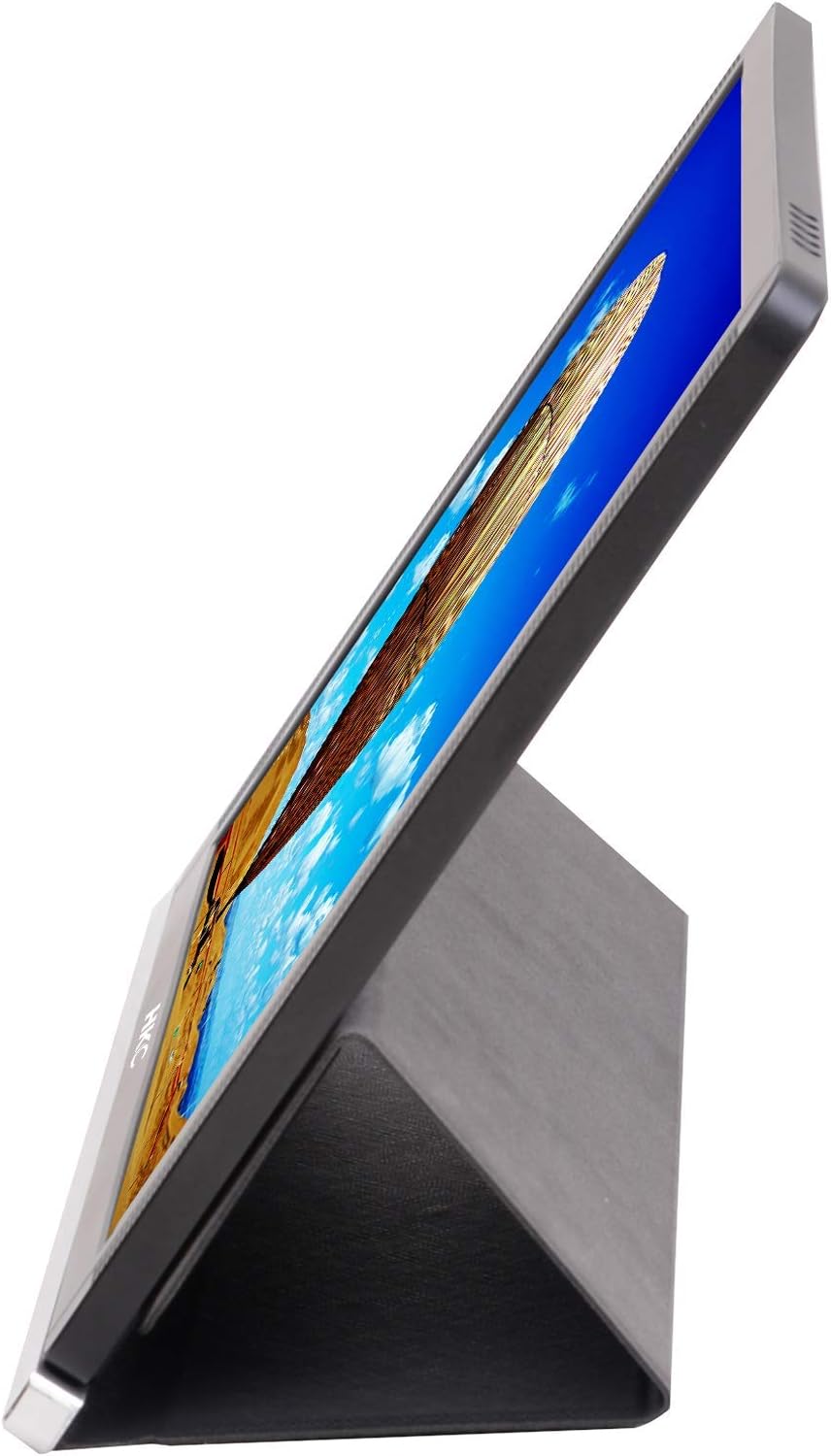
Figure 4.2: Side view of the HKC MR13HFP portable monitor, highlighting its ultra-slim design and the magnetic cover folded into a stand.
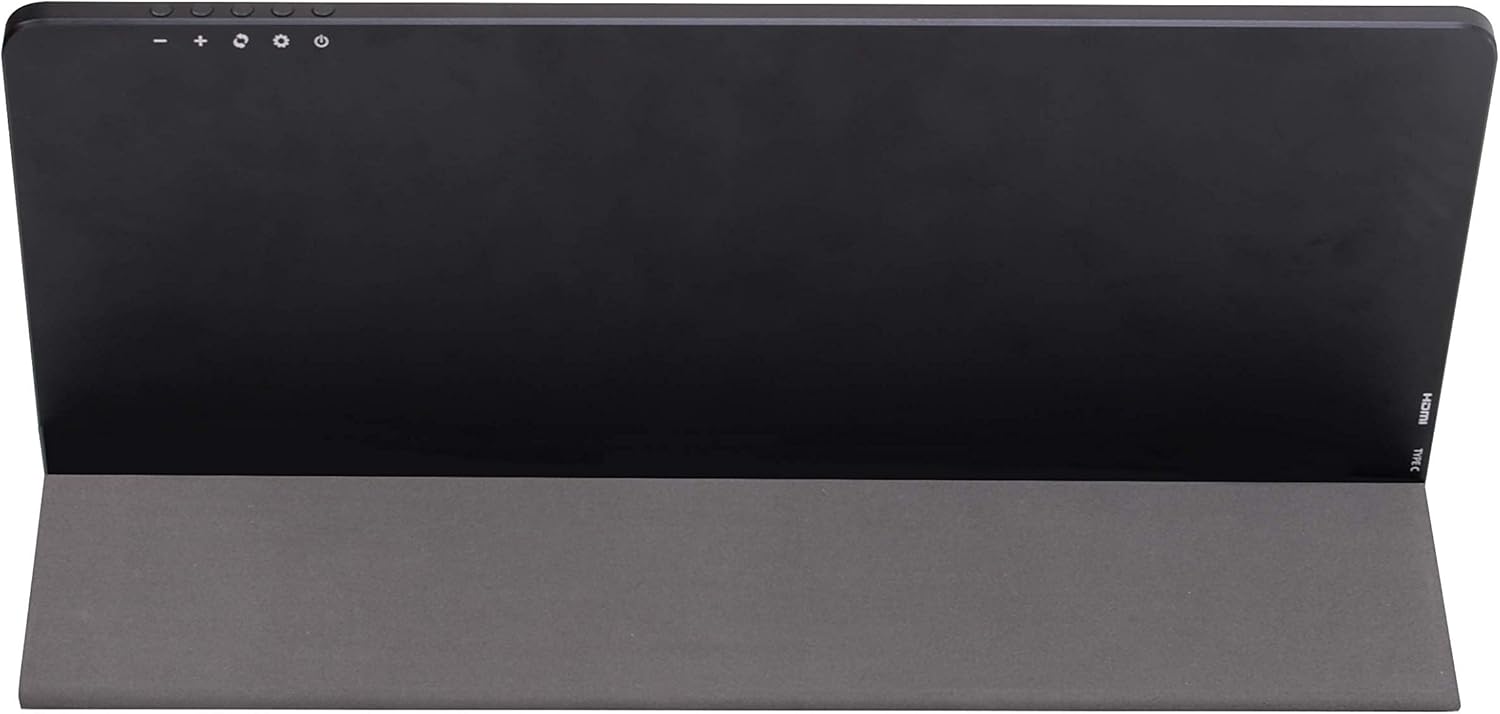
Figure 4.3: Back view of the HKC MR13HFP portable monitor. The top edge features control buttons, and the right side indicates HDMI and Type-C ports.
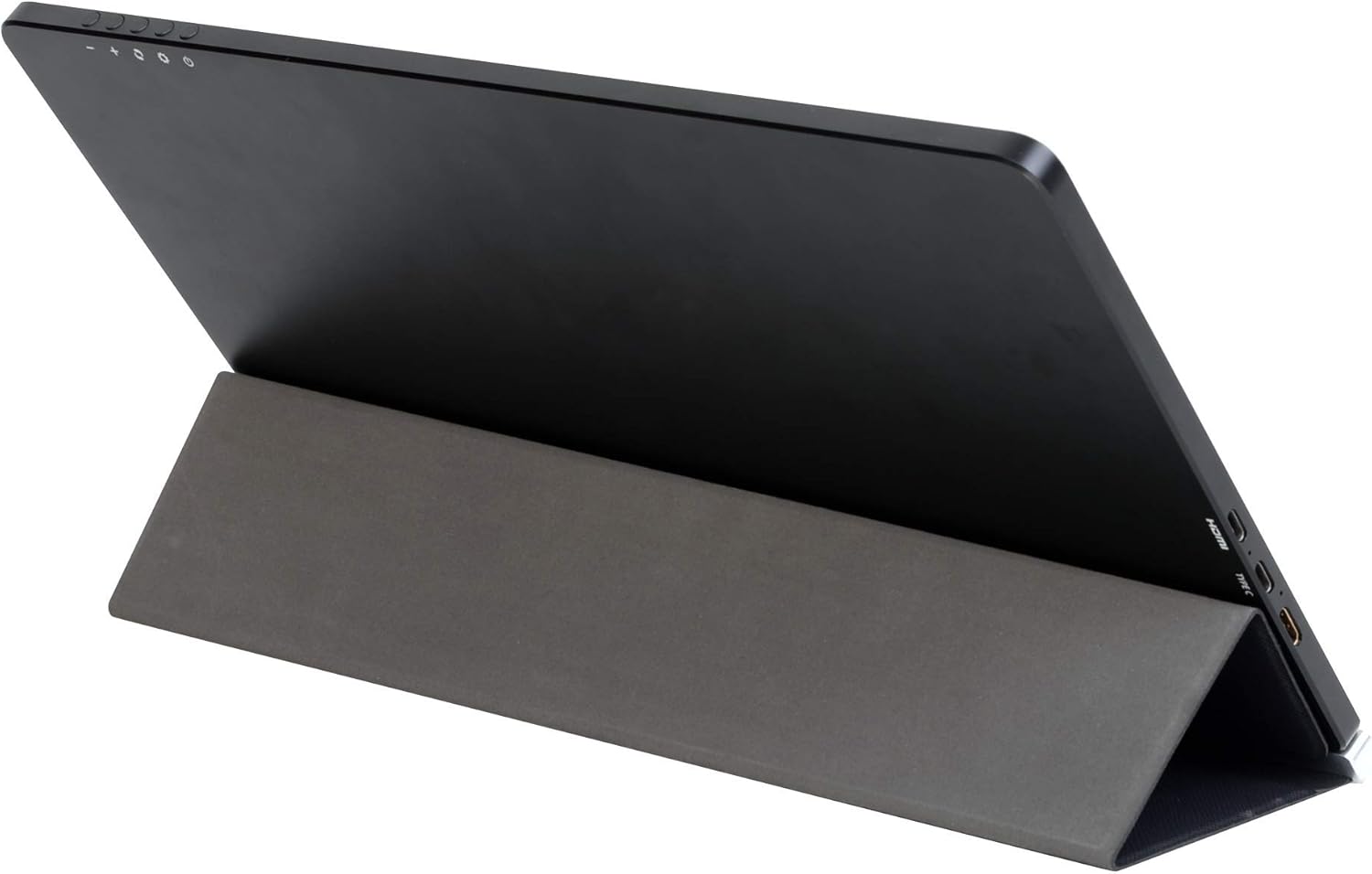
Figure 4.4: Angled back view of the HKC MR13HFP portable monitor, illustrating the placement of the HDMI and USB-C ports on the side.

Figure 4.5: Side view of the HKC MR13HFP portable monitor, demonstrating the magnetic cover's functionality as a stable stand for desktop use.
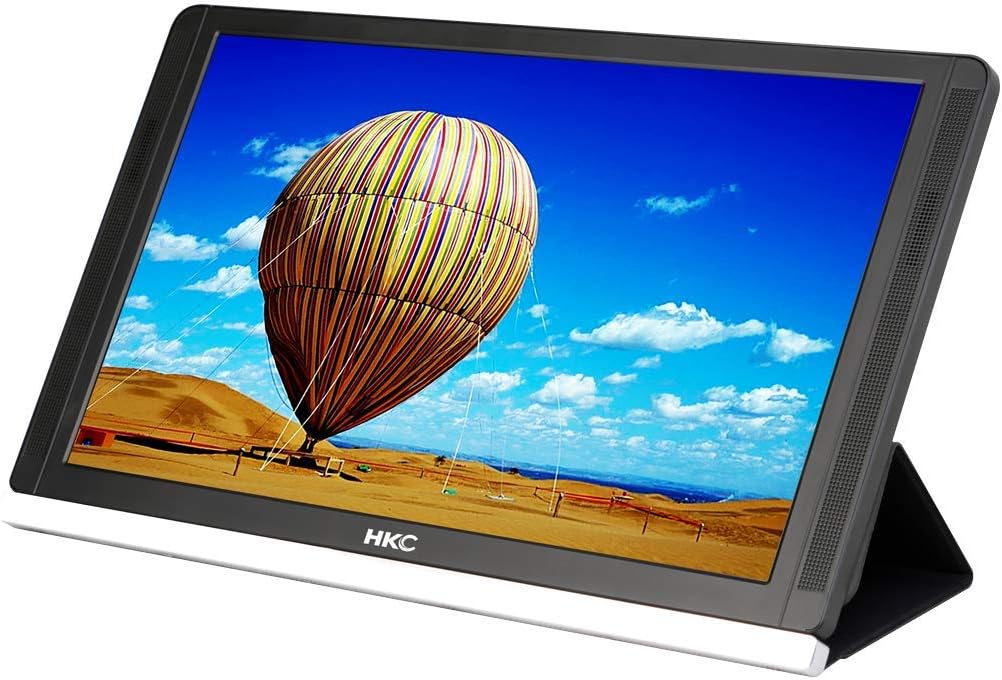
Figure 4.6: Front view of the HKC MR13HFP portable monitor, showcasing its display quality and the integrated stand for convenient viewing angles.
5. Setup
5.1. Connecting to Devices
The HKC MR13HFP monitor offers versatile connectivity for various devices:
- USB-C Connection: For devices with a full-featured USB-C port (supporting DisplayPort Alternate Mode and power delivery), connect the monitor using the supplied USB-C to USB-C cable. This single cable can transmit video, audio, and power.
- HDMI Connection: For devices with an HDMI output, connect the monitor using the supplied HDMI to Mini HDMI cable. An additional USB-C cable or power adapter will be required for power.
- Power Only: If your device cannot supply sufficient power via USB-C or if using HDMI, connect the monitor to the power adapter using the dedicated USB-C power input port.
5.2. Using the Protective Cover as a Stand
The included magnetic protective cover can be folded to create a stable stand for the monitor. Position the monitor on a flat surface and adjust the cover to achieve your desired viewing angle.

Figure 5.1: The HKC MR13HFP portable monitor set up as a secondary display next to a laptop, demonstrating its use in an office or work environment.
6. Operating Instructions
6.1. Basic Controls
The monitor features control buttons typically located on the top or side edge (refer to Product Overview images for exact placement). These buttons allow you to:
- Power On/Off: Press and hold the power button.
- Menu Access: Press the menu button to open the On-Screen Display (OSD).
- Navigation: Use the directional buttons (often combined with volume controls) to navigate through OSD options.
- Volume Control: Adjust the audio output from the built-in speakers.
6.2. On-Screen Display (OSD) Menu
The OSD menu allows you to adjust various display settings, including brightness, contrast, color temperature, input source, and aspect ratio. Navigate the menu using the physical buttons on the monitor.
6.3. Audio Output
The monitor is equipped with built-in dual speakers, providing audio output from the connected device. Volume can be adjusted via the monitor's control buttons or the connected device's audio settings.
7. Multiple Display Modes
The HKC MR13HFP supports various display modes when connected to a compatible device, enhancing productivity and entertainment:
- Duplicate Mode (Mirror Mode): The monitor displays the same content as your primary device's screen. Useful for presentations or sharing content.
- Extend Mode: The monitor acts as an extension of your primary device's screen, providing more desktop space. This allows you to drag windows between screens.
- Second Screen Only Mode: Your primary device's screen turns off, and all content is displayed only on the portable monitor.
These modes are typically configured through your operating system's display settings (e.g., Windows Display Settings, macOS System Preferences).
8. Maintenance
8.1. Cleaning
- Always disconnect the monitor from power before cleaning.
- Use a soft, dry, lint-free cloth to wipe the screen and exterior.
- For stubborn marks, lightly dampen the cloth with water. Avoid spraying liquids directly onto the monitor.
- Do not use alcohol, ammonia, or abrasive cleaners, as they may damage the screen or casing.
8.2. Storage
When not in use, store the monitor in a cool, dry place. Use the protective cover to prevent scratches and dust accumulation.
9. Troubleshooting
If you encounter issues with your HKC MR13HFP monitor, refer to the following common problems and solutions:
- No Power:
- Ensure the power adapter is securely connected to both the monitor and a working power outlet.
- If using USB-C for power, ensure your device provides sufficient power or connect an external power adapter.
- Press the power button firmly.
- No Signal:
- Verify that the video cable (USB-C or HDMI) is securely connected to both the monitor and the source device.
- Check the input source setting in the monitor's OSD menu to ensure it matches the connected cable.
- Ensure your source device is powered on and configured to output video to an external display.
- Try a different cable or port if available.
- Flickering or Distorted Image:
- Check cable connections for looseness or damage.
- Adjust the resolution and refresh rate settings on your source device to match the monitor's specifications (1920x1080 at 60Hz).
- Ensure the monitor is receiving adequate power.
- No Sound from Speakers:
- Increase the volume on both the monitor and your source device.
- Check audio output settings on your source device to ensure audio is directed to the portable monitor.
- Ensure the cable used supports audio transmission (both USB-C and HDMI do).
10. Specifications
| Feature | Specification |
|---|---|
| Model Number | MR13HFP |
| Screen Size | 13.3 Inches |
| Resolution | 1920 x 1080 (Full HD) |
| Panel Type | IPS |
| Aspect Ratio | 16:9 |
| Refresh Rate | 60 Hz |
| Contrast Ratio | 1000:1 |
| Connectivity | Mini HDMI, USB-C (DisplayPort Alt Mode & Power Delivery) |
| Audio | Built-in Dual Speakers |
| Power Consumption | <24 Watts (Operating), <0.3 Watts (Sleep Mode) |
| Dimensions (L x W x H) | 34.2 x 20 x 0.8 cm |
| Weight | 808 grams |
| Manufacturer | HKC |
11. Warranty and Support
For warranty information and technical support, please refer to the warranty card included with your product or contact HKC customer service directly. Keep your proof of purchase for warranty claims.
