1. Introduction and Overview
The MikroTik wAP ac LTE kit is a compact, weather-proof wireless access point with an integrated LTE modem and GPS capabilities. Designed for versatile connectivity, it provides reliable internet access in various environments, including remote locations, vehicles, and IoT applications. This device supports dual-band 802.11ac Wi-Fi, Gigabit Ethernet, and features multiple SIM slots for flexible LTE connectivity. Its robust design and comprehensive feature set make it an ideal solution for extending network coverage and enabling remote monitoring.

Image 1.1: The MikroTik wAP ac LTE kit unit, showcasing its compact design.
2. Package Contents
Verify that all items listed below are included in your package:
- MikroTik wAP ac LTE kit Unit: The main device, a wireless access point with integrated LTE and GPS.
- Mounting Bracket: Used for secure installation of the device on various surfaces.

Image 2.1: Mounting bracket for the wAP ac LTE kit.
- Gigabit PoE Injector: Provides power to the device over an Ethernet cable.

Image 2.2: Gigabit Power over Ethernet (PoE) Injector.
- Power Adapter (24V 1.2A): For direct power supply to the device.

Image 2.3: 24V 1.2A Power Adapter.
- Automotive Cable: For powering the device in automotive applications.
- Hose Clamp: For pole mounting the device.

Image 2.4: Hose clamp for securing the device to a pole.
- Plastic Zip Tie: For cable management or additional securing.

Image 2.5: Plastic zip tie.
- Mounting Screws and Anchors: For wall mounting the device.

Image 2.6: Mounting screws and anchors.
3. Setup
Follow these steps to set up your MikroTik wAP ac LTE kit:
- Unpack the Device: Carefully remove all components from the packaging.
- Install SIM Cards: The device features three SIM card slots. Open the access panel (refer to Image 3.1) and insert your activated SIM cards into the designated slots. Ensure they are correctly oriented and click into place.
- Powering On:
- Using PoE: Connect an Ethernet cable from the Gigabit PoE Injector to the ETH1 port on the device. Connect the other end of the Ethernet cable from the PoE Injector to your network switch or router. Plug the power adapter into the PoE Injector and a power outlet.
- Using DC Jack: Connect the 24V 1.2A power adapter directly to the DC power jack on the device. Plug the power adapter into a power outlet.
- Using Automotive Cable: Connect the automotive cable to the DC power jack and to a compatible 12-30V DC power source in your vehicle.
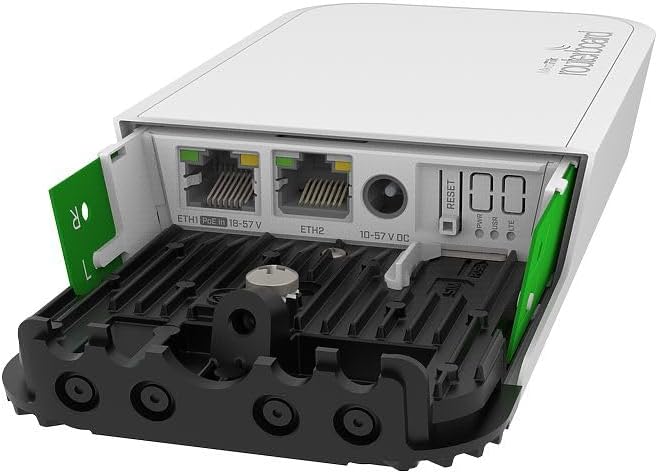
Image 3.1: Rear view of the wAP ac LTE kit showing Ethernet ports, DC jack, USB, and SIM card access.
- Initial Configuration: Once powered on, the device will boot up. You can access the device's configuration interface via a web browser by connecting to its default IP address (usually 192.168.88.1) or by using MikroTik's WinBox utility. Refer to the MikroTik documentation for detailed RouterOS configuration.
- Mounting: Use the provided mounting bracket, hose clamp, or screws and anchors to securely install the device in your desired location. Ensure the device is mounted in a way that optimizes Wi-Fi and LTE signal reception.
4. Operating Instructions
This section covers the basic operation of your wAP ac LTE kit:
- Wi-Fi Connectivity: The device broadcasts a Wi-Fi network (2.4GHz and 5GHz). Connect your wireless devices to the network using the default SSID and password found on the device label or in the initial configuration.
- LTE Internet Access: With an activated SIM card installed, the device will automatically attempt to connect to the LTE network. You can monitor the connection status and manage LTE settings through the RouterOS interface. The three SIM slots allow for redundancy or switching between providers.
- GPS Functionality: The built-in GPS module provides location data, which can be accessed and utilized for tracking or location-based services through RouterOS.
- Ethernet Ports: The Gigabit Ethernet ports (ETH1, ETH2) can be used to connect wired devices to your network or to provide internet access from a wired source. ETH1 supports PoE input.
- USB Port: The USB port can be used for external storage, 3G/4G modems, or other compatible USB devices.
- Serial Console: The serial console port provides advanced access for configuration and debugging.
5. Maintenance
Regular maintenance ensures optimal performance and longevity of your device:
- Firmware Updates: Periodically check for and install the latest RouterOS firmware updates from the MikroTik website. This ensures you have the latest features, security patches, and performance improvements.
- Cleaning: Keep the device clean and free from dust and debris. Use a soft, dry cloth. Do not use liquid cleaners or aerosols.
- Environmental Considerations: Ensure the device is operating within its specified temperature and humidity ranges. Avoid exposing it to direct sunlight for prolonged periods or extreme weather conditions unless specifically designed for such exposure.
- Regular Checks: Periodically check all cable connections for security and integrity.
6. Troubleshooting
If you encounter issues with your wAP ac LTE kit, refer to the following common troubleshooting steps:
- No Power:
- Verify that the power adapter or PoE injector is correctly connected and plugged into a working power outlet.
- Check the power LED indicator on the device. If it's off, try a different power source or cable.
- No Internet Connection (LTE):
- Ensure SIM cards are properly inserted and activated with a data plan.
- Check LTE signal strength in the RouterOS interface. If the signal is weak, try repositioning the device.
- Verify LTE modem settings in RouterOS, including APN (Access Point Name) configuration.
- No Internet Connection (Ethernet):
- Ensure Ethernet cables are securely connected to both the device and your network equipment.
- Check the link/activity LEDs on the Ethernet ports.
- Verify network configuration (DHCP client, static IP) in RouterOS.
- Wi-Fi Issues:
- Ensure the Wi-Fi interface is enabled in RouterOS.
- Check Wi-Fi channel and frequency settings to avoid interference.
- Verify Wi-Fi password and security settings.
- Slow Performance:
- Check for network congestion or high CPU usage on the device via RouterOS.
- Ensure the device has adequate ventilation to prevent overheating.
- Consider updating to the latest firmware.
- Resetting the Device: If all else fails, you can perform a factory reset. Locate the reset button (refer to Image 3.1) and follow the instructions in the MikroTik documentation for a hard reset. Warning: This will erase all configurations.
7. Specifications
| Feature | Description |
|---|---|
| Model Number | RBWAPGR-5HACD2HND&R11E-LTE |
| Dimensions | 19.69 x 19.69 x 11.02 inches |
| Item Weight | 1.32 pounds |
| Wireless Standards | 802.11ac (Dual-band 2.4GHz and 5GHz) |
| Ethernet Ports | 2 x Gigabit Ethernet (ETH1 supports PoE-in) |
| LTE Modem | Integrated LTE modem |
| SIM Slots | 3 x Mini SIM slots |
| GPS | Built-in GPS module |
| USB Port | 1 x USB Type A |
| Serial Console | Yes |
| Power Input | DC Jack (12-30V), Passive PoE (12-57V) |
| Operating System | RouterOS (License Level 4) |
8. Warranty Information
This MikroTik product is covered by a limited manufacturer's warranty. The warranty period typically covers defects in materials and workmanship under normal use. Please retain your proof of purchase for warranty claims. For specific warranty terms and conditions, refer to the official MikroTik website or contact your local distributor.
9. Support
For technical assistance, product documentation, and software downloads, please visit the official MikroTik website. You can also contact MikroTik support or your authorized reseller for further help.
- MikroTik Official Website: https://mikrotik.com
- Documentation: Refer to the product page for the wAP ac LTE kit on the MikroTik website for detailed manuals and guides.
- Contact Support: Information on how to contact MikroTik technical support can be found on their website.


