1. Introduction
This manual provides essential information for the safe and efficient operation of your SFX JPT 50W 175x175mm Fiber Laser Marking Machine. Please read this manual thoroughly before operating the machine to ensure proper usage, prevent damage, and maintain safety.

Figure 1.1: SFX JPT 50W 175x175mm Fiber Laser Marking Machine. This image displays the complete laser marking system, including the main control unit and the laser head assembly mounted on an adjustable stand with a work bed.
2. Safety Information
The SFX JPT 50W Fiber Laser Marking Machine is a Class 1 laser product with an output power of 0.39mW. While designed for safety, improper use can lead to serious injury. Adhere to all safety guidelines.
- Eye Protection: Always wear appropriate laser safety goggles when operating or observing the machine in operation. Direct or reflected laser light can cause permanent eye damage.
- Authorized Personnel: Only trained and authorized personnel should operate this equipment.
- Work Area: Ensure the work area is clear of flammable materials. Provide adequate ventilation to remove fumes generated during marking.
- Emergency Stop: Familiarize yourself with the location and function of the emergency stop button.
- Electrical Safety: Ensure the machine is properly grounded. Do not operate with damaged cables or if the machine appears to be malfunctioning.
- Material Safety: Be aware of the materials being marked. Some materials can produce hazardous fumes or ignite when exposed to laser energy.
3. Package Contents
Upon unpacking, verify that all items listed below are present and undamaged. If any items are missing or damaged, contact your supplier immediately.
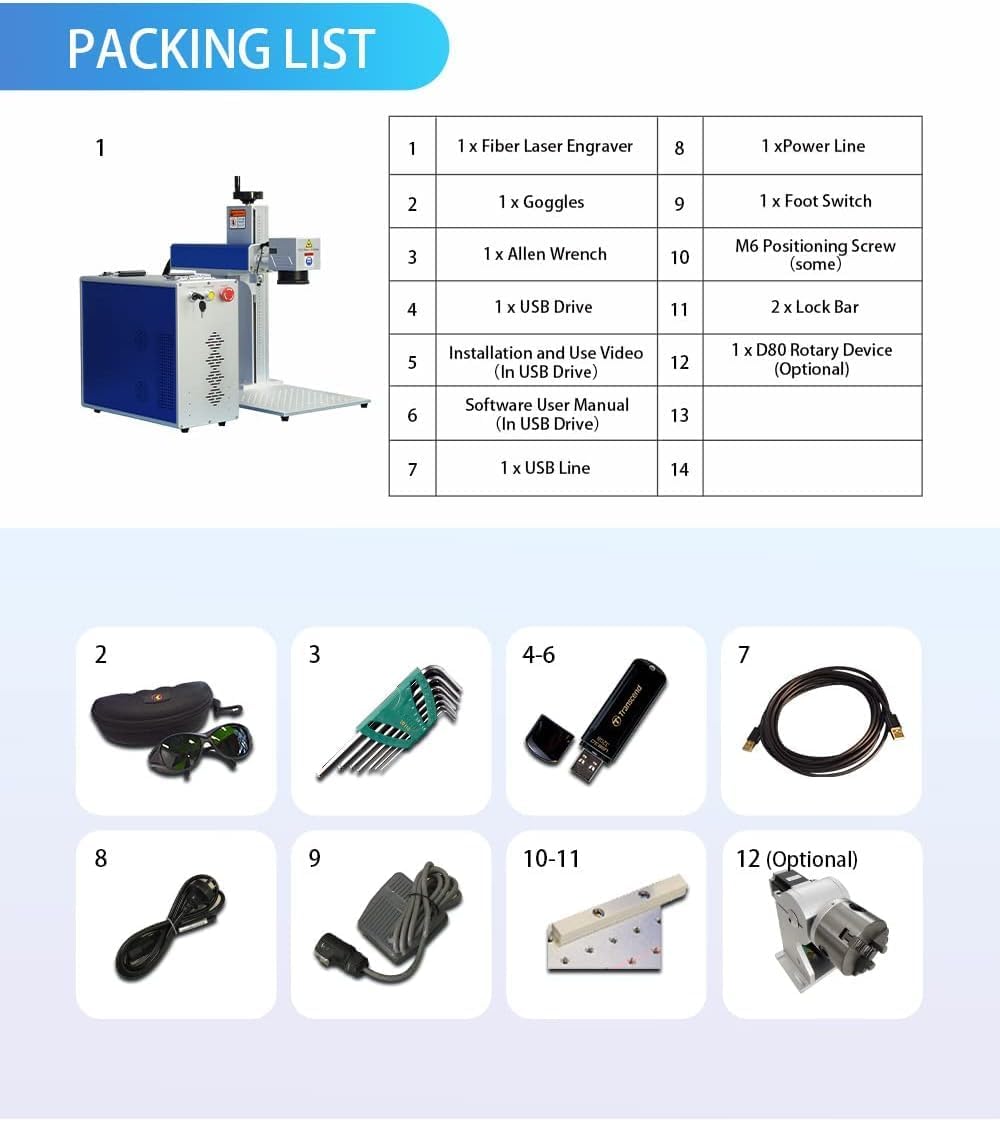
Figure 3.1: Visual representation of the SFX Fiber Laser Marking Machine's packing list. This image shows the main machine, safety goggles, Allen wrench set, USB drive, power line, foot switch, positioning screws, lock bar, and an optional D80 rotary device.
| Item No. | Description | Quantity |
|---|---|---|
| 1 | Fiber Laser Engraver | 1 |
| 2 | Goggles | 1 |
| 3 | Allen Wrench Set | 1 |
| 4 | USB Drive (Installation and Video) | 1 |
| 5 | USB Drive (Software User Manual) | 1 |
| 6 | USB Line | 1 |
| 7 | Power Line | 1 |
| 8 | Foot Switch | 1 |
| 9 | M6 Positioning Screw (some) | 1 |
| 10 | Lock Bar | 2 |
| 11 | D80 Rotary Device (Optional) | 1 |
4. Product Features and Components
The SFX JPT 50W Fiber Laser Marking Machine incorporates advanced components for high-precision marking.
4.1 Laser Source and Lens
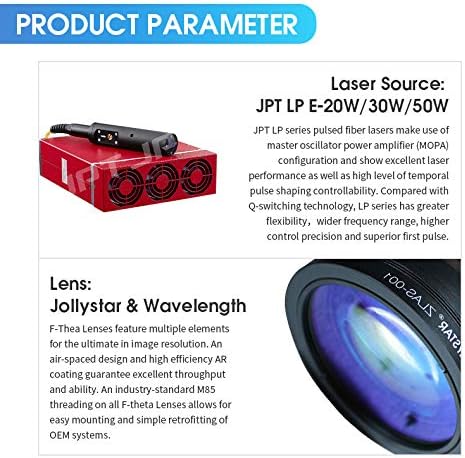
Figure 4.1: Detailed view of the JPT LP series laser source and F-Theta lens. The laser source is a red rectangular unit with cooling fans, and the lens is shown with its optical elements.
- Laser Source: JPT LP+ series pulsed fiber laser. This source utilizes Master Oscillator Power Amplifier (MOPA) configuration, offering excellent laser performance, wide frequency range, high control precision, and superior pulse shaping capabilities compared to Q-switching technology.
- Lens: Jollystar & Wavelength F-Theta Lenses. These lenses feature multiple optical elements, an air-spaced design, and high-efficiency AR coating for optimal image resolution and throughput. They are designed with industry-standard M85 threading for easy mounting.
4.2 Control Board and Galvo Scanner

Figure 4.2: The JCZ-LMCV4 control board and Sino-Galvo & ZBTK galvo scanner. The control board is a green circuit board with various connectors, and the galvo scanner is a silver and blue unit with a caution label.
- Control Board: JCZ-LMCV4. This stable and reliable control board provides various interfaces and is compatible with EZCAD2.0 software (and Lightburn).
- Galvo Scanner: Sino-Galvo & ZBTK. This scanner ensures good running stability, high positioning accuracy, fast marking speed, and strong anti-interference ability.
4.3 Machine Interface and Rotary Axis (Optional)
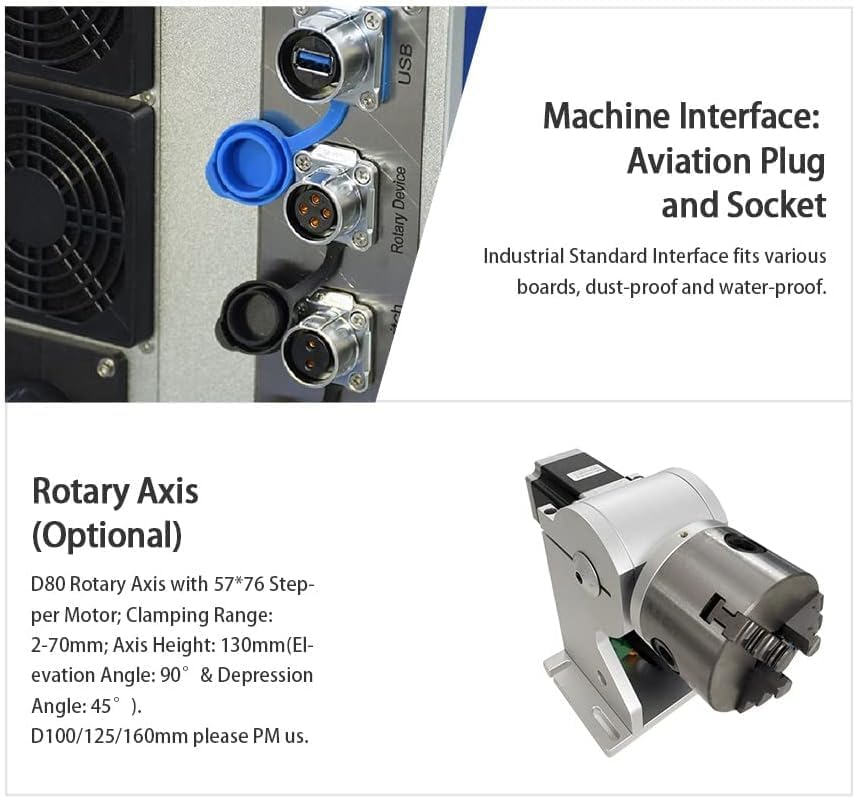
Figure 4.3: Close-up of the machine's aviation plug and socket interfaces, along with an image of the optional D80 rotary axis. The interfaces include USB ports and circular aviation connectors, while the rotary axis is a silver mechanical device for cylindrical object marking.
- Machine Interface: Features industrial standard aviation plugs and sockets, designed to be dust-proof and water-proof, ensuring reliable connections for various boards.
- Rotary Axis (Optional): D80 Rotary Axis with 57*76 Stepper Motor. This accessory allows for marking on cylindrical objects with a clamping range of 2-70mm and an axis height of 130mm. It supports elevation angles of 90° and depression angles of 45°. Other sizes (D100/125/160mm) may be available.
4.4 Double Red Dot Focusing and Work Bed
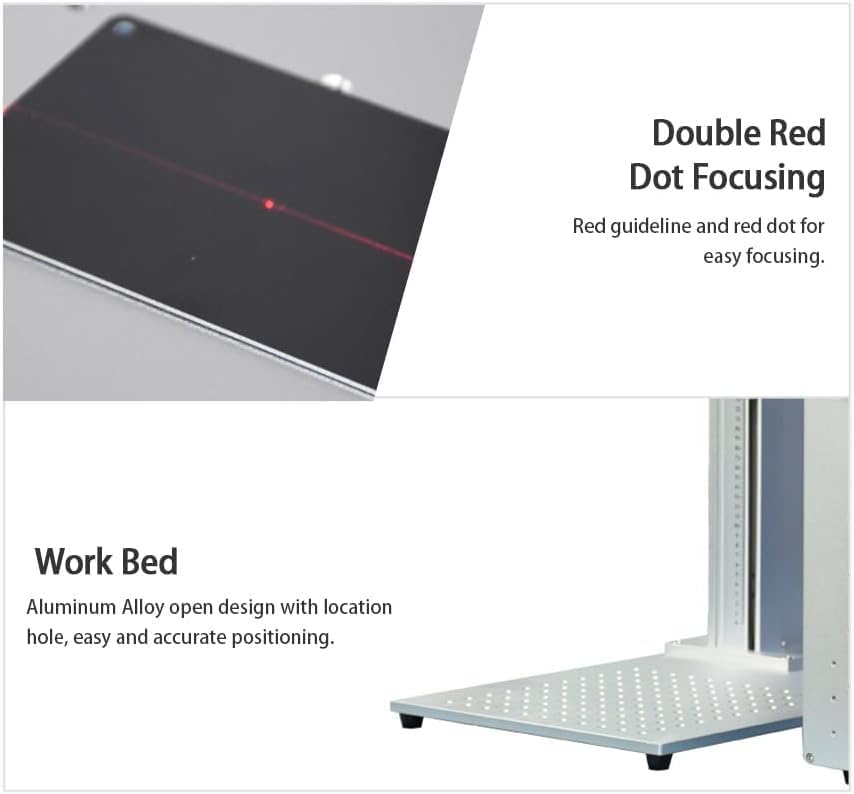
Figure 4.4: Illustration of the double red dot focusing mechanism and the aluminum alloy work bed. The focusing image shows two red laser dots converging on a surface, and the work bed is a perforated silver plate.
- Double Red Dot Focusing: Utilizes a red guideline and two red dots for easy and precise focusing, ensuring optimal laser performance on the material surface.
- Work Bed: Constructed from aluminum alloy with an open design and location holes, facilitating easy and accurate positioning of materials for marking.
5. Setup Instructions
Follow these steps to set up your laser marking machine.
- Unpacking: Carefully remove all components from the packaging. Retain packaging for future transport or storage.
- Placement: Place the machine on a stable, level surface in a well-ventilated area, away from direct sunlight and excessive dust.
- Assembly:
- Attach the laser head assembly to the vertical column, ensuring it is securely fastened.
- Connect the main control unit to the laser head using the provided cables, ensuring all aviation plugs and USB connections are firm.
- If using the optional rotary axis, connect it to the designated port on the control unit.
- Power Connection: Connect the power line to the machine and then to a grounded electrical outlet (110V-240V/50-60Hz). Do not power on yet.
- Software Installation: Insert the provided USB drive containing the software (EZCAD2.0) and user manual into your computer. Follow the on-screen instructions to install the software and necessary drivers.
- Computer Connection: Connect the machine to your computer using the provided USB cable.
- Initial Power On: Ensure all connections are secure. Turn the key switch to the ON position and press the power button. The machine should initialize.
6. Operating Instructions
This section outlines the basic steps for operating the laser marking machine. Refer to the EZCAD2.0 software manual on the provided USB drive for detailed software operations.
- Prepare Material: Place the material to be marked on the work bed. Use the positioning holes or clamps to secure it if necessary.
- Launch Software: Open the EZCAD2.0 software on your connected computer.
- Design/Load Marking File: Create your desired text, graphics, or load an existing marking file within the software.
- Parameter Settings: Adjust laser parameters such as power, frequency, speed, and pulse duration according to the material and desired marking effect. Refer to the software manual for guidance on specific material settings.
- Focusing:
- Activate the red light pointer in the software.
- Adjust the height of the laser head until the two red dots from the double red dot focusing system converge into a single, sharp point on the surface of your material. This indicates optimal focus.
- Preview Marking Area: Use the "Red Light Preview" function in the software to project the marking outline onto your material, ensuring correct placement.
- Start Marking: Ensure all safety precautions are in place (e.g., wearing safety goggles). Press the "Mark" button in the software or use the foot switch to begin the marking process.
- Monitor Process: Observe the marking process. If any issues arise, press the emergency stop button immediately.
- Completion: Once marking is complete, remove the marked material.
7. Maintenance
Regular maintenance ensures the longevity and optimal performance of your laser marking machine.
- Cleaning the Lens: Periodically inspect and clean the F-Theta lens using a specialized optical lens cleaning solution and lint-free wipes. Dust and debris can degrade marking quality.
- Work Area Cleanliness: Keep the work bed and surrounding area clean from debris and dust.
- Cable Inspection: Regularly check all cables and connections for wear, damage, or looseness.
- Ventilation: Ensure the machine's ventilation openings are clear and unobstructed to prevent overheating.
- Software Updates: Keep your EZCAD2.0 software updated to the latest version for optimal performance and features.
8. Troubleshooting
This section addresses common issues you might encounter. For more complex problems, contact technical support.
| Problem | Possible Cause | Solution |
|---|---|---|
| Machine does not power on. | Power cable loose, emergency stop engaged, power switch off. | Check power cable connection, disengage emergency stop, ensure key switch is ON. |
| No laser output. | Laser source not enabled, software error, incorrect parameters. | Verify laser is enabled in software, restart software/machine, check laser parameters. |
| Poor marking quality/unclear marks. | Incorrect focus, dirty lens, unsuitable parameters, material issues. | Re-focus the laser, clean the lens, adjust laser parameters, ensure material is suitable. |
| Software not connecting to machine. | USB cable loose/faulty, driver not installed, machine not powered on. | Check USB connection, reinstall drivers, ensure machine is powered on and initialized. |
9. Specifications
Detailed technical specifications for the SFX JPT 50W Fiber Laser Marking Machine.
| Parameter | Value |
|---|---|
| Laser Power | 50W |
| Marking Area | 175x175mm |
| Max. Material Thickness | 206mm |
| Laser Source | JPT LP+ |
| Repetition Rate Frequency | 1-600kHz |
| Pulse Duration | 200ns |
| Output Power Adjustment Range | 10%-100% |
| Marking Speed | 7m/s |
| Engraving Depth | ≤1.0mm |
| Min. Line Width | ≤0.01mm (material dependent) |
| Min. Character Size | 0.2mm (material dependent) |
| Input Voltage | 110V-240V/50-60Hz |
| Complete Power Consumption | 1000W |
| Communication Mode for Automation | TCP/IP, IO, RS232 |
| Model Number | SFX-50GS |
| Class | Class 1 Laser Output Power 0.39mW |
| Software Compatibility | EZCAD2.0 (Lightburn Compatible) |
| Parameter | Value |
|---|---|
| Package Dimensions | 31.89 x 30.91 x 19.88 inches |
| Item Weight | 88 pounds |
| Manufacturer | Luoyang SFX Industrial Technology Co.,Ltd |
| First Available Date | October 23, 2019 |
10. Applicable Materials
The SFX JPT 50W Fiber Laser Marking Machine is suitable for marking and engraving a wide range of materials, and for cutting certain metals.

Figure 10.1: Chart illustrating materials compatible with laser cutting, marking, and engraving using this machine. It shows various metals and non-metals with checkmarks indicating compatibility.
| Materials | Laser Cutting | Laser Marking & Engraving |
|---|---|---|
| Acrylic | ✓ | |
| Plastics | ✓ | |
| Brick | ✓ | |
| Glass | ✓ | |
| Marble | ✓ | |
| Tile | ✓ | |
| Aluminum | ✓ | ✓ |
| Copper | ✓ | ✓ |
| Silver | ✓ | ✓ |
| Gold | ✓ | |
| Brass | ✓ | |
| Titanium | ✓ | ✓ |
| Steel | ✓ | ✓ |
11. Warranty and Support
For warranty information, technical support, or service inquiries, please contact the manufacturer or your authorized dealer. Refer to your purchase documentation for specific warranty terms and contact details.
Manufacturer: Luoyang SFX Industrial Technology Co.,Ltd
For additional resources, you may visit the SFX Industrial Technology Store on Amazon.


