
1. Introduction
The WADEO WiFi Digital Microscope 720P (Model IT0288) is a versatile and portable magnification tool designed for detailed observation of micro-objects. It offers a magnification range of 50X to 1000X and connects wirelessly via WiFi to various smart devices, including Android phones, iPhones, iPads, and computers. Equipped with 8 adjustable LED lights, it provides clear and bright illumination for various applications.

Image 1.1: The WADEO WiFi Digital Microscope connected wirelessly to various smart devices, displaying a magnified view of a leaf.
2. Product Overview
Familiarize yourself with the components of your WADEO WiFi Digital Microscope.
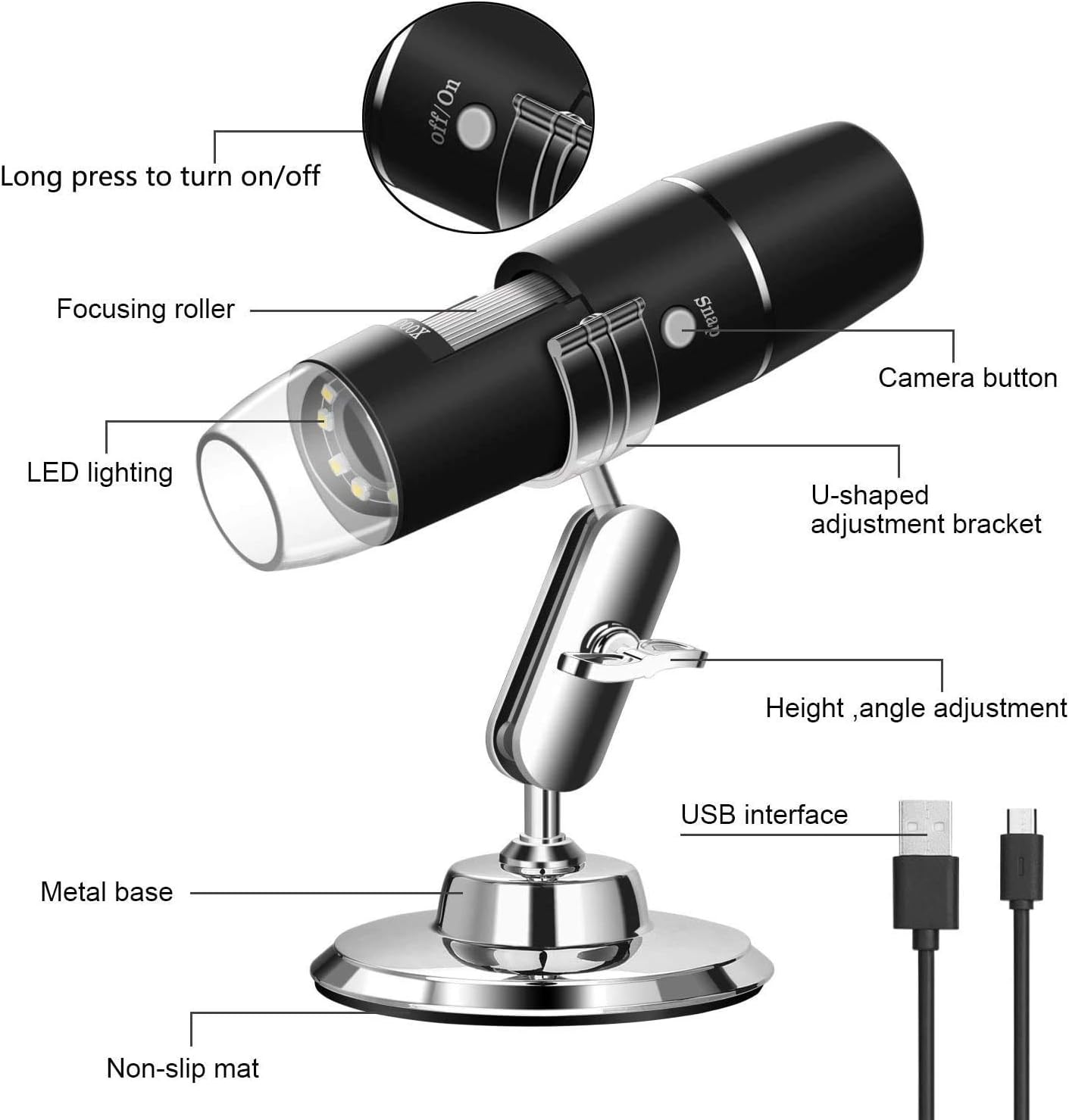
Image 2.1: Diagram illustrating the main components of the microscope, including the On/Off button, Focusing Roller, LED Lighting, Camera Button, U-shaped Adjustment Bracket, Height/Angle Adjustment knob, USB Interface, Metal Base, and Non-slip Mat.
Components:
- Microscope Unit: Contains the lens, LED lights, power button, focus wheel, and camera button.
- Metal Stand: Provides stability and allows for height and angle adjustments.
- USB Charging Cable: For charging the internal battery.
3. Setup Instructions
Follow these steps to set up your WADEO WiFi Digital Microscope.
3.1 Charging the Microscope
Before initial use, fully charge the microscope. Connect the USB charging cable to the microscope's USB interface and to a standard USB power adapter (not included) or computer USB port. The charging indicator will show the charging status.
3.2 App Installation and WiFi Connection
- Download the App: Scan the QR code provided in the product packaging or search for the recommended application (e.g., "Max-see") on the App Store (iOS) or Google Play Store (Android).
- Power On: Press and hold the On/Off button on the microscope to power it on. The LED indicator will light up.
- Remove Protective Cover: Carefully remove the transparent protective cover from the microscope lens.
- Connect to WiFi: On your smartphone or tablet, go to your WiFi settings. Locate and connect to the WiFi network named "Max-see_XXXX" (where XXXX is a unique identifier). The password is usually not required or is provided in the app/manual.
- Open App: Launch the installed application. The microscope's live view should now appear on your device screen.

Image 3.1: Visual guide for easy connection and hassle-free operation, showing app download, power-on, protective cover removal, WiFi connection, and focus adjustment.
3.3 USB Connection (for Computers)
For Windows or Mac computers, you can connect the microscope directly via USB. Install the appropriate software/driver (usually available from the manufacturer's website) and connect the microscope using the USB cable. The microscope will function as a webcam.
4. Operating Instructions
Learn how to use your microscope for observation and capture.
4.1 Power On/Off
- Power On: Press and hold the On/Off button until the indicator light illuminates.
- Power Off: Press and hold the On/Off button again until the indicator light turns off.
4.2 Adjusting Focus and LED Lights
- Focus Adjustment: Rotate the Focusing Roller (focus wheel) on the microscope body to achieve a clear image. The optimal focal distance is typically between 0mm and 40mm from the object.
- LED Brightness: The microscope features 8 built-in LED lights. Adjust their brightness using the dedicated control (often a wheel or button) on the microscope or within the app to properly illuminate your subject and enhance image clarity.

Image 4.1: The microscope's flexible rotation capabilities and the adjustable brightness of its 8 LED lights for optimal illumination.
4.3 Capturing Images and Videos
- Take a Photo: Press the Camera button on the microscope unit or tap the camera icon within the app to capture a still image. The image will be saved to your connected device or the app's gallery.
- Record Video: Tap the video recording icon within the app to start and stop video recording. Videos will be saved to your connected device or the app's gallery.

Image 4.2: The camera button for capturing images and videos, along with examples of high-resolution magnified views.
4.4 Magnification
The microscope offers a magnification range of 50X to 1000X. The magnification level is primarily adjusted by changing the distance between the microscope lens and the object, and then fine-tuning with the focusing roller. The digital zoom within the app can further enhance the view.

Image 4.3: The microscope in use, examining a circuit board, with the magnified image displayed on a tablet, showcasing its application for detailed inspection.
5. Maintenance
Proper care ensures the longevity and optimal performance of your microscope.
- Cleaning the Lens: Use a soft, lint-free cloth specifically designed for optical lenses to gently wipe the microscope lens. Avoid abrasive materials or harsh chemicals.
- Cleaning the Body: Wipe the microscope body with a soft, dry cloth. If necessary, a slightly damp cloth can be used, but ensure no moisture enters the device.
- Storage: Store the microscope in a dry, dust-free environment when not in use. Keep it away from extreme temperatures and direct sunlight.
- Battery Care: For optimal battery life, avoid fully discharging the battery frequently. Charge it regularly, even if not in constant use.
6. Troubleshooting
Refer to this section for solutions to common issues.
- No Image on Screen:
- Ensure the microscope is powered on and fully charged.
- Verify that your device is connected to the microscope's WiFi network.
- Check if the app is open and has the necessary permissions.
- For USB connection, ensure drivers are installed and the correct software is running.
- Unclear Image:
- Adjust the Focusing Roller until the image is sharp.
- Ensure the object is within the optimal focal distance (0-40mm).
- Adjust the LED brightness to improve visibility.
- Clean the microscope lens if it appears dirty.
- WiFi Connection Issues:
- Restart both the microscope and your smart device.
- Ensure you are connecting to the correct WiFi network name (e.g., "Max-see_XXXX").
- Move closer to the microscope to ensure a strong signal.
- Short Battery Life:
- Ensure the microscope is fully charged before use.
- Reduce LED brightness if maximum illumination is not required.
- The battery life is approximately 3 hours of continuous use.
7. Specifications
| Feature | Specification |
|---|---|
| Brand | WADEO |
| Model | IT0288 |
| Color | 720P |
| Magnification | 50X-1000X |
| Resolution | HD (720P) |
| Light Source | 8 Adjustable LED Lights |
| Connectivity | WiFi, USB |
| Compatible Devices | Smartphone (Android, iOS), Tablet (iPad), Computer (Windows, Mac) |
| Battery Type | Lithium-ion |
| Continuous Work Time | Approximately 3 hours (with 900mAh battery) |
| Product Dimensions (L x W x H) | 46 x 98 x 144 mm |
| Material | Metal (stand), Plastic (microscope body) |
8. Warranty and Support
For warranty information and technical support, please refer to the documentation provided with your purchase or visit the official WADEO website. Contact details for customer service are typically available on the product packaging or the manufacturer's support page.