1. Introduction
This manual provides detailed instructions for the setup, operation, and maintenance of your Accessonico Universal Remote Smartphone IR Controller Adapter. This device transforms your Android smartphone into a universal remote control for various infrared-controlled home appliances.
2. Product Overview
The Accessonico Universal Remote Smartphone IR Controller Adapter is a compact, plug-and-play device designed to extend the functionality of your Android smartphone. It features a stable and reliable IR signal for controlling TVs, air conditioners, DVD players, and more.

Image 1: The Accessonico Universal Remote Smartphone IR Controller Adapter, shown with its protective silicone case and keychain loop.
Key Features:
- Universal Compatibility: Controls a wide range of IR-enabled devices such as TVs, air conditioners, DVD players, and more.
- Stable IR Signal: Provides a steady transmission distance of up to 10 meters.
- Compact Design: Small and portable, designed with an anti-lost keychain and silicone case for convenience.
- Plug-and-Play: Easy to connect to your mobile device via USB-C.
- App-Controlled: Utilizes a dedicated smartphone application for comprehensive control.
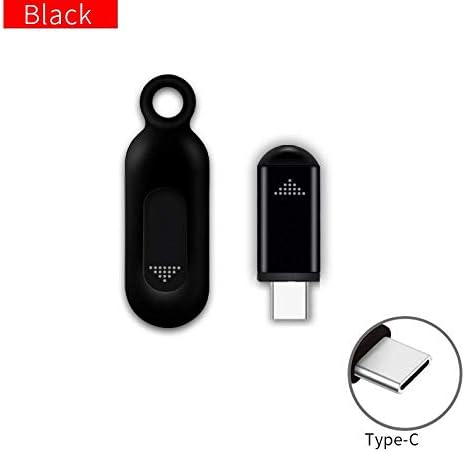
Image 2: The Accessonico Universal Remote Smartphone IR Controller Adapter, highlighting its USB-C connector for Android devices.
3. Setup
Follow these steps to set up your Accessonico IR Controller Adapter:
- Compatibility Check: Ensure your smartphone has a USB-C port and runs on the Android operating system. This device is designed for Android phones with USB-C.
- Download the Application: Scan the QR code provided in the product packaging or search for "uniTV Remote" in your smartphone's app store (e.g., Google Play Store) and download the application.
- Connect the Adapter: Plug the Accessonico IR Controller Adapter into your smartphone's USB-C port.
- Launch the App: Open the "uniTV Remote" application. The app should detect the connected adapter automatically.
- Add Device: Within the app, select the type of appliance you wish to control (e.g., TV, Air Conditioner). Follow the on-screen prompts to search for and pair with your specific device model. The app typically offers a database of codes for various brands.
4. Operating the Device
Once setup is complete, your smartphone becomes a universal remote control.
Controlling Appliances:
- Select Device: In the "uniTV Remote" app, select the appliance you wish to control from your saved devices list.
- Use Virtual Remote: The app will display a virtual remote interface specific to the selected appliance. Tap the buttons on your screen to send IR commands.
- Learning Function (if available): Some advanced features within the app may allow you to 'learn' commands from an existing remote if your specific device model is not in the database. Refer to the app's help section for details.
The adapter provides a wide range of compatibility, allowing control over brands such as Samsung, Vizio, LG, Sony, Sharp, Roku, and many others, provided they use infrared signals.
5. Maintenance
To ensure the longevity and optimal performance of your Accessonico IR Controller Adapter, follow these maintenance guidelines:
- Keep Clean: Wipe the adapter gently with a dry, soft cloth. Avoid using liquid cleaners or abrasive materials.
- Protect from Damage: Utilize the provided silicone case and keychain to prevent physical damage and loss.
- Storage: Store the adapter in a cool, dry place away from direct sunlight and extreme temperatures when not in use.
- Avoid Water: Do not expose the adapter to water or excessive moisture.
6. Troubleshooting
If you encounter issues with your Accessonico IR Controller Adapter, refer to the following common solutions:
- Device Not Responding:
- Ensure the adapter is fully inserted into your smartphone's USB-C port.
- Verify that the "uniTV Remote" app is open and the correct appliance is selected.
- Check if the appliance you are trying to control is powered on and within the IR signal range (up to 10 meters).
- Confirm that there are no obstructions between the adapter and the appliance's IR receiver.
- App Not Detecting Adapter:
- Restart the "uniTV Remote" app.
- Unplug and re-plug the adapter.
- Ensure your phone's operating system is up to date.
- Check if your phone's USB-C port is functioning correctly with other devices.
- Incorrect Commands Sent:
- In the app, try selecting a different code set for your appliance brand. The app usually provides multiple options.
- If available, use the app's learning function to program specific buttons from your original remote.
- Limited Compatibility:
- This device is designed for Android phones with USB-C. It is not compatible with Apple devices or Android devices using Micro-USB.
- Some very old or very new appliances may use non-standard IR protocols or RF (Radio Frequency) control, which this IR adapter cannot control.
7. Specifications
| Feature | Detail |
|---|---|
| Model Number | B083SNBP5W |
| Connectivity | USB-C |
| Compatibility | Android Smartphones (USB-C) |
| Control Type | Infrared (IR) |
| Max Transmission Distance | 10 meters (approx. 33 feet) |
| Dimensions | 4.13 x 2.17 x 0.98 inches (Package) |
| Item Weight | 0.634 ounces |
| Color | Black |
| Manufacturer | Accessonico |
8. Warranty Information
Accessonico products are manufactured to high-quality standards. For specific warranty details, please refer to the warranty card included with your purchase or contact Accessonico customer support. Keep your proof of purchase for warranty claims.
9. Customer Support
If you require further assistance or have questions not covered in this manual, please contact Accessonico customer support through the following channels:
- Online: Visit the official Accessonico website for support resources and contact forms.
- Email: Refer to your product packaging or the Accessonico website for the support email address.
Please have your product model number (B083SNBP5W) and purchase details ready when contacting support.