
1. Introduction
Thank you for choosing the AOC CU34G2 34-inch Ultrawide Curved Gaming Monitor. This monitor is designed to provide an immersive gaming experience with its WQHD resolution, 100Hz refresh rate, 1ms response time, and AMD FreeSync technology. This manual will guide you through the setup, operation, and maintenance of your new monitor to ensure optimal performance and longevity.
Key features include:
- 34-inch QHD (3440x1440) Ultrawide Curved VA Panel (1500R curvature)
- 100Hz Refresh Rate and 1ms Response Time for smooth visuals
- AMD FreeSync for tear-free gaming
- Low Blue Light and Flicker-Free technology for reduced eye strain
- Integrated USB 3.0 Hub (4 ports)
- Adjustable Stand (height up to 130mm) and VESA 100x100 compatibility
- Multiple Connectivity Options: 2x HDMI 1.4, 1x DisplayPort 1.2
2. Safety Information
Please read and follow these safety instructions carefully to prevent damage to your monitor and ensure your safety:
- Do not place the monitor on an unstable cart, stand, or table.
- Do not block ventilation openings.
- Do not use near water or in high-humidity environments.
- Use only the power cord and adapter provided by the manufacturer.
- Unplug the monitor during lightning storms or when unused for long periods.
- Refer all servicing to qualified service personnel.
3. Package Contents
Verify that all items are present in your product box:
- AOC CU34G2/BK 34-inch Monitor
- Power Cable
- HDMI Cable
- DisplayPort Cable
- Installation CD (may contain drivers and user manual)
- Warranty Card
- Monitor Stand (Base and Neck)
4. Setup
4.1 Assembling the Monitor Stand
- Carefully place the monitor face down on a soft, clean surface to prevent scratches.
- Attach the stand neck to the back of the monitor. Ensure it clicks securely into place.
- Attach the stand base to the stand neck. Tighten any screws if necessary.
Alternatively, for VESA mounting, remove the stand and attach a VESA 100x100 compatible mount (not included).
4.2 Connecting Cables
Connect the necessary cables to your monitor and computer:
- DisplayPort Connection: For optimal performance (QHD resolution, 100Hz, FreeSync), connect one end of the DisplayPort cable to the monitor's DisplayPort input and the other end to your computer's DisplayPort output.
- HDMI Connection: Connect one end of the HDMI cable to one of the monitor's HDMI inputs and the other end to your computer's HDMI output.
- USB Hub Connection: To enable the monitor's USB 3.0 hub, connect the upstream USB cable (Type-B to Type-A, usually included) from the monitor's USB upstream port to an available USB port on your computer.
- Audio Output: Connect headphones or external speakers to the 3.5mm audio output jack on the monitor if desired.
4.3 Power Connection
Connect the power cable to the monitor's power input, then plug the other end into a grounded electrical outlet.
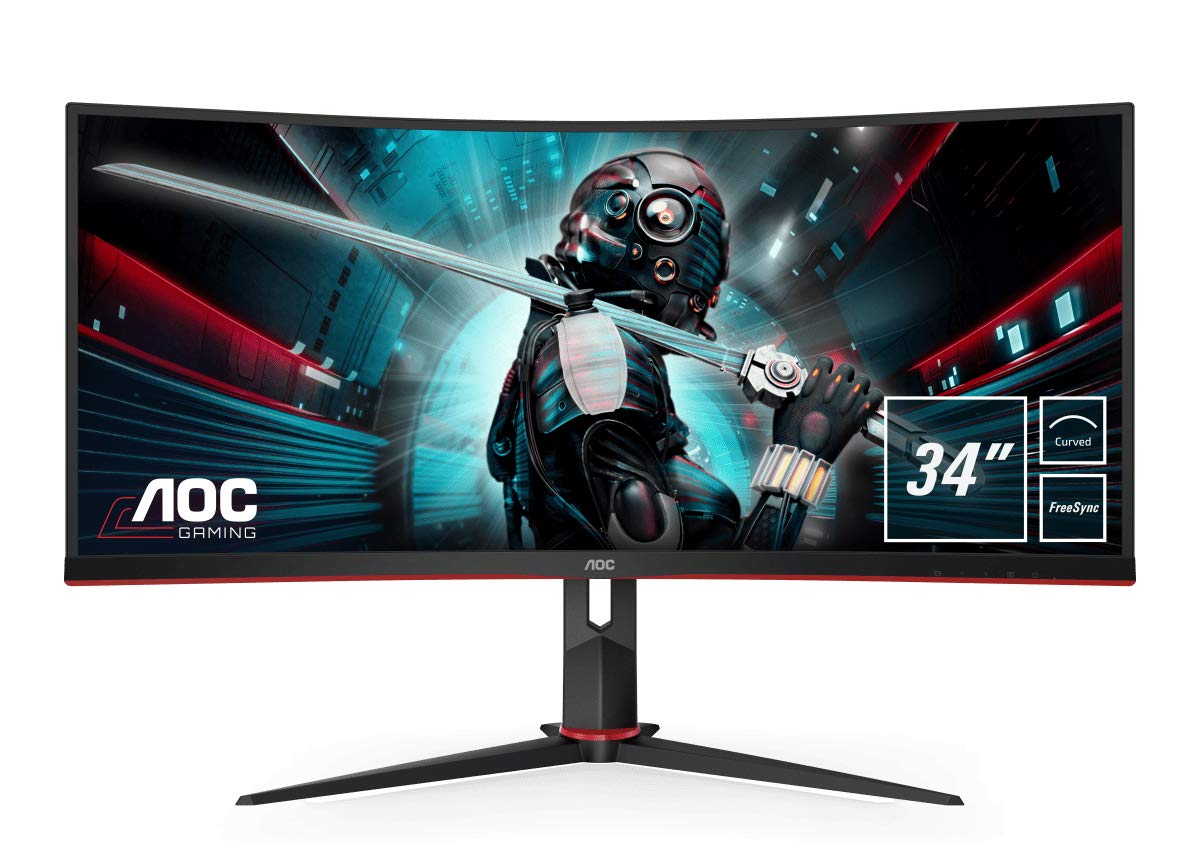
Figure 4.1: Front view of the AOC CU34G2 monitor with stand.

Figure 4.2: Side view of the AOC CU34G2 monitor, illustrating its curved design and approximate dimensions (80cm width, 40cm height, 13cm depth).
5. Operating Instructions
5.1 Power On/Off
Press the power button, usually located on the bottom right or back of the monitor, to turn the monitor on or off. The power indicator light will illuminate when the monitor is on.
5.2 On-Screen Display (OSD) Menu Navigation
The OSD menu allows you to adjust various monitor settings. Use the buttons (or joystick, if applicable) on the monitor to navigate:
- Press a button to open the OSD menu.
- Use directional buttons to navigate through menu options.
- Press an 'Enter' or 'OK' button to select an option or confirm a setting.
- Use a 'Back' or 'Exit' button to return to the previous menu or exit the OSD.
5.3 Picture Settings
Adjust display quality settings for your preference:
- Brightness: Controls the overall luminance of the screen.
- Contrast: Adjusts the difference between light and dark areas.
- Color Temperature: Selects preset color temperatures (e.g., Warm, Cool, Normal) or allows custom RGB adjustment.
- Gamma: Modifies the tone response curve for image brightness.
5.4 Gaming Features
- FreeSync: Enable this feature in the OSD and on your AMD graphics card settings to synchronize the monitor's refresh rate with your GPU's frame rate, eliminating screen tearing and stuttering.
- Overdrive/Response Time: Adjust this setting to optimize pixel response time, reducing ghosting in fast-paced games.
- Low Blue Light Mode: Reduces blue light emissions to minimize eye strain during extended use.
5.5 USB Hub Usage
The integrated USB 3.0 hub provides four downstream ports for connecting peripherals such as keyboards, mice, or USB drives. Ensure the USB upstream cable is connected to your computer for the hub to function.
6. Maintenance
6.1 Cleaning the Monitor
- Always unplug the monitor before cleaning.
- Use a soft, lint-free cloth lightly dampened with water or a mild, non-abrasive screen cleaner.
- Do not spray cleaner directly onto the screen.
- Avoid using harsh chemicals or abrasive materials.
6.2 Storage
If storing the monitor for an extended period, disconnect all cables, pack it in its original packaging, and store it in a cool, dry place.
7. Troubleshooting
If you encounter issues with your monitor, refer to the following common problems and solutions:
| Problem | Possible Solution |
|---|---|
| No image on screen | Ensure the power cable is securely connected and the monitor is turned on. Check that the video cable (DisplayPort/HDMI) is properly connected to both the monitor and the computer. Select the correct input source via the OSD menu. |
| Image is blurry or distorted | Check the video cable connection. Ensure the display resolution and refresh rate are set correctly in your computer's display settings (e.g., 3440x1440 at 100Hz). |
| Screen tearing or stuttering in games | Ensure AMD FreeSync is enabled in both the monitor's OSD menu and your graphics card control panel. Update your graphics card drivers. |
| USB ports not working | Verify that the USB upstream cable is connected from the monitor to your computer. Check your computer's device manager for any USB driver issues. |
| No sound from headphones/speakers connected to monitor | Ensure the audio output is selected as the default playback device in your computer's sound settings. Check volume levels on both the monitor and computer. |
8. Specifications
| Feature | Specification |
|---|---|
| Model Number | CU34G2/BK |
| Screen Size | 34 inches (86.4 cm) |
| Panel Type | VA |
| Curvature | 1500R |
| Resolution | 3440 x 1440 (QHD Ultrawide) |
| Aspect Ratio | 21:9 |
| Refresh Rate | 100 Hz |
| Response Time | 1 ms (MPRT) |
| Brightness | 300 cd/m² |
| Contrast Ratio (Static) | 3000:1 |
| Viewing Angle | 178° (H) / 178° (V) |
| Connectivity | 2x HDMI 1.4, 1x DisplayPort 1.2, 4x USB 3.0 (downstream), 1x USB 3.0 (upstream), 1x Audio Out (3.5mm) |
| VESA Compatibility | 100 x 100 mm |
| Power Consumption | 55 W (typical) |
| Dimensions (with stand) | 80P x 45l x 15H cm (approx.) |
| Weight (with stand) | 17.64 lbs (approx.) |
| Adaptive Sync | FreeSync |
9. Warranty and Support
9.1 Warranty Information
This AOC CU34G2 monitor comes with a 2-year manufacturer warranty. Please refer to the warranty card included in your package or visit the official AOC website for detailed terms and conditions.
9.2 Customer Support
For technical assistance, driver downloads, or further inquiries, please visit the official AOC support website or contact their customer service. Contact information can typically be found on the AOC website or in your product documentation.


