
Svcouok pT011
Svcouok 1080p HD Webcam Instruction Manual
Model: pT011
Introduction
This manual provides detailed instructions for the setup, operation, and maintenance of your Svcouok 1080p HD Webcam. Designed for high-quality video communication, this webcam features a Full HD premium glass lens, automatic light correction, a 110-degree wide-angle view, and a built-in noise-reduction microphone. It is ideal for video chatting, live streaming, online teaching, and conferencing.

Image: The Svcouok 1080p HD Webcam, showcasing its compact design, integrated clip, and the included mini tripod and privacy cover.
What's in the Box
- Webcam
- Tripod
- Privacy Cover
- User Manual (this document)
Setup
1. Physical Placement
The webcam features an adjustable universal clip that can be securely attached to various devices such as computers, laptops, desktops, Mac, PC, LCD monitors, and other flat surfaces. For alternative placement, the included tripod can be used by screwing the webcam onto its mount.

Image: A user connecting the webcam to a laptop via its USB cable, illustrating the plug-and-play setup.
2. Connection
The Svcouok 1080p HD Webcam is a plug-and-play device. Simply connect the USB connector of the webcam to an available USB port on your computer or laptop. No additional drivers are required for most operating systems.
3. Privacy Cover Installation
The privacy cover is an individual piece with 3M adhesive tape on the back. Carefully peel off the protective layer from the adhesive. Align the cover over the webcam lens and gently press to secure it. Ensure the cover slides smoothly to open and close over the lens.
Operating Instructions
1. Video Quality and Features
The webcam delivers 1080P Full HD video at 30 frames per second. It features automatic light correction and HDR technology, which adjusts color and brightness to ensure optimal image quality even in dim lighting conditions.

Image: A visual comparison demonstrating the improved image clarity and brightness provided by the webcam's automatic low light correction feature.
2. Wide-Angle View
The webcam captures video with a 110-degree wide viewing angle, providing an expansive perspective suitable for individual use, multi-person chats, or video conferencing.

Image: An illustration of the webcam's 110-degree wide-angle capability, showing its suitability for group video calls in a conference setting.
3. Microphone
The built-in stereo microphone features automatic noise reduction, filtering out unwanted background noise to ensure clear and pure sound. It can pick up your voice from a distance of up to 5 meters.

Image: A visual representation highlighting the webcam's built-in noise-reduction microphone, emphasizing clear and natural sound, and confirming the inclusion of a tripod and lens cover.
4. Application Compatibility
The webcam is compatible with most video and streaming applications. It supports platforms such as Skype, Facetime, OBS, XBOX ONE, Hangouts, Facebook, Zoom, YouTube, Twitch, Webex, Google Meet, Microsoft Teams, and more.
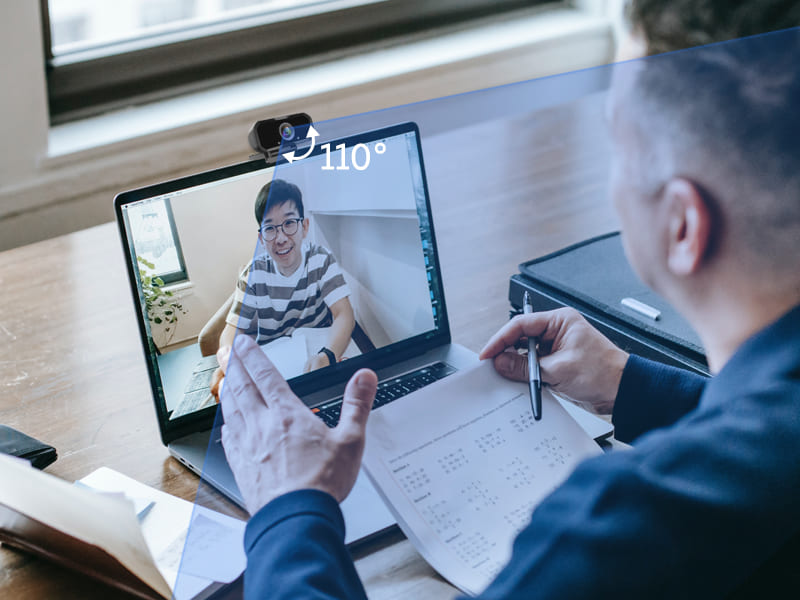
Image: A collage of logos representing popular video conferencing and streaming applications, indicating the webcam's broad compatibility.
5. Operating System Compatibility
The webcam is compatible with a wide range of operating systems:
- Windows 7/8/10 or later
- macOS 10.6 or above
- Android V5.0 or above
- Chrome OS 29.0.1547 or above
- Linux Ubuntu 2.6.24 or above

Image: Icons representing different operating systems, illustrating the webcam's compatibility across various platforms.
Maintenance
To ensure the longevity and optimal performance of your webcam, follow these maintenance guidelines:
- Cleaning the Lens: Use a soft, lint-free cloth specifically designed for optics to gently wipe the lens. Avoid using abrasive materials or harsh chemicals that could scratch or damage the lens coating.
- General Cleaning: Wipe the body of the webcam with a dry, soft cloth. Do not use liquid cleaners directly on the device.
- Storage: When not in use, store the webcam in a clean, dry place away from extreme temperatures and direct sunlight. Use the provided privacy cover to protect the lens from dust and scratches.
- Cable Care: Avoid bending or kinking the USB cable excessively. Do not pull the cable to disconnect the webcam; always grasp the USB connector.
- Environmental Conditions: Do not expose the webcam to water, high humidity, or dusty environments.
Troubleshooting
| Problem | Possible Cause | Solution |
|---|---|---|
| Webcam not recognized / No image | Loose USB connection, faulty USB port, driver conflict (rare) | Ensure USB cable is firmly plugged in. Try a different USB port. Restart your computer. Check device manager for webcam recognition. |
| Poor image quality / Dark image | Insufficient lighting, dirty lens, software settings | Ensure adequate lighting in your environment. Clean the webcam lens with a soft cloth. Check video settings in your application (e.g., Zoom, Skype) for brightness/contrast adjustments. |
| Microphone not working / Muffled sound | Incorrect audio input selection, software settings, physical obstruction | Verify that the webcam's microphone is selected as the default input device in your operating system's sound settings and within your communication application. Ensure no obstructions are covering the microphone. |
| Image distortion (fish-eye effect) | Inherent wide-angle lens characteristic | This is a characteristic of the 110-degree wide-angle lens. Position yourself closer to the camera or adjust the camera angle to minimize the effect if desired. |
| Webcam randomly turns off | Power management settings, loose internal wiring (rare) | Check your computer's USB power management settings to ensure USB ports are not set to turn off to save power. Try connecting to a different USB port. If the issue persists, contact support. |
Specifications
| Feature | Detail |
|---|---|
| Brand | Svcouok |
| Model Number | pT011 |
| Connectivity Technology | USB |
| Video Capture Resolution | 1080p (Full HD), 720p, 480p |
| Photo Sensor Technology | CMOS |
| Special Features | Compact, H.264 Video Compression, Image Stabilization, Tripod Mount |
| Item Weight | 3.53 ounces |
| Product Dimensions | 5.51 x 3.54 x 2.36 inches |
| Screen Diagonal (on product) | 2 inches / 6 cm |
| Maximum Focal Length | 2500 Millimeters |
| Video Capture Format | MP4 |
| Supported Audio Format | AAC |

Image: A technical drawing illustrating the physical dimensions of the webcam, both standalone and mounted on its tripod.
Warranty and Support
Specific warranty details and direct support contact information are not provided in the available product data. Please refer to the product packaging or the retailer's website for the most current warranty information and customer support options.
Important Notes
No official product videos from the seller were found in the provided data to embed in this manual.
Ask a question about this manual
Ask about setup, troubleshooting, compatibility, parts, safety, or missing instructions. Manuals+ will review the question and use this page’s manual context to help answer it.