
HHKB Professional Hybrid
Happy Hacking Keyboard Professional Hybrid User Manual
Your guide to setting up, operating, and maintaining your HHKB Professional Hybrid keyboard.
1. Introduction
The Happy Hacking Keyboard (HHKB) Professional Hybrid is a compact, high-performance keyboard designed for efficiency and comfort. Featuring Topre electrostatic capacitive switches, it offers a unique typing experience with both wired (USB-C) and wireless (Bluetooth) connectivity options. This manual provides detailed instructions to help you get the most out of your HHKB Professional Hybrid.
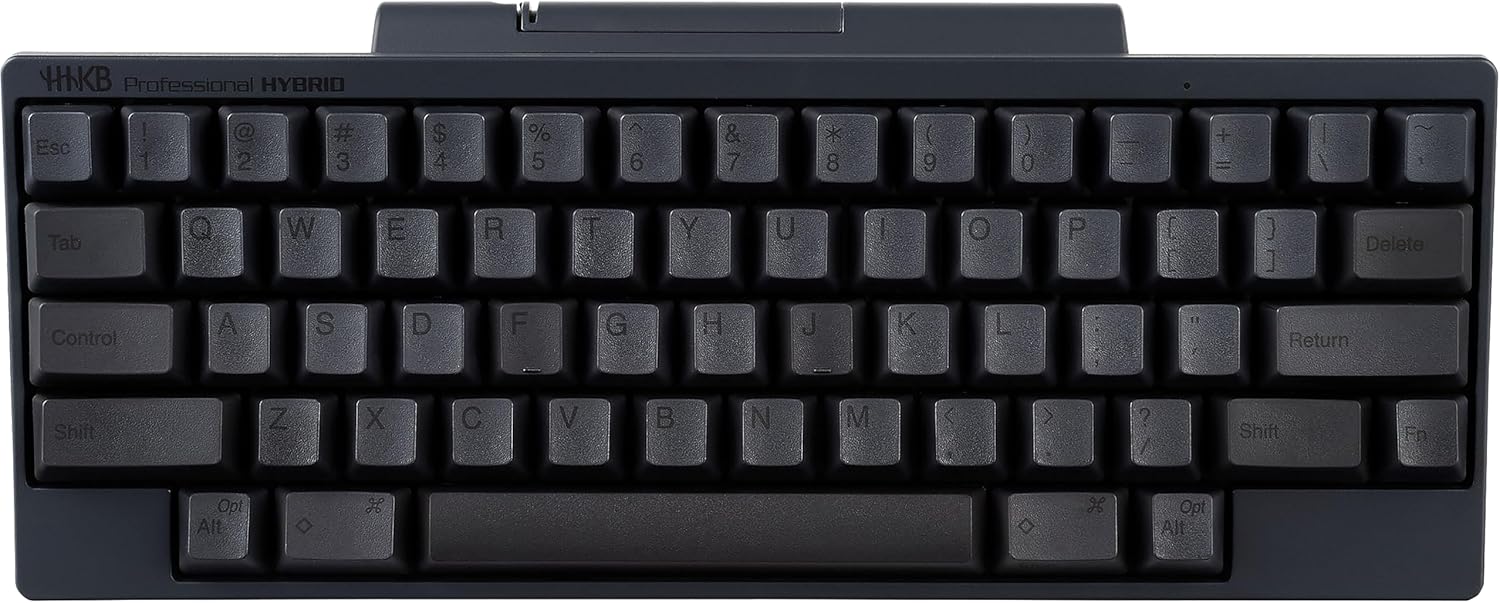
Image: Front view of the HHKB Professional Hybrid keyboard in charcoal color, showcasing its compact layout and printed keycaps.
2. What's in the Box
Upon unboxing your HHKB Professional Hybrid, please verify that all components are present:
- HHKB Professional Hybrid Keyboard (US Layout)
- Getting Started Guide
- Help and Service Information
- 2 x AA Batteries
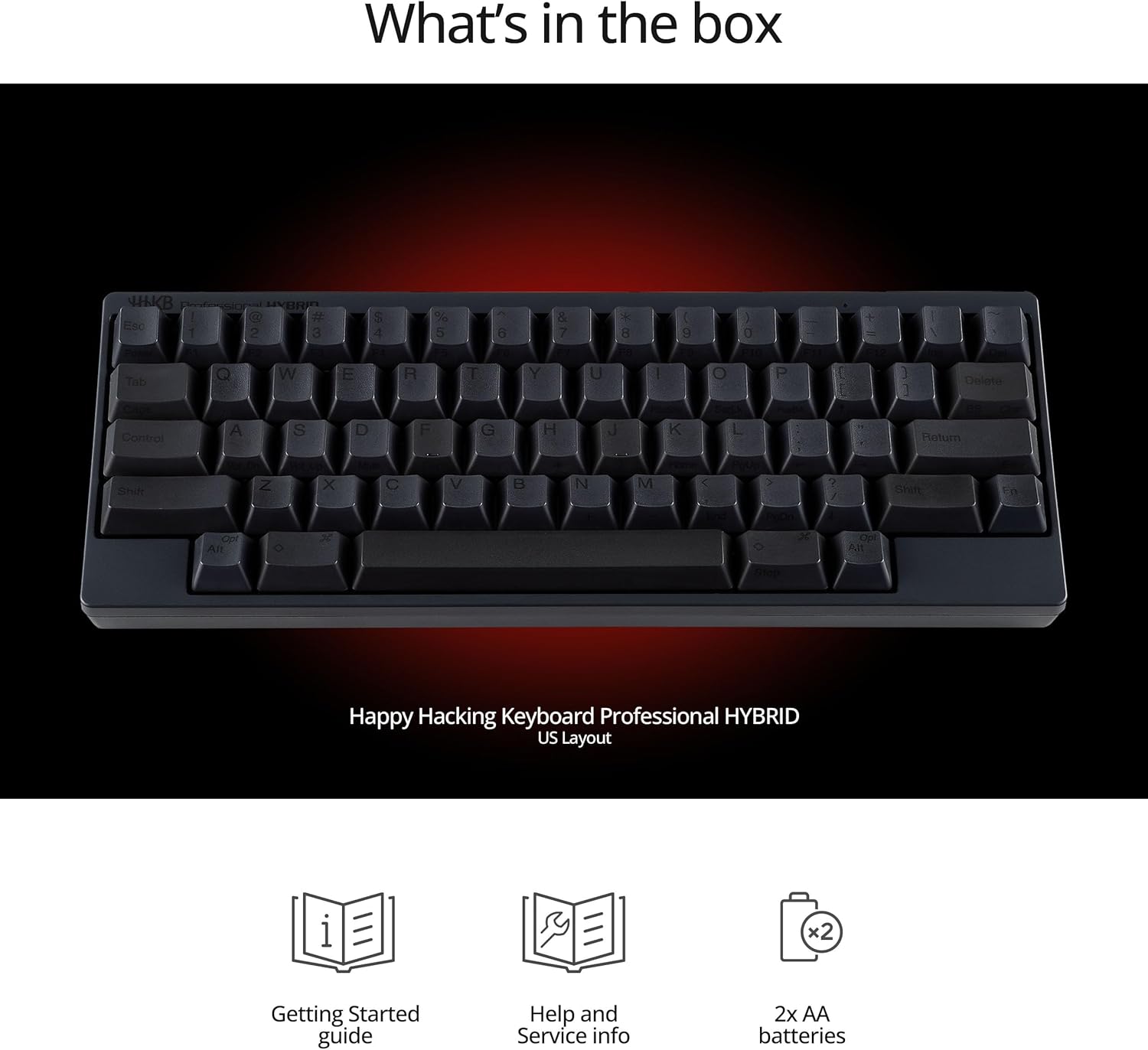
Image: An illustration showing the HHKB Professional Hybrid keyboard along with icons representing the Getting Started Guide, Help and Service info, and two AA batteries, indicating the contents of the product box.
3. Setup
3.1. Battery Installation
The HHKB Professional Hybrid requires two AA batteries for wireless (Bluetooth) operation. The battery compartment is located on the underside of the keyboard.
- Locate the battery cover on the back of the keyboard.
- Slide the cover open.
- Insert two AA batteries, ensuring correct polarity (+/-).
- Close the battery cover securely.

Image: A detailed view of the HHKB Professional Hybrid's underside, highlighting the battery bay with an AA battery inserted and the USB-C connector for wired operation.
3.2. Connectivity Options
The HHKB Professional Hybrid supports both wired USB-C and wireless Bluetooth connections.
3.2.1. Wired Connection (USB-C)
To use the keyboard in wired mode, connect the provided USB-C cable from the keyboard's USB-C port to an available USB port on your computer. The keyboard will be automatically recognized.
3.2.2. Wireless Connection (Bluetooth)
The keyboard can pair with up to four Bluetooth devices. Ensure batteries are installed before proceeding.
- Turn on the keyboard using the Power/Bluetooth button located near the battery bay.
- On your device (PC, tablet, smartphone), enable Bluetooth and search for new devices.
- Select "HHKB-Hybrid" from the list of available devices.
- Follow any on-screen prompts to complete the pairing process.
- To pair additional devices, use the keyboard shortcuts to switch pairing slots (refer to Operating section).
The keyboard is compatible with Windows, macOS, and Linux operating systems.
3.3. DIP Switch Settings
The HHKB Professional Hybrid features six built-in DIP switches on the underside, allowing customization of keyboard behavior for different operating systems and preferences.

Image: A close-up view of the HHKB Professional Hybrid's underside, showing the six DIP switches with labels (KSD62S, 1-6) and three different height adjustment options for the keyboard feet.
Refer to the "Getting Started Guide" for detailed explanations of each DIP switch function and recommended settings for Windows, macOS, and other environments.
3.4. Keymap Customization
The HHKB Professional Hybrid allows for keymap customization using dedicated software. Keymap settings are saved directly to the keyboard's onboard memory, meaning your custom layout will work across different devices without needing software installation on each.
The keymap software requires a USB connection to a Mac or Windows PC for programming.
Note: The image above also illustrates the keymap software interface.
4. Operating the Keyboard
4.1. Basic Usage
The HHKB Professional Hybrid features a compact 60-key layout designed to minimize finger movement and maximize efficiency. Its ergonomic design is suitable for programming and extensive text writing.

Image: A collage showing the compact, ergonomic design of the HHKB Professional Hybrid, a diagram of the Topre electrostatic capacitive switch components, a close-up of the keyboard's rugged build, and a view of the premium textured PBT keycaps.
4.2. Switching Between Bluetooth Devices
Once paired with multiple devices (up to 4), you can instantly switch between them using keyboard shortcuts. Refer to your "Getting Started Guide" for the specific key combinations to cycle through paired Bluetooth devices.
Image: An illustration demonstrating the HHKB Professional Hybrid's ability to connect wirelessly to up to four Bluetooth devices, including desktop computers, laptops, phones, and tablets.
5. Maintenance
5.1. Cleaning the Keyboard
To maintain the appearance and functionality of your HHKB Professional Hybrid:
- Use a soft, lint-free cloth slightly dampened with water or a mild cleaning solution to wipe down the keycaps and casing.
- Avoid spraying liquids directly onto the keyboard.
- For dust and debris between keys, use compressed air.
5.2. Keycap Care
The HHKB Professional Hybrid features premium textured PBT keycaps. PBT is known for its durability and resistance to shine over time. To preserve their quality:
- Avoid harsh chemicals or abrasive materials when cleaning.
- Do not attempt to remove keycaps unless you are familiar with the process, as improper removal can damage the switches.
6. Troubleshooting
If you encounter issues with your HHKB Professional Hybrid, try the following steps:
- Keyboard Not Responding (Wired): Ensure the USB-C cable is securely connected to both the keyboard and your computer. Try a different USB port or cable.
- Keyboard Not Responding (Bluetooth):
- Check if the keyboard's power/Bluetooth button is ON.
- Verify that the batteries are correctly installed and have sufficient charge.
- Ensure Bluetooth is enabled on your device.
- Try unpairing and re-pairing the keyboard with your device.
- Ensure you are on the correct Bluetooth channel if multiple devices are paired.
- Incorrect Key Output: Check your DIP switch settings to ensure they are configured correctly for your operating system. If you have customized keymaps, ensure the correct keymap is active.
- Intermittent Connectivity: Move the keyboard closer to your Bluetooth device. Avoid sources of interference (e.g., Wi-Fi routers, other wireless devices).
For further assistance, refer to the "Help and Service Information" included in your product packaging or visit the official HHKB support website.
7. Specifications
| Feature | Detail |
|---|---|
| Brand | HHKB |
| Model | Professional Hybrid |
| Connectivity Technology | Bluetooth, USB-C |
| Compatible Devices | Laptop, PC, Smartphone, Tablet |
| Keyboard Description | Wireless |
| Number of Keys | 60 |
| Color | Charcoal |
| Style | Printed Keycaps |
| Special Feature | Ergonomic |
| Product Dimensions | 11.6"L x 4.7"W x 1.6"H |
8. Warranty and Support
The HHKB Professional Hybrid comes with a 2 Year Advance Exchange Warranty. This warranty covers defects in materials and workmanship under normal use.
For warranty claims, technical support, or additional information, please refer to the "Help and Service Information" provided with your product or visit the official HHKB website. Keep your proof of purchase for warranty purposes.
For online resources, you may visit the HHKB Store on Amazon.
Ask a question about this manual
Ask about setup, troubleshooting, compatibility, parts, safety, or missing instructions. Manuals+ will review the question and use this page’s manual context to help answer it.