
INTECHING A-HW-NAVIGATOR
INTECHING Projector Remote Control User Manual
Model: A-HW-NAVIGATOR
1. Introduction
This user manual provides instructions for the INTECHING Projector Remote Control, designed for seamless operation of compatible Ask Proxima projectors. This remote control is a direct replacement and requires no programming or pairing.
Compatible Projector Models:
- Ask Proxima C160
- Ask Proxima C175
- Ask Proxima C180
- Ask Proxima C185
- Ask Proxima C250
- Ask Proxima 250W
- Ask Proxima C315
- Ask Proxima C350
- Ask Proxima C445
2. Setup
2.1. Battery Installation
The remote control requires two (2) AAA batteries (not included). Follow these steps to install the batteries:
- Locate the battery compartment on the back of the remote control.
- Slide the battery compartment cover downwards to open it.
- Insert two AAA batteries, ensuring the positive (+) and negative (-) terminals align correctly with the indicators inside the compartment.
- Slide the battery compartment cover back into place until it clicks securely.
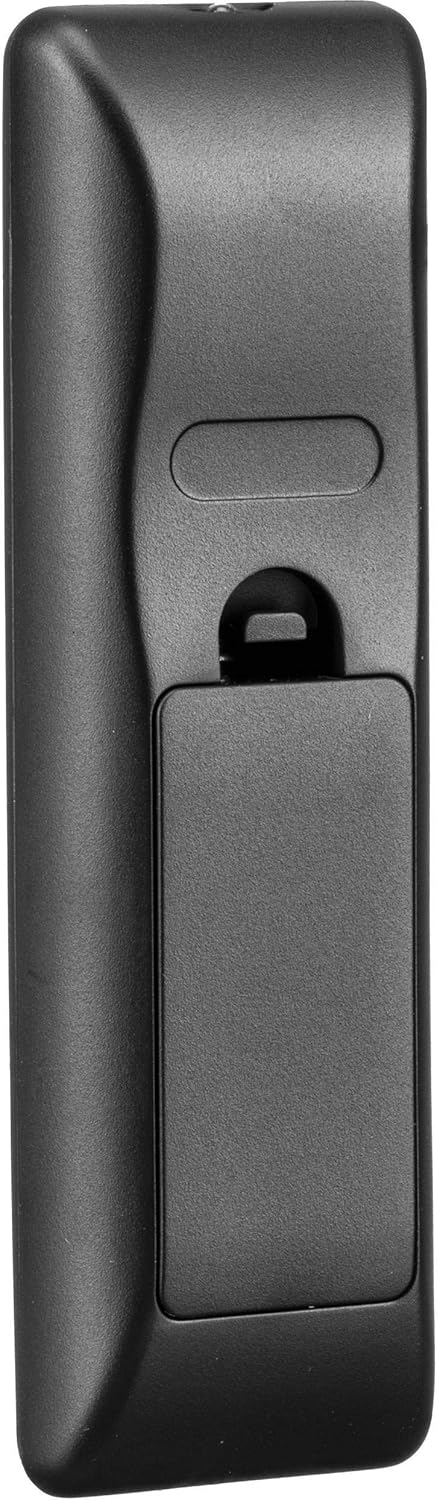
Once batteries are installed, the remote control is ready for use. No programming, pairing, or setting is needed.
3. Operating Instructions
The INTECHING Projector Remote Control is designed for intuitive operation. Ensure there is a clear line of sight between the remote control and the projector's infrared receiver for optimal performance.

3.1. Button Functions Overview
| Button Name | Function |
|---|---|
| Power | Turns the projector On or Off. |
| Help | Accesses the projector's help menu or information screen. |
| Menu | Opens or closes the projector's main menu. |
| ESC | Exits the current menu or cancels an operation. |
| Navigation (Up, Down, Left, Right) | Navigates through menu options. |
| Select | Confirms a selection in the menu. |
| Source | Cycles through available input sources (e.g., HDMI, VGA, Video). |
| Auto Image | Automatically adjusts the image settings for optimal display. |
| Volume Up/Down | Adjusts the audio volume. |
| PC | Selects the PC input source. |
| Video | Selects the Video input source. |
| Mute | Mutes or unmutes the audio output. |
| Keystone | Adjusts the image keystone correction. |
| Magnify (+/-) | Zooms in or out on the projected image. |
| Blank | Temporarily blanks the screen. |
| Presets | Accesses predefined image or display settings. |
| Freeze | Freezes the current image on the screen. |
| AV Mute | Mutes both audio and video. |
| Resize | Adjusts the image size or aspect ratio. |
| Overscan | Adjusts the overscan setting for the image. |
| Custom | Activates a user-defined custom function. |
4. Maintenance
4.1. Cleaning the Remote Control
To maintain the remote control's appearance and functionality, follow these cleaning guidelines:
- Use a soft, dry cloth to wipe the surface of the remote control.
- For stubborn dirt, slightly dampen the cloth with water or a mild, non-abrasive cleaner. Do not spray cleaner directly onto the remote.
- Avoid using harsh chemicals, solvents, or abrasive cleaning materials, as these can damage the remote's finish or internal components.
4.2. Storage
When not in use for extended periods, it is recommended to:
- Remove the batteries to prevent leakage, which can damage the remote.
- Store the remote control in a cool, dry place, away from direct sunlight and extreme temperatures.
5. Troubleshooting
If you experience issues with your INTECHING Projector Remote Control, refer to the following common troubleshooting steps:
| Problem | Possible Cause / Solution |
|---|---|
| Remote control is not working. |
|
| Buttons are unresponsive or sticky. |
|
| Remote works intermittently. |
|
If the issue persists after trying these steps, please refer to the Warranty & Support section for further assistance.
6. Specifications
| Feature | Detail |
|---|---|
| Product Dimensions | 5.51 x 1.57 x 0.79 inches |
| Item Weight | 1.44 ounces |
| Model Number | A-HW-NAVIGATOR |
| Batteries Required | 2 AAA batteries (not included) |
| Connectivity Technology | Infrared (IR) |
| Compatible Devices | Projector |
| Max Number of Supported Devices | 1 |
| Special Feature | Ergonomic |
7. Warranty & Support
INTECHING provides comprehensive support for its products:
- Refund Policy: A refund is available within 30 days from the order date.
- Replacement Policy: A replacement is available within 12 months from the order date.
- Customer Service: For any inquiries or assistance, messages will be replied to by our well-trained support team within 24 hours.
For further assistance, please visit the INTECHING Store on Amazon.
Related documentsA-HW-NAVIGATOR


Ask a question about this manual
Ask about setup, troubleshooting, compatibility, parts, safety, or missing instructions. Manuals+ will review the question and use this page’s manual context to help answer it.