
1. Product Overview
The USonline911 Advanced K-700 Mechanical Gaming Keyboard is a compact, one-handed gaming keypad designed for enhanced gaming performance. It features 44 mechanical keys with blue switches, customizable RGB backlighting, and onboard macro programming capabilities.

Image: Top-down view of the USonline911 Advanced K-700 Mechanical Gaming Keyboard, showcasing its 44 keys and RGB backlighting.
2. Package Contents
- USonline911 Advanced K-700 Mechanical Gaming Keyboard
- Detachable USB-C Cable
- Magnetic Wrist Rest
- User Manual (this document)
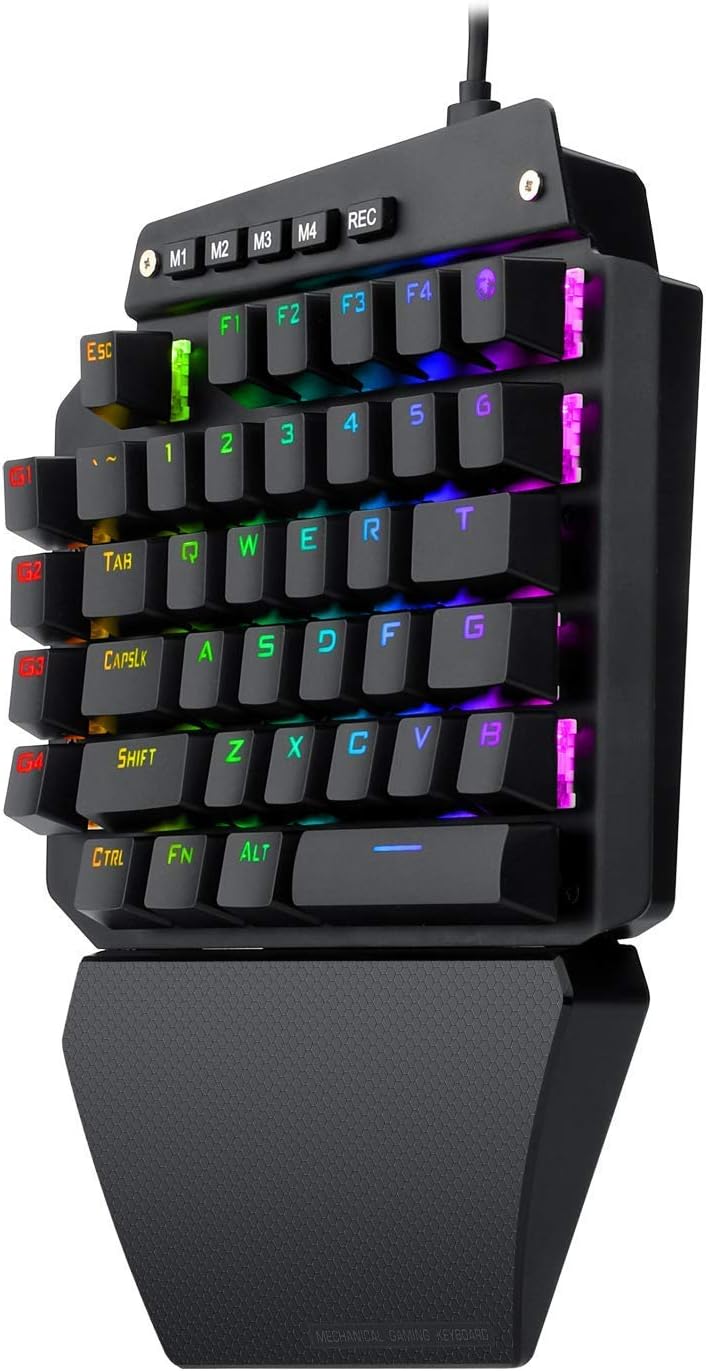
Image: The K-700 Mechanical Gaming Keyboard, detachable USB-C cable, and magnetic wrist rest laid out as package contents.
Video: Unboxing and overview of the K-700 Mechanical Gaming Keyboard, showing the keyboard, detachable USB-C cable, and magnetic wrist rest.
3. Setup Instructions
- Attach the Wrist Rest: The magnetic wrist rest can be easily attached to the bottom edge of the keyboard for ergonomic support during use. Align the magnets and gently press to secure.
- Connect to PC: Connect the detachable USB-C cable to the keyboard's USB-C port and the other end to an available USB port on your computer. The keyboard is plug-and-play and does not require additional drivers or software for basic functionality.
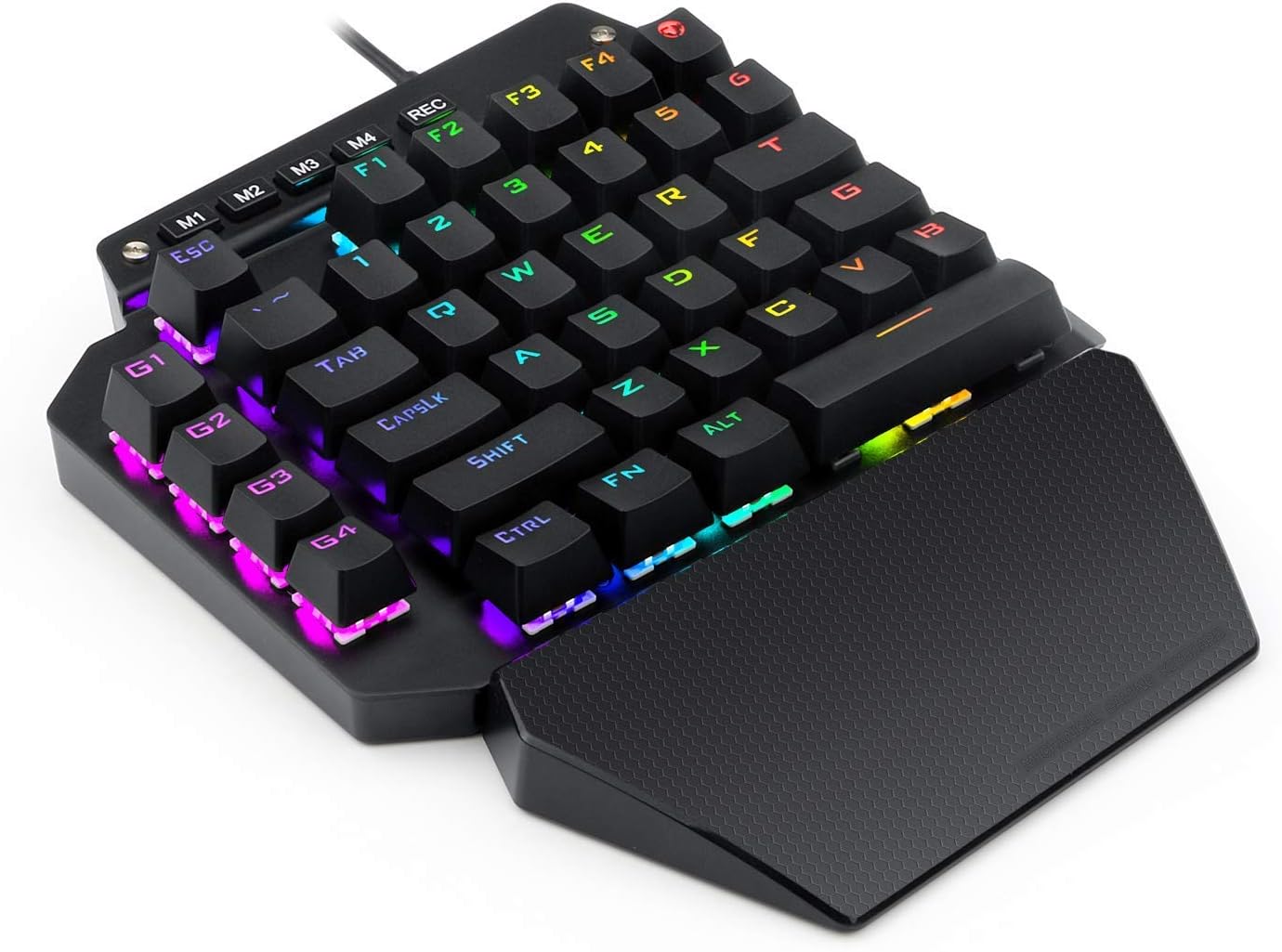
Image: The K-700 Mechanical Gaming Keyboard with its magnetic wrist rest securely attached, providing ergonomic support.
4. Operating Instructions
4.1. RGB Backlighting Control
The K-700 keyboard features 1.6 million color dynamic RGB backlighting with various lighting modes and effects. To cycle through the 5 available lighting effects, press the FN + Space keys simultaneously.
- Go with the stream
- The trial of Light
- Ripple Graff
- Flowers blooming
- Pass without Trace
The illumination can be completely turned off, and breathing speed is adjustable.
4.2. Macro Key Programming
The keyboard includes 11 macro keys (G1-G4, ~, T) and 4 pre-set backlight modes (M1-M4) that can be programmed. The G1-G4 keys default as F1-F4. The globe key is mapped as an in-game map key.
How to Record Macros:
- Press the REC key to enter recording mode.
- Choose one of the Lighting modes: M1, M2, M3, or M4.
- Choose one of the macro keys: G1, G2, G3, G4, ~, or T.
- Input the desired content (key sequence) to be recorded.
- Press the REC key again to save the recording.
Example: To record "123" on the G1 key with lighting mode M1, follow these steps: REC → M1 → G1 → (123) → REC.
How to Delete All Macros:
To delete all programmed macros, press FN + ESC simultaneously and hold for 3 seconds to restore factory settings.
Video: Demonstration of the K-700 keyboard's RGB lighting modes, macro key functionality, and typing sound.
5. Maintenance
To ensure the longevity and optimal performance of your K-700 Mechanical Gaming Keyboard, follow these maintenance guidelines:
- Cleaning: Use a soft, dry cloth to wipe the surface of the keyboard. For deeper cleaning, you may use a can of compressed air to remove dust and debris from between the keycaps. Avoid using harsh chemicals or abrasive materials.
- Keycap Removal: The keyboard features DIY OUTEMU Blue switches, allowing for keycap removal for cleaning or customization. Gently pull keycaps straight up to remove them. Realign and press down firmly to reattach.
- Cable Care: Handle the detachable USB-C cable with care. Avoid sharp bends or excessive pulling to prevent damage.

Image: A close-up view of the Outemu Blue mechanical switches on the K-700 keyboard, illustrating their design and allowing for keycap removal.
6. Troubleshooting
- Keyboard Not Responding:
- Ensure the USB-C cable is securely connected to both the keyboard and your computer.
- Try connecting the keyboard to a different USB port on your computer.
- Test the keyboard on another computer to rule out system-specific issues.
- RGB Backlighting Not Working:
- Press FN + Space to cycle through lighting modes and ensure it's not turned off.
- If issues persist, try resetting the keyboard to factory settings by pressing FN + ESC for 3 seconds.
- Macro Keys Not Functioning as Expected:
- Review the macro programming instructions in Section 4.2 to ensure correct setup.
- Reset all macros to factory settings by pressing FN + ESC for 3 seconds, then re-program.
7. Specifications
| Feature | Detail |
|---|---|
| Brand | USonline911 |
| Model Name | K-700 |
| Model Number | ASAY4u |
| Number of Keys | 44 |
| Switch Type | Outemu Blue (Clicky) |
| Key Durability | Up to 100 million clicks |
| Backlighting | RGB (1.6 Million colors, dynamic effects) |
| Connectivity Technology | USB-C (Detachable cable) |
| Special Feature | Detachable Magnetic Wrist Rest, Onboard Macro Keys |
| Compatible Devices | PC (Windows XP, 7, 8, 10, Vista) |
| Material | Acrylonitrile Butadiene Styrene, Metal |
| Item Weight | 1.2 Pounds |
| GTIN / UPC | 750440516868 |
8. Warranty and Support
The USonline911 Advanced K-700 Mechanical Gaming Keyboard comes with a warranty valid for 12 months from the purchase date.
For technical support, warranty claims, or any product-related inquiries, please contact USonline911 customer service through the retailer where the product was purchased or refer to the official USonline911 website for contact information.