
1. Introduction
The WAVLINK 8-Port Fast Ethernet Switch is designed to expand your network connectivity with ease. It features 8 RJ45 ports supporting 10/100 Mbps auto-negotiation and Auto-MDI/MDIX, eliminating the need for crossover cables. This plug-and-play device is ideal for extending network connections in various environments, from home offices to conference rooms, providing a reliable and efficient solution for your networking needs. It incorporates Green IT technology for energy saving.
2. Package Contents
Verify that your package contains the following items:
- WAVLINK 8-Port 10/100 Mbps Fast Ethernet Switch (Model RC-N081M2-EU)
- Power Adapter
- User Manual
3. Product Features
- 8 RJ45 10/100 Mbps ports with auto-negotiation and Auto-MDI/MDIX.
- Green IT technology for up to 75% energy savings.
- IEEE802.3x flow control ensures reliable data transfer.
- Durable ABS plastic housing for desktop mounting.
- Plug and Play: No configuration or software required.
- Layer 2 switch functions including IGMP Snooping, Port Mirroring, and Spanning Tree.
4. Hardware Overview
The WAVLINK Fast Ethernet Switch features a compact design with essential ports and indicators for easy monitoring and connectivity.
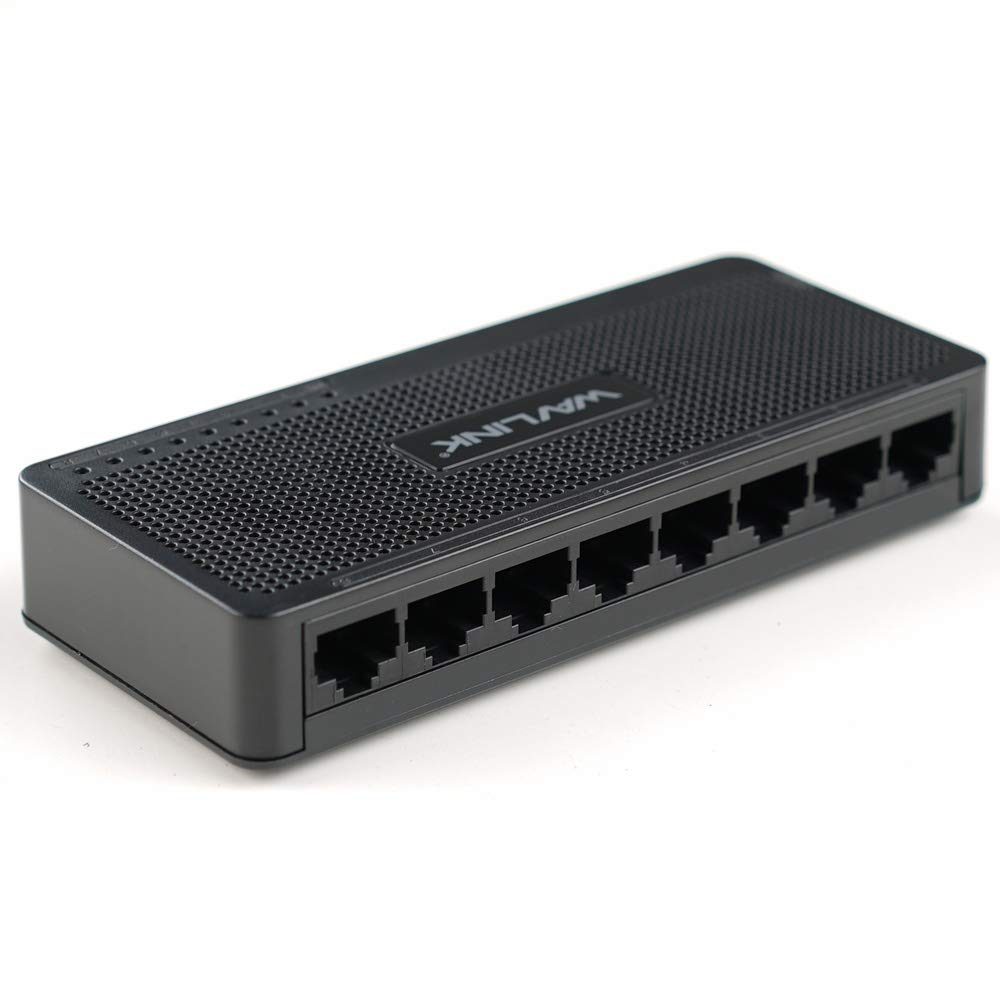
Figure 4.1: Top view of the WAVLINK 8-Port Fast Ethernet Switch, showing the brand logo and ventilation holes.
Front Panel
The front panel includes the 8 RJ45 Ethernet ports and LED indicators for status monitoring.

Figure 4.2: Front view of the switch, displaying the eight RJ45 Ethernet ports.
- RJ45 Ports (1-8): Connect your network devices (computers, printers, gaming consoles, etc.) using standard Ethernet cables.
- LED Indicators: Each port has an associated LED that indicates connection status and activity.
Rear Panel
The rear panel typically contains the power input port.

Figure 4.3: Side view of the switch, illustrating its compact dimensions (13cm x 5.5cm x 2.1cm) and the power input port.
- Power Input: Connect the provided power adapter here.
5. Setup Guide
The WAVLINK Fast Ethernet Switch is designed for simple plug-and-play installation. No complex configuration is required.
5.1 Connecting the Switch
- Placement: Choose a stable, flat surface for the switch, such as a desktop. Ensure adequate ventilation around the device.
- Connect Power: Plug the provided power adapter into the switch's power input port, then plug the other end into a standard electrical outlet. The power LED on the switch should illuminate.
- Connect to Router/Modem: Use an Ethernet cable to connect one of the switch's RJ45 ports to a LAN port on your router or modem.
- Connect Network Devices: Connect your computers, printers, network-attached storage (NAS), gaming consoles, or other network devices to the remaining RJ45 ports on the switch using Ethernet cables.

Figure 5.1: Connection diagram illustrating how the switch integrates into a network, connecting to a router and multiple end devices like computers, printers, and gaming consoles.

Figure 5.2: Visual representation of the plug-and-play setup, showing Ethernet cables ready for connection to the switch's ports.
Once all connections are made, the switch will automatically detect and configure the connected devices. The corresponding port LEDs will light up to indicate an active connection.
6. Operating the Switch
The WAVLINK Fast Ethernet Switch operates automatically once powered on and connected. It functions as a central connection point for your wired network devices.
- Data Transfer: The switch intelligently forwards data packets between connected devices at 10/100 Mbps speeds.
- Auto-MDI/MDIX: This feature automatically detects the type of Ethernet cable (straight-through or crossover) and adjusts accordingly, simplifying connections.
- LED Indicators:
- Solid Green: Indicates a stable link connection.
- Flashing Green: Indicates data activity on the port.
- Off: No device connected or device is powered off.

Figure 6.1: The Ethernet switch acting as a splitter, providing additional wired connections for multiple devices such as laptops, gaming consoles, and printers.
7. Maintenance
To ensure optimal performance and longevity of your WAVLINK Fast Ethernet Switch, follow these simple maintenance guidelines:
- Keep Clean: Regularly wipe the exterior of the switch with a soft, dry cloth. Avoid using liquid cleaners or aerosols.
- Ventilation: Ensure that the ventilation holes are not blocked to prevent overheating.
- Power Off Safely: If you need to power off the device, disconnect the power adapter from the electrical outlet.
- Environmental Conditions: Operate the switch within the recommended temperature range of 0°C to 40°C (32°F to 104°F). Avoid extreme humidity.
8. Troubleshooting
If you encounter issues with your WAVLINK Fast Ethernet Switch, refer to the following common problems and solutions:
8.1 No Power
- Ensure the power adapter is securely connected to both the switch and a working electrical outlet.
- Verify that the power outlet is functional by plugging in another device.
8.2 No Link/Activity LED
- Check that the Ethernet cable is securely connected to both the switch port and the network device.
- Try a different Ethernet cable to rule out a faulty cable.
- Ensure the connected network device is powered on and functioning correctly.
- Try connecting the device to a different port on the switch.
8.3 Slow Network Speed
- Ensure all connected devices and cables support 10/100 Mbps speeds.
- Check for excessive network traffic or bandwidth-intensive applications running on connected devices.
- Verify that your router/modem is providing adequate internet speed.
9. Specifications
| Feature | Description |
|---|---|
| Brand | WAVLINK |
| Model Number | RC-N081M2-EU |
| Number of Ports | 8 |
| Port Type | RJ45 |
| Data Transfer Rate | 10/100 Mbps (Fast Ethernet) |
| Auto-Negotiation | Supported |
| Auto-MDI/MDIX | Supported |
| Flow Control | IEEE802.3x |
| Housing Material | ABS Plastic |
| Installation | Desktop |
| Operating Temperature | 0°C ~ 40°C (32°F ~ 104°F) |
| Dimensions (Approx.) | 13 cm x 5.5 cm x 2.1 cm (5.1 in x 2.2 in x 0.8 in) |
10. System Requirements
The WAVLINK Fast Ethernet Switch is compatible with any operating system that supports standard Ethernet connectivity. No specific drivers are required for the switch itself.
- Microsoft Windows (10/8/2012/7/2008/Vista/2003/XP/2000/Me/NT/98/95/3.11)
- macOS
- NetWare
- UNIX
- Linux
11. Warranty and Support
WAVLINK products are designed for reliability and performance. For warranty information and technical support, please refer to the warranty card included with your product or visit the official WAVLINK website. Keep your purchase receipt for warranty claims.
For further assistance, you may contact WAVLINK customer support through their official channels.


