
PHILIPS SPT6354
PHILIPS Wireless Keyboard and Mouse Combo User Manual
Model: SPT6354
Introduction
Thank you for choosing the PHILIPS SPT6354 Wireless Keyboard and Mouse Combo. This product is designed to provide a reliable and comfortable computing experience with its optimized 2.4GHz wireless connection. This manual will guide you through the setup, operation, and maintenance of your new wireless peripheral set, ensuring you get the most out of its features.

Image: The PHILIPS SPT6354 Wireless Keyboard and Mouse Combo, showing the full-sized keyboard, ambidextrous mouse, and the unified nano receiver.
1. Setup
The PHILIPS SPT6354 combo offers plug-and-play convenience, requiring no additional software installation.
1.1 Package Contents
- Wireless Keyboard
- Wireless Mouse
- USB Nano Receiver
- User Manual (this document)
1.2 Battery Installation
The keyboard and mouse require batteries for operation.
- For the Keyboard: Locate the battery compartment on the underside of the keyboard. Insert 2 AA batteries, ensuring correct polarity (+/-).
- For the Mouse: Locate the battery compartment on the underside of the mouse. Insert 1 AA battery, ensuring correct polarity (+/-). The USB nano receiver is typically stored inside the mouse's battery compartment for convenience during transport.

Image: Close-up view of the mouse's battery compartment, showing the location for the AA battery and the storage slot for the unified USB nano receiver.
1.3 Connecting the Receiver
The keyboard and mouse connect wirelessly via a single USB nano receiver.
- Remove the USB nano receiver from the mouse's battery compartment (if stored there).
- Plug the USB nano receiver into an available USB port on your computer (PC, Mac, Laptop, Chromebook).
- The operating system will automatically detect and install the necessary drivers. This process may take a few moments.
- Once installed, the keyboard and mouse are ready for use.
2. Operating
The PHILIPS SPT6354 combo is designed for comfortable and efficient daily use.
2.1 Keyboard Features
- Full-Sized Layout: Includes a full numeric keypad and standard function keys for comprehensive input.
- Quiet Keypresses: The dome-switch keys provide a tactile yet quiet typing experience, reducing noise in shared environments.
- Spill-Resistant Design: Engineered to withstand minor spills, offering added durability.
- Indicator Lights: Lights for Caps Lock, Num Lock, and Scroll Lock are located above the numeric keypad.
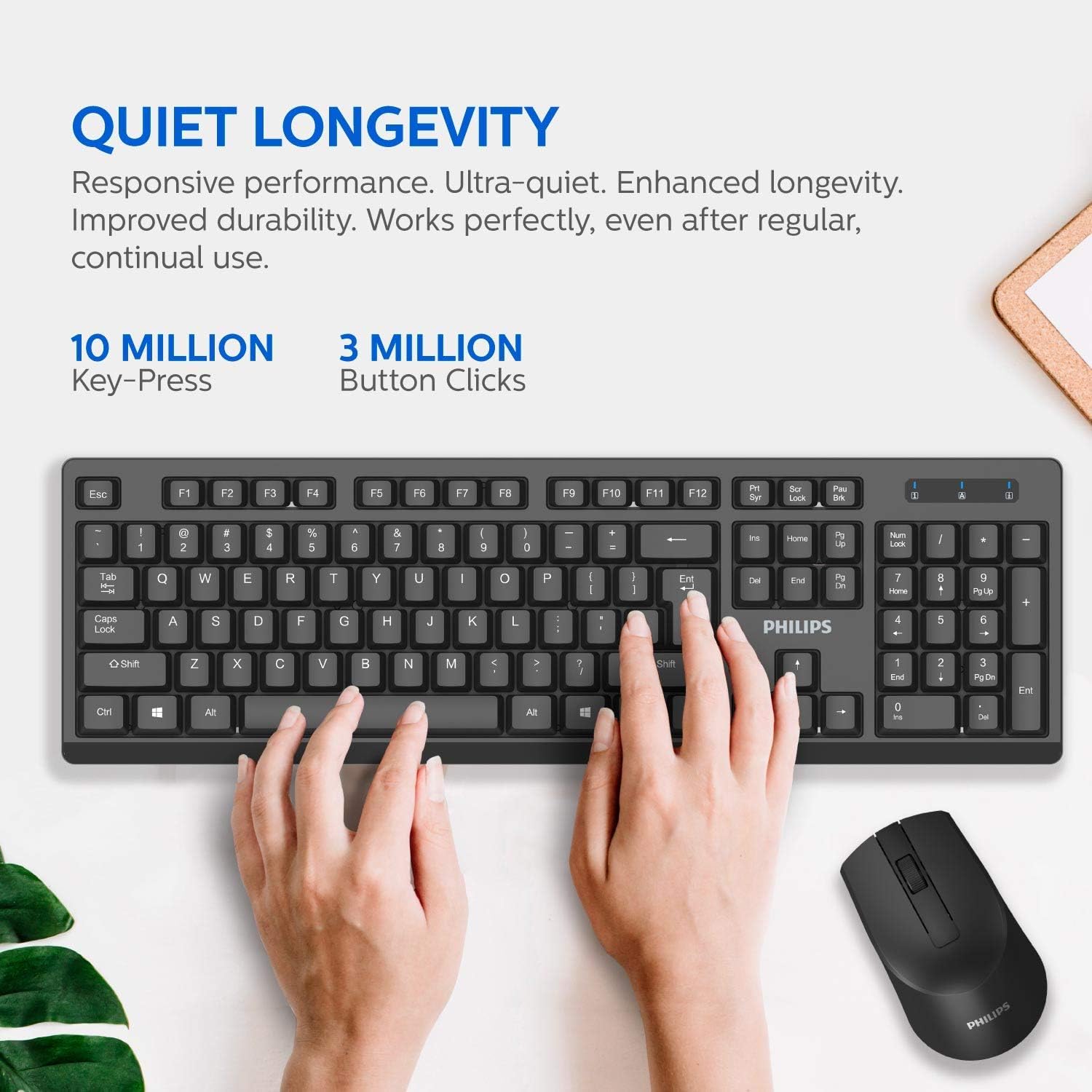
Image: A user's hands positioned on the PHILIPS keyboard, illustrating the comfortable key spacing and quiet operation.
2.2 Mouse Features
- Ambidextrous Design: The mouse is symmetrically designed to comfortably fit both right-handed and left-handed users.
- High-Performance Optical Tracking: Provides precise and accurate cursor movements with a default resolution of 1600 DPI.
- Quiet Clicks: The mouse buttons are designed for silent operation, minimizing click noise.
- Ergonomic Contour: Shaped to fit naturally in the palm of your hand, reducing strain during extended use.

Image: A close-up view of the PHILIPS keyboard and mouse, emphasizing their ergonomic design and comfortable contours.
3. Maintenance
Proper care and maintenance will extend the life of your PHILIPS wireless combo.
3.1 Cleaning
- Keyboard: Use a soft, dry cloth to wipe down the surface. For deeper cleaning, individual keycaps can be carefully removed to clean underneath. Ensure the keyboard is disconnected or powered off before cleaning.
- Mouse: Wipe the surface with a soft, slightly damp cloth. Avoid getting moisture into the optical sensor or battery compartment.
- Do not use harsh chemicals or abrasive cleaners.
3.2 Battery Replacement
When performance degrades or the devices stop responding, it is time to replace the batteries.
- Follow the battery installation steps in Section 1.2.
- Dispose of used batteries according to local regulations.
4. Troubleshooting
If you encounter issues with your PHILIPS wireless combo, refer to the following common problems and solutions.
4.1 No Response from Keyboard or Mouse
- Check Batteries: Ensure batteries are correctly installed and have sufficient charge. Replace if necessary.
- Check Receiver Connection: Ensure the USB nano receiver is securely plugged into a working USB port on your computer. Try a different USB port.
- Power Cycle: Turn off the keyboard/mouse (if they have a power switch), unplug the receiver, wait a few seconds, then plug the receiver back in and turn on the devices.
- Distance: Ensure the keyboard and mouse are within the effective operating range of the receiver (typically up to 10 meters).
4.2 Lag or Intermittent Connection
- Interference: Move the receiver closer to the keyboard and mouse. Avoid placing the receiver near other wireless devices (e.g., Wi-Fi routers, cordless phones) or large metal objects that may cause interference.
- Surface for Mouse: Ensure the mouse is used on a suitable surface. Highly reflective or transparent surfaces may affect tracking. A mouse pad is recommended.
4.3 Keys Sticking or Not Registering
- Cleaning: Dust or debris under the keycaps can cause sticking. Refer to Section 3.1 for cleaning instructions.
- Battery Level: Low battery can sometimes affect key registration. Replace batteries.
5. Specifications
| Feature | Detail |
|---|---|
| Model Number | SPT6354 |
| Connectivity Technology | 2.4GHz Wireless (USB Nano Receiver) |
| Keyboard Type | Full-sized, Ergonomic, Spill-resistant |
| Mouse Type | Optical, Ambidextrous, Ergonomic |
| Mouse DPI | 1600 DPI (Default) |
| Keyboard Battery | 2 x AA batteries (not included) |
| Mouse Battery | 1 x AA battery (not included) |
| Compatible Operating Systems | Windows XP, Vista, 7, 8, 10; Mac OS |
| Hardware Platform | PC, Mac |
| Keyboard Dimensions (approx.) | 445.5 mm (L) x 136.5 mm (W) x 26 mm (H) / 17.5 in (L) x 5.3 in (W) x 1 in (H) |
| Mouse Dimensions (approx.) | 108 mm (L) x 58 mm (W) x 36 mm (H) / 4.3 in (L) x 2.3 in (W) x 1.4 in (H) |
| Item Weight (approx.) | 1.1 pounds (combined) |
| Keyboard Key-Press Longevity | 10 Million Key-Presses |
| Mouse Button Clicks Longevity | 3 Million Button Clicks |

Image: Detailed dimensions of the PHILIPS wireless keyboard and mouse, illustrating their compact size.
6. Warranty and Support
For warranty information and customer support, please refer to the documentation included with your purchase or visit the official PHILIPS support website. Keep your proof of purchase for warranty claims.
Ask a question about this manual
Ask about setup, troubleshooting, compatibility, parts, safety, or missing instructions. Manuals+ will review the question and use this page’s manual context to help answer it.