
ENBUER B083728PQV
ENBUER 4K HDMI Switch 4x1 User Manual
Model: B083728PQV
1. Introduction
The ENBUER 4K HDMI Switch 4x1 is designed to expand your HDMI input capabilities, allowing you to connect up to four HDMI source devices to a single HDMI display. This device supports high-resolution video up to 4K@60Hz, HDR, and 3D, ensuring a high-quality viewing experience. It is ideal for managing multiple media devices such as gaming consoles, Blu-ray players, and streaming boxes with a single TV or monitor.
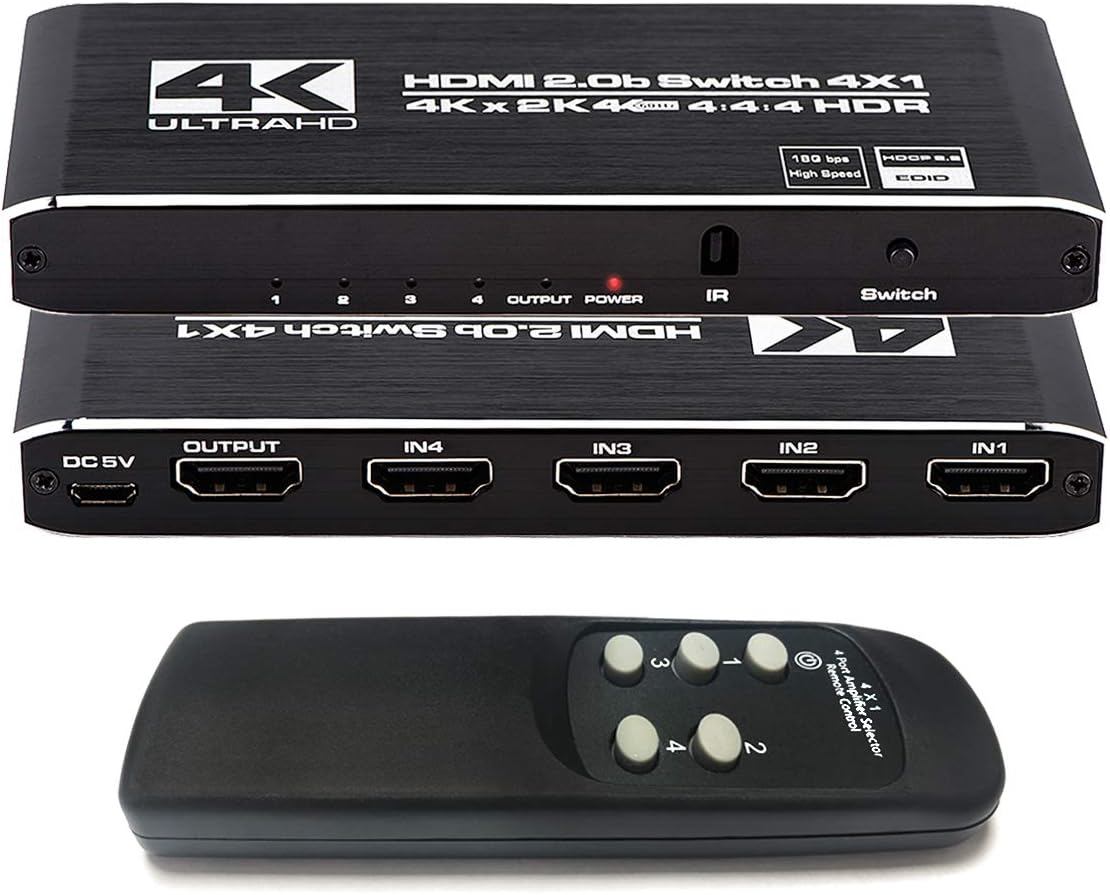
Image: The ENBUER 4K HDMI Switch 4x1 unit shown from top and rear, alongside its infrared remote control.
2. Package Contents
Please check the package carefully to ensure all items are present and in good condition:
- 1 x HDMI 2.0b Switch 4x1 Adapter
- 1 x IR Remote Control
- 1 x Power Adapter with USB Cable

Image: A visual representation of the package contents, including the HDMI switch, IR remote control, and power adapter with USB cable.
3. Features
- 4 Input 1 Output HDMI Switch: Supports HDCP 2.2, HDMI 2.0b, 4K@60Hz, 4Kx2K, HDR, 3D, 1080P, UHD, YUV4:4:4.
- Supported Audio Format: Supports compressed audios such as DTS, Dolby (Including DTS-HD and DOLBY). Ensures no distortion of audio or video and no delay in signal transmission.
- High Resolution: Supports up to 4K@60Hz (3860x2160p) resolution, and is compatible with all lower resolutions such as 480P/720P/1080i/1080p.
- Wide Compatibility: Compatible with most devices featuring HDMI interfaces, including computers/PCs, STB/Smart Boxes, DVD Players, Blu-ray Players, PS3/PS4 Pro, LCD TVs, LCD monitors, and Projectors.

Image: Illustrates the switch's capability to support HDMI 2.0 and a maximum resolution of 3840x2160 at 60Hz, showing a laptop connected to a large 4K TV.
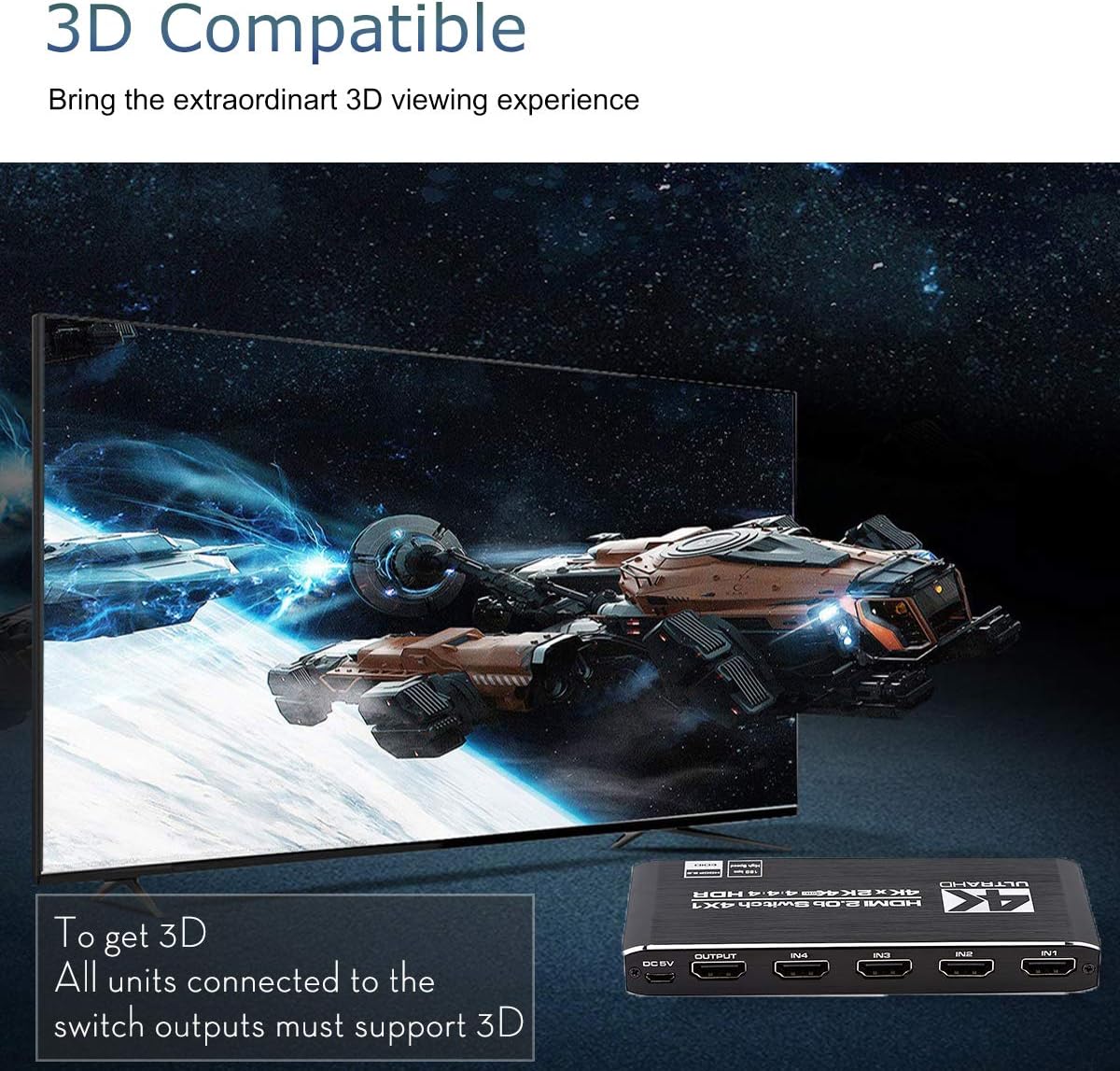
Image: Demonstrates the 3D compatibility of the HDMI switch, showing a 3D movie scene on a television screen with the switch connected below.
4. Specifications
| Attribute | Value |
|---|---|
| Product Dimensions | 2.05 x 5.12 x 0.63 inches |
| Item Weight | 7.4 ounces |
| Manufacturer | ENBUER |
| ASIN | B083728PQV |
| Color | Deep Black |
| Connector Type | HDMI |
| Compatible Devices | DVD Player, Gaming Console, Monitor, Personal Computer, Projector, Television |
| Cable Type | HDMI |
5. Setup and Installation
Follow these steps to set up your ENBUER 4K HDMI Switch:
- Identify Ports: Familiarize yourself with the input (IN1-IN4), output (OUTPUT), DC 5V power, and IR receiver ports on the switch.
- Connect HDMI Sources: Connect up to four HDMI source devices (e.g., game console, Blu-ray player, PC) to the HDMI IN1, IN2, IN3, and IN4 ports on the switch using high-quality HDMI cables.
- Connect to Display: Connect the HDMI OUTPUT port of the switch to the HDMI input of your display device (e.g., TV, monitor, projector) using an HDMI cable.
- Connect Power: Plug the provided USB power cable into the DC 5V port on the switch, and then connect the other end to a suitable USB power source (e.g., USB wall adapter, TV USB port). The power indicator light on the switch will illuminate.

Image: A detailed diagram labeling all ports and indicators on the ENBUER HDMI switch, including Input Indicators, Output Indicator, Power Indicator, IR Receiver, Switch Button, DC/5V Power Port, HDMI Output Port, and HDMI Input Ports (IN1-IN4).

Image: A diagram illustrating how to connect multiple HDMI devices (Laptop/PC, PS3/PS4, DVD Player, Apple TV Box) to the HDMI switch inputs, with a single HDMI output going to a display.

Image: A comparison showing the convenience of using the HDMI switch to avoid frequently plugging/unplugging HDMI cables, with a setup diagram above and a direct connection diagram below.
6. Operating Instructions
Once the switch is set up, you can easily switch between your connected HDMI devices:
6.1. Using the Manual Switch Button
- Press the 'Switch' button on the front panel of the device to cycle through the HDMI inputs (IN1, IN2, IN3, IN4). The corresponding input indicator light will illuminate to show the active input.
6.2. Using the IR Remote Control
- Point the IR remote control towards the IR receiver on the front of the HDMI switch.
- Press the numbered buttons (1, 2, 3, 4) on the remote to directly select the desired HDMI input.
- Alternatively, use the 'Switch' button on the remote to cycle through the inputs sequentially.

Image: Shows the HDMI switch and its remote control, with arrows indicating the ability to switch between multiple HDMI sources displayed on a single screen.
7. Troubleshooting
If you encounter issues with your HDMI switch, please refer to the following common problems and solutions:
- No Signal or Picture:
- Ensure all HDMI cables are securely connected to both the source devices, the switch, and the display.
- Verify that the power adapter is correctly connected and the power indicator on the switch is lit.
- Try connecting the HDMI source directly to the display to confirm the source and display are working correctly.
- Ensure the correct input is selected on both the HDMI switch and your display.
- Flickering Video or Intermittent Signal:
- Use high-quality HDMI 2.0b certified cables, especially for 4K@60Hz signals.
- Reduce the length of HDMI cables if they are excessively long.
- Ensure all devices (source, switch, display) support the resolution and refresh rate being used.
- Try restarting all connected devices and the HDMI switch.
- No Audio:
- Check audio settings on your source device and display to ensure they are configured correctly.
- Verify that the audio format is supported by your display or audio receiver.
- Ensure the HDMI cable supports audio transmission.
- Remote Control Not Working:
- Ensure there are no obstructions between the remote and the IR receiver on the switch.
- Check if the remote control's battery needs replacement.
- Ensure you are pointing the remote directly at the IR receiver.
8. Maintenance
To ensure the longevity and optimal performance of your ENBUER HDMI Switch, follow these maintenance guidelines:
- Keep the device in a cool, dry place, away from direct sunlight, heat sources, and moisture.
- Avoid exposing the device to extreme temperatures or humidity.
- Clean the device with a soft, dry cloth. Do not use liquid or aerosol cleaners.
- Do not attempt to disassemble or modify the device, as this will void the warranty and may cause damage.
9. Warranty and Support
ENBUER is committed to ensuring your long-term satisfaction with your purchase. If you encounter any problems or have questions regarding your 4K HDMI Switch, please do not hesitate to contact our customer service team. We are dedicated to providing friendly and easy-to-reach support to resolve your issues timely.
For assistance, please refer to the contact information provided with your product or visit the official ENBUER store on Amazon.
Ask a question about this manual
Ask about setup, troubleshooting, compatibility, parts, safety, or missing instructions. Manuals+ will review the question and use this page’s manual context to help answer it.