Introduction
The E-YOOSO K600 Mechanical Gaming Keyboard is designed to provide a superior typing and gaming experience. It features durable mechanical brown switches, vibrant LED rainbow backlighting, and a robust, water-resistant design. This manual provides detailed instructions for setup, operation, maintenance, and troubleshooting to ensure optimal performance and longevity of your keyboard.

Figure 1: E-YOOSO K600 Mechanical Gaming Keyboard Overview
Setup
Setting up your E-YOOSO K600 keyboard is a straightforward process. Follow these steps to get started:
- Unpack the Keyboard: Carefully remove the keyboard and any included accessories from the packaging.
- Connect to Computer: Locate an available USB port on your computer. Insert the USB connector of the E-YOOSO K600 keyboard firmly into the USB port.
- Driver Installation (Automatic): Your operating system (Windows, macOS, etc.) should automatically detect and install the necessary drivers for the keyboard. This process usually takes a few moments.
- Verify Functionality: Once connected, the keyboard's backlight should illuminate. Test the keys by typing in a text editor or browser to ensure all keys are responsive.
The keyboard is compatible with Windows 10, Windows 8, Windows 7, Mac OS X, Windows XP, and Windows VISTA.
Operating Instructions
Key Features and Functions
- 104-Key Layout: Full-sized keyboard with a numeric keypad for comprehensive functionality.
- N-Key Rollover: All 104 keys feature N-Key Rollover, ensuring that every keystroke is registered accurately, even during rapid, simultaneous presses. This prevents ghosting and provides ultimate gaming performance.

Figure 2: Full 104-Key Rollover ensures all keystrokes are registered.
- Brown Mechanical Switches: Equipped with durable Brown Switches, offering a tactile bump feedback with a medium resistance and audible click sound, ideal for both typing and gaming.
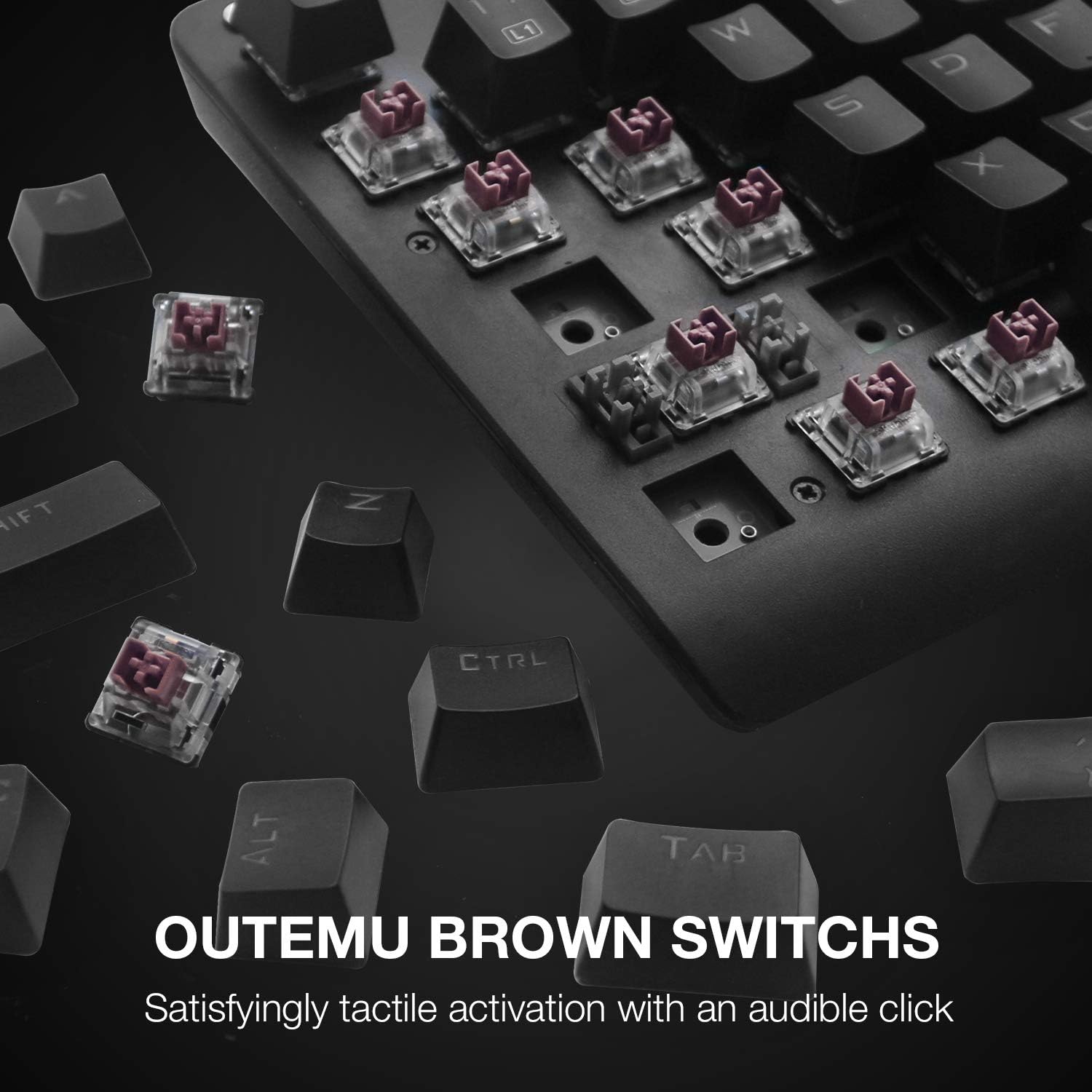
Figure 3: Close-up of Outemu Brown Switches.
- Multimedia Keys: The keyboard includes 12 dedicated multimedia keys for quick access to functions like volume control, media playback, and more. These are typically accessed using the Fn key in combination with the F1-F12 keys.
Backlight Control
The E-YOOSO K600 features a 6-color rainbow LED backlight with various lighting effects and customization options.

Figure 4: The keyboard's vibrant 6-color LED backlighting.
- Switching Lighting Effects: Press Fn + Ins to cycle through 9 dynamic lighting effects.
- Preset Gaming Modes: Press Fn + 1 ~ 8 to activate 8 different preset backlight modes optimized for various game types (e.g., FPS, CF, COD, RTS, LOL, car racing, NBA).
- Customization Modes: The keyboard offers 2 customizable backlight modes. Press Fn + 9 or Fn + 0 to switch to these modes. You can then program specific keys to light up.
- Adjusting Brightness and Speed: Use Fn + Up Arrow (↑) to increase backlight brightness and Fn + Down Arrow (↓) to decrease it. Use Fn + Left Arrow (←) to decrease lighting effect speed and Fn + Right Arrow (→) to increase it.

Figure 5: Key combinations for backlight control.
Maintenance
Proper maintenance ensures the longevity and optimal performance of your E-YOOSO K600 keyboard.
- Cleaning:
- Disconnect the keyboard from your computer before cleaning.
- Use a soft, lint-free cloth slightly dampened with water or a mild cleaning solution to wipe down the keycaps and chassis.
- For dust and debris between keys, use compressed air.
- Avoid using harsh chemicals or abrasive materials, as these can damage the keyboard's finish or keycap legends.
- Spill Resistance: The keyboard features a water-resistant design, providing added protection against accidental spills. While it can withstand minor liquid exposure, it is not fully waterproof. In case of a spill, immediately disconnect the keyboard and allow it to dry completely before reconnecting.

Figure 6: The keyboard's spill-resistant design.
- Keycap and Switch Care: The double-shot injection molded keycaps are designed to prevent legends from fading. The mechanical switches are rated for 50 million keystrokes, ensuring long-term durability.
Troubleshooting
If you encounter issues with your E-YOOSO K600 keyboard, refer to the following common troubleshooting steps:
| Problem | Possible Cause | Solution |
|---|---|---|
| Keyboard not recognized / No input | Loose USB connection, faulty USB port, driver issue. |
|
| Backlight not working or stuck | Lighting mode setting, power issue. |
|
| Keys not responding or double-typing | Debris under keycap, switch malfunction. |
|
Specifications
| Feature | Detail |
|---|---|
| Model Number | K600 |
| Brand | E-YOOSO |
| Key Type | Mechanical Brown Switches |
| Number of Keys | 104 |
| Backlight | 6-Color Rainbow LED (9 effects, 8 presets, 2 customizable) |
| Connectivity | Wired USB |
| N-Key Rollover | Full 104-key Anti-Ghosting |
| Durability | 50 million keystroke test |
| Material | Steel (top panel) |
| Dimensions | 16.54 x 5.12 x 0.79 inches |
| Weight | 1.76 pounds |
| Compatibility | Windows 10/8/7/XP/Vista, Mac OS X |
Warranty and Support
E-YOOSO stands behind the quality of its products. All E-YOOSO products come with a lifetime warranty service.
If you have any questions, concerns, or require technical assistance, please do not hesitate to contact E-YOOSO customer support. Refer to the product packaging or the official E-YOOSO website for the most current contact information.
When contacting support, please have your product model (K600) and a detailed description of your issue ready to facilitate a quicker resolution.