
Introduction
This manual provides essential information for the proper use and maintenance of your SamData SD101/32GB USB 2.0 Flash Drive. Please read these instructions carefully before use to ensure optimal performance and data integrity.

Image: SamData SD101/32GB USB 2.0 Flash Drives (Black and Blue)
Package Contents
- 2 x SamData SD101/32GB USB 2.0 Flash Drives (1 Black, 1 Blue)
Setup
The SamData USB 2.0 Flash Drive is designed for plug-and-play functionality, requiring no driver installation for most operating systems.
Connecting the Flash Drive
- Locate an available USB-A port on your computer or compatible device.
- Rotate the metal clip of the flash drive to expose the USB-A connector.
- Insert the USB-A connector firmly into the USB port.
- The integrated LED indicator will illuminate to confirm connection and data transfer activity.

Image: Plug and Play functionality with LED indicator
Operating Instructions
Data Transfer
- Once connected, the flash drive will appear as a removable disk drive in your computer's file explorer (Windows) or Finder (Mac OS).
- To transfer files, drag and drop them into the flash drive's folder, or copy and paste them.
- The LED indicator will blink during data transfer, indicating activity.
- For safe removal, always eject the flash drive through your operating system's safe removal procedure before physically disconnecting it. This prevents data corruption.
Compatibility
The SamData USB 2.0 Flash Drive supports the following operating systems:
- Windows 2000 / XP / Vista / 7 / 8 / 10
- Mac OS 9.0 or above
- Compatible with USB 2.0 and below ports.
File System Formatting
The flash drive comes pre-formatted with FAT32, which is compatible with both Windows and Mac OS for read/write operations. If you require a different file system, such as NTFS for larger file sizes or specific Windows compatibility, you may reformat the drive. Please note that reformatting will erase all data on the drive.
Note on Capacity: A portion of the listed capacity on any flash storage device is used for formatting and other functions, and is therefore not available for data storage. The actual available capacity will be slightly less than the advertised 32GB.
Maintenance
- Keep the flash drive away from extreme temperatures, moisture, and strong magnetic fields.
- Avoid physical impact or dropping the device.
- Regularly back up important data stored on the flash drive to another storage medium.
- The swivel design protects the USB connector when not in use. Ensure the metal clip is closed over the connector to prevent damage.
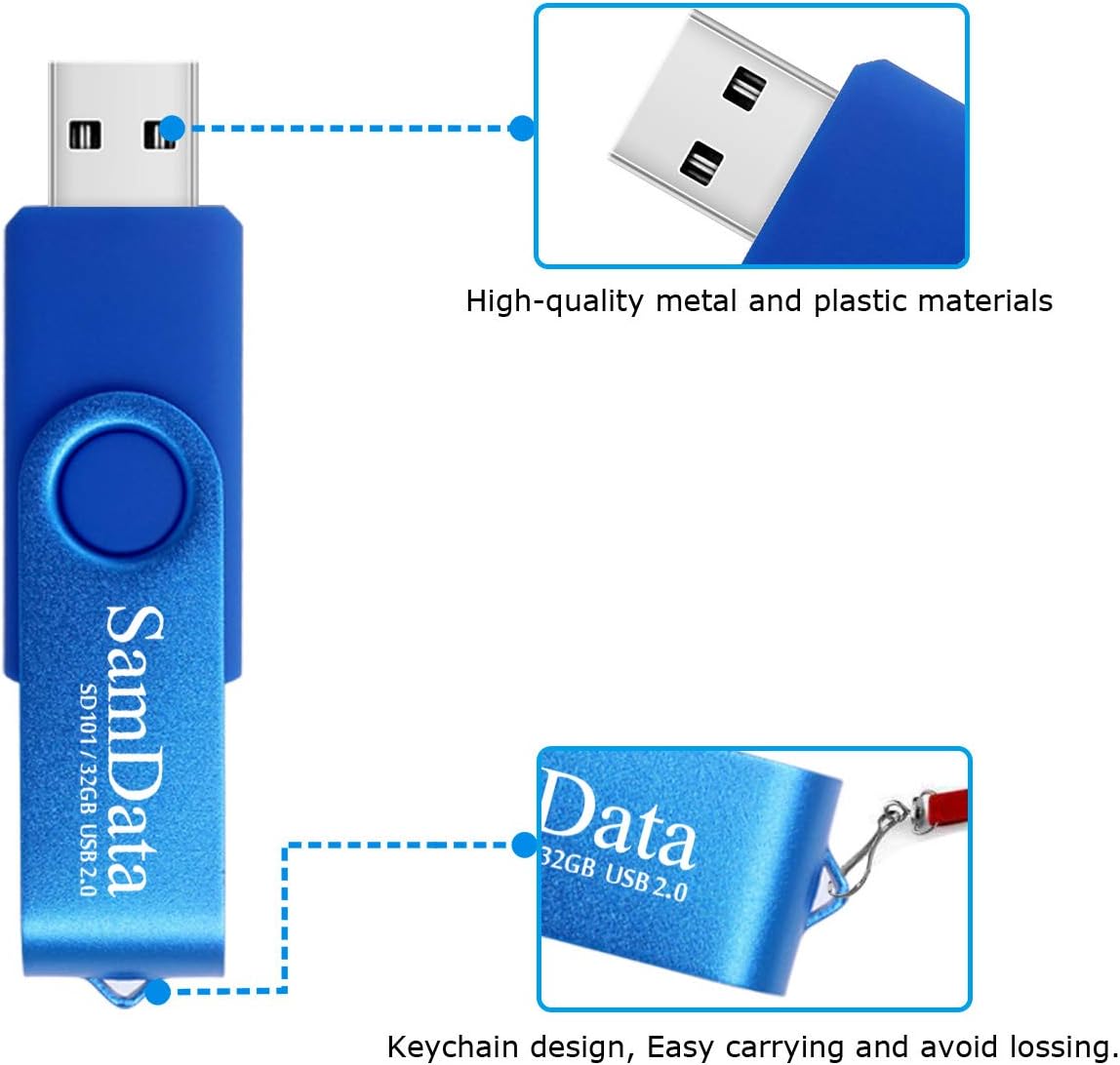
Image: Swivel design and keychain loop for protection and portability
Troubleshooting
Flash Drive Not Recognized
- Ensure the flash drive is fully inserted into the USB port.
- Try a different USB port on your computer.
- Test the flash drive on another computer to rule out a computer-specific issue.
- Check your computer's Device Manager (Windows) or Disk Utility (Mac OS) to see if the drive is detected but not assigned a drive letter or mounted.
Slow Data Transfer Speed
- Ensure you are using a USB 2.0 port for optimal USB 2.0 speeds. While compatible with older USB versions, speeds may be reduced.
- Transferring many small files can be slower than transferring a few large files of the same total size.
- Close other applications that might be using system resources or accessing the drive.
Specifications
| Feature | Detail |
|---|---|
| Brand | SamData |
| Model | SD101/32GB USB2.0 |
| Storage Capacity | 32 GB |
| Interface | USB 2.0 |
| Read Speed | 18 MB/s |
| Write Speed | 8 MB/s |
| Operating Temperature | -30°C to 70°C |
| Dimensions (LxWxH) | 2.28" x 0.75" x 0.39" |
| Weight | 0.423 ounces |
| Special Feature | LED Indicator, 360° Swivel Design |

Image: SamData USB Flash Drive Dimensions
Warranty and Support
Warranty Policy
SamData products come with a 12-month warranty. Any product issues within one year of purchase will be covered for free.
Customer Support
For any questions or concerns regarding your SamData product, please contact Sosun Tech Service. They strive for 100% customer satisfaction.
Contact information for Sosun Tech Service can typically be found on the product packaging or the official SamData website.