1. Introduction
The ASUS ROG Theta 7.1 Gaming Headset is engineered to provide an unparalleled audio experience for gamers. Featuring true 7.1 surround sound, an AI noise-cancelling microphone, and a home-theater-grade DAC, this headset ensures crystal-clear communication and immersive soundscapes across various platforms including PC, PlayStation 4, Nintendo Switch, and other smart devices. Its robust design and customizable Aura Sync RGB lighting make it a premium choice for serious gamers.
2. Package Contents
- ASUS ROG Theta 7.1 Gaming Headset
- Detachable AI Noise-Cancelling Microphone
- USB-C to USB 2.0 Adapter Cable
- ROG Hybrid Ear Cushions (pre-installed)
- ROG Protein Leather Ear Cushions (alternative set)
- Quick Start Guide
3. Key Features
- True 7.1 Surround Sound: Equipped with eight discrete ASUS Essence drivers and virtual subwoofers for precise positional audio and immersive gaming.
- AI Noise-Cancelling Microphone: Delivers crystal-clear in-game voice communication by intelligently filtering out background noise.
- ROG Home-Theater-Grade 7.1 DAC: Features four ESS 9601 headphone drivers for exceptionally crisp and lossless audio.
- USB-C Connectivity: Versatile compatibility with PC, PS4, Nintendo Switch, and smart devices.
- Aura Sync RGB Lighting: Customizable lighting effects to personalize your gaming setup.
- Ultimate Comfort: Includes specialized fast-cooling fabric and eyewear-friendly ear cushions for extended wear.
4. Setup Guide
4.1 Attaching the Microphone
Align the detachable microphone with the port on the left earcup and gently push until it clicks into place. Ensure it is securely connected for optimal voice pickup.
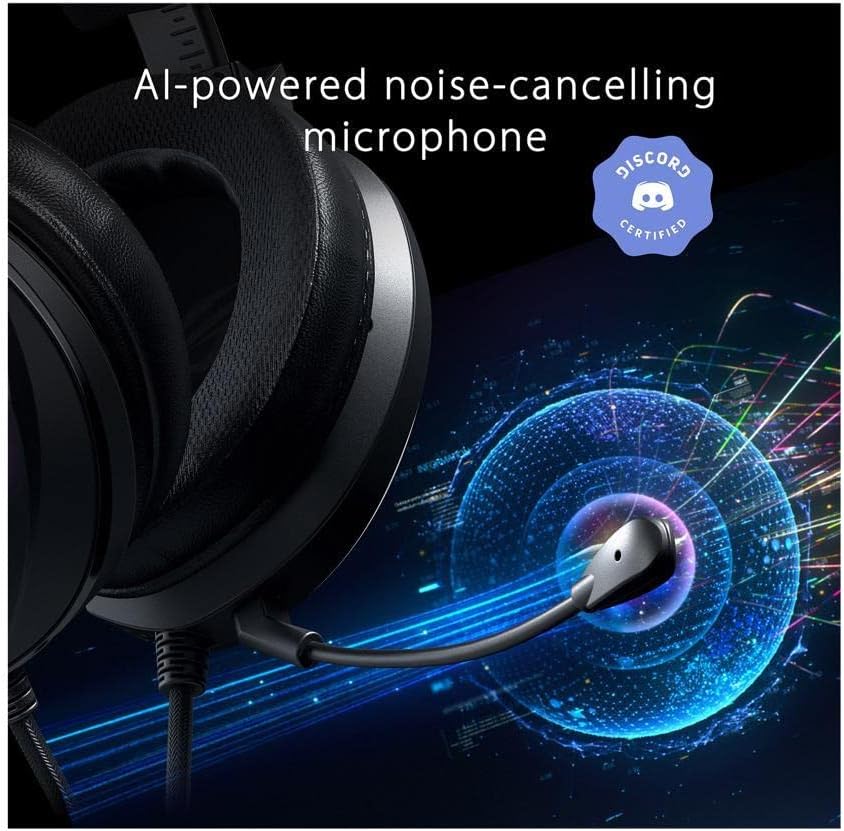
Figure 4.1: AI-powered noise-cancelling microphone attached to the headset.
4.2 Connecting the Headset
The ROG Theta 7.1 connects via USB-C. Use the provided USB-C cable to connect the headset to your PC, PlayStation 4, Nintendo Switch, or compatible smart device. For devices with a standard USB-A port, use the included USB-C to USB 2.0 adapter cable.
Video 4.2: Official product video demonstrating the USB-C connection and features of the ASUS ROG Theta 7.1 Gaming Headset.
4.3 Software Installation (Armoury II)
For full customization and optimal performance, download and install the ASUS Armoury II software from the official ASUS support website. This software allows you to configure audio profiles, RGB lighting effects, and microphone settings.

Figure 4.3: ASUS Armoury II software interface for advanced settings.
5. Operating Instructions
5.1 On-Headset Controls
- Volume Wheel: Located on the earcup, rotate up or down to adjust the master volume.
- Microphone Mute Button: Press to toggle microphone mute on/off. An LED indicator on the microphone tip will show its status.
- RGB Lighting Control: A dedicated button allows cycling through various Aura Sync RGB lighting effects or turning them off.
- Platform Switch: Some models may feature a switch (e.g., "PC/NB | Phone") to optimize compatibility and audio performance for different devices. Refer to your specific model's physical controls.
5.2 AI Noise-Cancelling Microphone
The AI Noise-Cancelling Microphone utilizes artificial intelligence to detect and filter out over 50 million types of background noise, including keyboard clatter, mouse clicks, and ambient chatter. This ensures your voice is heard clearly by teammates, even in noisy environments. No specific user action is required for its core function, but settings can be fine-tuned in Armoury II.
5.3 True 7.1 Surround Sound
The headset's true 7.1 surround sound is powered by eight discrete ASUS Essence drivers and a ROG home-theater-grade 7.1 DAC. This hardware-driven surround sound provides precise audio positioning, allowing you to pinpoint in-game sounds like footsteps and gunfire with exceptional accuracy. Ensure your audio source is configured for 7.1 output for the best experience.
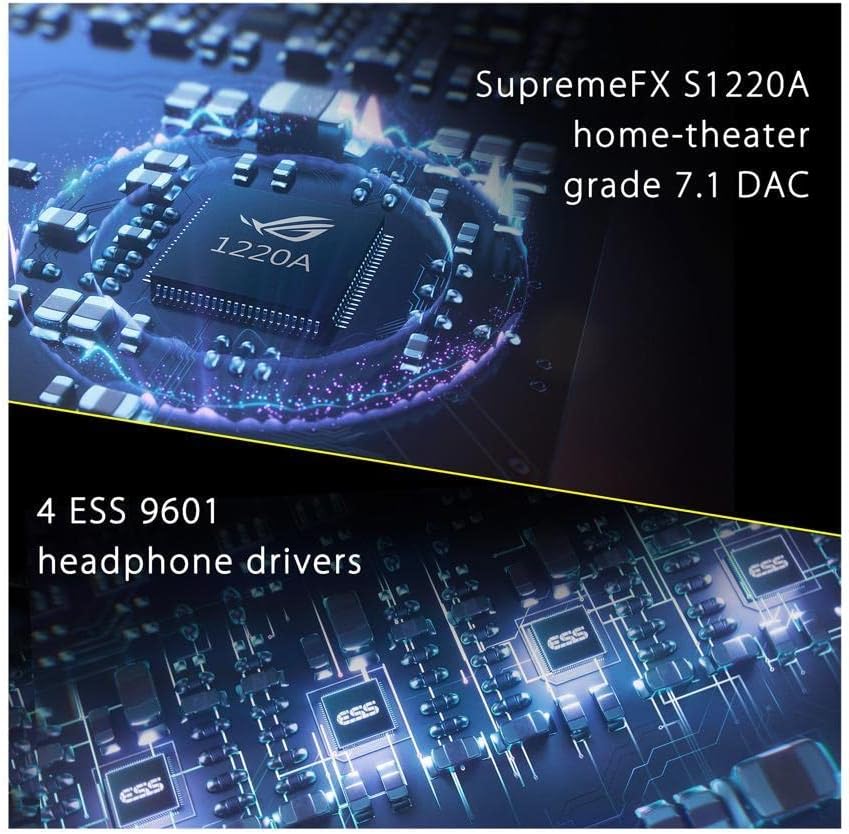
Figure 5.3: Internal components showcasing the DAC and ESS drivers.
6. Maintenance & Care
- Cleaning: Use a soft, dry cloth to clean the headset. For ear cushions, gently wipe with a damp cloth and allow to air dry completely. Avoid harsh chemicals or abrasive materials.
- Storage: Store the headset in a cool, dry place away from direct sunlight and extreme temperatures. Avoid placing heavy objects on top of the headset.
- Cable Care: Do not pull on the cable to disconnect the headset. Always grasp the connector. Avoid sharp bends or kinks in the cable.
- Ear Cushions: The ear cushions are replaceable. If they become worn or damaged, contact ASUS support for replacement options.
7. Troubleshooting
| Problem | Possible Cause | Solution |
|---|---|---|
| No sound from headset. | Volume too low, incorrect audio output device, loose connection. | Check volume wheel. Ensure "ROG Theta 7.1" is selected as default audio output in system settings. Reconnect USB-C cable. |
| Microphone not working. | Microphone muted, incorrect input device, loose connection. | Press microphone mute button. Ensure "ROG Theta 7.1 Microphone" is selected as default input device. Reattach microphone firmly. Check Armoury II settings. |
| RGB lighting not working. | Lighting turned off, software issue. | Press the RGB lighting control button on the headset. Check Aura Sync settings in Armoury II. Restart Armoury II software. |
| Audio crackling or distortion. | Interference, driver issue, high volume. | Lower volume. Ensure no strong electromagnetic interference sources nearby. Update audio drivers via Armoury II or ASUS support website. |
8. Specifications
| Feature | Detail |
|---|---|
| Model Name | ROG Theta 7.1 |
| Connectivity | USB-C |
| Drivers | 8 x ASUS Essence drivers (per earcup) + Virtual Subwoofers |
| DAC | ROG Home-Theater-Grade 7.1 DAC with 4 x ESS 9601 Headphone Amplifiers |
| Frequency Response | Headphones: 20 Hz - 40000 Hz; Microphone: 100 Hz - 10000 Hz |
| Microphone | AI Noise-Cancelling, Detachable |
| Lighting | Aura Sync RGB |
| Compatible Devices | PC, Nintendo Switch, PlayStation 4, Discord (via USB-C) |
| Item Weight | 1.4 pounds (approx. 635g) |
| Dimensions | 6.61 x 9.45 x 10.59 inches |
9. Important Safety Information
Always handle the headset with care. Avoid exposing it to extreme temperatures, humidity, or direct sunlight. Do not attempt to disassemble or modify the headset, as this will void the warranty and may cause damage. Keep out of reach of small children due to small parts.
10. Warranty and Support
The ASUS ROG Theta 7.1 Gaming Headset comes with a manufacturer's warranty. For detailed warranty terms and conditions, please refer to the warranty card included in your product packaging or visit the official ASUS support website. For technical assistance, driver downloads, or service inquiries, please contact ASUS customer support.
Official ASUS Support: www.asus.com/support/


