
Brother TD-4410D
Brother TD4410D Thermal Desktop Barcode and Label Printer User Manual
Model: TD-4410D | Brand: Brother
Product Overview
The Brother TD4410D is a 4-inch thermal desktop barcode and label printer designed for efficient printing of labels, barcodes, receipts, and tags. It offers high performance with print speeds up to 8 inches per second (IPS) at a resolution of 203 dpi, ensuring clear and precise output. This printer is built for effortless integration into existing and future workflows within warehouse or manufacturing environments, providing a reliable and affordable solution for powerful desktop printing.
Key features include:
- Direct Thermal printing technology for quick and easy label creation.
- High-speed, hassle-free labeling solution for business needs.
- Capable of printing sharp and detailed monochrome documents.

Figure 1: Front view of the Brother TD4410D Thermal Label Printer, showing the control panel and label output slot.
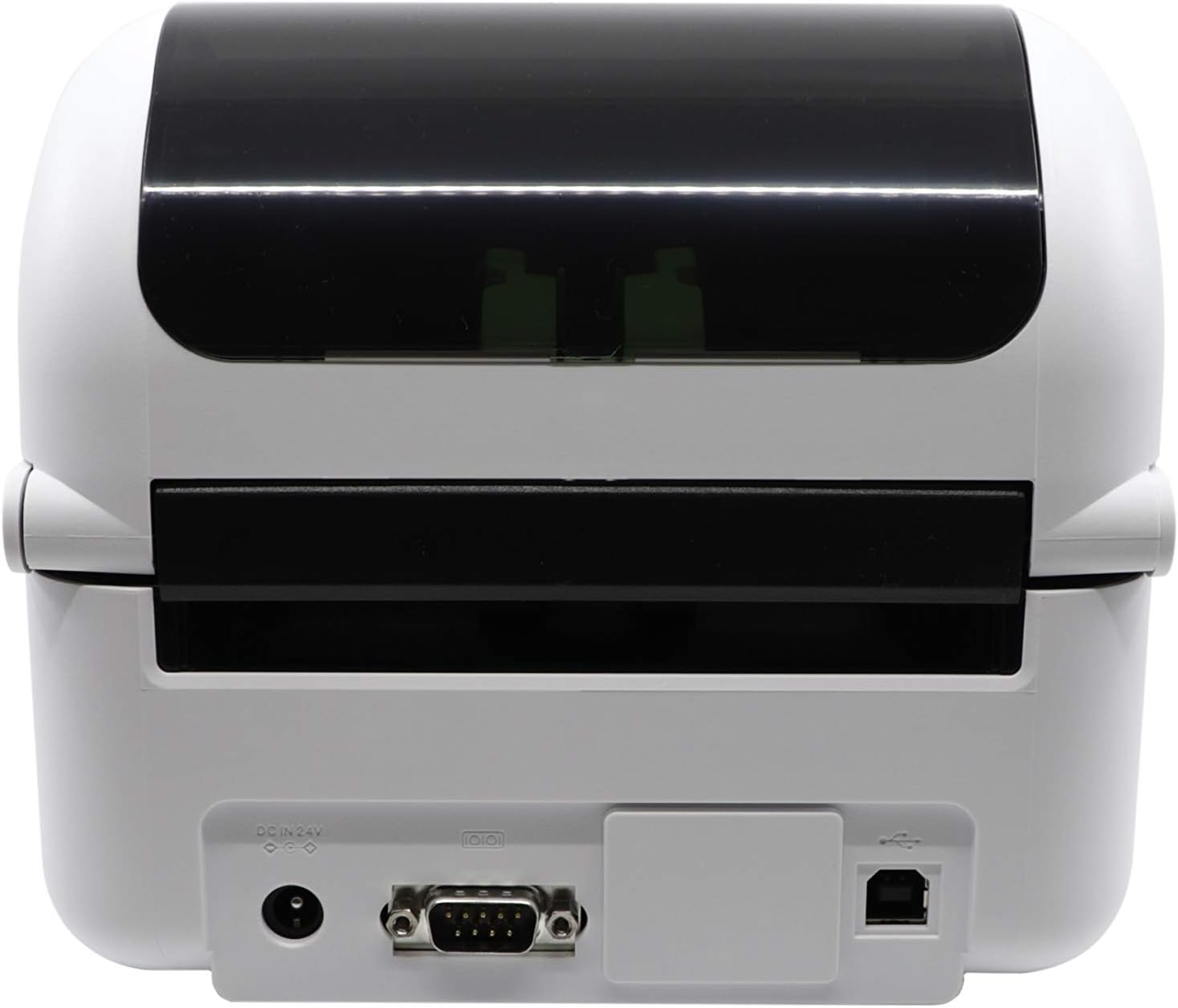
Figure 2: Back view of the Brother TD4410D Thermal Label Printer, highlighting the power input, serial port, and USB port.
Package Contents
Verify that all items listed below are included in your printer package:
- Brother TD4410D Thermal Label Printer
- AC Adapter
- Power Cord
- USB Cable
- Documentation (User Manual, Quick Setup Guide, Warranty Information)
Setup Guide
1. Unpacking and Placement
- Carefully remove the printer and all accessories from the packaging.
- Place the printer on a stable, flat surface with adequate space around it for ventilation and cable connections.
- Ensure the printer is not exposed to direct sunlight, excessive heat, dust, or moisture.
2. Connecting Power
- Connect the AC adapter to the DC IN 24V port on the back of the printer.
- Plug the power cord into the AC adapter.
- Plug the other end of the power cord into a grounded electrical outlet.
3. Connecting to a Computer (USB)
- Ensure the printer is powered off.
- Connect one end of the supplied USB cable to the USB port on the back of the printer.
- Connect the other end of the USB cable to an available USB port on your computer.
4. Installing Drivers and Software
- Turn on the printer by pressing the power button.
- Insert the installation CD (if provided) into your computer's CD/DVD drive, or download the latest drivers and software from the official Brother support website.
- Follow the on-screen instructions to complete the driver and software installation.
- Restart your computer if prompted.
5. Loading Label Media
- Open the top cover of the printer.
- Adjust the media guides to the width of your label roll.
- Place the label roll onto the media spindle, ensuring the labels feed from the bottom of the roll.
- Feed the leading edge of the labels through the printer mechanism until it extends slightly past the print head.
- Close the top cover securely.
- The printer may automatically calibrate and feed a few labels to detect the media type and size.
Operating Instructions
1. Powering On/Off
- To power on: Press the Power button (⏻) on the front panel. The indicator light will illuminate.
- To power off: Press and hold the Power button (⏻) until the indicator light turns off.
2. Printing a Test Label
A test label can help verify that the printer is functioning correctly and that the media is loaded properly.
- Ensure the printer is powered on and ready.
- Press and hold the Feed button (⇩) for a few seconds until a test label begins to print.
3. Printing from Applications
To print labels from your computer, use your preferred label design software or application that supports printing to thermal label printers.
- Open your document or label design in the application.
- Go to File > Print.
- Select the Brother TD4410D from the list of available printers.
- Adjust print settings such as label size, orientation, and print quality as needed in the printer preferences.
- Click Print.
4. Understanding Indicator Lights
The printer's indicator lights provide status information:
- Power Light (Green): Indicates the printer is on and ready.
- Error Light (Red): Indicates a printer error, such as no media, cover open, or print head issue. Refer to troubleshooting for details.
- Data Light (Blue/Green): Flashes when data is being received or processed.
Maintenance
1. Cleaning the Printer
Regular cleaning helps maintain print quality and extends the life of your printer.
- Turn off the printer and unplug the power cord before cleaning.
- Use a soft, lint-free cloth lightly dampened with water or a mild, non-abrasive cleaner to wipe the exterior of the printer.
- Do not use alcohol or solvents, as they may damage the printer's surface.
2. Cleaning the Print Head
If print quality degrades (e.g., faded lines, missing dots), the print head may need cleaning.
- Turn off the printer and open the top cover.
- Gently wipe the print head surface with a cotton swab lightly moistened with isopropyl alcohol.
- Allow the print head to dry completely before closing the cover and powering on the printer.
3. Replacing Label Media
When the label roll is empty, replace it by following the steps in the "Loading Label Media" section of the Setup Guide.
Troubleshooting
Common Issues and Solutions
| Issue | Possible Cause | Solution |
|---|---|---|
| Printer not responding / Not printing | Printer is off; USB cable disconnected; Driver not installed or corrupted; Printer error. | Ensure printer is on; Check USB connection; Reinstall drivers; Check error light and clear any jams. |
| Poor print quality (faded, lines, missing dots) | Print head is dirty; Incorrect media type; Low quality labels. | Clean the print head; Ensure correct thermal labels are used; Try a different roll of labels. |
| Labels not feeding correctly / Paper jam | Media loaded incorrectly; Media guides not adjusted; Label jam. | Reload labels correctly; Adjust media guides to fit label width; Clear any jammed labels carefully. |
| Error light is on | Top cover open; No labels; Print head overheating. | Close the top cover; Load new labels; Allow printer to cool down. |
Technical Specifications
| Feature | Specification |
|---|---|
| Model Name | TD-4410D |
| Printing Technology | Direct Thermal |
| Maximum Print Resolution | 203 x 203 DPI |
| Maximum Print Speed (Monochrome) | 8 IPS (inches per second) |
| Maximum Media Size | 4 inches (width) |
| Connectivity Technology | USB, Serial Interface |
| Memory Storage Capacity | 64 MB |
| Product Dimensions (L x W x H) | 8.8 x 7.1 x 6.1 inches |
| Item Weight | 8.65 pounds |
| Included Components | AC Adapter, Power Cord, USB Cable, Documents |
Warranty and Support
The Brother TD4410D Thermal Desktop Barcode and Label Printer comes with a Limited Warranty. Please refer to the warranty documentation included in your package for specific terms, conditions, and duration of coverage.
For technical support, driver downloads, or further assistance, please visit the official Brother support website or contact Brother customer service. The manufacturer is Brother Industries, Ltd.
Additional protection plans may be available for purchase separately to extend coverage beyond the standard warranty period. Please check with your retailer for details on available protection plans.
Ask a question about this manual
Ask about setup, troubleshooting, compatibility, parts, safety, or missing instructions. Manuals+ will review the question and use this page’s manual context to help answer it.