
1. Product Overview
The INTECHING GB004WJSA is a replacement TV remote control designed for various Sharp Aquos television models. It offers full functionality without requiring any programming or pairing. Simply insert batteries, and it is ready for use.
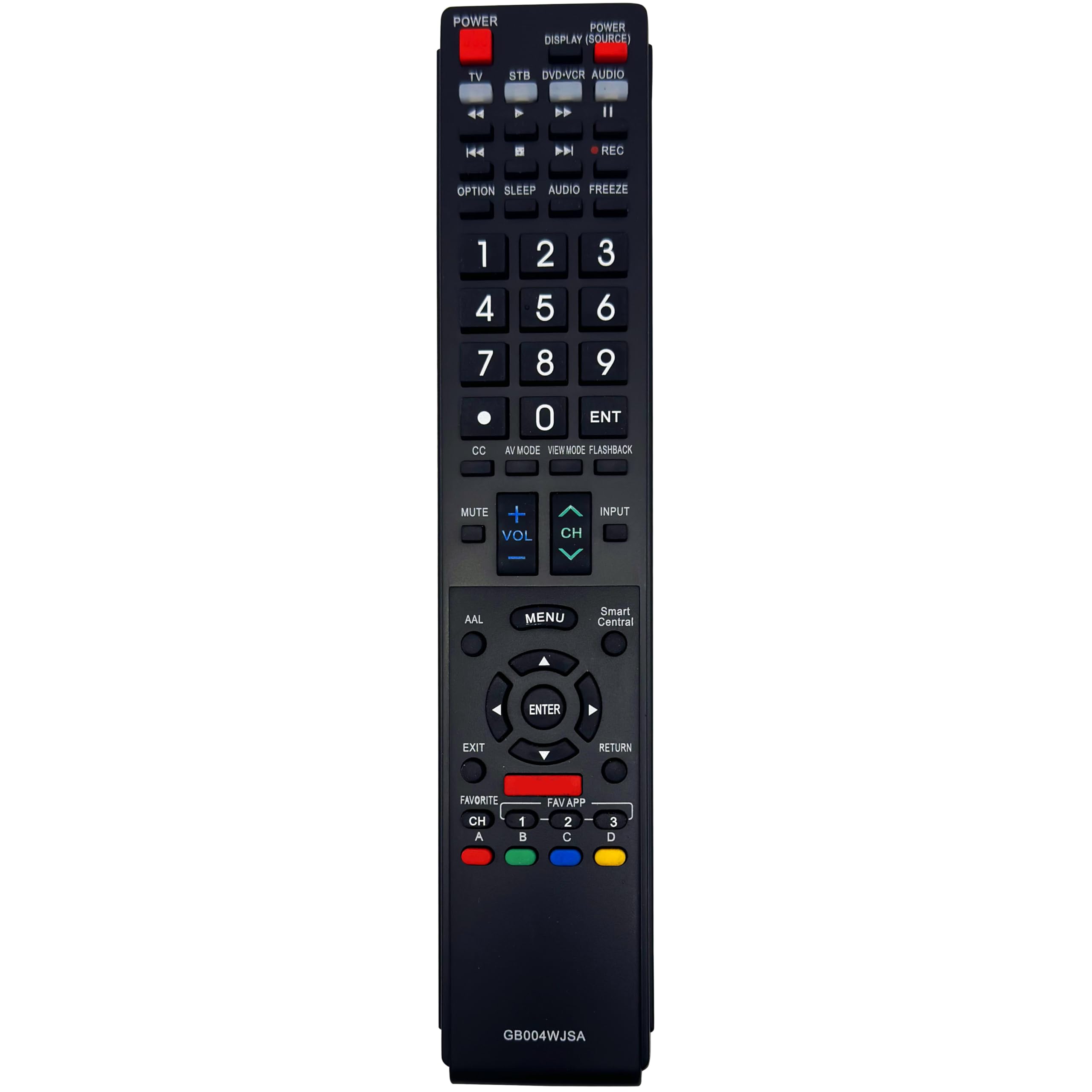
Image 1.1: Front view of the INTECHING GB004WJSA TV Remote Control.
Compatible TV Models:
- Sharp Aquos LC-52C6400U, LC-52LE640, LC-52LE640U
- Sharp Aquos LC-60C6400U, LC-60C6500U, LC-60C7500U, LC-60LE640U, LC-60LE640UA, LC-60LE640UB, LC-60LE640UC, LC-60LE640UD, LC-60LE650, LC-60LE650U, LC-60LE650UA, LC-60LE750U
- Sharp Aquos LC-70C6400U, LC-70C6500U, LC-70C7500U, LC-70LE640U, LC-70LE650U, LC-70LE750U
- Sharp Aquos LC-80C6500U, LC-80LE633U, LC-80LE642U, LC-80LE650, LC-80LE650U
2. Setup
2.1 Battery Installation
- Locate the battery compartment on the back of the remote control.
- Slide the battery compartment cover downwards or press the latch and lift to open.
- Insert two (2) AAA batteries (not included) into the compartment, ensuring the positive (+) and negative (-) terminals align correctly with the markings inside.
- Replace the battery compartment cover by sliding it back into place until it clicks securely.

Image 2.1: Battery compartment with batteries inserted.
2.2 Initial Use
No programming, pairing, or setting is required. Once batteries are installed, the remote control is ready to operate your compatible Sharp Aquos TV. Ensure there are no obstacles between the remote control and the TV when operating the device.
3. Operating Instructions
Point the remote control directly at your television when operating. Below is a diagram of the remote control with descriptions of each button's function.

Image 3.1: Remote Control Unit Button Layout and Functions.
Button Functions:
- POWER: Switch the TV power on or standby.
- TV, STB, DVD-VCR, AUDIO: Switches the remote control for TV, STB, BD, DVD, VCR and AUDIO operation.
- External equipment operational buttons: Operate the external equipment.
- OPTION: Display the Link Operation Menu. This button will function only when AQUOS Link is used.
- SLEEP: Set the sleep timer.
- 0-9: Set the channel.
- • (DOT): Used for decimal channel input.
- CC: Display captions from a closed-caption source.
- AV MODE: Select an audio or video setting.
- MUTE: Mute the sound.
- VOL +/-: Set the volume.
- MENU: Display the menu screen.
- 3D: Select between 3D and 2D image viewing.
- ▲/▼/◄/► ENTER: Select a desired item on the screen.
- EXIT: Turn off the menu screen.
- FAVORITE CH: Set the favorite channels.
- A, B, C, D: Select 4 preset favorite channels in 4 different categories. While watching, you can toggle the selected channels by pressing A, B, C and D.
- DISPLAY: Display the channel information.
- POWER (SOURCE): Turns the power of the external equipment on and off.
- FREEZE: Set the still image. Press again to return to normal screen.
- AUDIO: Selects the MTS/SAP or the audio mode during multichannel audio broadcasts.
- ENT: Jumps to a channel after selecting with the 0-9 buttons.
- FLASHBACK: Return to the previous channel or external input mode.
- VIEW MODE: Select the screen size.
- INPUT: Select a TV input source (TV, HDMI1, HDMI2, HDMI3, HDMI4, COMPONENT, VIDEO1, VIDEO2, PC IN, Home Network (DLNA), USB).
- CH ▲/▼: Select the channel.
- SmartControl: Display the application window.
- RETURN: Return to the previous menu screen.
- NETFLIX: Display the Netflix screen.
- FAV APP 1, 2, 3: You can assign your favorite applications to these buttons.
4. Maintenance
4.1 Battery Replacement
When the remote control's performance degrades or it stops responding, replace the two AAA batteries. Refer to Section 2.1 for battery installation instructions. Always replace both batteries at the same time with new ones.
4.2 Cleaning
To clean the remote control, use a soft, dry cloth. Do not use liquid cleaners, sprays, or abrasive materials, as these can damage the remote's surface or internal components.
4.3 Storage
Store the remote control in a cool, dry place away from direct sunlight and extreme temperatures. If the remote will not be used for an extended period, it is recommended to remove the batteries to prevent leakage.
5. Troubleshooting
5.1 Remote Control Not Responding
- Check Batteries: Ensure batteries are inserted correctly with the correct polarity (+/-) and are not depleted. Replace with fresh AAA batteries if necessary.
- Line of Sight: Make sure there are no obstructions between the remote control and the TV's infrared sensor.
- Distance: Ensure you are within the maximum operating range of 10 meters (approximately 33 feet).
- TV Sensor: Verify that the TV's infrared sensor is clean and not blocked.
5.2 Buttons Not Functioning Correctly
- Battery Check: Low batteries can cause inconsistent button responses. Replace batteries.
- Clean Remote: Dust or debris under buttons can affect functionality. Gently clean the remote's surface.
- Compatibility: Confirm your TV model is listed as compatible with the GB004WJSA remote control.
6. Specifications
| Feature | Description |
|---|---|
| Brand | INTECHING |
| Model Name | GB004WJSA |
| Model Number | GB004WJSA |
| Compatible Devices | Television (Sharp Aquos models listed in Section 1) |
| Connectivity Technology | Infrared |
| Number of Supported Devices | 1 |
| Number of Batteries Required | 2 |
| Battery Type | AAA |
| Item Weight | 0.1 Kilograms |
| Maximum Range | 10 Meters |
| Color | Black |
7. Warranty and Support
7.1 Warranty Information
A refund is available within 30 days from the order date. A replacement is available within 12 months from the order date.
7.2 Customer Support
A professional support team is available to assist you with any questions or concerns regarding the INTECHING GB004WJSA remote control. For assistance, please contact your retailer or refer to the product listing for support contact details.