
weBoost 910055
Wilson Electronics Cell LinQ (910055) Pro Meter User Manual
Model: 910055
Introduction
The Cell LinQ Meter + App is a sophisticated cellular survey tool designed for professional integrators, installers, and designers of passive DAS, M2M, cellular networking, or IoT systems. This device facilitates site surveys by connecting to the Cell LinQ app via Bluetooth on compatible iOS or Android smartphones or cellular-connected tablets. It enables mobile surveys, network analysis, and data collection in the field, streamlining site design, reducing on-site visits, and providing valuable data for system optimization.
Setup
Before operating your Cell LinQ Pro Meter, ensure all components are present and properly connected. The device is designed for ease of use, linking wirelessly to your mobile device.
Package Contents

Image: The complete Cell LinQ Pro Meter kit, including the hard case, meter, external antenna, various connectors, jumper cable, extension cable, and charging accessories.
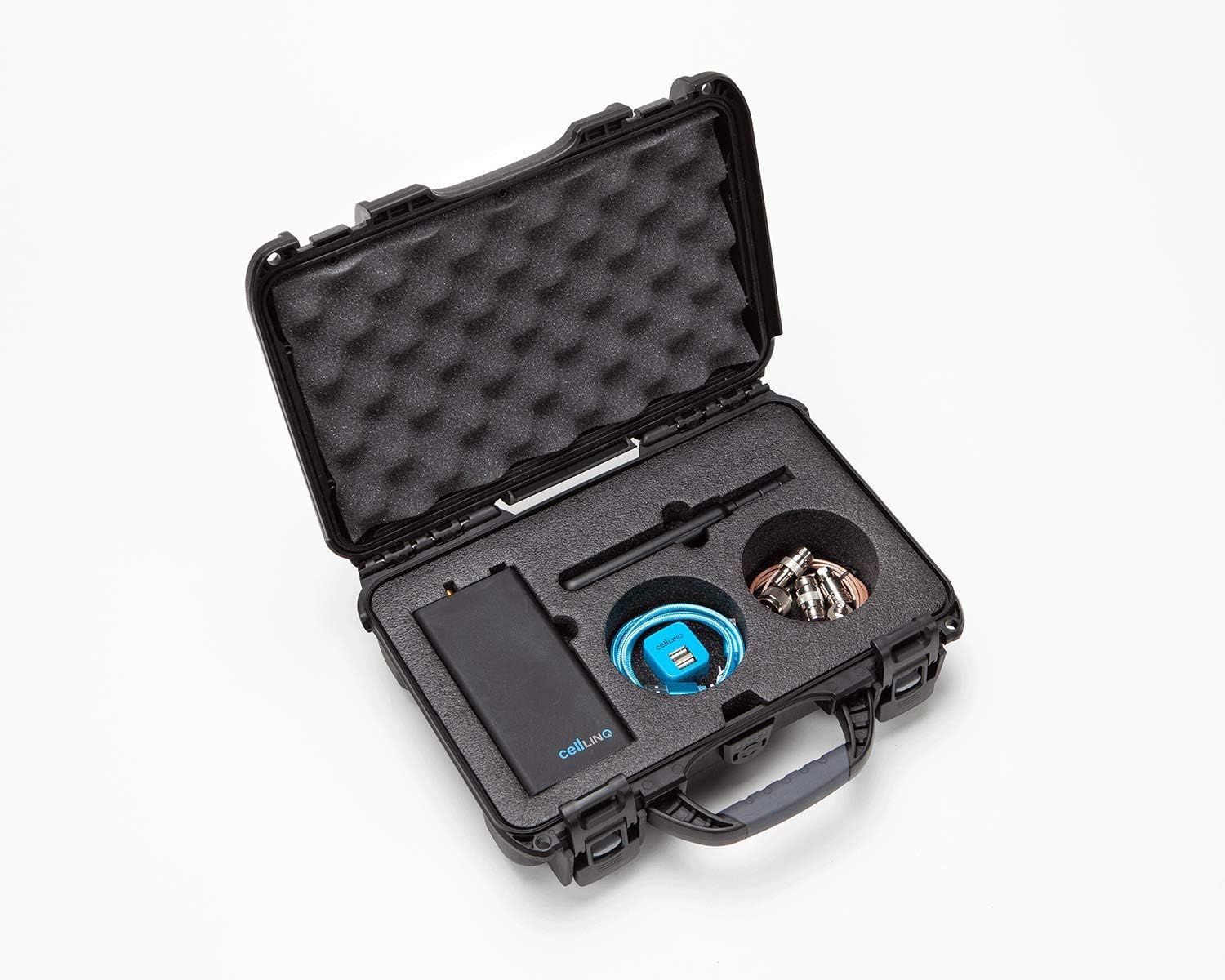
Image: The Cell LinQ Pro Meter and its accessories securely stored within the custom-fitted hard case, demonstrating its portability and protection.
Verify that your package contains the following items:
- Cell LinQ Pro Meter
- External Antenna
- Hard Case
- Mini USB Charger and power cord
- Connectors (x4)
- Jumper cable
- 2' Extension Cable
Initial Charging
Before first use, fully charge the Cell LinQ Pro Meter using the provided Mini USB Charger and power cord. Connect the charger to the meter's USB port. The charging indicator light will provide status.
App Installation
The Cell LinQ Pro Meter operates in conjunction with the Cell LinQ app. Download and install the official Cell LinQ app from your device's app store (available for iOS and Android). Ensure your smartphone or tablet meets the minimum system requirements for the app.
Connecting the External Antenna

Image: The Cell LinQ Pro Meter unit positioned next to its detachable external antenna, ready for connection.

Image: The Cell LinQ Pro Meter with the external antenna securely screwed into its port, demonstrating the assembled unit.
Carefully screw the external antenna into the designated antenna port on the Cell LinQ Pro Meter. Ensure it is finger-tight to establish a secure connection for optimal signal reception.
Operating Instructions
The Cell LinQ Pro Meter is designed for intuitive operation through its Bluetooth connection to the dedicated mobile application.
Powering On and Bluetooth Pairing

Image: A close-up view of the top of the Cell LinQ Pro Meter, highlighting the blue power button, indicator lights, antenna port, and mini USB charging port.
- Press and hold the power button (typically blue) on the Cell LinQ Pro Meter until the indicator lights illuminate.
- Enable Bluetooth on your smartphone or tablet.
- Open the Cell LinQ app. The app will automatically search for and connect to the Pro Meter. Follow any on-screen prompts within the app to complete the pairing process.
Conducting Site Surveys
Once connected, the Cell LinQ app provides a comprehensive interface for conducting cellular surveys.
- Multi-band Scanning: The meter offers scanning across LTE, cellular, AWS, and PCS frequency bands. Select the desired bands within the app interface.
- Carrier and Tower Identification: The device identifies individual carriers and towers using 3G and 4G/LTE technology. This data is displayed within the app.
- Detailed Information: The app provides details such as location, tower ID, and distance to the tower.
- Active Carrier Pinpointing: Pinpoint active carriers and geo-map any active cells within range directly on the app's map interface.
- Data Capture: All scan results, including time stamps, are captured, allowing for A/B comparisons and historical data analysis.
- Carrier Independence: The meter scans all carriers regardless of the carrier associated with the phone running the app.
Refer to the Cell LinQ app's in-app help or user guide for detailed instructions on specific survey modes and data interpretation.
Maintenance
Proper maintenance ensures the longevity and optimal performance of your Cell LinQ Pro Meter.
- Cleaning: Use a soft, dry cloth to clean the exterior of the meter and case. Avoid abrasive cleaners or solvents.
- Storage: When not in use, store the meter and all accessories in the provided hard case to protect them from dust, moisture, and physical damage. Store in a cool, dry place.
- Battery Care: To maintain battery health, avoid fully discharging the battery frequently. If storing for extended periods, charge the battery to approximately 50% every few months.
- Software Updates: Regularly check for updates to the Cell LinQ app through your device's app store. App updates often include performance improvements, bug fixes, and new features.
Troubleshooting
If you encounter issues with your Cell LinQ Pro Meter, refer to the following common troubleshooting steps:
| Problem | Possible Cause | Solution |
|---|---|---|
| Meter does not power on. | Low or no battery charge. | Charge the meter using the provided USB charger. Ensure the charger is connected to a working power source. |
| Cannot connect to the Cell LinQ app via Bluetooth. | Bluetooth is off on mobile device; meter is out of range; app not updated; meter not in pairing mode. |
|
| Inaccurate or no signal readings. | Antenna not properly connected; environmental interference; incorrect app settings. |
|
If the problem persists after trying these steps, please contact customer support.
Specifications
| Feature | Detail |
|---|---|
| Model Number | 910055 |
| Compatible Operating Systems | iOS, Android (via Cell LinQ App) |
| Connectivity | Bluetooth |
| Product Dimensions (L x W x H) | 16.79 x 1.8 x 0.38 cm |
| Item Weight | 1.5 kg |
| Material | Plastic (Case) |
| Manufacturer | Signal TeQ Inc. |
| Included Accessories | Mini USB Charger and power cord, Connectors (x4), Jumper cable, 2' Extension Cable, Hard Case, External Antenna |
Warranty Information
Specific warranty details for the Cell LinQ Pro Meter are typically provided with the product packaging or can be found on the manufacturer's official website. Please retain your proof of purchase for warranty claims. The warranty generally covers defects in materials and workmanship under normal use.
For detailed warranty terms and conditions, please refer to the documentation included with your product or visit the weBoost official website.
Customer Support
For technical assistance, troubleshooting beyond this manual, or warranty inquiries, please contact weBoost customer support.
- Online Support: Visit the official weBoost website for FAQs, support articles, and contact forms.
- Phone Support: Refer to the contact information provided in your product packaging or on the weBoost website for phone support hours and numbers.
When contacting support, please have your product model number (910055) and purchase information ready.
Related documents910055

Ask a question about this manual
Ask about setup, troubleshooting, compatibility, parts, safety, or missing instructions. Manuals+ will review the question and use this page’s manual context to help answer it.