
Introduction
Thank you for choosing the BEJOY GM219 Mechanical Wired Gaming Keyboard. This manual provides detailed instructions for setting up, operating, maintaining, and troubleshooting your new keyboard. Please read this manual thoroughly before use to ensure optimal performance and longevity of your device.
Package Contents
- BEJOY GM219 Mechanical Keyboard x 1
- USB Cable (attached) x 1
- User Manual x 1
System Requirements
- Windows 10, Windows 8, Windows 7, Windows Vista, or Windows XP
- Limited Mac OS keyboard support
- Available USB 2.0 port
Setup
- Unpack the Keyboard: Carefully remove the BEJOY GM219 keyboard from its packaging.
- Connect to Computer: Locate the USB cable attached to the keyboard. Plug the USB connector into an available USB 2.0 port on your computer.
- Driver Installation: The keyboard is plug-and-play. Your operating system should automatically detect and install the necessary drivers. No additional software installation is typically required for basic functionality.
- Placement: Place the keyboard on a stable, flat surface. Adjust the rear feet for your preferred typing angle if desired.

Image: The BEJOY GM219 Mechanical Gaming Keyboard, showcasing its full layout and wired connection, ready for use with a computer setup.
Operating Instructions
Cherry MX Red Switches
The BEJOY GM219 keyboard is equipped with genuine Cherry MX Red mechanical switches. These switches are known for their linear feel, low actuation force, and quiet operation, making them ideal for both fast typing and gaming. Each switch is rated for over 50 million actuations, ensuring durability and reliability.
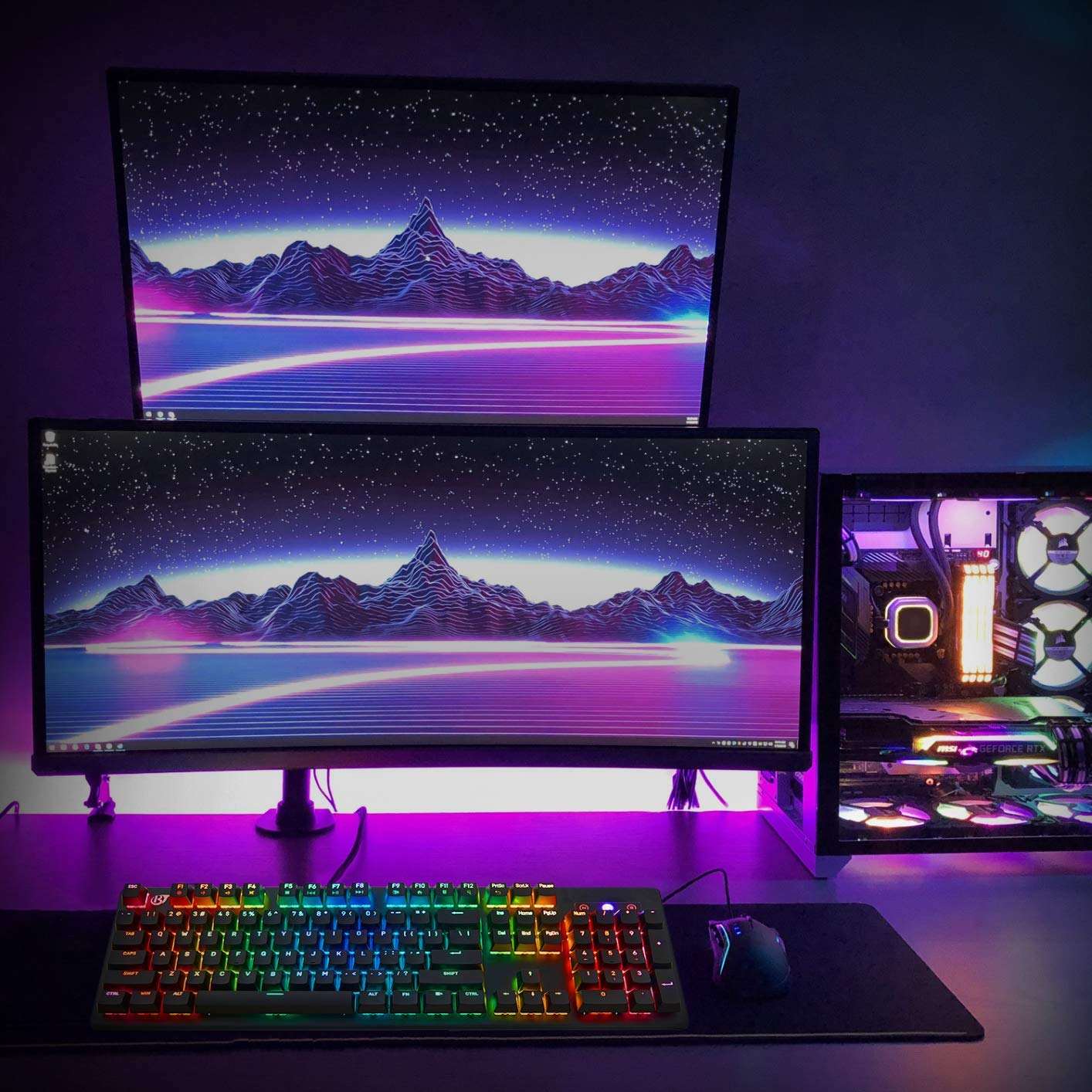
Image: A close-up view of the Cherry MX Red switches on the keyboard, highlighting their linear design and the integrated backlighting.
RGB Backlight Control
The keyboard features 18 built-in RGB backlight modes. You can customize the lighting effects directly from the keyboard without needing additional software.
- Changing Modes: Press the Fn key + one of the designated keys (e.g., Fn + Ins, Fn + Home, Fn + PgUp, Fn + Del, Fn + End, Fn + PgDn) to cycle through different lighting patterns.
- Adjusting Speed/Direction: Use Fn + Arrow Keys (Fn + Left/Right Arrow for direction, Fn + Up/Down Arrow for speed) to modify the animation speed or direction of dynamic lighting effects.
- Adjusting Brightness: Use Fn + +/- keys (usually on the number pad) to increase or decrease the backlight brightness.
- Custom Color Setting: Access custom color settings by pressing the Fn + ~ key. This allows for per-key color customization in certain modes.

Image: The BEJOY GM219 keyboard illuminated with a multi-color RGB backlight effect, showcasing its customizable lighting capabilities.
Secondary Media Keys
The keyboard includes secondary media functions integrated into the F-keys (F1-F12). To activate these functions, hold down the Fn key and press the corresponding F-key.
- Fn + F1: Mute
- Fn + F2: Volume Down
- Fn + F3: Volume Up
- Fn + F4: Play/Pause
- Fn + F5: Stop
- Fn + F6: Previous Track
- Fn + F7: Next Track
- Fn + F8: Email
- Fn + F9: Web Browser
- Fn + F10: My Computer
- Fn + F11: Calculator
- Fn + F12: Search

Image: A detailed view of the F-keys (F1-F12) on the BEJOY GM219 keyboard, illustrating their secondary media functions activated by the Fn key.
N-Key Rollover and Anti-Ghosting
The BEJOY GM219 features 104-key rollover with anti-ghosting technology. This means that every key press is registered independently, allowing you to press multiple keys simultaneously without any input loss or unintended commands. This is crucial for fast-paced gaming and accurate typing.

Image: The BEJOY GM219 keyboard with multiple keys highlighted by arrows, demonstrating the N-Key Rollover feature where simultaneous key presses are registered accurately.
Ergonomic Design
The keyboard is designed with an ergonomic profile to conform to the natural curve of your fingers, reducing fatigue during extended use. This design promotes comfort and helps maintain typing efficiency over long periods.

Image: A side profile view of the BEJOY GM219 keyboard, illustrating the ergonomic curve of the keycaps designed for comfortable typing.
Maintenance
- Cleaning the Keyboard:
- Disconnect the keyboard from your computer before cleaning.
- Use a soft, lint-free cloth slightly dampened with water or a mild cleaning solution to wipe the surface of the keyboard.
- For dust and debris between keycaps, use compressed air.
- Avoid using harsh chemicals, abrasives, or solvents as they may damage the finish or keycap legends.
- Keycap Removal (Optional): If deep cleaning is required, keycaps can be carefully removed using a keycap puller (not included). Gently pull straight up on the keycap. Reinstall by aligning the keycap with the switch stem and pressing down firmly.
- Cable Care: Avoid sharp bends or kinks in the braided USB cable to prevent internal damage.
Troubleshooting
- Keyboard Not Responding:
- Ensure the USB cable is securely plugged into both the keyboard and the computer.
- Try plugging the keyboard into a different USB port on your computer.
- Restart your computer.
- Test the keyboard on another computer to rule out a system-specific issue.
- Backlight Not Working or Incorrect:
- Ensure the backlight brightness is not set to the lowest level (use Fn + Up Arrow or Fn + + to increase brightness).
- Cycle through different backlight modes using Fn + Ins/Home/PgUp/Del/End/PgDn to see if other modes function.
- If a specific key's backlight is not working, it might indicate a hardware issue.
- Keys Not Registering or Double-Typing:
- Clean the affected key(s) with compressed air to remove any debris.
- If the issue persists, it may indicate a switch malfunction.
Specifications
| Model | GM219 |
| Switch Type | Cherry MX Red Mechanical Switches |
| Durability (Switches) | > 50 million actuations |
| Actuation Force | 45 ± 15 cN |
| Key Count | 104 Standard Keys |
| Backlight | RGB (18 built-in modes) |
| Key Rollover | N-Key Rollover with Anti-Ghosting |
| Keycaps | ABS Keycaps |
| Base Material | Aluminum Alloy |
| Connectivity | Wired USB 2.0 (Gold-plated interface) |
| Cable Length | 1.8m Braided fiber cord with anti-interference magnet ring |
| Dimensions (L x W x H) | 17.68 x 5.57 x 1.69 inches |
| Weight | 2.43 lbs |
| Compatible OS | Windows 10/8/7/Vista/XP, Limited Mac OS support |
Warranty and Support
BEJOY products are designed for quality and reliability. For specific warranty information, please refer to the warranty card included with your purchase or contact your retailer. If you encounter any issues or have questions regarding your BEJOY GM219 keyboard, please contact BEJOY customer support through the official website or your purchase platform for assistance.