
1. Product Overview
The BUTFULAKE GH1 Gaming Headset is designed to provide an immersive audio experience for gamers across various platforms. Featuring 50mm magnetic neodymium drivers, a noise-cancelling microphone, and comfortable over-ear design, this headset aims to enhance your gaming sessions with clear sound and communication.
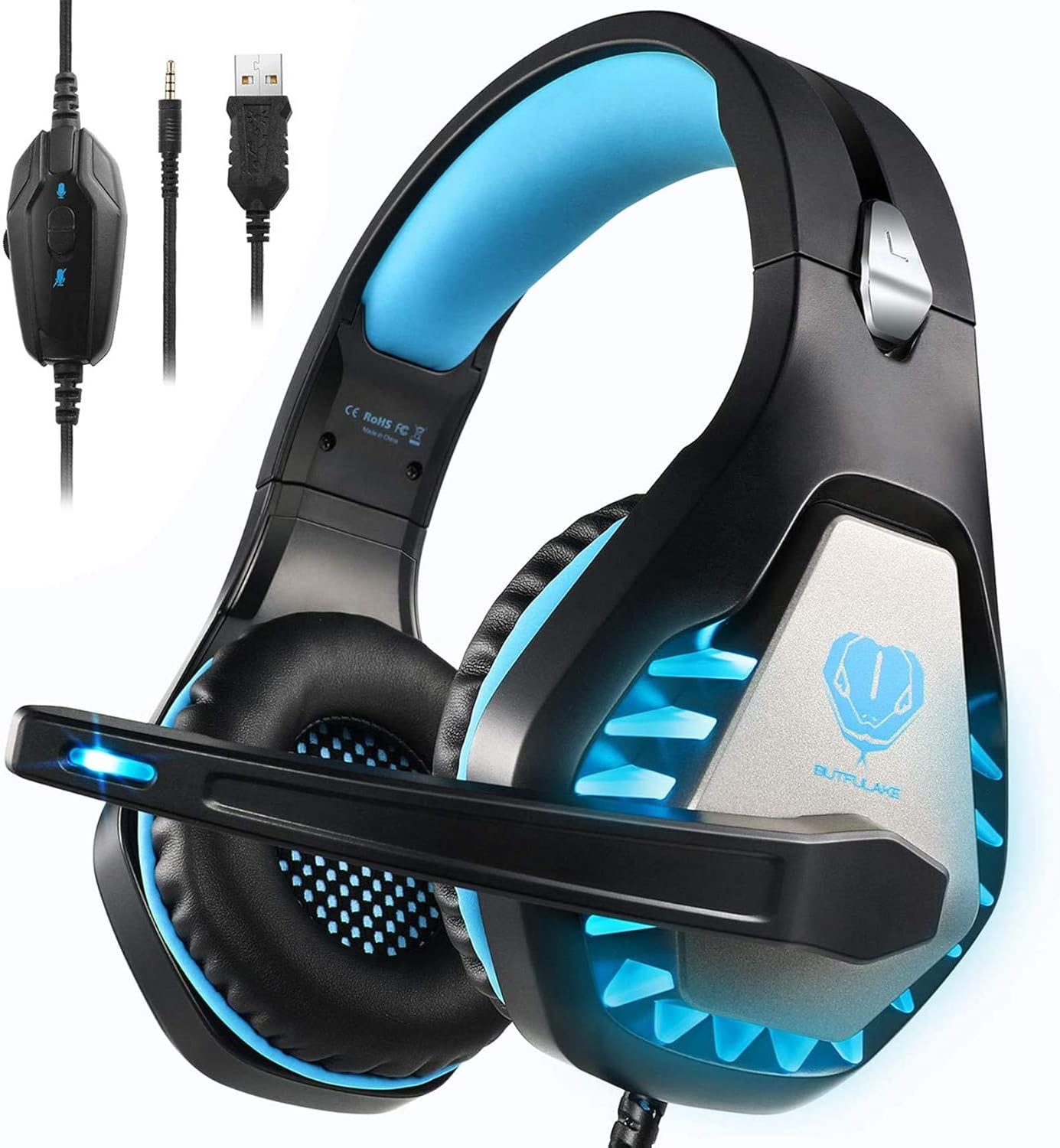
Image 1.1: The BUTFULAKE GH1 Gaming Headset, highlighting its design and connectivity options.
2. Key Features
- Clear & Accurate Positional Audio: Equipped with 50mm Magnetic Neodymium drivers for a wider soundscape and precise positional audio, allowing detection of in-game actions from various directions.
- Powerful Bass & Surround Sound Audio: Simulates 360-degree positional surround sound for realistic depth, ensuring every sound detail is heard.
- Long-Lasting Comfort: Lightweight design with an adjustable headband and soft, deep ear cushions made of breathable leatherette to effectively release heat and pressure, providing comfort and sound isolation for extended use.
- Multi-Platform Compatibility: Features a 2-meter 3.5mm audio cable, compatible with PS series controllers, Xbox One series controllers, Nintendo Switch, PC, cell phones, and tablets. Note: An extra Microsoft adapter may be required for older Xbox controllers.
- Easy Volume Control: Includes an analog volume control wheel and a microphone mute switch on the cable. The USB connection is solely for LED light effects and does not transmit sound.

Image 2.1: Compatibility overview for the GH1 headset across different gaming platforms and devices.

Image 2.2: Illustration of the noise-isolating microphone's function.
3. Package Contents
Please verify that all items are present in your package:
- BUTFULAKE GH1 Gaming Headset (with integrated 3.5mm audio cable, USB cable for LED, and in-line control)
- Y-Splitter Adapter (for PC connection)
4. Setup Instructions
Follow these steps to connect your BUTFULAKE GH1 Gaming Headset to your device:
- Connecting to PS4/PS5, Xbox One (New Version), Nintendo Switch, Mobile/Tablet:
Plug the 3.5mm jack of the headset directly into the controller (PS4/PS5, Xbox One) or the device's audio port (Nintendo Switch, Mobile/Tablet).
- Connecting to Xbox One (Old Version):
An additional Microsoft adapter (not included) is required to connect the 3.5mm jack to older Xbox One controllers that lack a built-in 3.5mm interface.
- Connecting to PC/Laptop:
Use the included Y-Splitter Adapter. Connect the headset's 3.5mm jack to the Y-splitter, then plug the green connector of the Y-splitter into your PC's headphone jack and the pink connector into your PC's microphone jack. Ensure both the headset microphone and computer microphone settings are enabled in your system's audio preferences.
- Powering LED Lights:
Plug the USB connector into any available USB port on your console, PC, or a USB power adapter. This USB connection is solely for powering the blue LED lights on the headset and does not transmit audio.

Image 4.1: User wearing the GH1 headset during a gaming session.
5. Operating Instructions
Once connected, operate your headset using the in-line controls:
- Volume Control Wheel: Located on the in-line control unit. Rotate the wheel up to increase volume and down to decrease volume.
- Microphone Mute Switch: Also on the in-line control unit. Slide the switch to mute or unmute the microphone.
- Adjusting the Microphone: The microphone arm is flexible and can be adjusted 120 degrees to position it optimally for voice pickup.
- Wearing the Headset: Adjust the headband to fit comfortably on your head. The soft memory earmuffs are designed to provide comfort and sound isolation.

Image 5.1: Detailed view of the in-line audio controls.
6. Maintenance
To ensure the longevity and optimal performance of your headset, follow these maintenance guidelines:
- Cleaning: Use a soft, dry cloth to wipe down the headset. For the ear cushions, a slightly damp cloth can be used, but ensure they are completely dry before use. Avoid harsh chemicals or abrasive cleaners.
- Storage: Store the headset in a cool, dry place away from direct sunlight and extreme temperatures. Avoid tangling the cables.
- Handling: Do not pull on the cables to disconnect the headset. Always grasp the plug firmly. Avoid dropping or subjecting the headset to strong impacts.
7. Troubleshooting
If you encounter issues with your BUTFULAKE GH1 Gaming Headset, refer to the following common problems and solutions:
| Problem | Possible Cause | Solution |
|---|---|---|
| No sound from headset |
|
|
| Microphone not working |
|
|
| LED lights not working |
|
|
| Sound quality is poor or distorted |
|
|
8. Specifications
Detailed technical specifications for the BUTFULAKE GH1 Gaming Headset:
| Feature | Detail |
|---|---|
| Model Name | GH1 |
| Connectivity Technology | Wired (3.5mm Jack) |
| Headphones Jack | 3.5 mm Jack |
| Audio Driver Type | Dynamic Driver |
| Audio Driver Size | 50 Millimeters |
| Frequency Range | 20 Hz - 20,000 Hz |
| Noise Control | Sound Isolation |
| Microphone | Noise Cancelling, Adjustable 120° |
| Control Method | In-line Touch (Volume, Mic Mute) |
| LED Feature | Blue LED lights (USB powered, for aesthetics only) |
| Compatible Devices | PS4, Xbox One, PC, PS5, Laptop, Mac, Nintendo Switch |
| Material | Plastic |
| Item Weight | 350 Grams (12.3 ounces) |
| Product Dimensions | 7.87 x 8.27 x 3.86 inches |
| UPC | 824007205417 |
9. Warranty and Support
For warranty information and customer support, please refer to the documentation included with your purchase or visit the official BUTFULAKE website. Typically, warranty details, return policies, and contact information for technical assistance are provided by the seller or manufacturer.