
1. Introduction
This manual provides comprehensive instructions for setting up and operating the DOBE FOMIS ELECTRONICS TNS-19077 Keyboard and Mouse Adapter. This device allows users to connect a keyboard and mouse to various gaming consoles, enhancing gameplay control.
The adapter is compatible with N-Switch, PS4, PS3, and Xbox One consoles. It facilitates the use of standard USB keyboards and mice for game input, offering an alternative control method for supported games.
2. Product Overview
The TNS-19077 adapter is a compact device designed to convert keyboard and mouse signals into controller inputs for compatible gaming consoles. It features multiple USB ports for connecting peripherals and a main USB cable for console connection.

Image 2.1: The DOBE FOMIS ELECTRONICS TNS-19077 Keyboard and Mouse Adapter, showing its compact design and USB connection cable. The adapter has distinct ports for keyboard, mouse, and controller inputs, indicated by icons.

Image 2.2: Illustration of the adapter's components, including a mouse, keyboard, game controller, and the TNS-19077 adapter itself, highlighting the peripherals it connects.
3. Setup Instructions
Follow these steps to connect the TNS-19077 adapter to your gaming console and peripherals. Ensure all connections are secure before use.
3.1 General Connection Diagram

Image 3.1: A general diagram illustrating how the TNS-19077 adapter connects to various consoles (PS4, Xbox One/360, Switch) and peripherals (keyboard, mouse, original controller) via its USB-C interface.
- Connect your keyboard to the USB port marked with a keyboard icon on the adapter.
- Connect your mouse to the USB port marked with a mouse icon on the adapter.
- Connect your original game controller (required for PS3, PS4, Xbox One) to the USB port marked with a controller icon on the adapter.
- Connect the adapter's main USB cable to an available USB port on your gaming console.
3.2 N-Switch / Switch Lite Setup
For Nintendo Switch and Switch Lite consoles, specific system settings must be enabled for the adapter to function correctly.

Image 3.2: A visual guide demonstrating the connection of the TNS-19077 adapter to a Nintendo Switch console, along with a keyboard, mouse, and a wired Pro Controller.
- On your N-Switch console, navigate to System Settings.
- Scroll down and select Controllers and Sensors.
- Enable the option Pro Controller Wired Communication by setting it to ON.
- Connect the adapter as described in Section 3.1.
- After connecting, select the default keyboard page (F1 or F2) to begin playing.
3.3 PS3, PS4, and Xbox One Setup
For PlayStation 3, PlayStation 4, and Xbox One consoles, an original wired controller is required to authenticate the connection.

Image 3.3: A diagram illustrating the connection of the TNS-19077 adapter to a PlayStation 4 console, showing the required original PS4 controller, keyboard, and mouse connections.
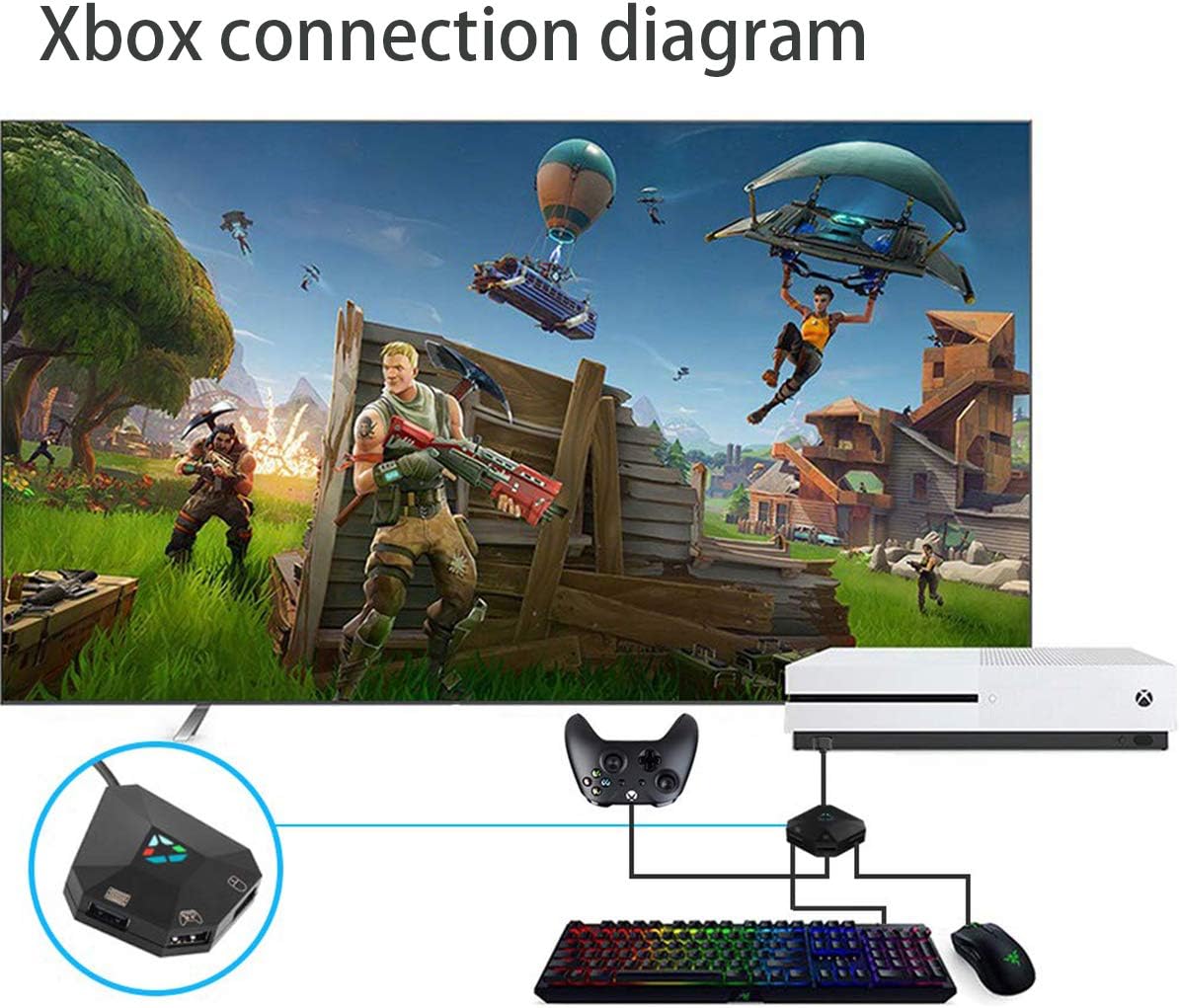
Image 3.4: A diagram illustrating the connection of the TNS-19077 adapter to an Xbox One console, showing the required original Xbox One controller, keyboard, and mouse connections.
- Ensure your original gamepad is connected to the adapter's controller port using a data-transmitting USB cable. This controller must remain in a "boot state" for the adapter to function.
- Connect the adapter to your console as described in Section 3.1.
- The adapter will convert keyboard and mouse inputs to emulate the connected original controller.
Important Note: This adapter is not compatible with Xbox Series X/S generation consoles.
4. Operating Instructions
Once the adapter is correctly set up and connected, your keyboard and mouse will function as game input devices.
- Plug and Play: The adapter is designed for plug-and-play functionality. No additional software downloads are typically required.
- Custom Mapping: The adapter supports custom mapping and resetting of buttons. This allows users to configure keyboard and mouse inputs to match their preferred controller button layouts. Refer to the adapter's specific key mapping chart (if provided with the product) for detailed customization options.
- No Delay: The converter is engineered to provide a responsive gaming experience with minimal input delay.
5. Troubleshooting
If you encounter issues while using the TNS-19077 adapter, please refer to the following common solutions:
- Adapter Not Responding:
- Ensure all USB connections (console, keyboard, mouse, original controller) are firmly seated.
- Try unplugging and re-plugging the adapter from the console.
- Verify that the original controller (for PS/Xbox) is powered on and in a "boot state" and connected with a data-transmitting cable.
- Keyboard/Mouse Inputs Not Registered (N-Switch):
- Confirm that "Pro Controller Wired Communication" is set to "ON" in the N-Switch System Settings (Controllers and Sensors).
- Ensure you have selected the correct default keyboard page (F1 or F2) for gameplay.
- Intermittent Disconnections:
- Check for loose cable connections.
- Ensure the USB cable connecting the adapter to the console is not excessively long or damaged. A shorter, high-quality USB cable may improve stability.
- If using a USB hub, try connecting the adapter directly to the console.
- Incompatible Console:
- The adapter is not compatible with Xbox Series X/S consoles.
6. Specifications
| Model Number | TNS-19077 |
| Product Dimensions | 2.68 x 6.18 x 0.94 inches (6.8 x 15.7 x 2.4 cm) |
| Item Weight | 0.634 ounces (18 grams) |
| Compatible Devices | Keyboard, Mouse |
| Specific Uses | Gaming |
| Connector Type | Micro USB (for adapter to console connection) |
| Color | Black |
| Supported Consoles | N-Switch / Switch Lite, PS4, PS3, Xbox One |
| Incompatible Consoles | Xbox Series X/S |
7. Maintenance
To ensure the longevity and optimal performance of your TNS-19077 adapter, follow these maintenance guidelines:
- Cleaning: Use a soft, dry cloth to clean the adapter. Avoid using liquid cleaners or abrasive materials.
- Storage: Store the adapter in a cool, dry place away from direct sunlight and extreme temperatures.
- Handling: Avoid dropping the adapter or subjecting it to strong impacts. Do not pull on the cables forcefully.
- Cable Care: Ensure USB cables are not bent sharply or tangled, as this can damage internal wires.
8. Warranty and Support
For warranty information or technical support regarding your DOBE FOMIS ELECTRONICS TNS-19077 Keyboard and Mouse Adapter, please contact the manufacturer directly. Refer to the product packaging or the official DOBE FOMIS ELECTRONICS website for contact details.
Please retain your proof of purchase for any warranty claims.


