
1. Introduction
The DiamondBoxx PA15 is a versatile, large portable Bluetooth speaker designed for various audio applications, including use as a guitar amplifier, DJ speaker, PA system, or karaoke machine. This manual provides detailed instructions for setting up, operating, and maintaining your PA15 speaker to ensure optimal performance and longevity.
2. Product Features
- High-fidelity audio output suitable for large venues.
- Integrated Bluetooth connectivity for wireless audio streaming.
- Multiple input options: USB, XLR, Auxiliary.
- Includes two wireless microphones for vocal performances and karaoke.
- Remote control for convenient operation.
- Built-in wheels and retractable handle for enhanced portability.
- Adjustable audio controls including Volume, Treble, Bass, Echo, Repeat, and Delay.
- Microphone priority function for clear announcements.
3. What's in the Box
Upon unpacking your DiamondBoxx PA15, please verify that all the following items are included:
- DiamondBoxx PA15 Portable Bluetooth Speaker
- 2 Wireless Microphones
- Remote Control
- Power Cable
- User Manual (this document)
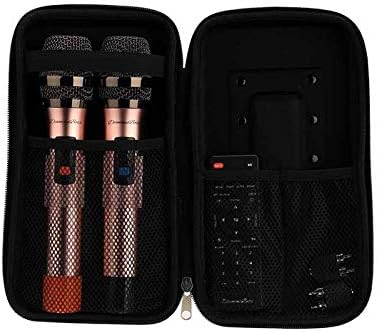
Figure 3.1: Included wireless microphones and remote control in their storage case.
4. Setup
4.1 Unpacking and Placement
- Carefully remove the speaker and all accessories from the packaging.
- Place the speaker on a stable, flat surface. Ensure adequate ventilation around the unit.
- For portability, extend the retractable handle and utilize the built-in wheels.
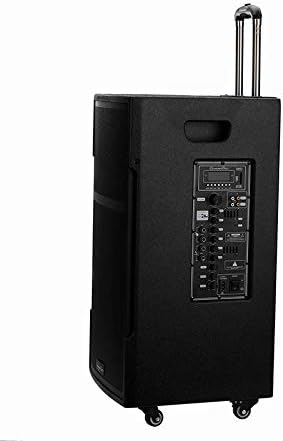
Figure 4.1: DiamondBoxx PA15 speaker with extended handle for transport.
4.2 Power Connection
- Connect the provided power cable to the AC INPUT port on the rear control panel of the speaker.
- Plug the other end of the power cable into a standard 110V/60Hz AC power outlet.
- Ensure the POWER switch on the control panel is in the OFF position before connecting to power.
- The speaker can operate on internal battery power or directly from AC power. For initial use, it is recommended to fully charge the battery.
5. Operating Instructions
5.1 Control Panel Overview
Familiarize yourself with the control panel located on the rear of the speaker. This panel provides access to all input connections and audio adjustments.
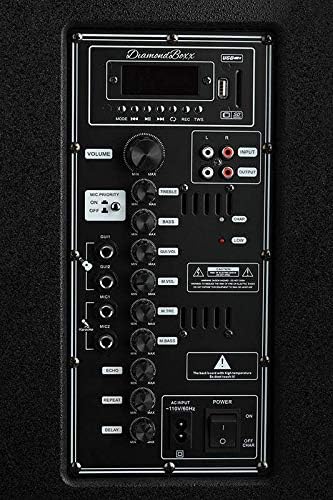
Figure 5.1: DiamondBoxx PA15 Control Panel.
- VOLUME: Master volume control for all audio output.
- TREBLE / BASS: Adjusts the high and low frequencies of the main audio output.
- MIC PRIORITY: When activated, lowers music volume when microphone is in use.
- GUITAR INPUT: 1/4-inch input for connecting a guitar.
- MIC1 / MIC2 INPUTS: 1/4-inch inputs for wired microphones.
- MIC VOL / MIC BASS: Volume and bass controls for connected microphones.
- ECHO / REPEAT / DELAY: Effects controls for microphone inputs.
- USB / SD Card Slot: For playing audio files from USB drives or SD cards.
- RCA INPUT / OUTPUT: Stereo RCA jacks for connecting external audio sources or outputting audio to another device.
- XLR INPUT: Professional audio input for microphones or other audio equipment.
- AC INPUT: Power cable connection.
- POWER Switch: Turns the speaker on or off.
5.2 Powering On/Off
- To power on, flip the POWER switch to the ON position. The display screen will illuminate.
- To power off, flip the POWER switch to the OFF position.
5.3 Bluetooth Pairing
- Ensure the speaker is powered on.
- Press the MODE button on the control panel or remote control until "Bluetooth" mode is selected. The display will show "BLUE" and a blinking Bluetooth icon, indicating it's ready for pairing.
- On your mobile device (smartphone, tablet, computer), enable Bluetooth and search for available devices.
- Select "DiamondBoxx PA15" from the list of devices.
- Once paired, the speaker will emit a confirmation sound, and the Bluetooth icon on the display will stop blinking.
- You can now stream audio wirelessly from your device to the speaker.
5.4 Using Wireless Microphones
- Insert two AA batteries into each wireless microphone (batteries not included).
- Turn on the microphones using their respective power switches.
- The microphones will automatically connect to the PA15 speaker.
- Adjust the microphone volume using the MIC VOL knob and microphone bass using the MIC BASS knob on the control panel.
- Apply echo effects using the ECHO, REPEAT, and DELAY knobs as desired.
- Activate the MIC PRIORITY switch if you want the music volume to automatically lower when speaking into the microphone.
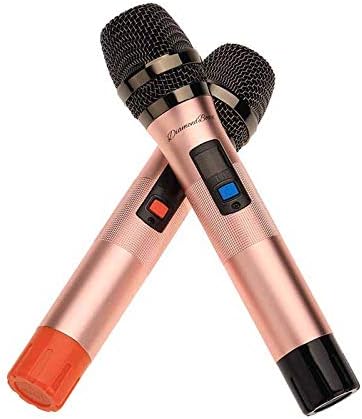
Figure 5.2: Included wireless microphones.
5.5 Other Audio Inputs
- USB/SD Card: Insert a USB drive or SD card into the respective slot. The speaker will automatically switch to USB/SD mode and begin playing compatible audio files. Use the playback controls on the panel or remote.
- XLR Input: Connect professional audio equipment (e.g., mixers, wired microphones) using an XLR cable.
- RCA Input: Connect devices with RCA audio output (e.g., CD players, older media players) using RCA cables.
- Guitar Input: Plug your guitar directly into the GUITAR 1/4-inch input. Adjust the main VOLUME, TREBLE, and BASS for your desired sound.
6. Maintenance
- Cleaning: Use a soft, dry cloth to clean the speaker's exterior. Do not use abrasive cleaners or solvents.
- Storage: When not in use for extended periods, store the speaker in a cool, dry place.
- Battery Care: For optimal battery life, avoid fully discharging the battery frequently. Recharge the battery regularly, even if the speaker is not in active use.
- Ventilation: Ensure the speaker's vents are not obstructed to prevent overheating.
7. Troubleshooting
| Problem | Possible Cause | Solution |
|---|---|---|
| No power | Power cable not connected; Power switch off; Battery depleted | Ensure power cable is securely connected and plugged in. Flip POWER switch to ON. Charge the battery. |
| No sound output | Volume too low; Incorrect input mode; Device not connected properly | Increase VOLUME knob. Press MODE to select correct input (Bluetooth, USB, AUX). Reconnect audio source. |
| Bluetooth not pairing | Speaker not in pairing mode; Device Bluetooth off; Too far from speaker | Ensure speaker is in Bluetooth mode (blinking BLUE). Turn on Bluetooth on your device. Move device closer to speaker (within 30 feet). |
| Wireless microphone not working | Microphone off; Batteries depleted; MIC VOL too low | Turn on microphone. Replace batteries. Increase MIC VOL knob. |
| Sound distortion | Volume too high; Input signal too strong | Lower the master VOLUME or the volume from the input source. Adjust TREBLE/BASS settings. |
8. Specifications
| Feature | Detail |
|---|---|
| Brand | DiamondBoxx |
| Model Number | 686091727578 (PA15) |
| Power Source | Hybrid Powered (AC/Battery) |
| Connectivity Technology | Bluetooth, USB |
| Connector Type | USB, XLR, 1/4-inch (Guitar/Mic), RCA |
| Audio Input | Wireless Microphone, Auxiliary/USB, XLR, Guitar |
| Number of Channels | 2 |
| Material | Metal, Plastic |
| Item Weight | 60 Pounds |
| Package Dimensions | 33 x 22 x 19 inches |
| Color | Black |
| Mounting Type | Tabletop |
| Recommended Uses | Concerts, Conferences, Places of Worship, Outdoor Events, Schools, Music Performances, Karaoke, General Sound Amplification |
9. Safety Information
WARNING: This product can expose you to chemicals including lead, which is known to the State of California to cause cancer and birth defects or other reproductive harm. For more information go to www.P65Warnings.ca.gov.
Always follow basic safety precautions when using electrical products to reduce the risk of fire, electric shock, and injury to persons, including the following:
- Read all instructions before using the product.
- Do not use near water.
- Clean only with a dry cloth.
- Do not block any ventilation openings.
- Do not install near any heat sources such as radiators, heat registers, stoves, or other apparatus (including amplifiers) that produce heat.
- Protect the power cord from being walked on or pinched.
- Only use attachments/accessories specified by the manufacturer.
- Unplug this apparatus during lightning storms or when unused for long periods of time.
10. Warranty and Support
For warranty information, technical support, or service inquiries, please contact DiamondBoxx customer service directly. Refer to the official DiamondBoxx website or your purchase documentation for specific contact details and warranty terms.


