
Introduction
This manual provides instructions for the operation and maintenance of your Seihoo Remote Camera Shutter and Page Turner. This versatile device allows you to remotely control your smartphone or tablet for various functions, including taking photos, recording videos, and turning pages in e-book reader applications.
The Seihoo Remote Camera Shutter and Page Turner connects wirelessly via Bluetooth, offering convenience and flexibility for your mobile device usage.
Product Overview

Front view of the Seihoo Remote Camera Shutter and Page Turner, showing the control buttons.

Detailed diagram illustrating the components and buttons of the remote control, including the Function Button, Indicator, Back, Forward, Page Up, Page Down, ON/OFF, Shutter Button, Battery Cover, and Lanyard Hole.
The device features a compact design with intuitive controls. Key components include:
- Function Button: Used for specific mode selections or actions.
- Indicator Light: Provides visual feedback on device status (e.g., pairing, power).
- Directional Buttons (Back/Forward, Page Up/Page Down): For navigation and page turning.
- ON/OFF Switch: To power the device on or off.
- Shutter Button: Primarily used for capturing photos or controlling video playback.
- Battery Cover: Access point for battery replacement.
- Lanyard Hole: For attaching a strap or keychain.
Setup
Battery Installation
The Seihoo Remote Camera Shutter and Page Turner requires one CR2032 coin cell battery (not included). To install the battery:
- Locate the battery cover on the back of the device.
- Open the battery cover by sliding or gently prying it open (refer to the product structure diagram).
- Insert one CR2032 battery with the positive (+) side facing up.
- Close the battery cover securely.
Bluetooth Pairing
To connect your Seihoo remote to your smartphone or tablet:
- Ensure the remote control is powered on using the ON/OFF switch. The indicator light should begin to flash, indicating it is in pairing mode.
- On your mobile device, navigate to the Bluetooth settings.
- Enable Bluetooth and initiate a scan for new devices.
- Locate "DY-Remoter" in the list of available devices and tap on it to connect.
- Once successfully paired, the indicator light on the remote will stop flashing and remain solid or turn off, depending on the model.
Note: The Bluetooth communication distance is approximately 30 feet (9 meters).
Operating Instructions
Page Turning for eBook Reader Apps

The remote being used to turn pages in an e-book application on a smartphone.
After successfully pairing the remote with your device:
- Open your preferred eBook Reader App on your smartphone or tablet.
- Select and open a book within the app.
- Press the "Back" button on the remote to return to the previous page.
- Press the "Forward" button on the remote to turn to the next page.
Remote Photo Capture

The remote being used to trigger the camera shutter on a smartphone mounted on a tripod.
To use the remote as a camera shutter:
- Ensure the remote is paired with your device.
- Open the Camera application on your smartphone or tablet.
- Press either the "Page Up" or "Page Down" button on the remote to capture a photo.
Remote Video Playback Control

The remote being used to scroll and play/pause videos on a smartphone, specifically shown with TikTok.

The remote being used to control volume on a smartphone, indicated by a music player interface.
The method for video control varies slightly between iOS and Android devices:
- For iOS Devices (iPhone, iPad):
- Open a video application on your iOS device.
- Press the "Shutter Button" on the remote to play or pause the video.
- For Android Devices:
- Open a video application on your Android device.
- Hold down the "Shutter Button".
- While holding the Shutter Button, press "Page Up" or "Page Down" to move the on-screen cursor (arrow) to point to the "Play/Pause" button within the video player interface.
- Once the cursor is positioned, release the Shutter Button and then press it again to play or pause the video.
Note: The remote can also be used for scrolling videos (e.g., TikTok) and volume control, depending on the application's compatibility with external keyboard inputs.
Compatibility
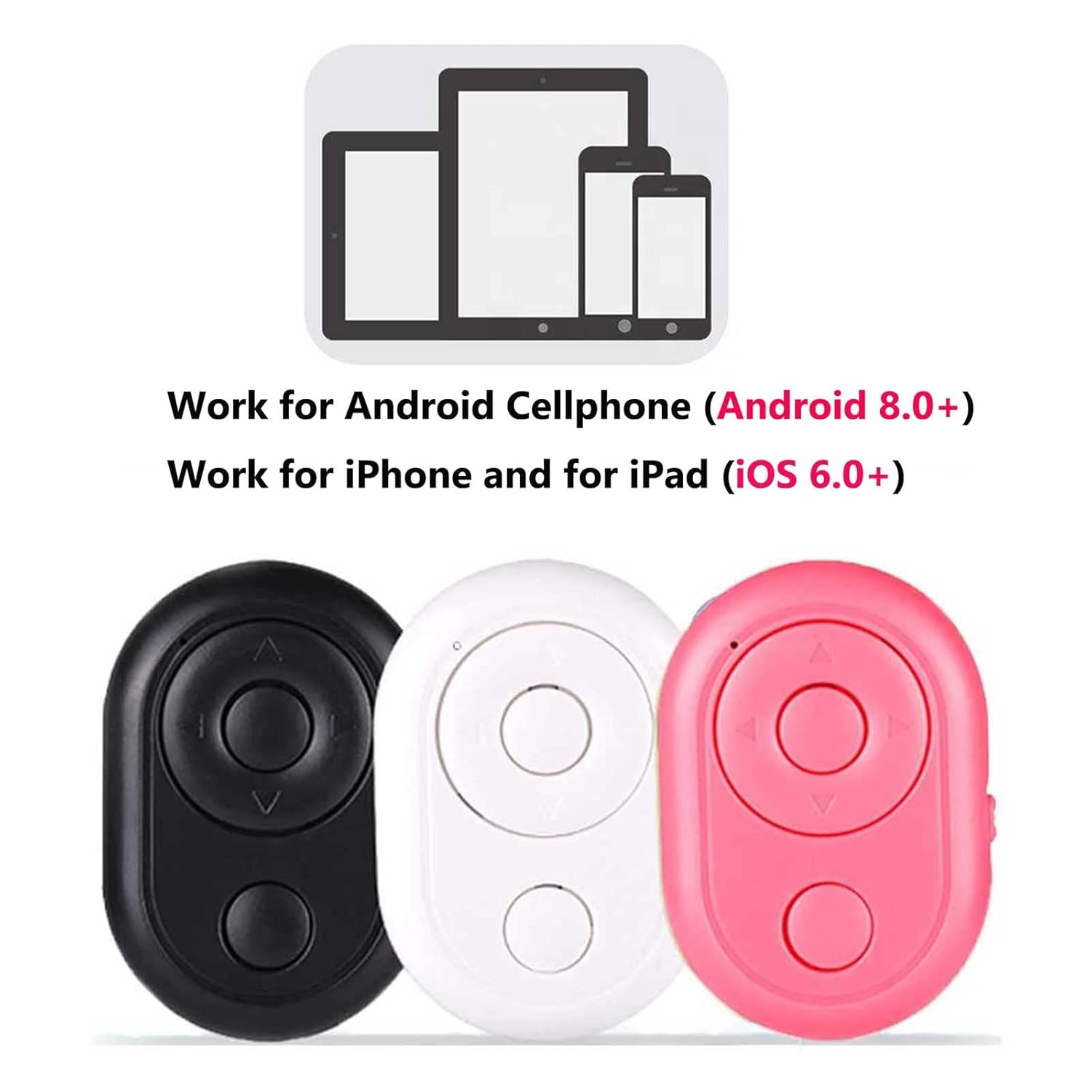
The remote is compatible with Android cellphones (Android 8.0+) and iPhone/iPad (iOS 6.0+).
The Seihoo Remote Camera Shutter and Page Turner is designed for broad compatibility with most modern smartphones and tablets:
- iOS Devices: Compatible with iPhone 11 Pro Max, 11 Pro, 11, X, Xs, Max, Xr, 8, 8+, 7, 7 Plus, SE, 6s, 6s Plus, 6, 6 Plus, 5c, 5s, 5, 4s, 4, and most iPads running iOS 6.0+ or newer.
- Android Devices: Compatible with Samsung Galaxy S8, S8+, Note 8, S7, S6, S6 Edge, Note 9, and many other Android smartphones and tablets running Android 8.0+ or newer.
Maintenance
- Cleaning: Wipe the device with a soft, dry cloth. Do not use liquid cleaners or abrasive materials.
- Storage: Store the remote in a cool, dry place away from direct sunlight and extreme temperatures.
- Battery Replacement: Replace the CR2032 battery when the indicator light no longer illuminates or the device fails to connect. Ensure proper polarity during installation.
Troubleshooting
| Problem | Possible Cause | Solution |
|---|---|---|
| Device does not power on. | Battery is dead or incorrectly installed. | Check battery polarity. Replace with a new CR2032 battery. |
| Cannot pair with smartphone/tablet. | Bluetooth is off on mobile device; remote is not in pairing mode; device is out of range. | Ensure Bluetooth is enabled on your phone. Turn the remote off and on again to re-enter pairing mode. Move the remote closer to your device (within 30ft). |
| Remote functions (e.g., page turning, shutter) do not work. | Not properly paired; app incompatibility; incorrect button usage for Android video control. | Verify successful Bluetooth pairing. Ensure the app supports external keyboard input. For Android video, follow the specific instructions for cursor control. Restart both devices. |
| Intermittent connection. | Interference; low battery; too far from device. | Move away from other wireless devices. Replace battery. Stay within 30ft range. |
Specifications
- Model: 722367504938
- Dimensions: 4.83 x 3.3 x 1.02 cm (1.97 x 1.38 x 0.39 inches)
- Weight: 18 g (0.39 oz)
- Connectivity: Bluetooth Wireless
- Communication Distance: Up to 30 feet (9 meters)
- Battery Type: 1 x CR2032 Coin Cell Battery (not included)
- Compatible OS: iOS 6.0+ (iPhone, iPad), Android 8.0+ (Smartphones, Tablets)
Warranty and Support
For warranty information or technical support, please contact Seihoo customer service through the retailer where the product was purchased or refer to the official Seihoo website for contact details.
Please retain your proof of purchase for warranty claims.