
Seihoo 2dbfe9a4-bf1c-4fbf-b94c-bc2947befc00
Seihoo Bluetooth Remote & Page Turner Control User Manual
Model: 2dbfe9a4-bf1c-4fbf-b94c-bc2947befc00
Introduction
This manual provides detailed instructions for the setup, operation, and maintenance of your Seihoo Bluetooth Remote & Page Turner Control. This versatile device allows you to remotely control various functions on your smartphone or tablet, including page turning for e-books, scrolling and media control for social media apps like TikTok, and remote camera shutter activation.

Image: The Seihoo Bluetooth Remote Control, a compact black oval-shaped device with a central directional pad and a large circular button below it.
Specifications
| Feature | Detail |
|---|---|
| Product Dimensions | 1.9 x 1.3 x 0.4 inches (approximately 4.8 x 3.3 x 1.0 cm) |
| Item Weight | 0.39 ounces (approximately 11 grams) |
| Battery Type | 1 x CR2032 (included) |
| Connectivity | Bluetooth |
| Compatible Devices | Most Cellphones/Tablets (Android 8.0+ and iOS 6.0+) |
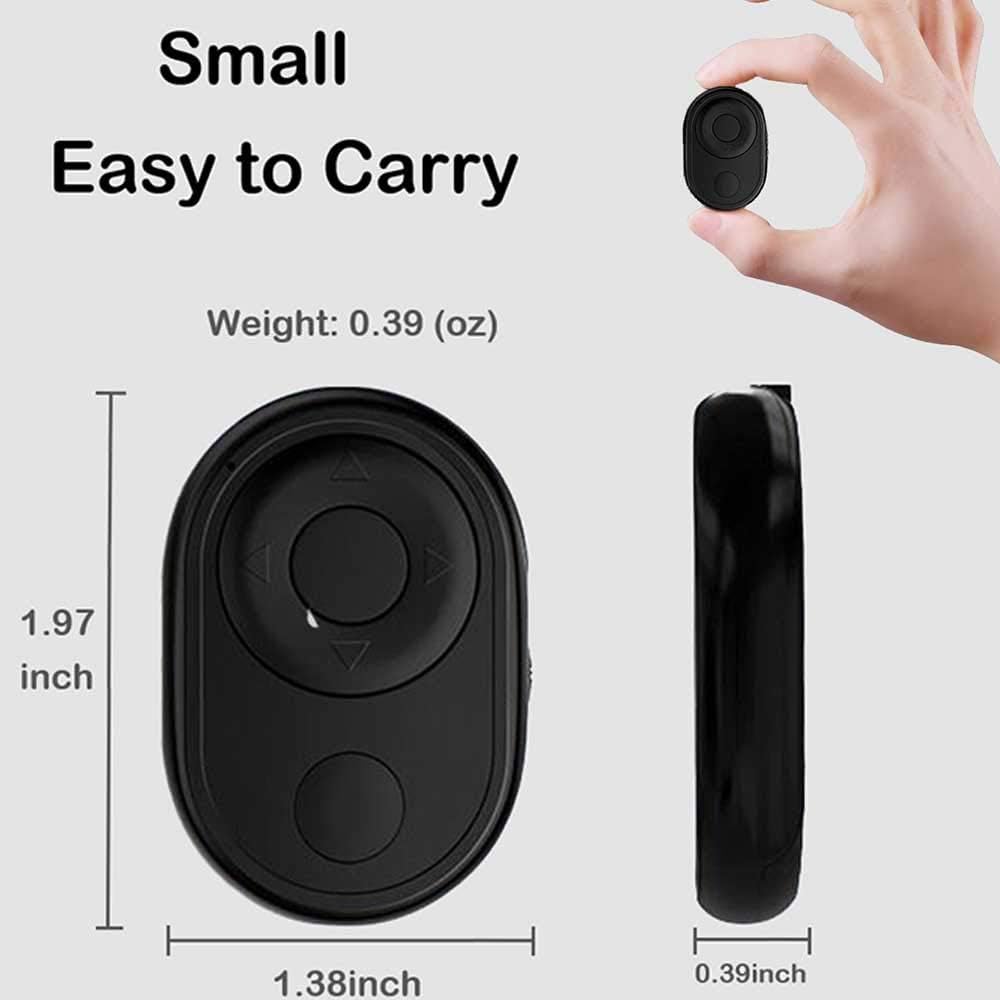
Image: A diagram illustrating the compact dimensions of the Seihoo Bluetooth Remote, showing its length (1.97 inches), width (1.38 inches), and thickness (0.39 inches).
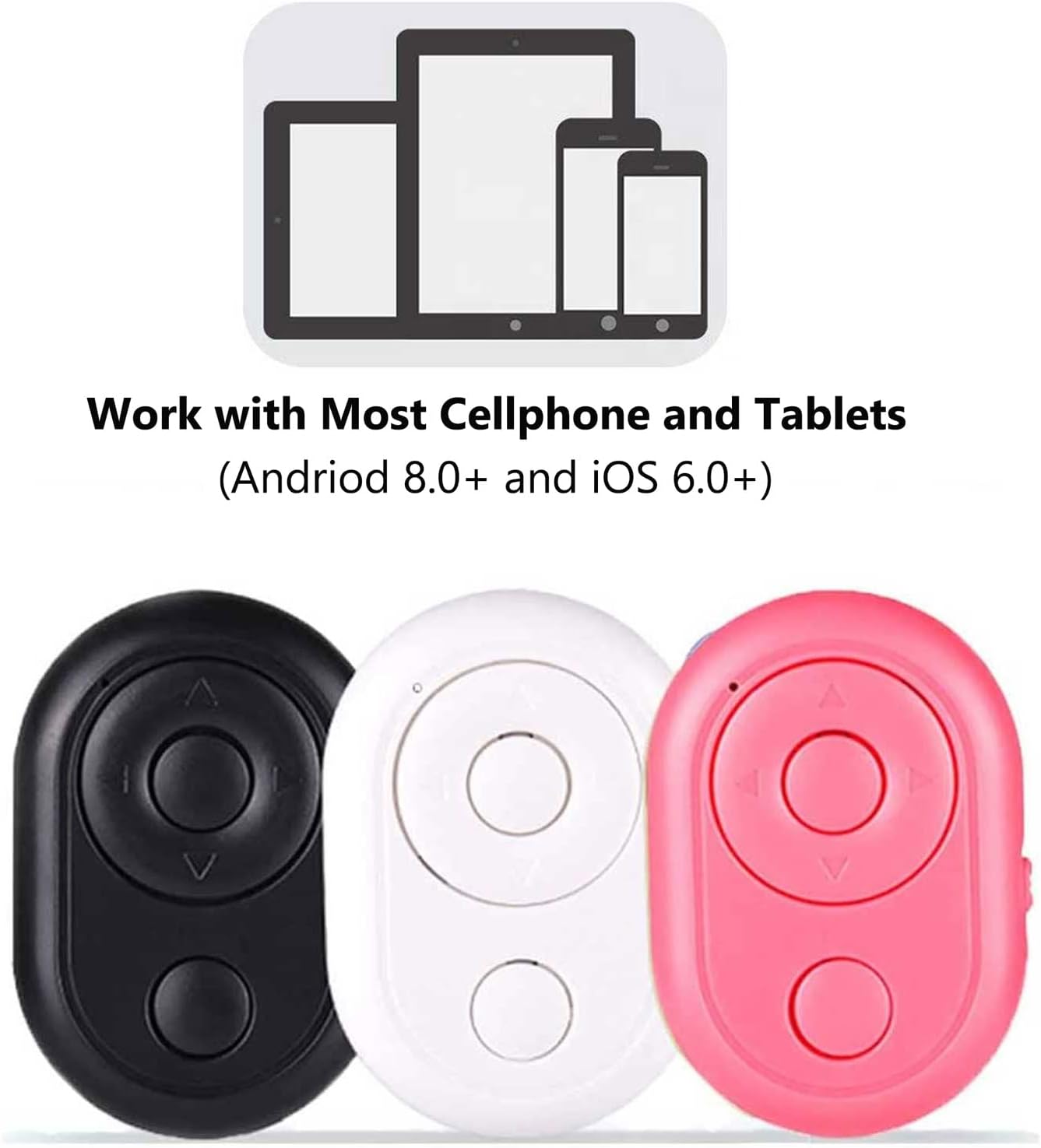
Image: An illustration showing various mobile devices (smartphone, small tablet, large tablet) indicating compatibility with the remote control.
Setup
1. Battery Installation
The remote comes with a CR2032 battery pre-installed. If you need to replace it, gently open the battery compartment on the side or back of the device and insert a new CR2032 battery, ensuring correct polarity.

Image: A diagram of the remote's button layout, indicating the Function Button (Play/Pause), Left, Right, Up, Down, ON/OFF switch, and Shutter Button (Take Photo/Video). It also specifies the battery type as 1pcs CR2032.
2. Power On
Locate the ON/OFF switch on the side of the remote (as shown in the diagram above). Slide the switch to the "ON" position. The indicator light will blink, indicating it is ready for pairing.
3. Bluetooth Pairing
- Ensure the remote is powered on and the indicator light is blinking.
- On your smartphone or tablet, go to Settings > Bluetooth.
- Turn on Bluetooth if it is not already enabled.
- Look for "AB Shutter3" or a similar device name in the list of available devices.
- Tap on the device name to pair. The indicator light on the remote will stop blinking and remain solid once successfully paired.
4. Important Settings for iOS Devices (iPhone/iPad)
For optimal functionality on iOS devices, the following settings must be configured:
- Enable AssistiveTouch: Go to Settings > Accessibility > Touch > AssistiveTouch and turn it "On".
- Adjust Tracking Sensitivity: Within the same AssistiveTouch menu, adjust the TRACKING SENSITIVITY to 50%.
Operating Instructions
1. Page Turner Remote (for eBook Apps / Powerpoint)
This function is ideal for reading e-books or navigating slideshows hands-free.
- Open an eBook application (e.g., Kindle app, Nook app) or a slideshow presentation on your cellphone or tablet.
- Press the "Left" or "Right" button on the remote to turn pages forward or backward.
- Note: For some applications, you may need to use the "Up" or "Down" button to turn pages.

Image: A smartphone displaying an e-book, with the remote control held by a hand, illustrating its use as a page turner.
2. Remote for TikTok / YouTube Shorts
Control video playback and navigation in short-form video applications.
- Open the TikTok or YouTube Shorts application on your cellphone.
- Press the "Up" or "Down" button to scroll up or down through videos.
- Press the "Function Button" (the central circular button) to Play/Pause videos.
- Double-click the "Function Button" to "thumb up" or "like" the current video.

Image: A smartphone displaying a TikTok video, with the remote control held by a hand, demonstrating its use for scrolling and controlling videos.
3. Camera Remote
Capture photos or start/stop video recording remotely.
- Open the Camera application on your cellphone.
- Hold down the "Up" or "Down" button for approximately 3 seconds to take a photo or start/stop video recording.

Image: A smartphone on a tripod displaying the camera app, with the remote control held by a hand, indicating its function as a remote camera shutter.
4. Volume Control
Adjust your device's volume remotely.
- Hold down the "Up" button to increase volume.
- Hold down the "Down" button to decrease volume.
Maintenance
Battery Replacement
Replace the CR2032 battery when you observe the following:
- The remote cannot be turned on after multiple attempts.
- The remote turns on, but the Bluetooth connection frequently drops.
- The remote does not function normally or responds inconsistently.
To replace the battery, gently open the battery compartment (refer to the button layout image in the Setup section) and insert a new CR2032 battery, ensuring the positive (+) side faces upwards.
Troubleshooting
- Remote not turning on:
Ensure the ON/OFF switch is in the "ON" position. If it still doesn't turn on, the battery may be depleted. Replace the CR2032 battery.
- Bluetooth connection issues (frequent drops, unable to connect):
Check if the remote's battery needs replacement. Ensure the remote is within Bluetooth range of your device (typically 10 meters/33 feet). Try unpairing and re-pairing the device from your phone's Bluetooth settings. Restart both the remote and your phone/tablet.
- Remote not working with Kindle device:
This remote is designed to work with Kindle apps on cellphones/tablets, not directly with Kindle e-reader devices.
- Functions not working on iPhone/iPad:
Ensure AssistiveTouch is enabled and Tracking Sensitivity is set to 50% in your iOS Accessibility settings (Settings > Accessibility > Touch > AssistiveTouch).
- Page turning not working as expected:
Some apps may require using the "Up"/"Down" buttons instead of "Left"/"Right" for page turning. Experiment with different directional buttons for your specific application.
Warranty and Support
For warranty information and customer support, please refer to the product packaging or contact the seller directly through the platform where you purchased the device. Keep your proof of purchase for any warranty claims.
Ask a question about this manual
Ask about setup, troubleshooting, compatibility, parts, safety, or missing instructions. Manuals+ will review the question and use this page’s manual context to help answer it.