
Minolta Bizhub C250i
Konica Minolta Bizhub C250i User Manual
Model: Bizhub C250i | Brand: Minolta
1. Introduction
This manual provides detailed instructions for the setup, operation, maintenance, and troubleshooting of your Konica Minolta Bizhub C250i multifunction printer. The Bizhub C250i is a versatile office device designed to handle a wide range of document tasks, including printing, copying, and scanning.
Key features of the Bizhub C250i include:
- A5 to 12 X 18 inch Printing Size
- Banner Print Up to 12 X 47 inch
- 52 GSM to 300 GSM Paper Support
- 10.1 inch Touch Panel for intuitive control
- 256 GB SSD & 8 GB RAM for efficient processing

Figure 1.1: Front view of the Konica Minolta Bizhub C250i.
2. Product Overview
The Bizhub C250i is designed for ease of use and high performance. Familiarize yourself with the main components of the device.

Figure 2.1: Angled front view, showing the paper trays and control panel.

Figure 2.2: Side view highlighting the document feeder and output tray.

Figure 2.3: Top view, illustrating the automatic document feeder (ADF) and the 10.1-inch touch panel.
3. Setup
3.1 Unpacking and Placement
Carefully unpack the Bizhub C250i from its packaging. Ensure all packing materials are removed. The package includes the machine, toner cartridges, and an original cover. Place the printer on a stable, level surface with adequate space for ventilation and access to all trays and covers. Consider the dimensions: 75 x 67 x 108 Centimeters (LxWxH) and weight: 80 kg.
3.2 Power Connection
Connect the power cord securely to the printer and then to a grounded electrical outlet. Do not use extension cords or power strips that are not rated for the printer's power requirements.
3.3 Toner Installation
Install the included toner cartridges according to the instructions provided on the cartridges or within the printer's internal guides. Ensure each cartridge is securely seated.
3.4 Network Connectivity
The Bizhub C250i is network-ready and supports Ethernet connectivity. Connect an Ethernet cable from the printer's LAN port to your network router or switch. Configure network settings via the touch panel as required by your network environment.
4. Operation
4.1 User Interface and Control Panel
The Bizhub C250i features a 10.1-inch touchpad control panel, designed for intuitive operation. The panel offers an easy-to-use graphical user interface (GUI) with clear icons and customizable layouts.
- Switchable GUI: Choose between two panel styles to suit your preference.
- Panel Vibration Assist: The panel provides haptic feedback for button presses, enhancing usability.
- Adjustable Tilt: The operation panel can be tilted to a maximum 90° for improved viewing angles.
- Indicator Lights: LED lights on the panel provide status updates, such as receiving data or document completion.

Figure 4.1: Overview of the intuitive control panel and related features.
4.2 Printing Functions
The Bizhub C250i supports a wide range of printing capabilities for various document needs.
- Paper Sizes: Supports A5 to 12 x 18 inch printing, and banner prints up to 12 x 47 inches.
- Paper Weight: Handles paper from 52 GSM to 300 GSM.
- Enhanced Resolution: Achieves 1,200 dpi resolution for sharp, high-quality prints.
- Paper Feed Options: Multiple paper trays and a bypass tray accommodate various paper types and sizes.
- Multifunctional Finisher: Supports stapling, punching, and other finishing options (optional accessories may be required).
4.3 Scanning Functions
The integrated flatbed scanner and automatic document feeder (ADF) provide efficient scanning capabilities.
- Outstanding Scan Performance: The ADF can scan up to 100 sheets per minute.
- Double Feed Detection: Sensors detect and prevent double feeding of documents.
- Scan to URL: Directly save scanned documents to a specified URL.
- Email RX Print: Print documents received via email directly.
- Output Formats: Supports JPEG, TIFF, PDF, XPS, and OOXML.
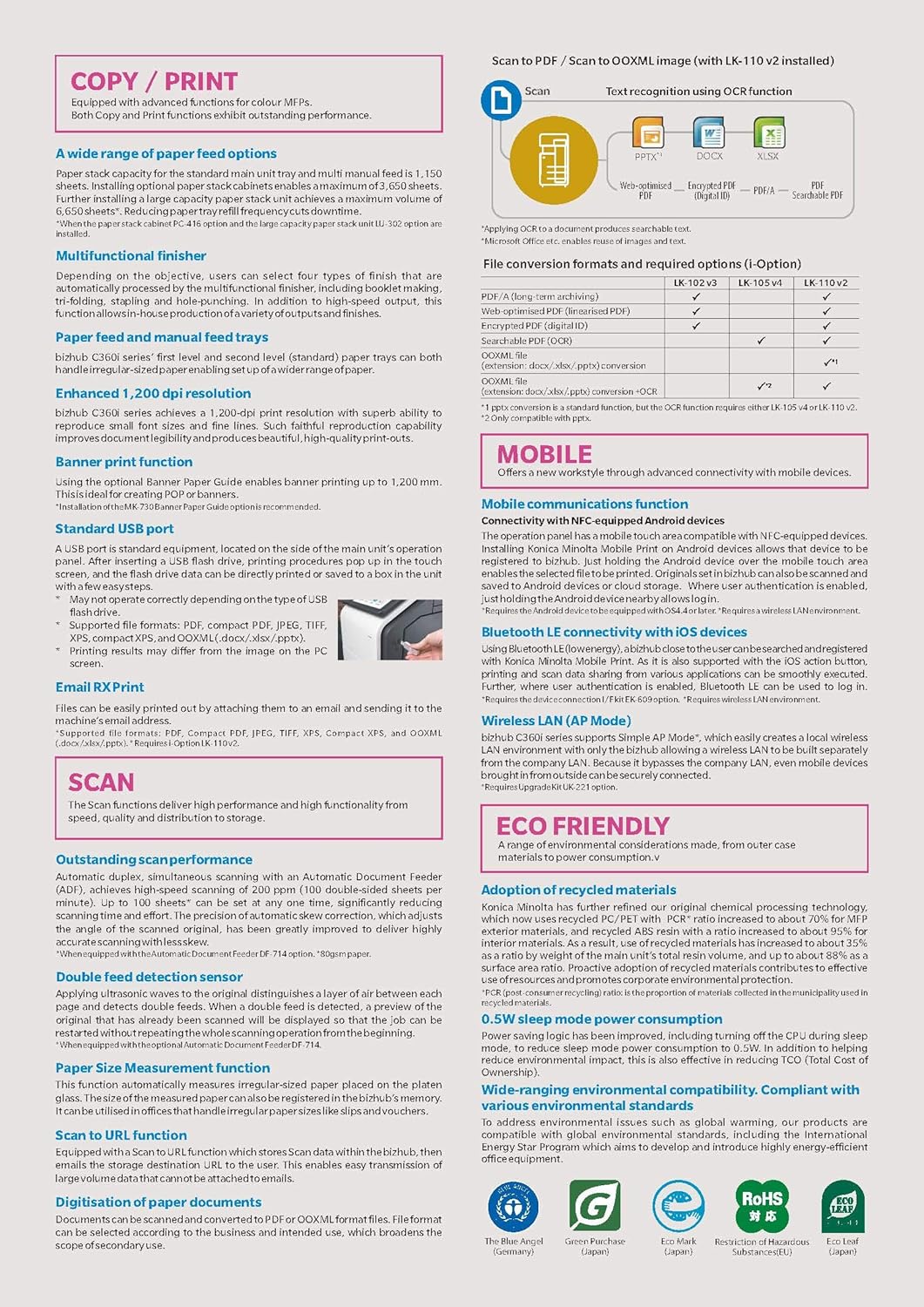
Figure 4.2: Detailed features for Copy, Print, and Scan operations.
4.4 Connectivity and Security
The Bizhub C250i offers robust connectivity and security features to integrate seamlessly into your office environment.
- Mobile Communications: Connect via NFC (Android) or Bluetooth LE (iOS) for printing from mobile devices.
- Standard USB Port: Print directly from or scan to a USB flash drive.
- Encrypted SSD: The 256 GB SSD is encrypted for data security.
- Secure Printing: Documents can be held until released with a password or authentication.
- User Authentication: Supports various methods including non-contact IC card, biometric authentication, and single sign-on (SSO).
- Virus Scanning: Integrated antivirus software protects against malware.
5. Maintenance
5.1 Toner Replacement
The Bizhub C250i uses high-yield toner cartridges. When a toner cartridge is low or empty, a message will appear on the control panel. Follow the on-screen instructions to replace the toner. Ensure you use genuine Konica Minolta toner for optimal performance and print quality.
5.2 Cleaning
Regular cleaning helps maintain print quality and extends the life of your printer. Use a soft, lint-free cloth to wipe down the exterior of the machine. For the scanner glass, use a glass cleaner applied to the cloth (not directly to the glass) to remove smudges and dust.
5.3 Firmware Updates
Periodically check the Konica Minolta website for firmware updates. Keeping your printer's firmware up-to-date ensures you have the latest features, security patches, and performance improvements.
6. Troubleshooting
This section provides solutions to common issues you might encounter with your Bizhub C250i. For more complex problems, refer to the Konica Minolta support website or contact customer service.
6.1 Paper Jams
- Symptom: Paper is stuck in the printer, and an error message appears.
- Solution: Open the indicated covers and carefully remove any jammed paper. Ensure no small pieces of paper remain. Close all covers securely.
6.2 Poor Print Quality
- Symptom: Prints are faded, streaky, or have incorrect colors.
- Solution: Check toner levels and replace any low cartridges. Perform a print head cleaning or calibration from the control panel settings. Ensure you are using appropriate paper for your print job.
6.3 Network Connection Issues
- Symptom: Printer is not accessible from the network.
- Solution: Verify the Ethernet cable is securely connected. Check network settings on the printer's control panel to ensure it has a valid IP address. Restart the printer and your network router.
7. Specifications
Detailed technical specifications for the Konica Minolta Bizhub C250i.

Figure 7.1: Comprehensive technical specifications.
| Feature | Specification |
|---|---|
| Model Name | Bizhub C250i |
| Brand | Minolta |
| Manufacturer | Konica |
| Printing Technology | Laser |
| Printer Output | Colour |
| Max Print Speed (Colour) | 25 ppm |
| Max Print Speed (Monochrome) | 25 ppm |
| Max Copy Speed (Black and White) | 25 ppm |
| Maximum Black and White Print Resolution | 25PPM |
| Scanner Type | Flatbed |
| Controller Type | Touchpad Control |
| Printer Media Size Maximum | 12x47 inch (Banner) |
| Sheet Size | SRA3 (12X18) Inches |
| Paper Support GSM | 52 GSM to 300 GSM |
| Connectivity Technology | Ethernet |
| Special Feature | Network-Ready |
| Compatible Devices | PC |
| Item Weight | 80 kg |
| Item Dimensions LxWxH | 75 x 67 x 108 Centimeters |
| Included Components | Machine, Toner, Original Cover |
| Date First Available | 3 December 2019 |
8. Optional Accessories
The Bizhub C250i can be enhanced with various optional accessories to expand its functionality and meet specific office needs. These include:
- DADF (Duplex Automatic Document Feeder)
- Trolley
- Working Desk
- Extra Trays for increased paper capacity
- Finisher options for stapling, punching, etc.
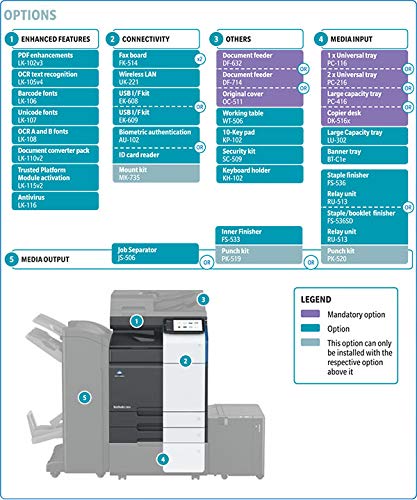
Figure 8.1: Overview of available optional accessories and features.
9. Warranty and Support
9.1 Warranty Information
The Konica Minolta Bizhub C250i comes with a warranty of 6 Months or 50,000 A4 Prints, whichever occurs earlier. Please retain your purchase receipt for warranty claims.
9.2 Customer Support
For technical assistance, service requests, or further inquiries, please contact Konica Minolta Business Solutions India Pvt. Ltd. at the following details:
- Address: Building No: 8, Tower C, 10th Floor, DLF Cyber City, Phase 2, Gurugram, Haryana 122002, India
- Board No.: +91-124-6652009
- Website: www.konicaminolta.in
You can also find additional resources and FAQs on the official Konica Minolta website.