
1. Introduction and Overview
Thank you for choosing the MUSTAR 61 Key Keyboard Piano. This manual provides essential information for setting up, operating, and maintaining your instrument. Please read it thoroughly before use to ensure optimal performance and longevity.
Key Features:
- 61 Touch-Sensitive Keys: Experience dynamic play with keys that respond to your touch, allowing for louder or softer tones.
- Comprehensive Kit: Includes the 61-key piano keyboard, adjustable piano stand, headphones, microphone, and power adapter.
- Learning Modes: Features built-in metronome and three teaching modes (One Key, Follow, Ensemble) to assist beginners.
- Extensive Sound Library: Explore 200 rhythms and 200 tones, along with 10 demo songs, for diverse musical expression.
- Multiple Connectivity Options: Supports U disk, USB MIDI, external audio input, microphone, and headphones.
- Clear LCD Display: A large LCD screen provides clear feedback on functions and keys in use.
- Portable Design: Lightweight construction makes it suitable for both indoor and outdoor use.
2. Setup Instructions
2.1 Unpacking and Component Check
Carefully remove all components from the packaging. Ensure all items listed below are present:
- 1 x MUSTAR 61 Key Keyboard Piano
- 1 x Adjustable Piano Stand
- 1 x Headphones
- 1 x Microphone
- 1 x Music Rest
- 1 x Power Adapter

Image: All components included in the MUSTAR 61 Key Keyboard Piano kit, laid out on a surface. This includes the keyboard, stand, headphones, microphone, music rest, and power adapter.
2.2 Assembling the Piano Stand
- Unfold the X-style piano stand.
- Adjust the stand to your desired height by loosening the central knob, setting the height, and then securely tightening the knob. The stand is adjustable from 12.6 to 38.2 inches.
- Place the keyboard securely on the stand. Ensure the keyboard is stable and does not wobble.

Image: A black X-style piano stand, illustrating its adjustable height mechanism.
2.3 Connecting Power and Accessories
Locate the connection ports on the rear of the keyboard:
- Power: Connect the power adapter to the DC 9V port and plug it into a standard electrical outlet.
- Headphones: Plug the headphones into the 'PHONES/OUTPUT' jack for private practice.
- Microphone: Connect the microphone to the 'MIC' input for vocal accompaniment.
- USB/MIDI: Use the 'USB/MIDI' port for connecting to a computer or other MIDI devices.
- Audio Input: Connect external audio sources to the 'AUDIO INPUT' jack.

Image: A close-up of the rear panel of the keyboard, showing the various input and output ports including USB, Audio Input, Mic, Phones/Output, and DC 9V power.
3. Operating Instructions
3.1 Power On/Off and Volume Control
- Press the POWER button to turn the keyboard on or off.
- Adjust the master volume using the MASTER VOL +/- buttons or rotary knob.
- The keyboard features two built-in stereo speakers for rich sound.
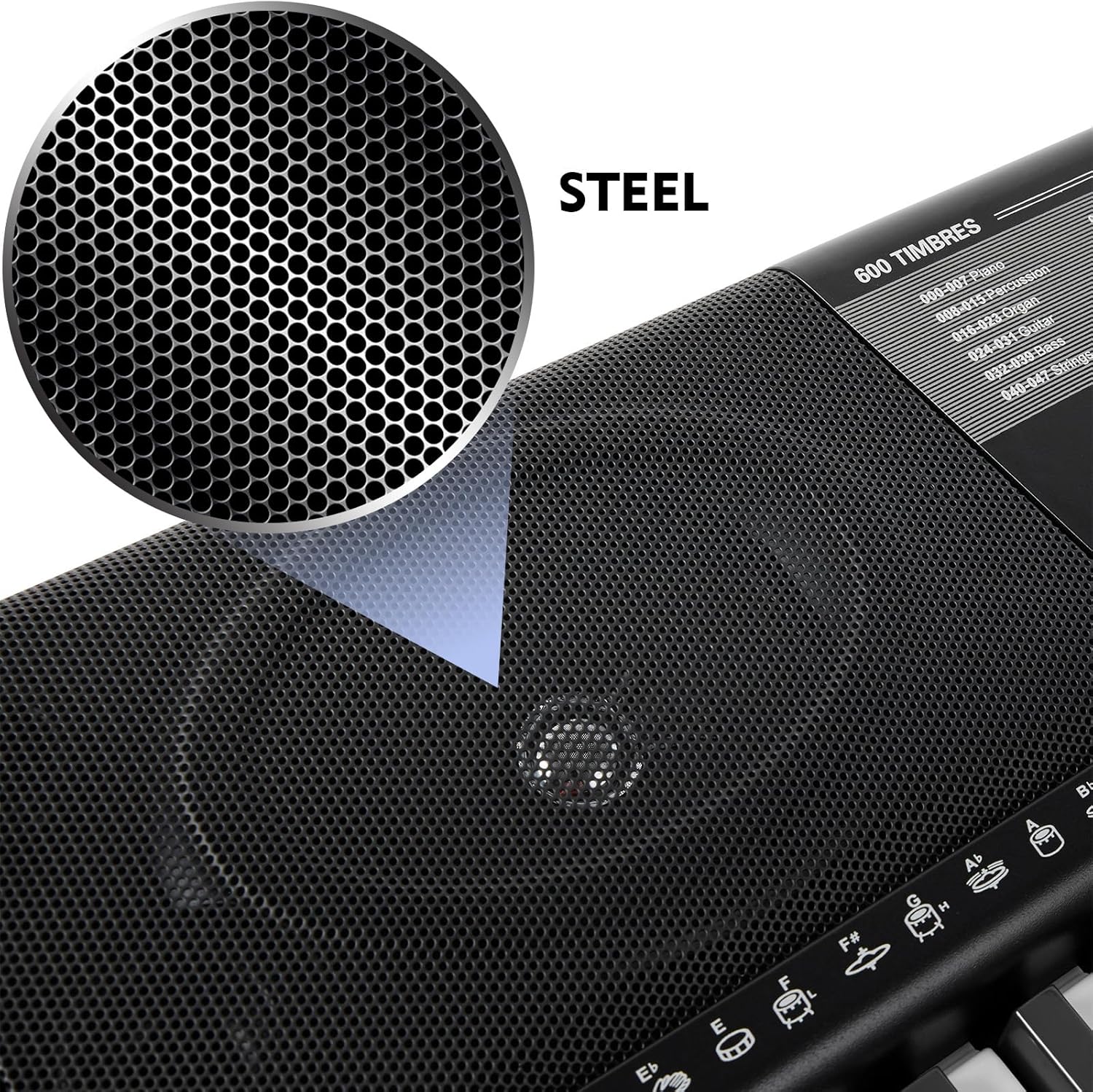
Image: A detailed view of the keyboard's speaker grill, highlighting the metal construction for durability and sound quality.
3.2 Selecting Tones and Rhythms
- Use the TIMBRE and RHYTHM buttons to browse through the 200 available tones and rhythms.
- The LCD screen will display the selected number. Refer to the printed list on the keyboard for corresponding instrument names and rhythm styles.
3.3 Learning Modes
The keyboard offers three interactive learning modes:
- One Key Mode: Play any key to advance the melody.
- Follow Mode: The keyboard waits for you to play the correct note before proceeding.
- Ensemble Mode: Play along with the melody, filling in the missing notes.
3.4 Recording and Playback
- Press the REC button to start recording your performance.
- Press the PLAY button to listen to your recorded melody.
3.5 Advanced Functions
- Keyboard Split: Divide the keyboard into two sections, each with a different tone.
- Dual Tone: Combine two voices simultaneously, such as piano and drum.
- Effects: Apply vibrato, sustain, and ensemble effects to enhance your sound.
- USB Music Appreciation: Utilize the USB port to play MP3 files or connect to a computer for MIDI functions.
Video: A demonstration of the MUSTAR 61 Key Keyboard Piano's features, including touch-sensitive keys, various tones, rhythms, and connectivity options.
4. Maintenance
Proper care ensures the longevity and performance of your keyboard.
- Cleaning: Use a soft, dry cloth to wipe the surface of the keyboard. Avoid abrasive cleaners or solvents.
- Storage: Store the keyboard in a cool, dry place away from direct sunlight, extreme temperatures, and humidity.
- Handling: Always handle the keyboard with care. Avoid dropping it or placing heavy objects on it.
- Power: Disconnect the power adapter when the keyboard is not in use for extended periods.
5. Troubleshooting
If you encounter any issues, please refer to the following common solutions:
- No Sound: Check if the power is on, volume is up, and headphones are properly connected (if in use). Ensure external speakers are connected correctly if not using built-in speakers.
- Keys Not Responding: Verify the power connection. If specific keys are unresponsive, contact customer support.
- Distorted Sound: Check volume levels to prevent clipping. Ensure all cables are securely connected.
- Display Issues: If the LCD is not functioning correctly, try restarting the keyboard.
For persistent issues, please contact MUSTAR customer support.
6. Specifications
| Feature | Detail |
|---|---|
| Brand | MUSTAR |
| Model Number | MEK-1100 |
| Number of Keys | 61 |
| Key Type | Touch-Sensitive |
| Color | Black |
| Skill Level | Beginner |
| Special Features | Built-In Speaker, Lightweight, Multiple Voices, Portable, Touch-Sensitive Keys |
| Connector Type | USB |
| Connectivity Technology | USB |
| Power Source | Corded Electric |
| Headphones Jack | 3.5mm Jack |
| Item Weight | 18 Pounds |
| Item Dimensions (D x W x H) | 36.6" x 12" x 38.2" |
| UPC | 711347721434 |
7. Warranty and Support
7.1 Warranty Information
This product comes with a manufacturer warranty for 90 days from the date of purchase. Please retain your proof of purchase for warranty claims.
7.2 Customer Support
For any questions, technical assistance, or warranty service, please contact MUSTAR customer support through your retailer or the official brand website.
