
Tonton D5109HN10-W
Tonton 4K 8MP Wireless Security Camera System NVR User Manual
Model: D5109HN10-W
1. Introduction
This manual provides comprehensive instructions for the setup, operation, and maintenance of your Tonton 4K 8MP Wireless Security Camera System NVR. This system is designed to provide reliable surveillance with advanced features such as 4K video support, 10-channel recording, and a pre-installed 2TB hard drive. Please read this manual thoroughly before using the product to ensure proper installation and functionality.
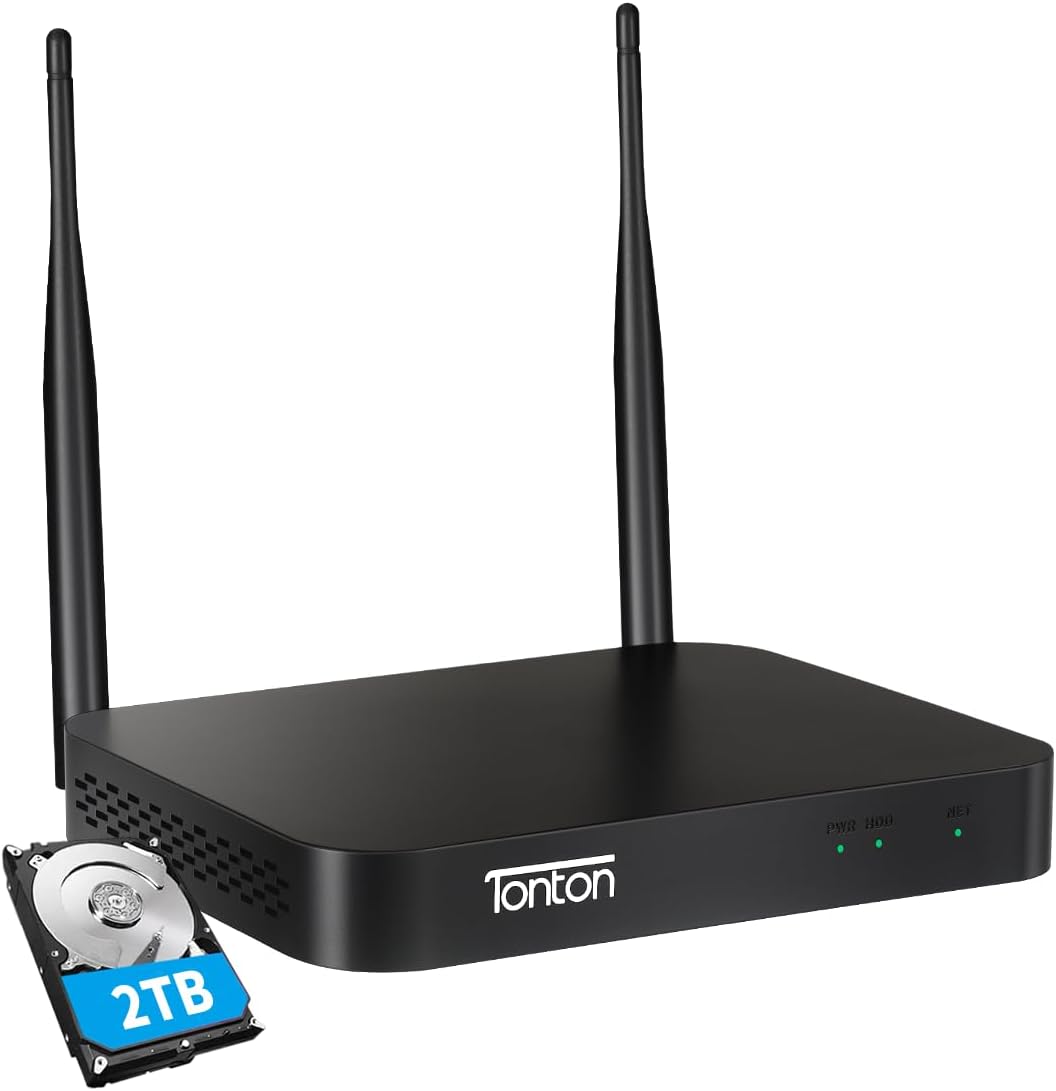
Image: Tonton 4K 8MP Wireless NVR with a 2TB hard drive, showcasing its compact design and dual antennas.
2. What's in the Box
Verify that all components are present in the package before proceeding with installation.
- 1 x 4K 10CH Mini NVR Recorder with 2TB HDD (Black)
- 1 x USB Mouse
- 1 x Power Supply for NVR
- 1 x Network Cable
- 1 x HDMI Cable
- 1 x Wall Sticker (Surveillance Warning)
- 1 x User Manual (Quick Start Guide)

Image: Diagram illustrating all items included in the Tonton NVR package, such as the NVR unit, mouse, power supply, cables, and documentation.
3. Product Overview
3.1 NVR Front and Rear Panels
Familiarize yourself with the ports and indicators on the NVR unit.
Image: Detailed view of the Tonton NVR's rear panel, showing ports for Power DC 12V 2A, USB Mouse & Backup, Monitor/TV (HDMI), LAN Router, Reset Key, Micro SD Card Slot, and Built-in 2.5" HDD.
| Port/Indicator | Description |
|---|---|
| Power DC 12V 2A | Connects to the power adapter for NVR operation. |
| USB Mouse & Backup | For connecting the USB mouse or external storage for data backup. |
| Monitor/TV (HDMI) | Connects to a monitor or TV for video output. |
| LAN Router | Connects to your network router for internet access and remote viewing. |
| Reset Key | Used to reset the NVR to factory settings. |
| Micro SD Card Slot | For additional local storage using a Micro SD card (optional). |
| Built-in 2.5" HDD | Internal bay for the pre-installed 2TB hard drive. Supports up to 6TB. |
| PWR/HDD LED | Power and Hard Drive activity indicator. |
| NET LED | Network connection status indicator. |
4. Setup Guide
4.1 Initial Setup and Connection
- Power On and Connect to Router: Connect the NVR to its power supply and plug it into an electrical outlet. Connect the NVR to your internet router using the provided network cable. Ensure both the NVR and your IP cameras (if applicable) are connected to the same router for initial setup.
- Monitor Connection: Connect the NVR to a monitor or TV using the HDMI cable to view the system interface.
- Mouse Connection: Connect the USB mouse to the NVR's USB port for navigation.

Image: Step-by-step visual guide showing the NVR powered on and connected to a router, followed by instructions to download the EseeCloud app and view live footage.
4.2 Camera Pairing (Auto Pair, Plug-and-Play)
The Tonton NVR system is designed for easy plug-and-play setup with compatible Tonton wireless cameras. No complex configurations are typically required.
- Ensure your Tonton wireless cameras are powered on and within range of the NVR.
- The NVR will automatically search for and add compatible IP cameras on the same network.
- For non-Tonton IP cameras, ensure they support the Onvif protocol. You can manually search and add them through the NVR's interface.

Image: Illustration demonstrating the automatic pairing process between a Tonton wireless camera and the NVR, highlighting the simplicity of the plug-and-play setup.

Image: Diagram showing the effective wireless range of the NVR system within a house, indicating up to 350ft with obstacles and up to 1000ft in open space. The NVR supports up to 10 cameras.
4.3 Mobile App Setup (EseeCloud)
For remote viewing and control, download the EseeCloud app.
- Download the "EseeCloud" app from the App Store (iOS) or Google Play Store (Android).
- Register an account and log in.
- Add your NVR device by scanning the QR code on the NVR or manually entering its ID.
- Once added, you can view live feeds and manage settings remotely.

Image: Screenshot of the EseeCloud app on a smartphone, showing options for downloading from App Store or Google Play, and a QR code for direct download. This app enables remote access to your security system.
For PC/Mac software download, visit: http://www.dvr163.com/download/indexm.php
5. Operating Instructions
5.1 Video Recording and Compression (H.265+)
The NVR utilizes H.265+ video compression technology, which significantly reduces storage space and bandwidth consumption while maintaining high video quality.

Image: Comparison illustrating the benefits of H.265+ video compression over H.264, showing reduced storage space (25% vs 100%), bandwidth resources (50% vs 100%), and improved loading speed (100% vs 50%).
5.2 Motion Detection & Email Alerts
Configure the NVR to detect motion and send instant alerts to your mobile app or email.
- Access the motion detection settings via the NVR interface or mobile app.
- Define detection zones and sensitivity levels for each camera.
- Enable app push notifications and/or email alerts to receive immediate notifications upon motion detection.

Image: Scene depicting AI Human Intelligent Detection, where a person entering a defined area triggers an alert, resulting in an app push notification and email warning.

Image: Conceptual image representing "Smart Algorithms: Minimizing False Alarms" with an AI circuit board design, indicating advanced detection capabilities.
5.3 Real-Time Two-Way Audio
If your cameras support two-way audio, you can communicate through the EseeCloud app.
- Open the live view of a camera that supports two-way audio in the EseeCloud app.
- Tap the microphone icon to speak and the speaker icon to listen.

Image: A smartphone screen displaying the EseeCloud app interface for real-time two-way audio, showing a conversation between a user and a person at the door.
5.4 Smart Home Integration (Works With Alexa)
The Tonton system is compatible with Amazon Alexa, allowing for voice control of certain functions.
- Enable the Tonton skill in your Alexa app.
- Link your Tonton account.
- Use voice commands like "Alexa, show the living room" to view camera feeds on compatible Alexa devices.

Image: A person interacting with an Amazon Echo Show device, demonstrating how the Tonton security system integrates with Alexa for voice-controlled viewing of camera feeds.
6. Maintenance
- Regular Cleaning: Keep the NVR unit and camera lenses clean from dust and debris. Use a soft, dry cloth.
- Firmware Updates: Periodically check for firmware updates through the NVR interface or EseeCloud app to ensure optimal performance and security.
- Hard Drive Management: The 2TB hard drive provides ample storage. Ensure it is functioning correctly. The NVR supports up to 6TB if an upgrade is desired.
- Network Stability: Ensure your Wi-Fi network is stable and strong for consistent performance of wireless cameras and remote viewing.
- Data Backup: Regularly back up important video footage to an external USB drive if needed.
7. Troubleshooting
| Problem | Possible Cause / Solution |
|---|---|
| No video output on monitor. |
|
| Cameras not connecting to NVR. |
|
| Remote viewing not working. |
|
| Frequent false motion alerts. |
|
| Poor video quality or lag. |
|
8. Specifications
| Feature | Detail |
|---|---|
| Brand | Tonton |
| Model Number | D5109HN10-W |
| Connectivity Technology | Wireless |
| Video Capture Resolution | 4K (NVR supports 4K input/output) |
| Number of Channels | 10 |
| Memory Storage Capacity | 2 TB HDD Preinstalled (Supports up to 6 TB) |
| Special Features | Motion Sensor, Night Vision, Internet connection, AI Human Intelligent Detection, Two-way Audio (with compatible cameras), Works with Alexa |
| Power Source | Corded Electric |
| Item Dimensions (L x W x H) | 5.3 x 1 x 7.1 inches |
| Compatible Devices | Smartphones, Personal Computers, TV, Cameras, Laptops |
| Video Compression | H.265+ |
| Hardware Interface | USB, 802.11 b/g/n (Wireless) |
| Video Input | HDMI |
| UPC | 740385275548 |

Image: Diagram illustrating the NVR's capability to expand and support up to 10 cameras for comprehensive surveillance coverage.
9. Warranty and Support
Tonton provides dedicated customer support for its products.
- Warranty: The Tonton wireless surveillance camera system comes with a 1-Year warranty.
- Technical Support: Lifetime free technical support is available.
- Replacement Parts: Free brand-new parts are provided for replacement if needed.
- Contact Information:
- Email: sales@tontonsecurity.com
- Whatsapp: +86 137-2786-5870
- Response Time: Tonton aims to reply to inquiries within 10 hours.

Image: QR code for quick access to Tonton support, designed to be scanned with a smartphone.
Visit the Tonton Brand Store for more information: Tonton Brand Store
Ask a question about this manual
Ask about setup, troubleshooting, compatibility, parts, safety, or missing instructions. Manuals+ will review the question and use this page’s manual context to help answer it.